:li:/t is a modern Microsoft 365 “link indirection” prefix used for List Item–based sharing links, where the link does not directly expose a file or site path, but instead points to an internal resource ID that SharePoint resolves at runtime.
with :li:/t links, the “managed path” (/teams/ vs /sites/) can be completely absent from the URL, even when the underlying site is clearly under /teams/....
Why Shared Links Don’t Show /sites or /teams — and How to Get the Real Site URL? Covers why modern Microsoft 365 sharing links omit managed paths and how to use Microsoft Graph to identify the actual SharePoint site associated with a shared item.
Microsoft: “Using modern pages in Microsoft SharePoint is a great way to share ideas using images, Office files, video, and more. Users can Add a page to a site quickly and easily, and modern pages look great on any device. If you’re a global or SharePoint admin in Microsoft 365, you can allow or prevent users from creating modern pages. You can do this at the organization level by changing settings in the SharePoint admin center. If you allow the creation of site pages as the organization level, site owners can turn it on or off at the site level.“
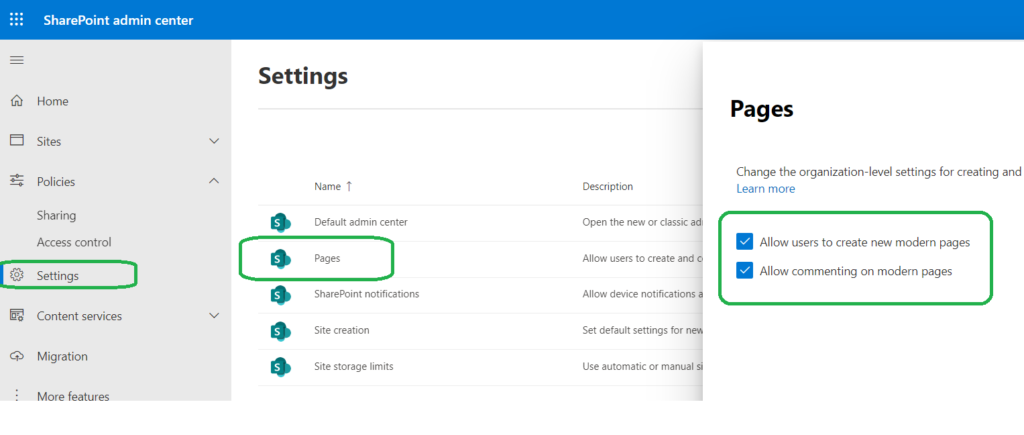
By default both – Allow users to create new modern pages – Allow commenting on modern pages are turned on (enabled)
Tenant or SharePoint admin can find settings under SharePoint Admin Center -> Settings -> Pages
How it looks like:
Site Pages are created under “Pages” Library.
Let us test it, with: – (tenant-level) Allow users to create new modern pages: ON – (tenant-level) Allow commenting on modern pages: ON – web feature “Site Pages” – “Allows users to add new site pages to a site”: Activated
User Permissions
can create Page
can edit page
can Enable/Disable page comments
can comment on Page
Full Control (Owner)
Yes
Yes
Yes
Yes
Edit (Member)
Yes
Yes
Yes
Yes
Read (Visitor)
No
No
No
Yes
There is a web feature “Site Pages” – “Allows users to add new site pages to a site”. The feature is activated by default:
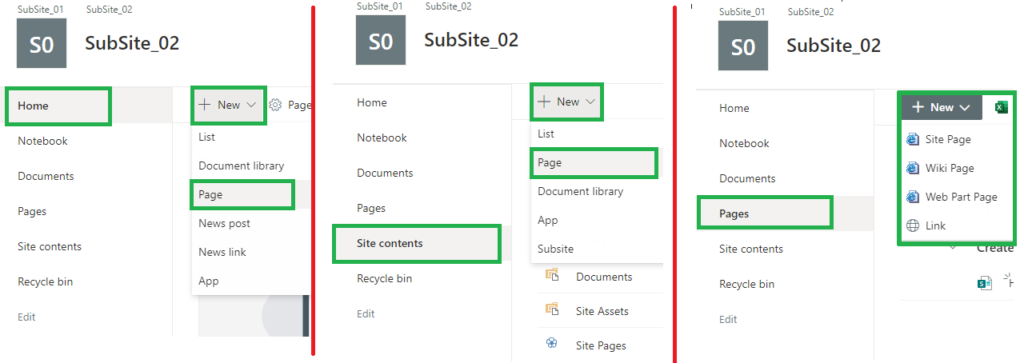
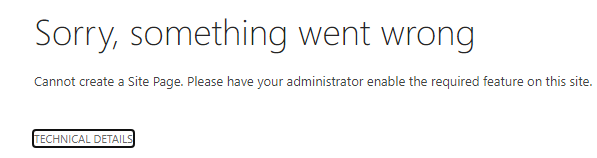
What if we disable this feature? “New -> Page” has disappeared from “New” menu under “Site Contents” for Owners and Members… From “Home” and “Pages” you still can see “New -> Page” options. You can still create a new page from but if you try to create a page from Pages – “Sorry, something went wrong” “Cannot create a Site Page. Please have your administrator enable the required feature on this site.” :
Office 365 behavior, with: – (tenant-level) Allow users to create new modern pages: ON – (tenant-level) Allow commenting on modern pages: ON – web feature “Site Pages” – “Allows users to add new site pages to a site”: Deactivated
User Permissions
can create Page
can edit page
can Enable/Disable page comments
can comment on Page
Full Control (Owner)
Yes, but only from “Home” not from “Site Contents” or “Pages”
Yes
Yes
Yes
Edit (Member)
Yes, but only from “Home” not from “Site Contents” or “Pages”
Yes
Yes
Yes
Read (Visitor)
No
No
No
Yes
If we disable feature “Site Pages” – “Allows users to add new site pages to a site” on the root web – it does not affect subsites (subwebs).
Can we Activate/Deactivate the feature “Site Pages” using PowerShell?
Microsoft: “You can also select to allow or prevent commenting on modern pages. If you allow commenting, it can be turned on or off at the page level“
By default both – Allow users to create new modern pages – Allow commenting on modern pages are turned on (enabled)
Tenant or SharePoint admin can find settings under SharePoint Admin Center -> Settings -> Pages
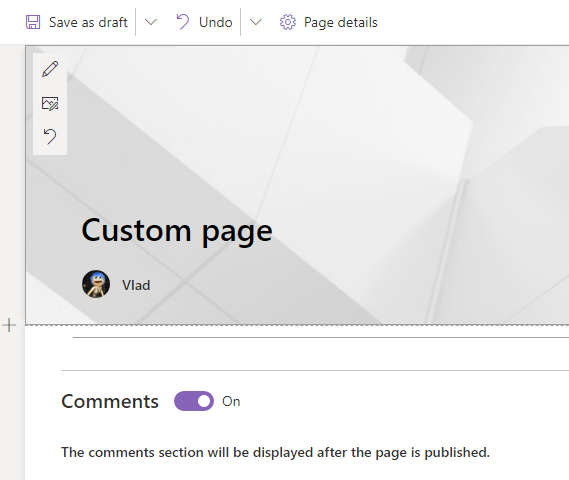
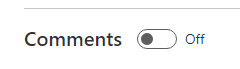
When you are creating a modern site page – there is an option “Comments” turned On by default:
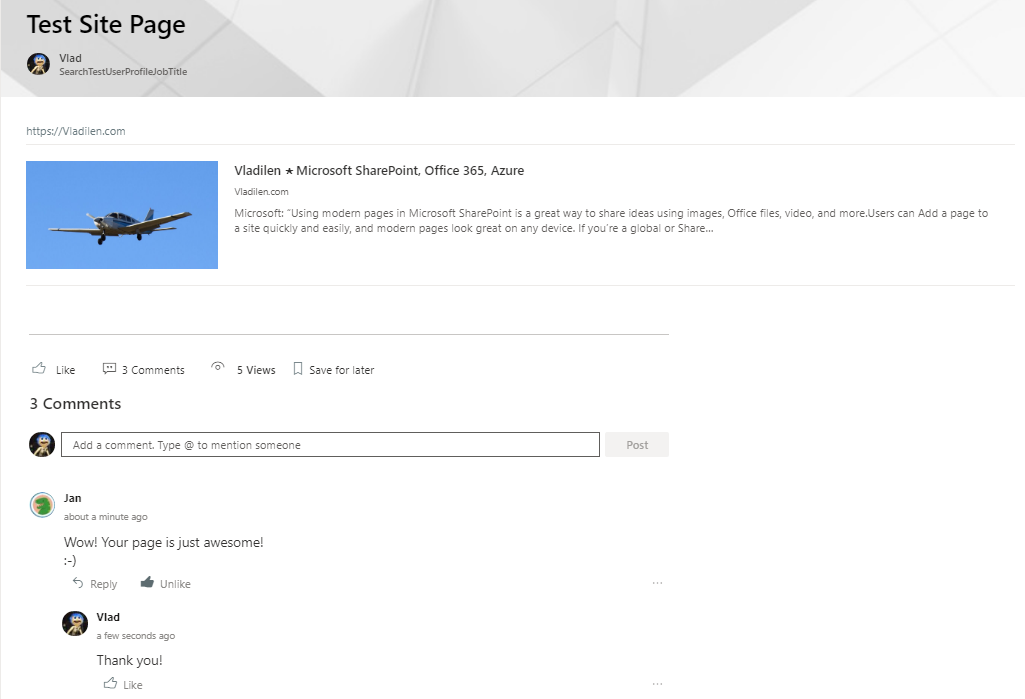
And page with comments looks like:
Comments on site pages (aka modern pages) can be enabled or disabled at each of the levels: – Tenant level – Site (aka site collection) level – Web (aka subsite ) level – Page level Here is how it is done:
Level
How it’s done
Who can do it
Tenant
GUI ( SharePoint Administration) or PowerShell
Global Administrator or SharePoint Administrator
Site (Site Collection)
PowerShell
Global Administrator or SharePoint Administrator
Web (Subsite)
PowerShell
Site Collection Administrator or Owner (Full Control rights to web)
Page
GUI (Page Editing screen)
Site Member (Edit right to page)
If commenting on modern pages disabled at higher level – lower level settings do not work. E.g. If you disable “Allow commenting on modern pages” at tenant level (it takes minutes) – the functionality will gone from all modern pages of all sites.
When you switch page comments Off – all existing comments will be hidden (but not deleted). If you later turn comments On – comments will reappear, including Likes.
If “Allow commenting on modern pages” disabled at tenant or web level – you will not see “Comments On/Off” switch while editing page. If “Allow commenting on modern pages” disabled at site collection level – you will see “Comments On/Off” switch while editing page, but you will not be able to turn it ON.
PowerShell
When you disable “Allow commenting on modern pages” at tenant level – PowerShell Object (site/web) property “CommentsOnSitePagesDisabled” will not be changed for any site/web. You can still with PowerShell set it to True/False: “Set-PnPWeb -CommentsOnSitePagesDisabled:$false” but it does not take any effect.
If you enable “Allow commenting on modern pages” at tenant level (it takes ~10 minutes) – the functionality will return to all modern pages and all webs and sites properties “CommentsOnSitePagesDisabled” will ???. You can change it with PowerShell: “Set-PnPWeb -CommentsOnSitePagesDisabled:$false”.
# having Site Collection Admin Permissions:
# disable Comments On Site Pages for a subsite:
$webName = "SubSite_02"
Set-PnPWeb -Web $webName -CommentsOnSitePagesDisabled:$true
# enable Comments On Site Pages for a subsite
# (only if comments enabled at tenant level):
Set-PnPWeb -Web $webName -CommentsOnSitePagesDisabled:$false


# having global admin or SharePoint admin permissions:
# site collection:
Set-PnPTenantSite -Url $siteUrl -CommentsOnSitePagesDisabled:$true
# tenant-level Comments:
Set-PnPTenant -CommentsOnSitePagesDisabled:$true # disable
 comments
Set-PnPTenant -CommentsOnSitePagesDisabled:$false # enable comments

# does not work:
Set-PnPSite -CommentsOnSitePagesDisabled:$true
How do I know if if the page is modern page or classic page (PowerShell)?
Note: We did not discuss “Wiki Pages” or “Web part Pages”, we discussed only “Modern Pages” (aka Site Pages). I have tested it all personally using Communication sites. MS-Team (group-based) and standalone SharePoint (no-group) sites – TBP.