Tag Archives: User Identity Mismatch Issue

A User Identity Mismatch issue occurs when a re‑used UPN attempts to access a SharePoint site. The site owner grants or approves access, but the user still sees an “You need permission to access this site” page. This happens because SharePoint fails to grant access to the new user, as it has already cached the old user’s object ID in the User Information List (UIL).

Is It Safe to Remove a User from a SharePoint UIL?

Actually, this article is more about “Is it safe to remove all deleted user accounts from all SharePoint sites UIL?”, as managing user lifecycle changes in Microsoft 365 goes far beyond deciding whether it’s safe to remove a single user from an individual SharePoint UIL. In large Microsoft 365 tenants, deleted or inactive accounts – sometimes called orphaned identities – can create clutter and confusion in permissions and UI elements affecting governance clarity, audit readiness. This KBA explains the broader tenant‑scale implications of cleaning up deleted user accounts across all SharePoint sites.

My immediate motivation was researching the ‘User ID Mismatch’ issue in SharePoint and figuring out how to address it proactively across the tenant. Why a dedicated KBA? Because, In isolated cases, it’s generally considered safe to remove a single user from a single SharePoint UI location after their Entra ID account has been disabled or deleted. However, there is no official guidance recommending a tenant‑wide cleanup of all UI entries for disabled or deleted accounts. In fact, when asked why such cleanup might be needed, Copilot typically responds that performing it tenant‑wide is not considered safe.

One of the reasons Copilot says it is not safe is
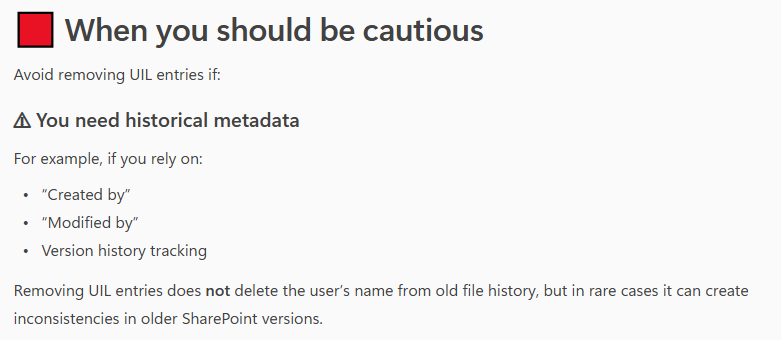
“Avoid removing UIL entries if you need historical metadata
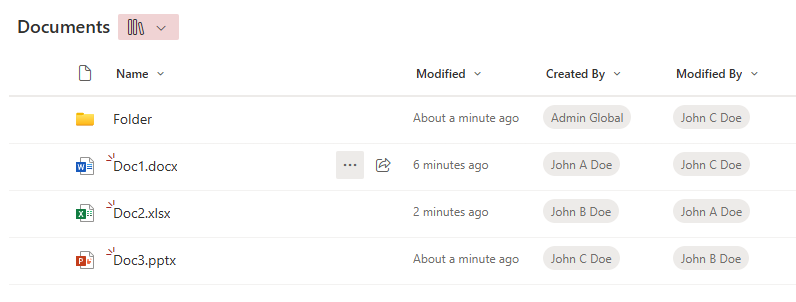
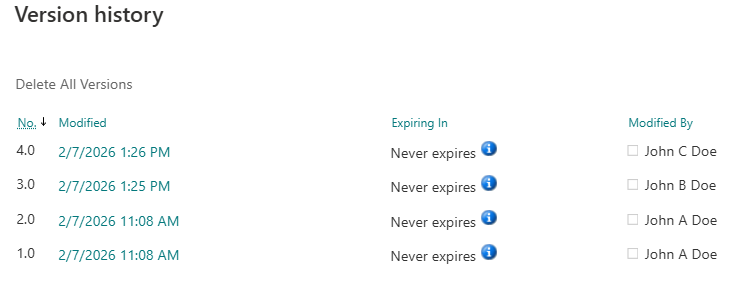
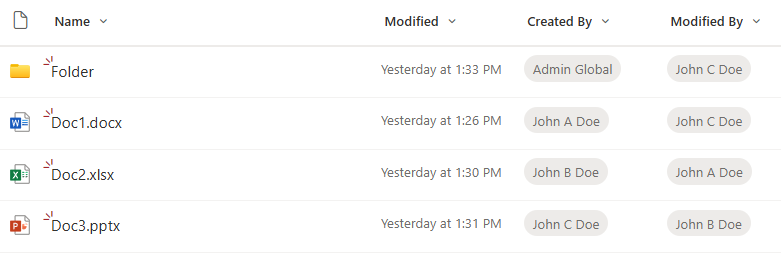
For example, if you rely on “Created by” or “Modified by” or Version history tracking”

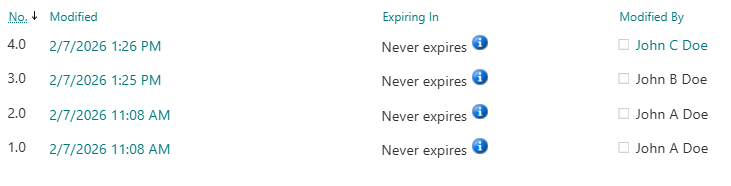
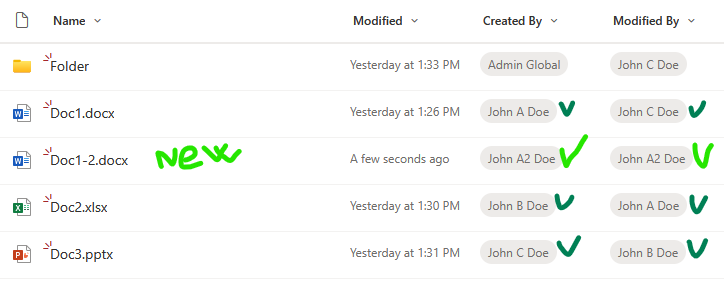
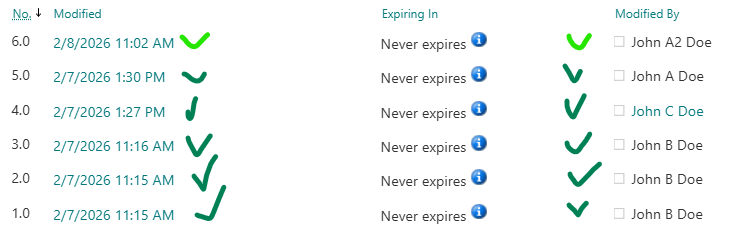
In my personal experience, removing a user from the UIL does not affect item edit history — the removed user still appears correctly. Moreover, when a new user with the same UPN/email but a different display name is added to a site and begins working on the same document, SharePoint handles this correctly. But let’s test it to confirm or refute this.

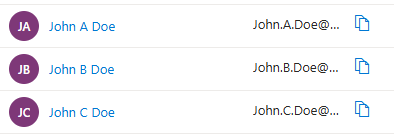
I have created 3 new accounts in tenant:

Preventing SharePoint User ID Mismatch: a Tenant‑Wide Approach

There is a known problem in Microsoft 365 SharePoint called “User ID Mismatch”. It happens if a user account is deleted from the Entra Id directory, and then a new account is created with the same UPN (e.g. rehired person or a person with a popular name like John Smith). Symptoms are: a user is provided with the access to the resource, but still cannot open it and gets “Access denied” error.

The reason behind it is that SharePoint stores users data in it’s own database (accessible via hidden system list called User Information List – UIL). Properties include display name, title, UPN, and (!) AD SID and Entra Id user object id. So when a re-used UPN tries to access the SharePoint site – Microsoft 365 compares Ids and declines access. So access needs to be re-provided. And this is where the actual issue appears.

If the site was accessed by the “old” user in the past, site UIL contains information about that “old” user. When the site owner shares the site with the “new” user – Microsoft does dot update the UIL with the new user ids. Microsoft 365 behave “normally”, no error messages are displayed. So for the user and for the site owner it looks like access was provided, but in fact it’s not.

Existing fix

Microsoft knows about the issue. But instead of fixing the root cause – Microsoft recommends removing the old user from the UIL. Obviously this fix is a) reactive, b) for one specific user and c) for one specific site. In my previous article – Fixing SharePoint User ID Mismatch Issue – I explained the issue in details, outlined 3 options to fix the issue, including PowerShell script.

But the User ID Mismatch issue does not come for a one site and one user. Usually it impacts many sites, and the older your tenant is – the more reused UPNs you get. The bigger the tenant – the bigger the problem.

Moreover, the issue is tricky to recognize. From the user perspective it looks like “normal” permissions issue – so it takes some time for user and site admin to realize that something is wrong and reach support. So can we do it proactively? I mean, can we not only fix the issue for all impacted sites after the user hit the issue, but prevent the issue to appear?

Let us try to go deeper into the issue and find some more consistent solutions.

Fix the issue “everywhere” at once thoughts

Define terms

  • Reactive – once we got a “user id mismatch” ticket – we can fix the issue for a site we got ticket for, and then try to find all sites with the user id mismatch issue for the same user
  • Proactive – we’d fix the issue before the user hit Access Denied error due to User Id Mismatch issue. For this we need somehow

Fix all sites for one specific user reactively

Again, the issue is scoped with a specific site (site collection). The mentioned PowerShell-based solution and all Microsoft’s fixes are designed for one specific site, but in real life what is happening is the “old id user” had access to many sites, and “new id user” has access to many sites, so after a several “access denied” issues a user might be confused and ask SharePoint admins to fix the issue “everywhere”. We should not bother users with “please provide us list of site Url you are having issues with”… or saying to user “please create a new ticket when you hit the same issue again” also does not sound nice.

So how do we fix the User Id Mismatch Issue on all sites for a specific user (reactively)?
At first, the solution looks simple: we need to check all sites old user had access to and remove UPN from UIL. Well… yes… But how do we get a list of sites the old user present in the UIL?

So far – I’m not seeing a good solution.

Option 1: Brute force – scan all sites.

  • Get list of all tenant sites
  • For every site – check if the user is in the UIL
  • If yes – check if this is a User Id Mismatch case
  • If yes – remove the user from UIL

This option is comprehensive, i.e. it should fix the issue for all sites, so in case of reused UPN we should not have issues for any tenant site for the same user. But this is a really “heavy” solution and can work well for small tenants only. I do not think this option is feasible for medium or large tenants.

Option 2: Access report.

There are 3-rd party tools (I’m not aware if there is a built-in m365 tool for that) you can use to get report on all SharePoint resources user have access in tenant. So you’d export the list, select unique sites Urls and scan these sites. Possible issues – usually we no not know how the 3-rd party tool builds this report (if the UPN or object Id is used), would it be “old” user access report or “new” user access report?

Option 3: membership

We can use MS Graph “membership” and “people” API to get list of sites around. We can get our user membership – m365 groups and related sites. People API would return users related to our client – a collection of person objects based on their relevance to the user, which is determined by the user’s communication and collaboration patterns, and business relationships. We can get these people OD sites, we can get their groups memberships and sites. We can do the same for people related to people. NB: I know, this option would give us sites related to a new user, not old user.

Add-on to Option 3: common sites.
With Option 3 we’d get group-based and OD sites. How about standalone sites? Also there might be public teams…
Usually in any tenant number of group-based sites (teams sites) are much bigger than non-group-based sites. So we can simply scan all standalone sites. But, again, in large tenants this might not be a feasible option. But we can get list of “open” standalone sites and public teams and Yammer communities (i.e. “common sites” usually accessed by everyone in tenant). Additionally, over the time we can get “most popular impacted sites” form the fixing history to update our list of common sites.

Option 5: audit log

Reactively, we can use audit log to get AccessDenied sites for a new user

  • Get audit log and filter it by user and select only “AccessDenied” pages
  • Make a unique list of accessed sites
  • For every site – check if this is a User Id Mismatch case
  • If yes – remove the user id from site’s UIL

What I do not like here is getting audit log is a slow operation, and still re-active. I use it when I cannot reach impacted user and I need to know list of sites user already having issues with.

Practice

My personal experience.
Option 1. In my simple tests – it takes ~1 hour to scan ~500 sites (keep in mind, we need to scan all sites, including personals/OneDrive).
Options 2 and 3 helps, as allows to cover majority of impacted sites our re-used UPN user might have issues with. But we cannot guarantee we fixed all sites for the specific user.

Fix all sites for all users proactively

Obviously, for proactive solution, we need to start from Identity Management. Below are just thoughts so far…

No re-used UPNs.
Providing a unique UPN each time we create a user might help.

Know re-used UPN.
If we knew every reused UPN at the moment of account creation (an employee onboarding) – we could proactively apply Options 1,2,3 from our reactive approach.

Total clean-up
In theory – we could use our reactive Options 1, 2, 3 and 5 at the moment of the employee off-boarding to find all sites user had access to and just remove the terminated employee’s account from all sites UIL.
That would prevent user mismatch Id in the future. Removing a user from UIL should not impact edit history – i.e. user’s Name will still be populated correctly if you want to check versions history of documents created or updated by this user. Scanning all sites for every off-boarded employee could be an option for small tenants.

3-rd party tools

There are 3-rd party tools (e.g. SysKit Point).

SysKit’s Orphaned users governance policy currently is very simple, but new updates – i.e. Dec 16, 2025 – as advertised would allow to reove orphaned users automatically from sites. Once I got this update installed – I’ll test it and share here, as if all good – this might be the only real solution to a user id mismatch issue.

Bottom Line

Currently, there is no effective, tenant-wide, proactive solution that guarantees protection from user id mismatch issue. The bottleneck here is inability to quickly get list of sites a user had access to.

Custom PowerShell scripts would work only in small environment, but the “total scan” approach would hardly be realistic in large environments.

There are though 3-rd party tools that build it’s own database with all the permissions of all users, which could be the foundation for the “Prevent user id Mismatch” functionality.

Fixing SharePoint User ID Mismatch Issue with PowerShell

There is a known problem in SharePoint called “User ID Mismatch”. It happens if a user account is deleted from the Entra Id, and then a new account is created with the same UPN (e.g. rehired person or a person with common name like John Smith). In other words – re-used user principal name in the directory causes SharePoint User ID Mismatch issue. Symptoms are: a user is provided with the access to the resource, but still cannot open it and gets “Access denied” error.

SharePoint User ID Mismatch Issue Explained

The reason behind it is that SharePoint caches users data in it’s own database, including not only UPN, but also local AD SID and Entra Id user id. So when a re-used UPN tries to access the site – SharePoint does not allow access, and this makes sense as we do not know if the user is the same person (rehired) or different (same name). Rehired person might be re-hired with a different role. Different person with the same name definitely should not get access to the site for automatically. So access needs to be re-provided. And this is where the actual issue appears.

Here is what happens

There is a hidden system list at every SharePoint site called User Information List (UIL) where all users who visited the site or was explicitly provided with access are stored. Let say, the site was accessed by the “old” user in the past. So UIL contains information about that “old” user. Now the site owner shares the site with the “new” user (or this new user requests access to the site resource, then site owner approves request). Once a site owner shares the resource or approves new user’s request to the site – Microsoft does dot update the UIL with the new user ids. So for the user and for the site owner it looks like access was provided, but in fact it’s not.

Microsoft’s “fix”

Microsoft knows about the issue. But instead of fixing it in the product itself (e.g. instead of removing the root cause of the issue) – Microsoft developed a separate “fix” (details are below). Actually what is needed to “fix” the issue is to remove the old user from the UIL. E.g. once the old user id is removed from the site – the site works for this user normally, e.g. once access provided (request approved) – user will actually have access to the site.

Notes:

  • Deleting user from UIL does not actually clears everything related to the user. User information stays in a hidden SQL databases behind (e.g. if you go to document history on the site – you still should be able to see user name etc.). Let say, if an old and new users have the same UPN but different display names – this information will be preserved, e.g. in a document history updates made by old user will be shown with old user display name and updates made by new user will be shown with new user display name.
  • Every user or group on the site has “site user id” – it’s an integer number, e.g. first user/group added to site would have id:1. So deleting and re-adding the same user would keep user’s site id. In the case with the re-used UPN it’d be different number.
  • Can a user facing the issue differentiate if it’s a user id mismatch issue or it’s a regular access denied page due to lack of permissions? Yes (please see below).

Solutions to fix the SharePoint User ID Mismatch Issue

So there are 3 possible solutions:

  • by admin, via Microsoft 365 Admin Center, using Diagnostics tools
  • by site owner or SharePoint admin, via site settings and “MembershipGroupId=0” trick
  • by site owner or SharePoint admin, with PowerShell

Fixing the SharePoint User ID Mismatch Issue with Microsoft Diagnostic

So Microsoft knows about the User Id Mismatch issue and offers the following solutions:

  • SharePoint Admin: run the “Site User Mismatch” diagnostic
    The diagnostic performs a large range of validations for internal users and guests who try to access SharePoint and OneDrive sites
  • SharePoint Admin: run the “Check User Access” diagnostic
    “The diagnostic performs a large range of verifications for internal users and guests who try to access SharePoint and OneDrive sites

  • What exactly Microsoft’s diagnostics do?

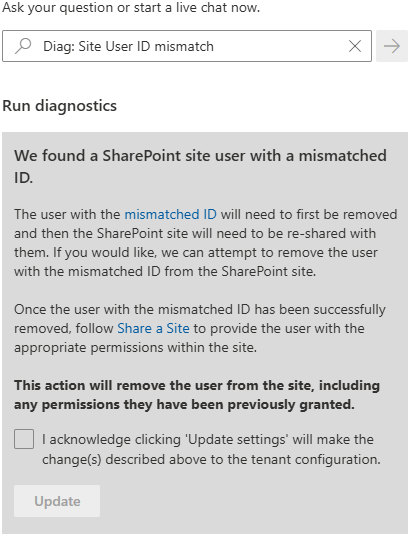
Diag: Site User ID mismatch

When you run this, it asks for a site Url and UPN, then it says:

We found a SharePoint site user with a mismatched ID.

The user with the mismatched ID will need to first be removed and then the SharePoint site will need to be re-shared with them. If you would like, we can attempt to remove the user with the mismatched ID from the SharePoint site.

Once the user with the mismatched ID has been successfully removed, follow Share a Site to provide the user with the appropriate permissions within the site.

This action will remove the user from the site, including any permissions they have been previously granted.

We found a SharePoint site user with a mismatched ID.
The user with the mismatched ID will need to first be removed and then the SharePoint site will need to be re-shared with them. If you would like, we can attempt to remove the user with the mismatched ID from the SharePoint site.

Once the user with the mismatched ID has been successfully removed, follow Share a Site to provide the user with the appropriate permissions within the site.

This action will remove the user from the site, including any permissions they have been previously granted.

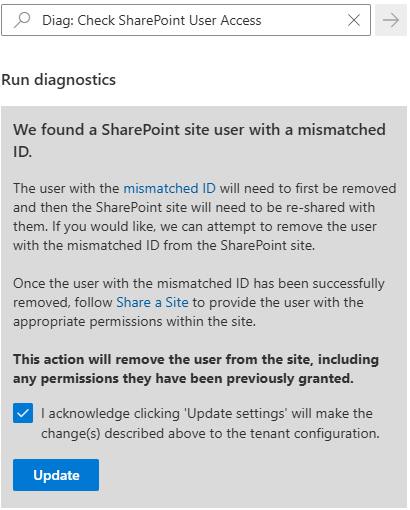
Diag: Check SharePoint User Access

This diag does the same:

Diag: Check SharePoint User Access
We found a SharePoint site user with a mismatched ID.
The user with the mismatched ID will need to first be removed and then the SharePoint site will need to be re-shared with them. If you would like, we can attempt to remove the user with the mismatched ID from the SharePoint site.

Once the user with the mismatched ID has been successfully removed, follow Share a Site to provide the user with the appropriate permissions within the site.

This action will remove the user from the site, including any permissions they have been previously granted.

Let us run it.

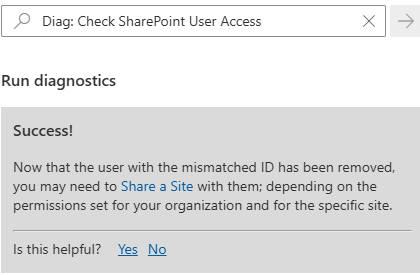
Success!
Now that the user with the mismatched ID has been removed, you may need to Share a Site with them; depending on the permissions set for your organization and for the specific site.


Diag: Check SharePoint User Access
Success!
Now that the user with the mismatched ID has been removed, you may need to Share a Site with them; depending on the permissions set for your organization and for the specific site.

Actually Microsoft not only removes user from UIL, but adds a new one (without permissions).

Fixing the SharePoint User ID Mismatch Issue with Site Settings

This option is available for site owners or site collection admins, but only in cases there are not many site users. If you have thousands user in the site – it might be difficult to find a user in the UIL.

Site owner or admin – navigate to Site Settings -> Site Permissions -> Advanced Permissions -> Select any group, then update group id number in the browser address bar (Url) to “0”, so it’ll look like:
https://domain.sharepoint.com/teams/mySite/_layouts/15/people.aspx?MembershipGroupId=0
then find the user in the list and delete it (Actions -> Delete User from site collection).

Here is what Microsoft says: remove account from the UserInfo list

Detecting and Fixing the issue with PowerShell

You can use PowerShell to detect if the issue with user’s permissions is actually user id mismatch issue and Fix the issue. Specifically I will use PnP.PowerShell module v 3.1. Here is what you’d do:

# this script 
# 1) detects if there is a User id Mismatch Issue on the site
# 2) if yes - deletes User Id from the site and adds it again (with no permissions)
# NB! removing User from the UIL also removes all user's permissions, so user needs to request permissions again - but this time it should work
# NB! dew to nature of user id mismatch issue - these could be two different users - removing user's permissions is OK

# parameters
# specify User email and site url here:
$userEmail = "John.Smith.qerdgfq@$orgname.onmicrosoft.com"
$userEmail = "John.Smith@$orgname.onmicrosoft.com"
$siteUrl = "https://$orgname.sharepoint.com/teams/UserIDMismatchTest01"
$siteUrl = "https://$orgname.sharepoint.com/sites/UserIDMismatchTest02"
$siteUrl = "https://$orgname.sharepoint.com/teams/UserIDMismatchTest03"

# end of parameters section
# 

# authenticate
$connectionAdmin.Url

# let's find a user in entra id:
# try to get user by email (in most cases email equals upn)
$adUser = Get-PnPAzureADUser -Connection $connectionAdmin -Identity $userEmail
if ($adUser) {
    # Found user in entra id
} else {
    # otherwise (in case upn -ne email) let us try to find user by email
    $filter = "Mail eq '" + $userEmail + "'"
    $adUser = Get-PnPAzureADUser -Connection $connectionAdmin -Filter $filter    
}

if ($adUser) {
    $upn = $adUser.UserPrincipalName
    Write-Host "Found user in entra id: " $adUser.DisplayName
    if ($adUser.AccountEnabled) {        
    } else {
        Write-Host "Note that user's account entra id is disabled." 
    }
} else {
    Write-Host "Could not find user in entra id." -ForegroundColor Yellow
    Write-Host "Please double-check email specified: " $userEmail -ForegroundColor Yellow
    exit 1
}

# now we need to pull user profile from UPSA
$userProps = $null
$userProps = Get-PnPUserProfileProperty -Connection $connectionAdmin -Account $upn
if ($userProps) {
    Write-Host "Found user in SharePoint User Profiles Service: " $userProps["AccountName"]
} else {
    Write-Host "Could not find user in SharePoint User Profiles Service." -ForegroundColor Yellow
    exit 1
}

# let's connect to site
$connectionToSite = Connect-PnPOnline -ReturnConnection -ClientId $ClientId -Thumbprint $Thumbprint -Tenant $tenantId -Url $siteUrl 
if ($?) {
} else {
    Write-Host "Could not connect to site:" $siteUrl -ForegroundColor Yellow
    exit 1
}

# let's get site
$site = Get-PnPSite -Connection $connectionToSite
if ($?) {
    Write-Host "Connected to site:" $siteUrl 
} else {
    Write-Host "Could not connect to site:" $siteUrl -ForegroundColor Yellow
    exit 1
}

#  let's get site user
# Get-PnPUser -Connection $connectionToSite 
$siteUser = $null
$siteUser = Get-PnPUser -Connection $connectionToSite -Identity ("i:0#.f|membership|$upn") -Includes AadObjectId
if ($siteUser) {
    Write-Host "Found user in the site: " $siteUser.Title
} else {
    Write-Host "Could not find user in the site: " $siteUser.Title
}


# now we detect if there is a user id mismatch issue
# normally user id and sid should be the same in all 3 user objects from entra id, upsa and site
$userIdMismatch = $false

# compare SID from site and UPSA
$upsaSID = ($UserProp["SID"].split("|") | Select-Object -Last 1).split("@") | Select-Object -First 1
if($upsaSID -eq $siteUser.UserId.NameId) {
} else {
    Write-Host "SID mismatch found." -ForegroundColor Yellow
    Write-Host "SID from User Profile:" $upsaSID
    Write-Host "SID from Site User   :" $siteUser.UserId.NameId
    $userIdMismatch = $true
}

# compare User Id from site and UPSA
if ($UserProp["msOnline-ObjectId"] -eq $siteUser.AadObjectId.NameId) {
} else {
    Write-Host "User directory object Id mismatch found." -ForegroundColor Yellow
    Write-Host "User Id from User Profile:" $UserProp["msOnline-ObjectId"]
    Write-Host "User Id from Site User   :" $siteUser.AadObjectId.NameId
    $userIdMismatch = $true
}

# compare User Id from site and directory
if ($adUser.Id -eq $siteUser.AadObjectId.NameId) {
} else {
    Write-Host "User directory object Id mismatch found." -ForegroundColor Yellow
    Write-Host "User Id from Directory:" $adUser.Id
    Write-Host "User Id from Site User:" $siteUser.AadObjectId.NameId
    $userIdMismatch = $true
}

if ($userIdMismatch) {
    Write-Host "The User Id Mismatch Issue was found on the site for the user."
    Write-Host "We'll remove User from the UIL which also removes all user's permissions."
    Write-Host "User will need to request permissions again - but this time it should work."
} else {
    Write-Host "We did not find User Id Mismatch Issue on the site." -ForegroundColor Green
    Exit
}

# Next, we'll ask for confirmation then delete user id from site and add it back

$confirmation = Read-Host "Please confirm (y/n)"
if ($confirmation.ToLower() -eq "y") {
} else {
    Write-Host "User deletion was not confirmed. The Issue is not fixed." 
    Read-Host "Press any key to exit"
    Exit
}

# Fix the issue by removing the user and re-adding
# remove
Remove-PnPUser -Connection $connectionToSite -Identity ("i:0#.f|membership|$upn") -Force
if ($?) {
    Write-Host "Successfully removed user from site." 
} else {
    Write-Host "Something went wrong... Could not remove user from site."  -ForegroundColor Yellow
    exit 1
}
# add
$web = Get-PnPWeb -Connection $connectionToSite
$web.EnsureUser("i:0#.f|membership|$upn") 

# Validate
$newSiteUser = Get-PnPUser -Connection $connectionToSite -Identity ("i:0#.f|membership|$upn") -Includes AadObjectId
if ($newSiteUser) {
} else {
    Write-Host "Something went wrong... Just added user was not found on the site..."  -ForegroundColor Yellow
    Exit 1
}
if ($newSiteUser.Id -ne $siteUser.Id) {
    Write-Host "Added user to the site with no permissions."
} else {
    Write-Host "Something went wrong... Just added user got the same site user Id..."  -ForegroundColor Yellow
    Exit 1
}

Write-Host "Finished."
Read-Host "Press any key to exit"
Exit
 

Fix the issue “everywhere” at once

The “fix” provided by Microsoft and my PowerShell script above resolves the issue for one specific user at one specific site. But usually the issue is not isolated to one site… All sites accessed by “old” user are impacted. How can we fix all sites for the user?

Also, usually it’s not the only one reused Id in tenant. The older your tenant is the more reused Ids you have. How can we fix all sites for the all user with reused UPNs?

When the UPN is reused – we already know that the user sooner or later will be facing the SharePoint user id mismatch issue. From the user perspective the issue is not an easy to detect. It might take time for user to realize that something is wrong and submit ticket and get a solution. Is it possible to take care of the issue proactively, for all sites and all user?

Here is my article: Preventing SharePoint User ID Mismatch: a Tenant‑Wide Approach

References

My code samples at GitHub: Detect and Fix User Id Mismatch issue with PowerShell