A User Identity Mismatch issue occurs when a re‑used UPN attempts to access a SharePoint site. The site owner can grant or approve access, but the user still sees an “You need permission to access this site” page or “Sorry, something went wrong” and “There is a legacy user account in this site with same email. Please ask site owner or administrator to remove the legacy user account from this site”. This happens because SharePoint fails to remove cached old user’s object ID from the User Information List (UIL) and grant access to the new user ID.
Cleaning Up Orphaned Users in Microsoft 365 SharePoint to Prevent User ID Mismatch Issues
What Is an Orphaned User in SharePoint?
To understand orphaned users, it helps to look at how SharePoint tracks user data. When a user account is created in Microsoft Entra ID and assigned a SharePoint license, they gain access to SharePoint sites.
Every SharePoint site maintains a User Information List—a local cache where SharePoint stores essential user metadata, such as display names, job titles, and email addresses. When a user account is eventually deleted from Entra ID, their data is not automatically purged from SharePoint. This is intentional: SharePoint preserves user metadata for historical integrity, allowing team members to see who created or updated a document.
An orphaned user is a user record whose metadata remains cached within a SharePoint site’s User Information List, even though the corresponding identity no longer exists in Entra ID. This phenomenon occurs across every SharePoint site the user interacted with during their tenure.
The User ID Mismatch Issue
While preserving metadata is useful for auditing and history, it sets the stage for the User ID Mismatch issue.
This scenario typically happens when a new account in EntraId is created with the exact same User Principal Name (UPN) as a former worker, for instance in cases:
An employee leaves and is later rehired
A contractor is converted to a full-time employee
A new employee is onboarded who happens to share the same name
When the new account is created in Entra ID and receives the same UPN it is always assigned a brand-new, unique internal object ID. When this user attempts to access SharePoint, a collision occurs:
Security by Design: SharePoint checks its local User Information List and finds an existing entry for that UPN, but the internal account IDs do not match. SharePoint correctly denies access, treating the incoming user as an unrecognized identity.
The Access Block Bug: The real problem arises when a site administrator attempts to explicitly grant access. Even with admin approval, SharePoint fails to update the reference to the new account ID because the old legacy record occupies the database entry. SharePoint continues blocking access without returning a clear error message.
Microsoft acknowledges this limitation: the legacy user record must be completely removed from the site’s User Information List before the new user can be granted access.
Why Microsoft’s Native Solution Falls Short at Scale
While Microsoft provides a standard resolution—deleting the old legacy ID from the site—the fix is GUI-based and designed strictly on a single-site, single-user basis.
In an enterprise environment, this creates severe operational hurdles:
Tenant-Wide Scope: An average employee might access dozens or hundreds of sites throughout their organizational tenure. Fixing a mismatch requires applying Microsoft’s fix across every single site the user touched. Though we can do the same with PowerShell, there is a second problem –
Lack of Out-of-the-Box Reporting: There is no native report that displays all occurrences of a legacy account across all SharePoint sites in a tenant. While a brute-force PowerShell script can scan a tenant, doing so in medium-to-large organizations is resource-intensive and exceptionally slow.
User Frustration: The error presents silently. SharePoint appears to work normally, but access fails. When a user contacts a site owner who approves access yet nothing changes, it creates confusion. Once resolved on one site, the user frequently hits the exact same issue on other sites, assuming the entire problem was fixed globally.
Strategic Approaches: Prevention vs. Cleanup
To effectively manage User ID Mismatch issues, I think organizations should generally look at three distinct activities:
1. Proactive Prevention (“Stop Tickets”)
For just onboarded users (incoming accounts), you can proactively check newly created Entra ID accounts against historical UPNs. If a match is found, you can scan and clean up potential orphaned records across SharePoint sites before the user ever encounters an access block.
2. Automated Offboarding (“Stop Bleeding”)
At the exact moment a user account is disabled or deleted from Entra ID, an automated routine can sweep SharePoint sites to remove the newly orphaned user metadata. Stopping the bleeding at the point of departure prevents new orphaned records from accumulating.
3. Historical Cleanup of Existing Orphaned Users
For mature tenants that have been active for years, orphaned users have already accumulated in massive numbers. Estimating roughly, in a mature tenant (e.g., 10 years old), the number of orphaned user records can scale to rival the number of active users in Entra ID. (see How Many Orphaned Users Do You Have in SharePoint?)
Cleaning up existing orphaned users tenant-wide is the cornerstone of resolving widespread User ID Mismatch friction.
Technical Cleanup Strategy for Large Organizations
While smaller tenants with a few dozen sites can rely on a simple brute-force scan across every site, brute-force scanning for large enterprises with 100,000+ sites is impossible. But one of the approaches I came up and effectively use in my tenants I support is below.
The goal here isn’t an exhaustive, 100% tenant-wide purge—it’s about capturing the low-hanging fruit. By applying a targeted 80/20 strategy, you can eliminate a massive portion of the organization’s User ID Mismatch issues with relatively minimal effort:
Step 1: Target High-Population Sites First
Instead of scanning 100,000 sites, target the top ~20 high-population sites where most organization members have visited. This typically includes The main Corporate Intranet / Portal, Company-wide news sites, Sites tied to widely joined public Teams or organization-wide Viva Engage (Yammer) communities.
Focusing on these key high-traffic sites allows us to proactively eliminate a massive portion of cached orphaned user records with a manageable level of effort.
Real-world data shows why this is so effective: when analyzing onboarded users who experienced UPN reuse, legacy user records are rarely spread across hundreds of niche sites. Instead, for the majority of users, their legacy access—and thus their cached data—was confined to just a handful of company-wide, high-population sites that everyone visits. Clearing these top sites eliminates the bulk of potential user ID mismatch landmines before users ever hit them.
Step 2: Query the User Information List Directly
Avoid using Get-PnPUser on large sites, as it takes an impractically long time to run. Instead, query the underlying Site User Information List directly to fetch all items. Even for sites with hundreds of thousands of cached users, this query completes within a few minutes. Convert these list items into usable user objects in memory.
Step 3: Fast Matching via Entra ID Hash Tables
Retrieve all active users from Microsoft Entra ID.
Build an in-memory Hash Table of active Entra ID accounts indexed by UPN.
Iterate through the SharePoint site users and check their existence against the Entra ID hash table. Because hash table lookups occur in O(1) time, identifying all orphaned users on a site takes only minutes.
Step 4: Parallelized Deletion
Running Remove-PnPUser sequentially across thousands of orphaned users takes roughly 1 second per user—meaning a single site could take days or weeks.
To bypass this bottleneck, leverage PowerShell Parallelism (e.g., ForEach-Object -Parallel). Executing user deletions concurrently reduces the processing time for ~100,000 orphaned users down to approximately one hour.
Summary Workflow
Identify top 20 high-traffic corporate sites.
Fetch site users via the hidden User Information List (bypassing Get-PnPUser).
Compare site users against an active Entra ID Hash Table.
Purge identified orphaned records using PowerShell parallel execution.
Stay tuned for an upcoming post where I will share the exact PowerShell script and code samples implementing this optimized workflow!
By “User Id Mismatch in OneDrive scenario” I mean user’s own OneDrive, not somebody’s else OD. Somebody’s else OneDrive site can be fixed the same way as any other site – remove the legacy user, add the new user. Simple. But when a user is experiencing User Id Mismatch with their own OneDrive site – it’s a separate scenario.
Why such cases exist? How can a user cannot access their own OneDrive site because of User Id Mismatch? It happens when an account is deleted and then recreated with the same UPN within a short period of time. E.g. contractor converted to employee or user returned earlier from a short-term leave. The thing is OneDrive sites are not deleted immediately when Entra Id account is deleted. There is a retention period (Customizable. 30 days by default. Actually there are two processes – archiving and retention here is the review – OneDrive Site Lifecycle – 93-Day Unlicensed Archiving vs Standard Retention).
Typical workflow that leads to a User Id Mismatch in OneDrive case
User leaves organization by some reason, here is what usually happens
User account is disabled
Permissions are removed
Licenses are removed -> OD archival process is triggered
User account is deleted -> retention process starts
2. User returns to organization after his Entra Id account is deleted, but before his OneDrive site is deleted, here is what usually happens
A new Entra Id account is created with the same UPN
User assumes that he/she still should have all his OD files in place
what actually happens with respect to OneDrive
case 1: a new OneDrive is created – user claims that all OneDrive documents are missing
case 2: an existing OneDrive associates with the new user account – user “looses” access to own OD
What do we do to resolve a User Id Mismatch in OneDrive scenario
Case 1: a new OneDrive is created – user claims that all OneDrive documents are missing. This case in terms of tech resolution is similar to the regular User Id Mismatch scenario. The only we need is to explain the issue to the user and engage user with data migration. Admin’s actions:
ensure that it’s the same person
provide access for the new Id to the old OD
inform user that the old OD will be deleted automatically, so if any information is needed – user should move data out of old OneDrive site
Case 2: an existing OneDrive associates with the new user account – user “looses” access to own OD. This case is different, and the regular regular User Id Mismatch resolution workflow won’t work. The reason – we cannot remove a single primary owner from a site. So Admin’s actions would be:
ensure that it’s the same person
add temporary account (admin’s account) to the OD site owners as primary owner
remove the old Id from the OD site
add new user account to the OD site owners as primary owner
This article answers two simple questions: – how many SharePoint orphaned users do you have in your Microsoft 365 tenant? – what is the likelihood of having User id Mismatch issue?
Unfortunately, Microsoft 365 does not provide a built-in report that can quickly answer this question across an entire tenant. As a result, administrators often need to estimate the scale of the problem before investing time in tenant-wide scanning and cleanup efforts.
This article provides a simple estimation method based on observations from several real-world Microsoft 365 tenants. The goal is not to produce an exact number, but rather to determine whether your organization is likely dealing with dozens, thousands, or millions of orphaned users.
What Is an Orphaned User?
In SharePoint, an orphaned user is a user record that still exists in a site’s User Information List even though the corresponding account no longer exists in Microsoft Entra ID. Orphaned users are not necessarily a problem by themselves. However, they can contribute to User ID Mismatch issues when a user account is recreated with a previously used User Principal Name (UPN) and SharePoint fails to provide access.
Based on observations from several production tenants, a simple estimation model is to assume that the number of orphan users grows roughly in proportion to tenant age and, a 10-year-old tenant is expected to have approximately the same number of orphan users as enabled Entra ID accounts
Estimated Orphan Users = Enabled Entra ID Users × Tenant Age ÷ 10
Another estimation method is to scan exactly 1% of group-based sites and count the unique orphaned users. For a 10-year-old tenant, multiply the result by 20 to estimate the total number of orphaned users. For OneDrive sites, scan exactly 1% and multiply the result by 10. PowerShell Scrips samples are here.
The actual number of orphaned identities depends on many factors (see below).
Estimating User ID Mismatch Risk
Orphaned users do not directly cause User ID Mismatch issues by themselves. However, User ID Mismatch typically occurs when an orphaned user exists in SharePoint and the same UPN is reused for a new account.
In general, the likelihood of User ID Mismatch issues increases as the number of orphaned users grows. Based on observations from several production tenants, a rough estimate is approximately one User ID Mismatch ticket per month for every 100 enabled user accounts in a 10-year-old tenant. Actual numbers may vary depending on employee turnover, SharePoint adoption, and UPN reuse practices.
Estimated User ID Mismatch Tickets per Month = Enabled Entra ID Users × Tenant Age ÷ 1000
E.g. for a 5 year old tenant with 10,000 users you can have as much as 50 issues related to the User Id Mismatch scenario every month. The actual number of User Id Mismatch related issues depends on many factors.
Note. It is important to understand, that typically a regular user do not have access to one site only. For an organization that uses Microsoft 365 SharePoint an average user can have access to dozens and hundreds sites. And a User Information List (UIL) – where SharePoint caches all user’s data and where the orphan users exist – exists at every site, so the number of orphan user records, and consequently potentially user id mismatch issues is much higher than just a number of orphan users.
I assume (again, based on real-world experience) the average number of sites every user access is ~100. So this estimation assumes that we fix the User Id Mismatch issue for the affected site upon the ticket from user. So if a reactive clean-up of all affected sites for a specific user is implemented – it’d decrease the number of issues (see Preventing SharePoint User ID Mismatch).
What Contributes to Orphaned User Counts and User ID Mismatch Risk
The following factors generally increase the number of orphaned users in a tenant and consequently the risk of User ID Mismatch issues:
Higher employee and contractors turnover
Practice of re-creating accounts for contractors converted to employee
Practice of removing employees accounts in cases like long-term leave
The following factors generally decrease the risk of User ID Mismatch issue and the number of orphaned users in a tenant:
Practice of assigning unique UPNs
Lower adoption (footprint) of the Microsoft 365 collaboration services (e.g. SharePoint, Teams, Viva Engage, Search, Copilot)
Final Thoughts
The formulas presented in this article is intentionally simple and should be treated as a rough planning estimate, not a precise calculation.
Its purpose is to help administrators quickly assess the possible scale of orphaned users in their environment and determine whether a deeper investigation is justified. If the estimate suggests – it may be worth investing in tenant-wide analysis, cleanup, and User ID Mismatch prevention strategies.
To get exact number of orphan users – you can
use PowerShell to scan tenant for orphaned users (works for small tenants only): Scan-Small-Tenant
use 3-rd party tools (e.g. SysKit Point, Sharegate)
When a user leaves an organization, their account is usually deleted from Microsoft Entra ID. However, SharePoint often keeps a record of that user in its own databases. These records are commonly called orphaned users. Most of the time they do not cause any problems. But when the same user principal name (UPN) is later assigned to a new account, these orphaned records can cause the well-known User ID Mismatch issue. In this article, we’ll look at what orphaned users are, why they exist, how they are related to User ID Mismatch, and what SharePoint administrators can do about them.
Overview
An orphaned user in SharePoint is generally understood as a user whose record still exists in a SharePoint, even though the corresponding Microsoft Entra ID account no longer exists in directory.
Orphaned user records are not necessarily errors. SharePoint maintains its own databases at every site and caches user’s data so that it can preserve historical context, such as who created or modified a document. However, these records can become operationally significant when an organization creates a new Entra ID account using the same User Principal Name (or UPN), as a previously deleted account.
This can produce a SharePoint user ID mismatch:
The old and new accounts have the same UPN, but different “internal” object IDs.
SharePoint keeps the old UPN and still associates the UPN with the old identity.
The newly created user receives permissions, but cannot access content (user id mismatch)
This article explains:
What orphaned SharePoint users are.
Why SharePoint retains them.
How they contribute to user ID mismatch.
Why fixing one affected site does not solve the tenant-wide problem.
How remediation strategies differ by tenant size, tenant age, and employee turnover.
How to approach the problem using cleanup, ticket prevention, and offboarding controls.
What Is an Orphaned User in SharePoint?
SharePoint maintains information about users who have interacted with or received permissions to a site collection. This information is stored in the site collection’s User Information List, commonly referred to as the UIL (it’s a hidden list in every SharePoint site collection). When a person visits a site or is otherwise resolved as a user, SharePoint caches information about that identity in this list. Deleting the corresponding account from Microsoft 365 or Entra ID does not necessarily remove the entry from each SharePoint UIL.
The resulting record is commonly called an “Orphaned user” or “Stale user” or “Legacy user” or “Orphaned SharePoint identity”. “Orphaned user” is a useful administrative term, although Microsoft documentation more frequently uses terms such as legacy user account, outdated user account, or an old entry in the UIL.
Why does SharePoint retain the user?
The retained record provides continuity for user-related metadata. For example, after an employee leaves the organization, other users may still need to see that the former employee:
Created a document.
Modified an item.
Added a list entry.
Was previously assigned permissions.
Participated in historical SharePoint activity.
From this perspective, the orphaned record appears not harmless but useful. It helps SharePoint preserve the historical identity associated with existing content.
Should administrators treat every orphaned user as something that must immediately be deleted? I see Microsoft position is conflicting/controversial/ambiguous, as generally they say that legacy entry in the UIL is needed to preserve metadata but – at the same time – removal an orphan user from the UIL is OK, though primarily as a troubleshooting action for profile synchronization and mismatched-ID scenarios, rather than as routine indiscriminate cleanup (more: Is It Safe to Remove a User from a SharePoint UIL).
The Problem Appears When an Identity Is Recreated
Consider a common employee lifecycle scenario.
John Smith leaves the organization.
His Entra ID account is deleted.
SharePoint retains John’s entries in the UIL of sites where he previously appeared.
A year later, the organization hires another John Smith
The identity team creates a new Entra ID account using the same UPN, such as john.smith@contoso.com.
The new account looks similar to the old account: same display name, same email address, same UPN. However, it is not the same directory object. The recreated account receives a new internal identity value, even though its UPN matches the deleted account. Microsoft documents this as a primary cause of SharePoint and OneDrive user ID mismatch.
The same situation can also occur when the UPN is assigned to a rehired person.
From Entra ID’s perspective, the new account is a new security principal. From the affected SharePoint site’s perspective, however, the UPN may still be associated with the legacy UserInfo entry.
What Is a SharePoint User ID Mismatch?
A user ID mismatch occurs when the identity presented by the current user does not match the identity stored in SharePoint with the same UPN.
Conceptually, SharePoint sees something like this:
Attribute
Legacy account
New account
Display name
John Smith
John Smith
UPN
john.smith@contoso.com
john.smith@contoso.com
Entra ID object ID
Unique (Old value)
Unique (New value)
Although the UPN is the same, the internal identity is different.
Microsoft describes the underlying cause as follows: the recreated account receives a new ID, but the affected SharePoint or OneDrive UIL still contains the old ID. When the user attempts to access the site using the new account, the new identity does not match the identity stored in the site. Access can therefore be denied.
An Access denied message, while permissions appear correct
A message stating that a legacy account with the same email exists
Why Denying Existing Access Is Correct
At first glance, it may appear that SharePoint should automatically connect the new account to the old account because the UPN is identical. But that would create a security risk.
The same UPN does not mean that the new account represents the same person. Even if it is the same person, the individual may have returned in a different position, in another department, under different security requirements. So the new account should not automatically inherit the old account’s SharePoint permissions.
Therefore, SharePoint is correct not to treat the recreated account as the same security principal merely because the UPN matches. The more problematic behavior appears after an authorized site owner intentionally grants the new account access.
Where the Actual Operational Problem Begins
Suppose the new John Smith requests access to a site.
The site owner reviews the request and intentionally approves it. Alternatively, the site owner shares a site, library, folder, or document with the new account. From the site owner’s perspective, everything may appear correct:
The expected name and email are displayed
The user appears in the proper group (or with proper direct permissions)
The sharing (or approval) operation completes without an obvious error
However, the user may still be unable to access the resource because the site’s UIL contains the legacy identity associated with the same UPN.
SharePoint does not replace the old identity automatically when the new account is granted access. That is the practical limitation behind the user ID mismatch incidents.
Microsoft’s supported starting point is the Site User Mismatch diagnostic in the Microsoft 365 admin center. When a mismatch is found, the diagnostic can offer to remove the old identity from the affected site. After the old entry is removed, the new account must be assigned the appropriate permissions.
For a single user and site, this is usually manageable. At tenant scale, it becomes much more complicated.
Why Fixing One Site Is Not Enough
A recreated user rarely interacted with only one SharePoint site. During the person’s previous employment, the account may have been present in:
Many Team sites – as user can contribute to many projects, be involved in different activities
Publishing (Communication sites) – as user access corporate intranet and other org-wide sites
Shared OneDrive sites, as by default all documents shared in teams chats are shared via Onedrive
Viva Engage connected sites, as there is a SharePoint site behind every community
Removing the legacy identity from one affected site fixes only that site. The same user may encounter another issue tomorrow, next week, or several months later when attempting to access a different site.
This creates a recurring support pattern:
The user reports an access problem.
The administrator identifies and fixes a mismatch issue at the reported affected affected site.
The ticket is closed. User assumes his issue is fixed.
The user encounters the same problem on another site.
The investigation starts again. User is confused…
The technical fix is site-specific, while the identity lifecycle problem is potentially tenant-wide.
Why Discovering Every Affected Site Is Difficult
The obvious question is: Which SharePoint sites still contain the old identity?
SharePoint Online does not provide a simple out-of-the-box report listing every site collection whose UIL contains a specific legacy user. An administrator can technically scan SharePoint sites and inspect their users. However, this can be inefficient in a large tenant. For example, imagine a tenant with:
50,000 SharePoint sites.
A user who appeared in approximately 100 of those sites.
A straightforward tenant scan may need to inspect all 50,000 sites to locate the relevant 100.
The administrator knows the identity being investigated but does not know which site collections contain that identity. SharePoint’s user information is distributed across site collections rather than exposed through a convenient centralized orphan-user inventory.
It is possible to use PowerShell, but even for one affected user, a tenant-wide brute-force scan may consume considerable time and service resources relative to the number of useful results. The other option is to use 3-rd party tools.
Shifting Left: When Should the Problem Be Addressed?
Can we be proactive here? Probably yes… There are three general opportunities.
Option 1: After a Ticket Is Reported for one site, fix all affected sites
This is a “reactive-proactive” approach… We get tickets (reactively) but fix not one, but all affected sites for a user (proactively)
Workflow
A user reports that SharePoint access does not work.
The administrator runs the Site User Mismatch diagnostic and confirms that the account was created with the re-used UPN and user experiences User Id Mismatch issue.
The old user entry is removed from the reported site
The administrator makes all efforts to identify all affected sites for the user, and fix these sites
User is informed that the issue is fixed and that it must be a new share or approved access request
This approach is minimally proactive, it treats the symptom rather than the tenant-wide identity residue.
Option 2: Check Newly Created Accounts
The next shift-left opportunity occurs when an account is created. The idea is not to wait when user hits the issue. The organization could determine whether the UPN was previously used and then search for the corresponding legacy SharePoint identity, so the mismatch can be resolved before the user accesses SharePoint.
The challenge is the process must determine whether the UPN is genuinely new or reused. This approach can prevent tickets, but it requires reliable identity history.
Alternatively we can scan all new users to discover potential mismatched id, but this approach is much more expensive.
Option 3: Remove Legacy Site Entries During Offboarding
The earliest intervention point is employee offboarding.
Before deleting the Entra ID account, the organization still has a valid and identifiable user. It is easier to determine the SharePoint sites associated with a current identity than to reconstruct that information months or years later.
The offboarding process could be as follow:
Disable user account
Identify the SharePoint and OneDrive sites associated with the departing user
Delete user account
Remove the user from all sites UILs
Surely we know that most offboarded users will never return (deleted UPNs may never be reused) and removing every departing user from every site may be unnecessary, but it It addresses the problem at its earliest practical stage and ensures there is no future user ID mismatch incidents.
This is the most proactive approach, but it (as well as option 2) can also be an over-engineered solution if the actual mismatch rate is very low.
Again, as per Microsoft – an organization should not assume that universal deletion is automatically the best practice. Microsoft specifically describes UserInfo removal as a troubleshooting operation that should be performed for synchronization or mismatch scenarios when advised, rather than as a general cleanup requirement.
A Three-Workstream Strategy
For established tenants, a single activity not always completely solves the problem. A practical program can be a combination of three separate workstreams.
1. Clean Up Existing Orphaned Users
This workstream addresses the historical backlog already present in the tenant.
Imagine, we implemented remediation Option 3 (Remove Legacy Site Entries During Offboarding). For brand-new tenants that would guarantee no user id mismatch issues. But for mature tenants we already have a lot of legacy users, so we’ll definitely have issues related to mismatched is.
To ensure we do not have user id mismatch tickets – we wood need – stop bleeding (implement Option 3 Remove Legacy Site Entries During Offboarding) – clean-up existing orphaned users
Existing orphan users cleanup can require substantial effort in an old or large tenant because orphaned identities may have accumulated for many years, so we could have millions of orphaned users record (which means millions of deleting operations) – see more in “Estimate number of Orphaned Users and User Id Mismatch tickets.”
2. Stop Tickets
This workstream focuses on newly created or recreated accounts. Its purpose is to prevent a new employee or returning employee from encountering mismatch errors after receiving a Microsoft 365 account and before SharePoint access.
It does not remove the entire orphan-user backlog, so we’d still have a bunch of orphan users, but it can prevent visible incidents for newly created accounts. Having “Stop tickets” process implemented we guarantee user’s satisfaction, but that’s (imho) the most expensive process.
3. Stop the Bleeding
This workstream is triggered when users are offboarded. Its purpose is to prevent orphaned users, which would guarantee no new legacy identity conflicts. This is a future-state prevention activity.
Implementing “Stop Bleeding” process must be combined with clean-up efforts to achieve “Sop tickets”. Imho, this is the most logical way to remediate the issue. It might be complicated from the engineering efforts perspective, but would be the less resource-consuming approach after clean-up.
Tenant Age aChanges the Priority
The appropriate combination of these workstreams depends partly on the age of the tenant.
New Tenant
A newly created tenant has little or no legacy identity history.
The primary focus should therefore be:
Offboarding design
“Brute force” clean-up efforts
Established (or Old) Tenant
An old established tenant with many years of account turnover already contain many unresolved legacy (orphan) users entries. We are probably dealing with existing (ongoing) user ID mismatch cases.
The organization may need all three workstreams:
Clean up existing records
Improve future offboarding
Dealing with (or preventing) current tickets
Tenant Size Determines the Technical Approach
Small Tenants
In a small tenant, brute-force scanning may be acceptable. An administrator may be able to:
Enumerate all SharePoint sites.
Enumerate the users on each site.
Compare SharePoint identities with Entra ID identities.
Produce an orphan-user report.
Review and remediate the results.
A simple PowerShell script can be used (like this one from the “Orphan Users in Small Tenants” ). Depending on throttling, number of sites, the process might complete within a practical operational window.
Large Tenants
In a large tenant, a simple brute-force approach is impractical. This is not only “this should be done” but “this should be done in a most effective way” otherwise it might take forever. The solution may require:
Parallel processing with controlled concurrency
Throttling and retry handling
Delta-oriented identity processing
Site prioritization
Governance around retention and UPN reuse
At this scale, orphan-user management becomes an engineering and data-indexing problem rather than a simple administrative script. A 3-rd party tools might be required, in combination with custom PowerShell-based solutions.
Medium-Sized Tenants
To address an Orphaned Users and User Id Mismatch issue in a medium-sized tenant it may require a combination of approaches methods based on tenant size, age processes maturity, admins qualification and so on.
Employee Turnover Also Matters
Tenant size and age are not the only factors. Two organizations with the same number of users may experience very different levels of risk.
An organization with stable staffing and low turnover creates relatively few deleted identities. An organization that frequently hires contractors, seasonal workers, or temporary employees may create and delete a much larger number of accounts.
Is It Safe to Remove an Orphaned User?
This deserves its own detailed discussion.
Microsoft documents removal from the UIL as a way to troubleshoot mismatched identity and profile synchronization scenarios. At the same time, Microsoft warns that the removal procedure should be used for those troubleshooting purposes rather than as an unrestricted general cleanup method.
Another Way to Prevent User ID Mismatch: Identity Management
So far, we discussed the problem from a SharePoint administrator’s point of view. In that world, the typical solution is to find the legacy user in SharePoint and remove the old user entry from the User Information List.
However, there is another approach. Identity and Access Management (IAM) team can reduce or eliminate many User ID Mismatch issues by ensuring that each person receives a unique UPN that is never reused.
For example, instead of recreating:
john.smith@contoso.com
for a rehired employee, the organization could assign a different UPN, such as:
john_smith@contoso.com
or follow another naming standard that guarantees uniqueness.
With this approach, the new account never collides with the legacy SharePoint user record. As a result, User ID Mismatch issues do not occur.
Of course, this approach comes with its own challenges. Organizations often prefer to reuse the original UPN because it is easier for users, administrators, and business processes. In addition, changing naming standards may affect other systems that depend on predictable user names.
For that reason, UPN management should be viewed as an identity governance decision rather than a SharePoint administration task. SharePoint administrators can fix User ID Mismatch issues when they occur, but Identity and Access Management teams can often prevent those issues from appearing in the first place by implementing policies around account lifecycle management and UPN reuse.
In short, there are two ways to address User ID Mismatch:
SharePoint approach: Find and remove the legacy SharePoint user records that cause the conflict.
Identity management approach: Prevent UPN reuse so that the conflict never occurs.
The first approach is owned by SharePoint administrators. The second approach is owned by Identity and Access Management teams. In many organizations, the best long-term solution is a combination of both approaches.
Microsoft must address the issue
Anyway, the best possible resolution could be if Microsoft fix the product: at the moment when a new account is approved with access to the site (or site is shared by site owner with a user) – SharePoint can do clean-up internally – by replacing the old Id with the new Id.
“Orphan User” in SharePoint refers to a user account that no longer exists in Entra ID but is still present in the User Information List (UIL) on SharePoint sites.
Offboarded user accounts are usually deleted from the Entra ID directory sooner or later. However, SharePoint caches user information in its own databases. This information is stored in the so-called UIL (User Information List). Each site has its own User Information List.
Generally, orphan users are pretty harmless, as they are not users, but just ghost entities – records that reflects former accounts, i.e. these users cannot login, even when a new user is created with the same email – access is not possible. Moreover, legacy Microsoft documentation says such records are needed to preserve metadata – like who is the author of the document or documents editing history, etc.
So yes, orphan users are harmless until you hit a User ID Mismatch issue.
In a nutshell, a User ID Mismatch happens when an email address (UPN) is reused and a new user tries to access a SharePoint site where the old user previously had access.
SharePoint does not allow the new user to automatically inherit the same access that the old user had, and this is expected behavior. The issue is that SharePoint may fail to correctly grant access to the new user even after permissions have been assigned.
In such cases, you must first remove the old user ID from the site’s User Information List. This approach is recommended by Microsoft and considered as safe. And guess what? It turns out the old user is no longer needed in the UIL to preserve metadata 🙂
When a user hits a User ID Mismatch issue, it is often difficult to recognize that the problem is not simply missing permissions or a site owner not approving access, but an actual product limitation that prevents access to SharePoint. As a result, users become frustrated, support teams spend time troubleshooting the issue, and it may take a while before the root cause is identified and resolved.
So why not remediate the issue proactively? This way, there are no high-priority support tickets, no angry users, and no urgent troubleshooting when the problem eventually occurs.
The engineering problem behind all approaches to proactively resolving the User ID Mismatch issue is that there is no out-of-the-box (native) SharePoint report that provides a list of sites where a specific orphan user is present. You cannot simply press a button and get a complete list of orphan user/site pairs.
In general, you need to scan the entire tenant, site by site, including personal OneDrive sites, and retrieve all historical site users. Then you need to check whether each user stored in SharePoint still exists in Entra ID.
Multiply the number of sites by the number of users and see how long it might take. An average user typically has access to only ~1% of all sites in a tenant, so you can imagine how inefficient this approach can be.
However, for small tenants, we can still use this so-called brute-force approach. With this approach, we use PowerShell to do the job: identify all orphan users and, optionally, remove them.
Whether this is a viable solution depends on your specific situation: the size of your organization, employee turnover, the amount of data (number of sites), and the age of the tenant.
I may provide some kind of calculator in the future to estimate how long the process might take based on tenant characteristics. But the general idea is simple: in some cases, a brute-force approach is perfectly acceptable because it:
a) is very simple and does not require advanced PowerShell skills, and b) can be completed in a reasonable amount of time (minutes or hours)
Actually, this article is more about “Is it safe to remove all deleted user accounts from all SharePoint sites UIL?”, as managing user lifecycle changes in Microsoft 365 goes far beyond deciding whether it’s safe to remove a single user from an individual SharePoint UIL. In large Microsoft 365 tenants, deleted or inactive accounts – sometimes called orphaned identities – can create clutter and confusion in permissions and UI elements affecting governance clarity, audit readiness. This KBA explains the broader tenant‑scale implications of cleaning up deleted user accounts across all SharePoint sites.
My immediate motivation was researching the ‘User ID Mismatch’ issue in SharePoint and figuring out how to address it proactively across the tenant. Why a dedicated KBA? Because, In isolated cases, it’s generally considered safe to remove a single user from a single SharePoint UI location after their Entra ID account has been disabled or deleted. However, there is no official guidance recommending a tenant‑wide cleanup of all UI entries for disabled or deleted accounts. In fact, when asked why such cleanup might be needed, Copilot typically responds that performing it tenant‑wide is not considered safe.
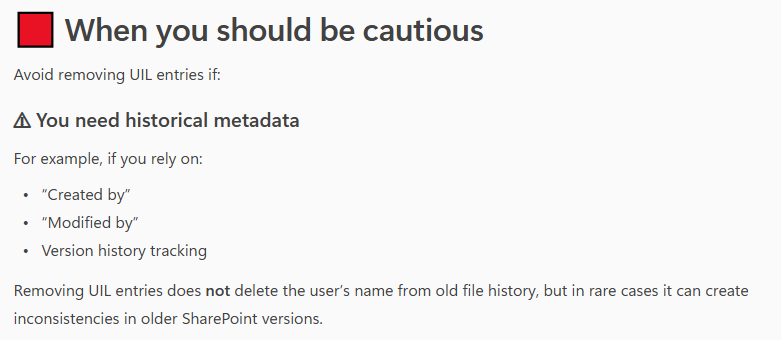
One of the reasons Copilot says it is not safe is
“Avoid removing UIL entries if you need historical metadata For example, if you rely on “Created by” or “Modified by” or Version history tracking
In my personal experience, removing a user from the UIL does not affect item edit history — the removed user still appears correctly. Moreover, when a new user with the same UPN/email but a different display name is added to a site and begins working on the same document, SharePoint handles this correctly. But let’s test it to confirm or refute this.
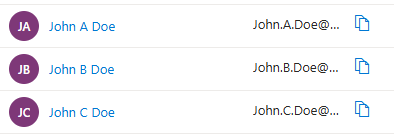
I have created 3 new accounts in tenant and provided them with an m365 license:
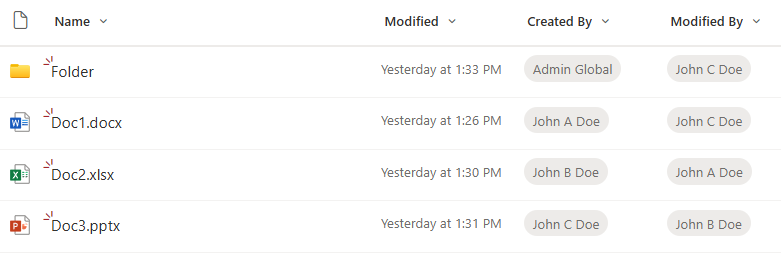
Then created a test site, and all three users one-by-one were working on the site, creating documents, lists, providing permissions
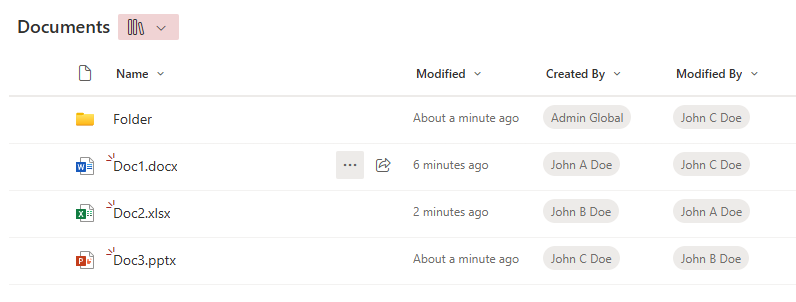
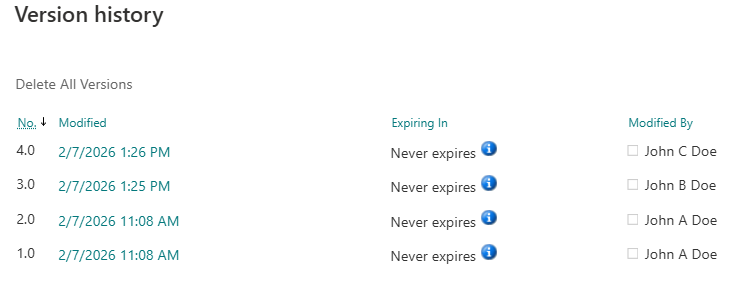
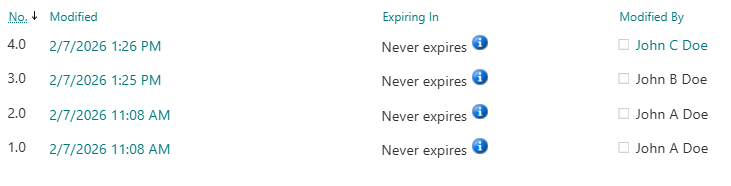
Ensure that “Created by” or “Modified by” and Version history are tracking users correctly:
Now let us delicense, disable and delete all three users – John A Doe, John B Doe and John C Doe. These does not change anything, as users are still in the UIL. Now let me remove all three users from the site UIL. Sources say that “Microsoft has a series jobs to clean-up users after deletion” and “never re-create users within days after deletion, wait at least 30 days.”
So let me check what is happening with “Created by”, “Modified by” and “Version history” after we delete users from the UIL and re-create users with the same UPN and provide access to the site…
Event
Consequenses
User deleted from Entra Id and from UIL
all looks good
After a few minutes
all looks good
After a few hours
all looks good
User John A Dow is recreated with the same UPN (less than 24 hours since deletion), provided with permissions to the site and started working on documents
all looks good
After a few minutes
all looks good
After a few hours
all looks good
User John B Dow is recreated with the same UPN (less than 7 days since deletion), provided with permissions to the site and started working on documents
all looks good
After a few minutes, and after a few hours
all looks good
User John C Dow is recreated with the same UPN (less than 30 days since deletion), provided with permissions to the site and started working on documents
TBP
After a few minutes, and after a few hours
TBP
So far all looks good, i.e. I’m not seeing any issues.
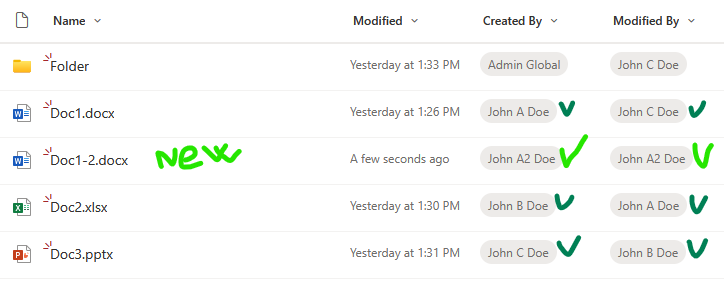
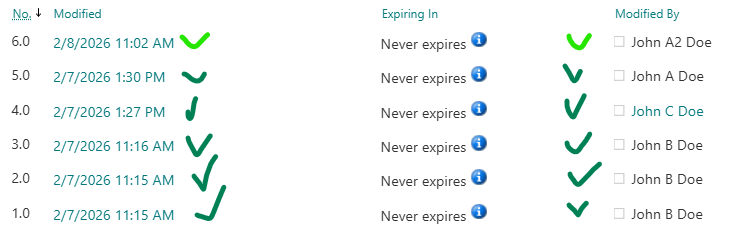
Proof is below (in the form of screenshots):
Users deleted from Entra Id and from UIL, after a few minutes:
After ~1-2 hours, I created a user with the same UPN “John.A.Doe@vladev.xyz” but with different display name – “John A2 Doe”. A new user requested access to the site, got approval and was able to access the site with no issues, then created a new document. Here is how it looks like:
Then a new user – John A2 Doe – updated Doc2. Again, all looks good. An old John.A.Doe and a new John.A.Doe are reflected correctly. Here is the version history:
Let us wait for 24+ hours…
After 10 days I undeleted “John B Dow”. Checked their access to site – permissions are here. Why? It turns out I did not remove the user from the associated Microsoft 365 group. So when I restored (undeleted) account from Entra Id – the account regain groups membership. And after some time the user was able to access the site correctly. I did not expect that, and I’m not sure is it OK. I need to keep this in mind.
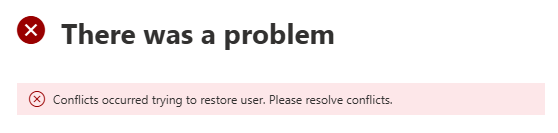
Now let me try to undelete “John A Dow” (remember I already created another account with the same UPN). User accounts that you can find under “Deleted Users” have a username like “457be210d0344040a530dc99cfaa2ba6John.A.Doe@contoso.com”. Admin center did not let me undelete this account. The message I got was “There was a problem” and “Conflicts occurred trying to restore user. Please resolve conflicts.”. So that is OK as well.
User Information List (UIL)
In short, User Information List (aka UIL) is a hidden system list that exists in every SharePoint site collection and stores cached profile information about users who have interacted with that site.
The UIL is normally hidden, but you can access it adding the following to the site URL: “/_catalogs/users/simple.aspx”, “/_catalogs/users/detail.aspx” or “/_layouts/15/people.aspx?MembershipGroupId=0”, e.g.
There is a known problem in Microsoft 365 SharePoint called “User ID Mismatch”. It happens if a user account is deleted from the Entra Id directory, and then a new account is created with the same UPN (e.g. rehired person or a person with a popular name like John Smith). Symptoms are: a user is provided with the access to the resource, but still cannot open it and gets “Access denied” error or “Sorry, something went wrong” and “There is a legacy user account in this site with same email. Please ask site owner or administrator to remove the legacy user account from this site”.
The reason behind it is that SharePoint stores users data in it’s own database (accessible via hidden system list called User Information List – UIL). Properties include display name, title, UPN, and (!) AD SID and Entra Id user object id. So when a re-used UPN tries to access the SharePoint site – Microsoft 365 compares Ids and declines access. So access needs to be re-provided. And this is where the actual issue appears.
If the site was accessed by the “old” user in the past, site UIL contains information about that “old” user. When the site owner shares the site with the “new” user – Microsoft does dot update the UIL with the new user ids. Microsoft 365 behave “normally”, no error messages are displayed. So for the user and for the site owner it looks like access was provided, but in fact it’s not.
Existing fix
Microsoft knows about the issue. But instead of fixing the root cause – Microsoft recommends removing the old user from the UIL. Obviously this fix is a) reactive, b) for one specific user and c) for one specific site. In my previous article – Fixing SharePoint User ID Mismatch Issue – I explained the issue in details, outlined 3 options to fix the issue, including PowerShell script.
Again, the issue is scoped with a specific site (site collection). The mentioned PowerShell-based solution and all Microsoft’s fixes are designed for one specific site, but in real life what is happening is the “old id user” had access to many sites, and “new id user” has access to many sites, so after a several “access denied” issues a user might be confused and ask SharePoint admins to fix the issue “everywhere”. We should not bother users with “please provide us list of site Url you are having issues with”… or saying to user “please create a new ticket when you hit the same issue again” also does not sound nice.
The issue is tricky to recognize. From the user perspective it looks like “normal” permissions issue – so it takes some time for user and site admin to realize that something is wrong and reach support. So can we do it proactively? I mean, can we prevent the issue to appear instead of fixing the issue after a user hit the issue?
Let us try to go deeper into the issue, as we would need to start from basics to find some more consistent solutions. Again, approaches could be
Simple Reactive: once we got an “Access Denied” ticket – we check if it is a user id mismatch and fix the issue for a site we got ticket for
Reactive – Proactive: once we got an “Access Denied” ticket – we check if it’ i’s a user id mismatch and not only fix the issue for a site we got ticket for, but also try to find all sites with the user id mismatch issue for the same user
Proactive – we’d fix the issue before the user hit Access Denied error due to User Id Mismatch issue. Options are
once a new user created in Entra Id – check if it’s a reuse upn case and if so – act accordingly – try to find all sites previous user had access to and remove old id from these sites
once a user deleted from Entra Id – get all sites user had access to and remove the user from accessed sites
Reactive – Proactive: Fix all sites for one specific user
We know how to fix the issue for one user at one site (here). But the User ID Mismatch issue does not come for a one site and one user. Usually it impacts many sites.So how do we fix the User Id Mismatch Issue on all sites for a specific user?
At first, the solution looks simple: we need to check all sites old user had access to and remove UPN from UIL. Well… yes… But how do we get a list of sites the old user present in the UIL?
Spoiler alert: So far – I’m not seeing a good solution. But let us go through possible options.
Option 1: Brute force – scan all sites
Get list of all tenant sites
For every site – try to get a user from the UIL
If present – check if this is a User Id Mismatch case
If yes – remove the user from UIL
This option is comprehensive, i.e. it should fix the issue for all sites, so in case of reused UPN we should not have issues for any tenant site for the same user. But this is a really “heavy” solution and can work well for small tenants only. I do not think this option is feasible for medium or large tenants.
Option 2: Access report.
There are 3-rd party tools (I’m not aware if there is a built-in m365 tool for that) you can use to get report on all SharePoint resources user have access in tenant. So you’d export the list, select unique sites Urls and scan these sites. Possible issues – usually we no not know how the 3-rd party tool builds this report (if the UPN or object Id is used), would it be “old” user access report or “new” user access report?
Option 3: membership
We can use MS Graph “membership” and “people” API to get list of sites around. We can get our user membership – m365 groups and related sites. People API would return users related to our client – a collection of person objects based on their relevance to the user, which is determined by the user’s communication and collaboration patterns, and business relationships. We can get these people OD sites, we can get their groups memberships and sites. We can do the same for people related to people. NB: I know, this option would give us sites related to a new user, not old user.
Add-on to Option 3: common sites. With Option 3 we’d get group-based and OD sites. How about standalone sites? Also there might be public teams… Usually in any tenant number of group-based sites (teams sites) are much bigger than non-group-based sites. So we can simply scan all standalone sites. But, again, in large tenants this might not be a feasible option. But we can get list of “open” standalone sites and public teams and Yammer communities (i.e. “common sites” usually accessed by everyone in tenant). Additionally, over the time we can get “most popular impacted sites” form the fixing history to update our list of common sites.
Option 5: audit log
Reactively, we can use audit log to get AccessDenied sites for a new user
Get audit log and filter it by user and select only “AccessDenied” pages
Make a unique list of accessed sites
For every site – check if this is a User Id Mismatch case
If yes – remove the user id from site’s UIL
What I do not like here is getting audit log is a slow operation, and still re-active. I use it when I cannot reach impacted user and I need to know list of sites user already having issues with.
Practice
My personal experience. Option 1. In my simple tests – it takes ~1 hour to scan ~500 sites (keep in mind, we need to scan all sites, including personals/OneDrive). Options 2 and 3 helps, as allows to cover majority of impacted sites our re-used UPN user might have issues with. But we cannot guarantee we fixed all sites for the specific user.
Fix all sites for all users proactively
The older your tenant is – the more reused UPNs you get. The bigger the tenant – the bigger the problem.
Obviously, for proactive solution, we need to start from Identity Management. Below are just thoughts so far…
No re-used UPNs. Providing a unique UPN each time we create a user might help.
Know re-used UPN. If we knew every reused UPN at the moment of account creation (an employee onboarding) – we could proactively apply Options 1,2,3 from our reactive approach.
Total clean-up In theory – we could use our reactive Options 1, 2, 3 and 5 at the moment of the employee off-boarding to find all sites user had access to and just remove the terminated employee’s account from all sites UIL. That would prevent user mismatch Id in the future. Removing a user from UIL should not impact edit history – i.e. user’s Name will still be populated correctly if you want to check versions history of documents created or updated by this user. Scanning all sites for every off-boarded employee could be an option for small tenants.
3-rd party tools
There are 3-rd party tools (e.g. SysKit Point).
SysKit’s Orphaned users governance policy currently is very simple, but new updates – i.e. Dec 16, 2025 – as advertised would allow to reove orphaned users automatically from sites. Once I got this update installed – I’ll test it and share here, as if all good – this might be the only real solution to a user id mismatch issue.
Hybrid Approach: PowerShell + SysKit Point
One of the approaches could be:
select a few sites everyone in the org should be accessed at least once (onboarding site, root site, corporate portal etc.). Get all users from the UIL and check against Entra Id if the user is present – this would give us a list of Orphan Users (more or less… a good approximation) Alternatively – for small tenant – SysKit has an “Orphan Users” report This needs to be done, e.g. monthly
build an automation – job that runs e.g. daily The job: get users delta from Entra Id, select new users, check every new user against orphan users list, create alert – “we got a reused upn, please act proactively to resolve a potential user id mismatch issue”
use SysKit to get report on orphan user sites
remove the old user from sites
this approach allows us work proactively and prevent user id mismatch issue, it can be semi-automated as it still require some manual steps – e.g. get sites accessed by an orphan user report from SysKit
The other approach would be as follow:
build a scheduled job that gets delta from an Entra Id, run it e.g. daily select deleted users
use SysKit API to get report on user’s permissions
remove user Id from sites
this approach would eventually fully resolve the issue and can be fully automated
Bottom Line
Currently, there is no out-of-the box or free, effective, tenant-wide, proactive solution that guarantees protection from user id mismatch issue. The bottleneck here is inability to quickly get list of sites a user had access to (we’d need 3-rd party tools for that).
Custom PowerShell scripts would work only in small environment, as the “total scan” approach would hardly be realistic in large environments.
There are though 3-rd party tools that build it’s own database with all the permissions of all users, which could be the foundation for the “Prevent user id Mismatch” functionality. Some tools even have the issue addressed (e.g. SysKit Point has an orphan users policy).
There is a known problem in SharePoint called “User ID Mismatch”. It happens if a user account is deleted from the Entra Id, and then a new account is created with the same UPN (User Principal Name) – e.g. rehired person or a person with common name like John Smith. In other words – re-used UPN in the directory causes SharePoint User ID Mismatch issue. Symptoms are: a user is provided with the access to the resource, but still cannot open it and gets “Access denied” error or “Sorry, something went wrong” and “There is a legacy user account in this site with same email. Please ask site owner or administrator to remove the legacy user account from this site”.
SharePoint User ID Mismatch Issue Explained
The reason behind it is that SharePoint caches users data in it’s own database, including not only UPN, but also local AD SID and Entra Id user id. So when a re-used UPN tries to access the site – SharePoint does not allow access, and this makes sense as we do not know if the user is the same person (rehired) or different (same name). Rehired person might be re-hired with a different role. Different person with the same name definitely should not get access to the site for automatically. So access needs to be re-provided. And this is where the actual issue appears.
Here is what happens
There is a hidden system list at every SharePoint site called User Information List (UIL) where all users who visited the site or was explicitly provided with access are stored. Let say, the site was accessed by the “old” user in the past. So UIL contains information about that “old” user. Now the site owner shares the site with the “new” user (or this new user requests access to the site resource, then site owner approves request). Once a site owner shares the resource or approves new user’s request to the site – Microsoft does not update the UIL with the new user ids. So for the user and for the site owner it looks like access was provided, but in fact it’s not.
Update. It seems like Microsoft acknoledged the importance of the issue and frustration users are getting and updated experience. So now if it’s a user id mismatch issue and a user with a reused UPN is requesting access to a resource where an old id is saved – is says “Sorry, something went wrong” and “There is a legacy user account in this site with same email. Please ask site owner or administrator to remove the legacy user account from this site”
Microsoft’s “fix”
Microsoft knows about the issue. But instead of fixing it in the product itself (e.g. instead of removing the root cause of the issue) – Microsoft developed a separate “fix” (details are below). Actually what is needed to “fix” the issue is to remove the old user from the UIL. E.g. once the old user id is removed from the site – the site works for this user normally, e.g. once access provided (request approved) – user will actually have access to the site.
Notes:
Deleting user from UIL does not actually clears everything related to the user. User information stays in a hidden SQL databases behind (e.g. if you go to document history on the site – you still should be able to see user name etc.). Let say, if an old and new users have the same UPN but different display names – this information will be preserved, e.g. in a document history updates made by old user will be shown with old user display name and updates made by new user will be shown with new user display name.
Every user or group on the site has “site user id” – it’s an integer number, e.g. first user/group added to site would have id:1. So deleting and re-adding the same user would keep user’s site id. In the case with the re-used UPN it’d be different number.
Can a user facing the issue differentiate if it’s a user id mismatch issue or it’s a regular access denied page due to lack of permissions? Yes (please see below).
Solutions to fix the SharePoint User ID Mismatch Issue
So there are 3 possible solutions:
by admin, via Microsoft 365 Admin Center, using Diagnostics tools
by site owner or SharePoint admin, via site settings and “MembershipGroupId=0” trick
by site owner or SharePoint admin, with PowerShell
Fixing the SharePoint User ID Mismatch Issue with Microsoft Diagnostic
SharePoint Admin: run the “Site User Mismatch” diagnostic “The diagnostic performs a large range of validations for internal users and guests who try to access SharePoint and OneDrive sites“
SharePoint Admin: run the “Check User Access” diagnostic “The diagnostic performs a large range of verifications for internal users and guests who try to access SharePoint and OneDrive sites“
What exactly Microsoft’s diagnostics do?
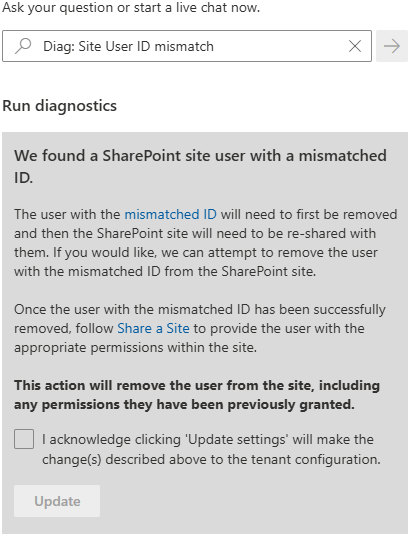
Diag: Site User ID mismatch
When you run this, it asks for a site Url and UPN, then it says:
We found a SharePoint site user with a mismatched ID.
The user with the mismatched ID will need to first be removed and then the SharePoint site will need to be re-shared with them. If you would like, we can attempt to remove the user with the mismatched ID from the SharePoint site.
Once the user with the mismatched ID has been successfully removed, follow Share a Site to provide the user with the appropriate permissions within the site.
This action will remove the user from the site, including any permissions they have been previously granted.
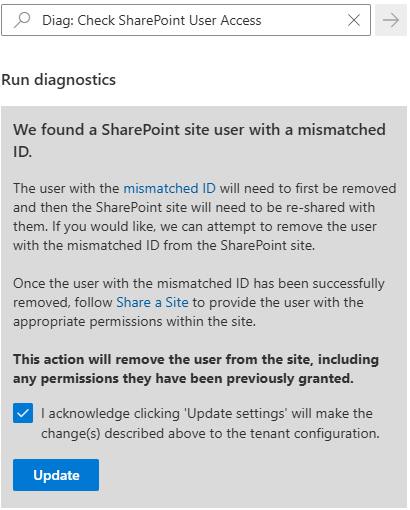
Diag: Check SharePoint User Access
This diag does the same:
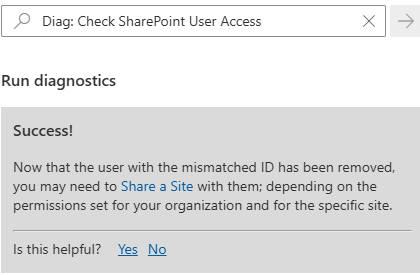
Let us run it.
Success! Now that the user with the mismatched ID has been removed, you may need to Share a Site with them; depending on the permissions set for your organization and for the specific site.
Actually Microsoft not only removes user from UIL, but adds a new one (without permissions).
Fixing the SharePoint User ID Mismatch Issue with Site Settings
This option is available for site owners or site collection admins, but only in cases there are not many site users. If you have thousands user in the site – it might be difficult to find a user in the UIL.
Site owner or admin – navigate to Site Settings -> Site Permissions -> Advanced Permissions -> Select any group, then update group id number in the browser address bar (Url) to “0”, so it’ll look like: https://domain.sharepoint.com/teams/mySite/_layouts/15/people.aspx?MembershipGroupId=0 then find the user in the list and delete it (Actions -> Delete User from site collection).
You can use PowerShell to detect if the issue with user’s permissions is actually user id mismatch issue and Fix the issue. Specifically I will use PnP.PowerShell module v 3.1. Here is what you’d do:
# this script
# 1) detects if there is a User id Mismatch Issue on the site
# 2) if yes - deletes User Id from the site and adds it again (with no permissions)
# NB! removing User from the UIL also removes all user's permissions, so user needs to request permissions again - but this time it should work
# NB! dew to nature of user id mismatch issue - these could be two different users - removing user's permissions is OK

# parameters
# specify User email and site url here:
$userEmail = "John.Smith.qerdgfq@$orgname.onmicrosoft.com"
$userEmail = "John.Smith@$orgname.onmicrosoft.com"
$siteUrl = "https://$orgname.sharepoint.com/teams/UserIDMismatchTest01"
$siteUrl = "https://$orgname.sharepoint.com/sites/UserIDMismatchTest02"
$siteUrl = "https://$orgname.sharepoint.com/teams/UserIDMismatchTest03"

# end of parameters section
#

# authenticate
$connectionAdmin.Url

# let's find a user in entra id:
# try to get user by email (in most cases email equals upn)
$adUser = Get-PnPAzureADUser -Connection $connectionAdmin -Identity $userEmail
if ($adUser) {
    # Found user in entra id
} else {
    # otherwise (in case upn -ne email) let us try to find user by email
    $filter = "Mail eq '" + $userEmail + "'"
    $adUser = Get-PnPAzureADUser -Connection $connectionAdmin -Filter $filter
}

if ($adUser) {
    $upn = $adUser.UserPrincipalName
    Write-Host "Found user in entra id: " $adUser.DisplayName
    if ($adUser.AccountEnabled) {
    } else {
        Write-Host "Note that user's account entra id is disabled."
    }
} else {
    Write-Host "Could not find user in entra id." -ForegroundColor Yellow
    Write-Host "Please double-check email specified: " $userEmail -ForegroundColor Yellow
    exit 1
}

# now we need to pull user profile from UPSA
$userProps = $null
$userProps = Get-PnPUserProfileProperty -Connection $connectionAdmin -Account $upn
if ($userProps) {
    Write-Host "Found user in SharePoint User Profiles Service: " $userProps["AccountName"]
} else {
    Write-Host "Could not find user in SharePoint User Profiles Service." -ForegroundColor Yellow
    exit 1
}

# let's connect to site
$connectionToSite = Connect-PnPOnline -ReturnConnection -ClientId $ClientId -Thumbprint $Thumbprint -Tenant $tenantId -Url $siteUrl
if ($?) {
} else {
    Write-Host "Could not connect to site:" $siteUrl -ForegroundColor Yellow
    exit 1
}

# let's get site
$site = Get-PnPSite -Connection $connectionToSite
if ($?) {
    Write-Host "Connected to site:" $siteUrl
} else {
    Write-Host "Could not connect to site:" $siteUrl -ForegroundColor Yellow
    exit 1
}

#  let's get site user
# Get-PnPUser -Connection $connectionToSite
$siteUser = $null
$siteUser = Get-PnPUser -Connection $connectionToSite -Identity ("i:0#.f|membership|$upn") -Includes AadObjectId
if ($siteUser) {
    Write-Host "Found user in the site: " $siteUser.Title
} else {
    Write-Host "Could not find user in the site: " $siteUser.Title
}


# now we detect if there is a user id mismatch issue
# normally user id and sid should be the same in all 3 user objects from entra id, upsa and site
$userIdMismatch = $false

# compare SID from site and UPSA
$upsaSID = ($UserProp["SID"].split("|") | Select-Object -Last 1).split("@") | Select-Object -First 1
if($upsaSID -eq $siteUser.UserId.NameId) {
} else {
    Write-Host "SID mismatch found." -ForegroundColor Yellow
    Write-Host "SID from User Profile:" $upsaSID
    Write-Host "SID from Site User   :" $siteUser.UserId.NameId
    $userIdMismatch = $true
}

# compare User Id from site and UPSA
if ($UserProp["msOnline-ObjectId"] -eq $siteUser.AadObjectId.NameId) {
} else {
    Write-Host "User directory object Id mismatch found." -ForegroundColor Yellow
    Write-Host "User Id from User Profile:" $UserProp["msOnline-ObjectId"]
    Write-Host "User Id from Site User   :" $siteUser.AadObjectId.NameId
    $userIdMismatch = $true
}

# compare User Id from site and directory
if ($adUser.Id -eq $siteUser.AadObjectId.NameId) {
} else {
    Write-Host "User directory object Id mismatch found." -ForegroundColor Yellow
    Write-Host "User Id from Directory:" $adUser.Id
    Write-Host "User Id from Site User:" $siteUser.AadObjectId.NameId
    $userIdMismatch = $true
}

if ($userIdMismatch) {
    Write-Host "The User Id Mismatch Issue was found on the site for the user."
    Write-Host "We'll remove User from the UIL which also removes all user's permissions."
    Write-Host "User will need to request permissions again - but this time it should work."
} else {
    Write-Host "We did not find User Id Mismatch Issue on the site." -ForegroundColor Green
    Exit
}

# Next, we'll ask for confirmation then delete user id from site and add it back

$confirmation = Read-Host "Please confirm (y/n)"
if ($confirmation.ToLower() -eq "y") {
} else {
    Write-Host "User deletion was not confirmed. The Issue is not fixed."
    Read-Host "Press any key to exit"
    Exit
}

# Fix the issue by removing the user and re-adding
# remove
Remove-PnPUser -Connection $connectionToSite -Identity ("i:0#.f|membership|$upn") -Force
if ($?) {
    Write-Host "Successfully removed user from site."
} else {
    Write-Host "Something went wrong... Could not remove user from site."  -ForegroundColor Yellow
    exit 1
}
# add
$web = Get-PnPWeb -Connection $connectionToSite
$web.EnsureUser("i:0#.f|membership|$upn")

# Validate
$newSiteUser = Get-PnPUser -Connection $connectionToSite -Identity ("i:0#.f|membership|$upn") -Includes AadObjectId
if ($newSiteUser) {
} else {
    Write-Host "Something went wrong... Just added user was not found on the site..."  -ForegroundColor Yellow
    Exit 1
}
if ($newSiteUser.Id -ne $siteUser.Id) {
    Write-Host "Added user to the site with no permissions."
} else {
    Write-Host "Something went wrong... Just added user got the same site user Id..."  -ForegroundColor Yellow
    Exit 1
}

Write-Host "Finished."
Read-Host "Press any key to exit"
Exit
Fix the issue “everywhere” at once
The “fix” provided by Microsoft and my PowerShell script above resolves the issue for one specific user at one specific site. But usually the issue is not isolated to one site… All sites accessed by “old” user are impacted. How can we fix all sites for the user?
Also, usually it’s not the only one reused Id in tenant. The older your tenant is the more reused Ids you have. How can we fix all sites for the all user with reused UPNs?
When the UPN is reused – we already know that the user sooner or later will be facing the SharePoint user id mismatch issue. From the user perspective the issue is not an easy to detect. It might take time for user to realize that something is wrong and submit ticket and get a solution. Is it possible to take care of the issue proactively, for all sites and all user?