During the first meeting of the Project Cortex Office Hours series on March 25, 2020, Microsoft (Chris McNulty and Naomi Moneypenny) introduced the case for Project Cortex, gave an overview of the solution, and walked through demos of its knowledge, capture, and classification features.
Update (Apr 2024): It seems like Microsoft changed this behavior for Microsoft 365, so consider this article as an obsolete. Though it is possible that content is still relevant for on-prem versions of SharePoint server.
Scenario:
You have a list (or a document library) in SharePoint Online. You can search through the list but some fields (or document properties) like “Description”, “Subject”, “Author”, “Owner”, “AssignedTo”, “Created”, “CreatedBy” are not searchable.
Cause:
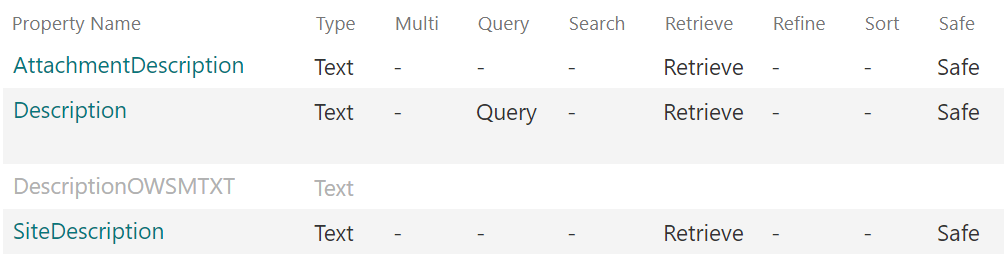
Crawled properties are mapped to non-searchable managed properties. So this is by design. Check Microsoft’s “Overview of crawled and managed properties in SharePoint Server” (we do not have this document for SharePoint Online, so we have to rely on this doc; though you can go to your Search schema in SPO to verify). You see some pre-created managed properties do not have “Searchable” option enabled.
Solution:
(See below for details, as this is still not finished:)
Prove:
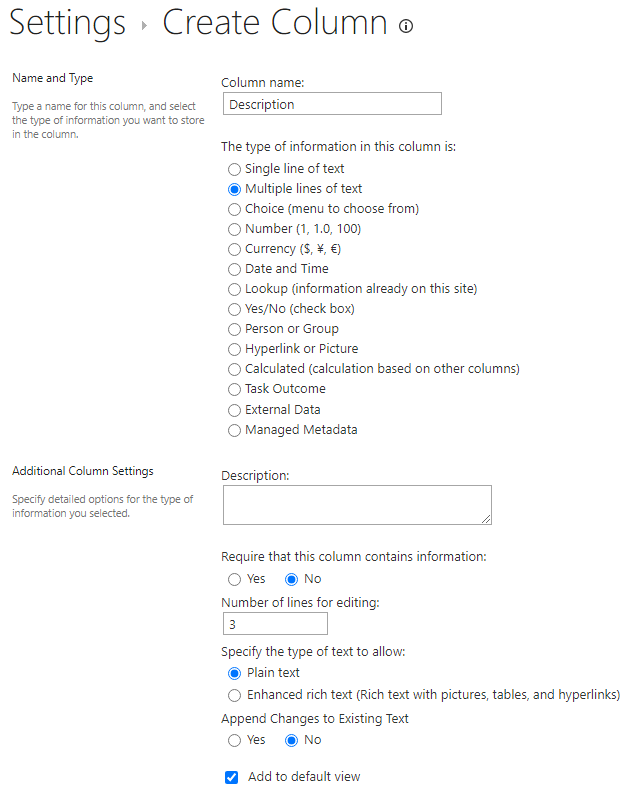
I have created a new SPO site test78, a new list Test11 and created (not added from existing) a custom field “Description” to the list:
I also created “Description2” column the same way. No data is added to the list so far.
Search schema looks like:
for Description managed property:
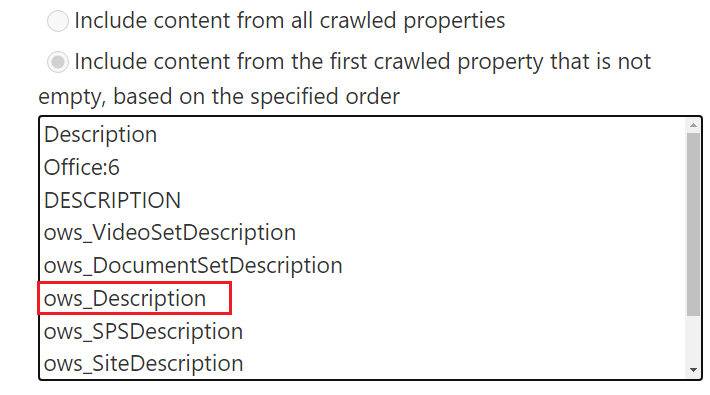
mapping:
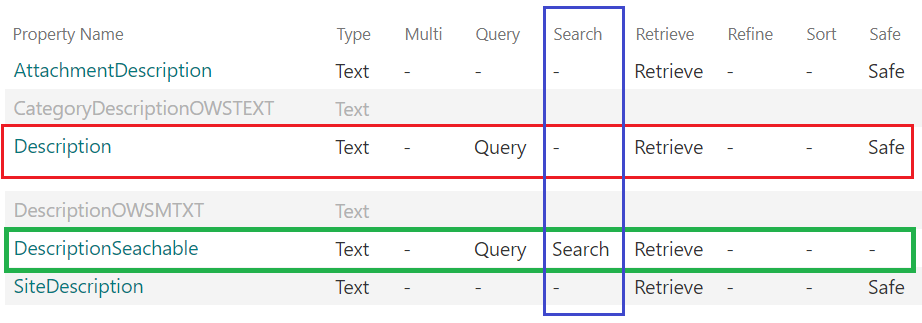
Notice that “Description” managed property is not searchable and “ows_Description” crawled property is mapped to “Description” managed property.
Searching for “ows_Description” crawled property gives me:
and that’s OK, as we have no data in the list so “ows_Description2” crawled property does not exist.
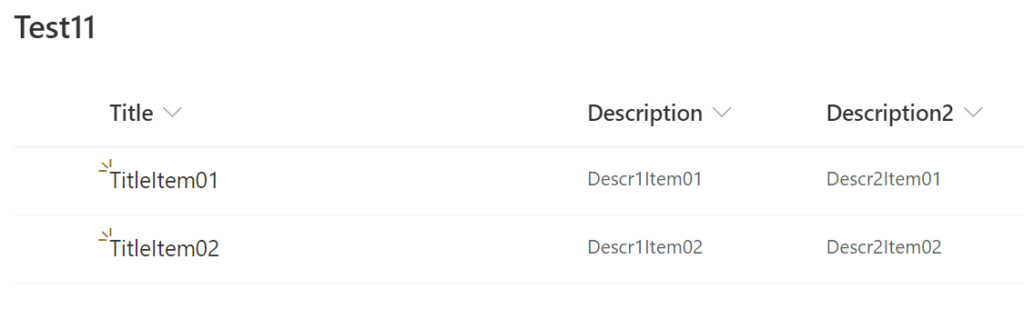
Now let me add some data to the list:
and wait a few minutes while continues crawl grabs data.
You can see:
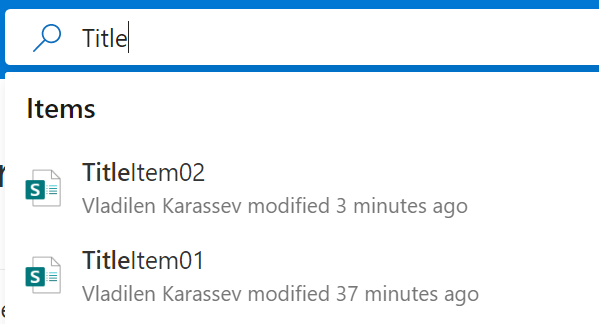
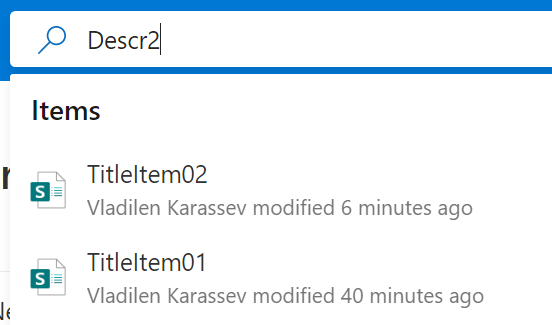
Title and Description2 are searchable, but we are not able to search through “Description” field content.
Explanation
Actually this is by design. Microsoft: “The index only includes content and metadata from the managed properties”. (Maybe Microsoft tries to protect their resources from overloading or maybe they protect us from irrelevant results, but including entire document content in full-text search and at the same time not including properties like Document Subject – this does not make sense to me). So the sad fact is list column “Description” is mapped to non-searchable managed property by default.
“Searchable” means: “…The content of this managed property is included in the full-text index.” I.e. if the property is not searchable – “The content of this managed property is not included in the full-text index.” => that’s by design.
But – the good news – the property is Queryable! Queryable “Enables querying against the specific managed property”.
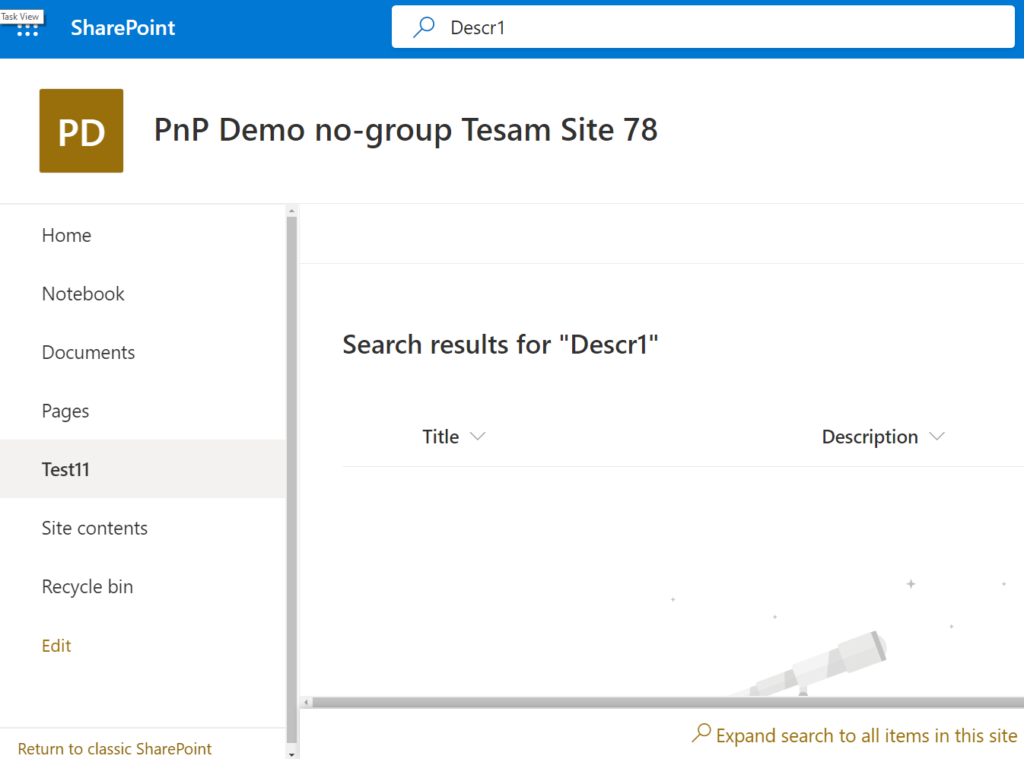
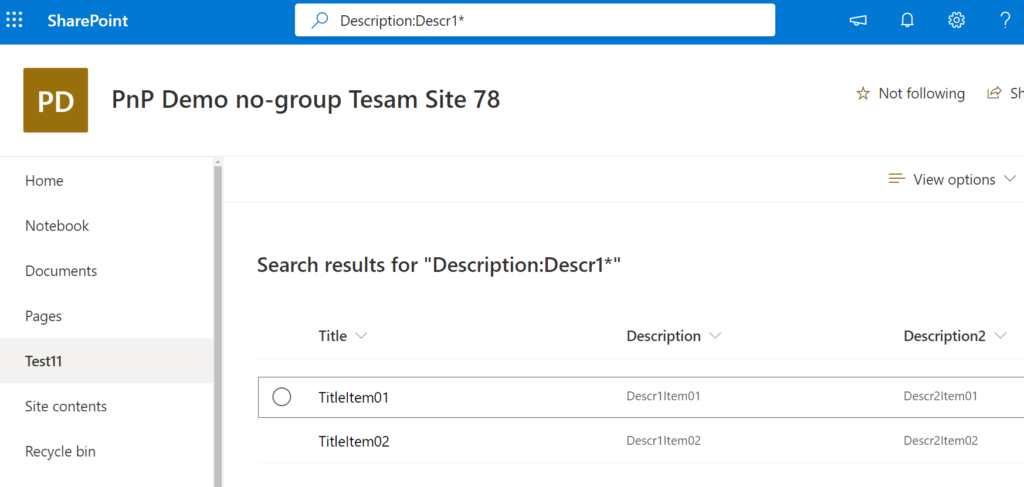
E.e. “Description:Descr1*” query should work. And it works:
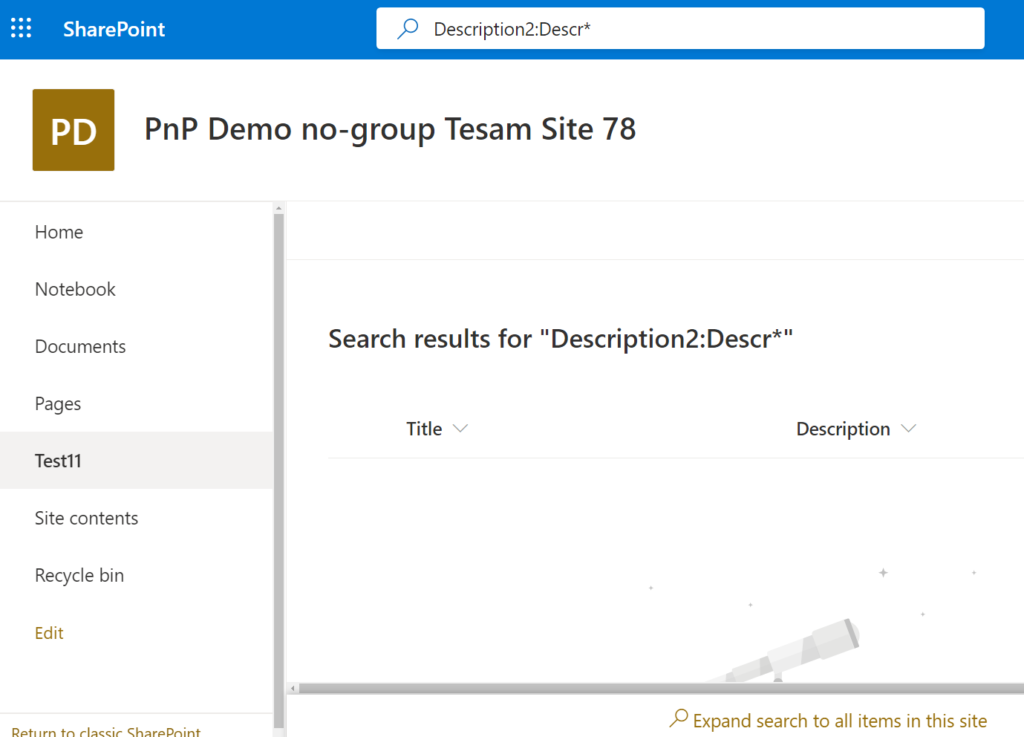
“Description2:Descr*” query should not work as we did not map Description2 property to any managed properties, so we can find content via full-text search but cannot find under managed property:
Solution
Option #1. Use queries like “Description:TextToSearch” (check also SharePoint KQL).
Option #2. Do not use name “Description”. Choose something else like “Short Description” or “Case Description”
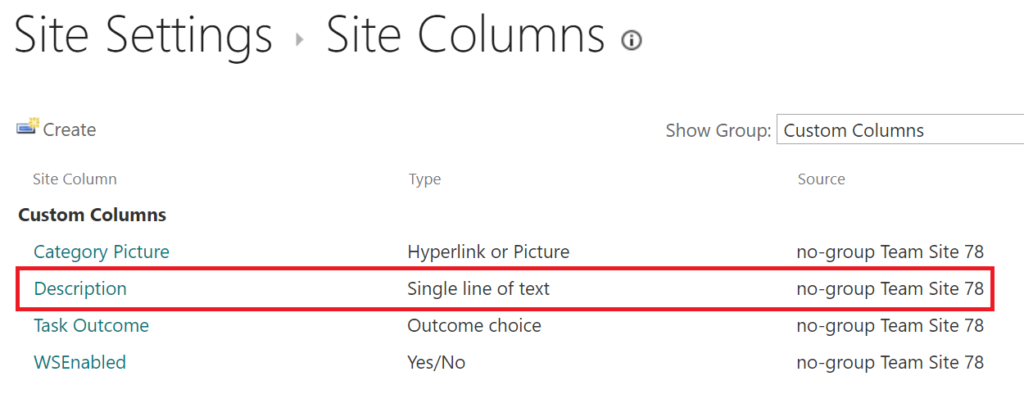
Option #3. Use existing site column “Description” from group:Custom Columns. It’s “single line of text” though. Note: “SharePoint Server Standard Site Collection features” must be activated.
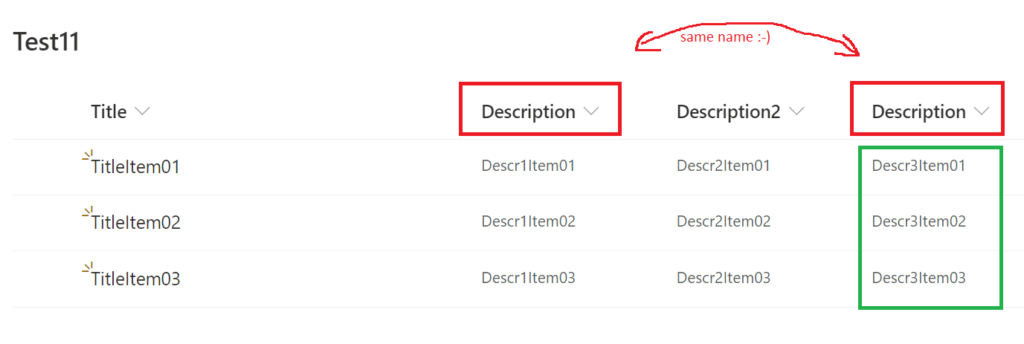
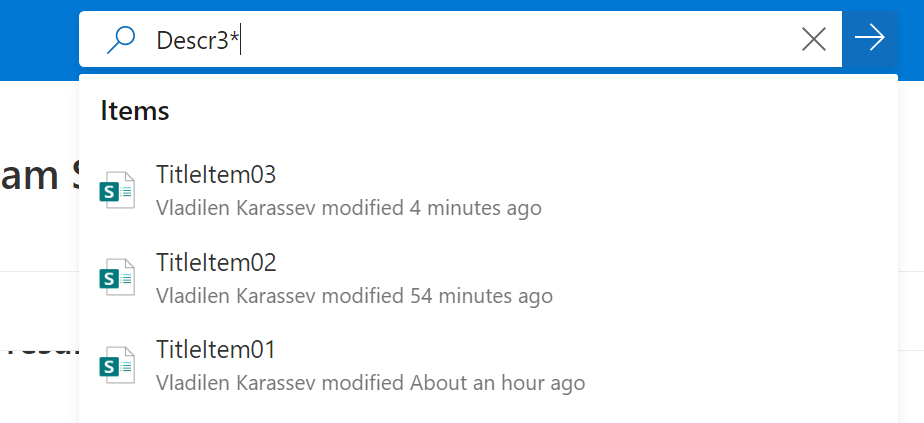
The thing is it’s internal name is “CategoryDescription” and display name is “Description”. So if you add this column to the list – the content will be searchable:
Option #4 Create a new site column, name it e.g. “DescriptionSrchblClmn”. Add this column to the list from existing site columns. Rename it to “Description”.
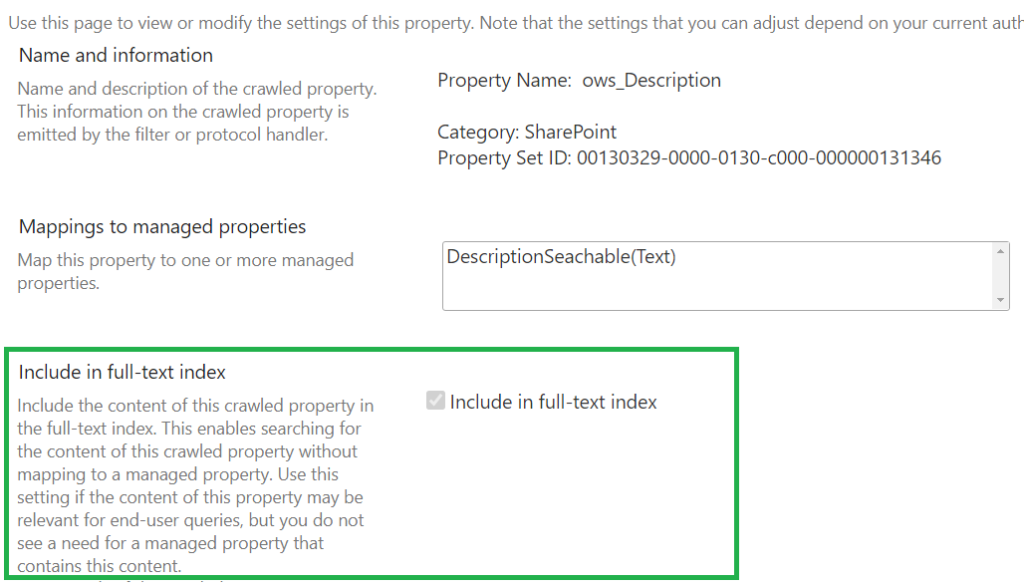
Option #5. Create your own managed property (e.g. “DescriptionSearchable”), make it searchable and map it to “ows_Description” crawled property.
ensure crawled property has “Include in full-text index” option ON:
NB: changing search schema affects other site lists/libraries.
Remember: if you made a change in search schema, run “Reindex site” under Site Settings -> “Search and Offline Availability”. It’s like on-prem “Full crawl” but works at web level.
Microsoft sells OneDrive as a personal cloud storage service… But There are actually two separate products behind the service, and each product provides more than “personal cloud storage service”…
What is OneDrive? What is the difference between OneDrive and Personal SharePoint site? Let’s see…
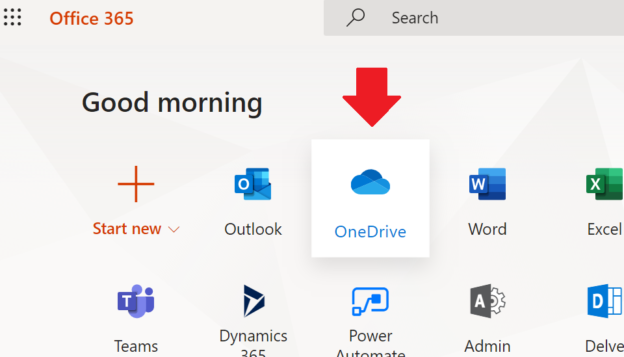
When you login to Office.com, you can click on OneDrive icon:
and you will found yourself at OneDrive site, so
oneOneDrive is a SharePoint Personal site:
The other OneDrive is a desktop application
i.e. program that runs in the background and synchronizes files from your personal SharePoint site (“first OneDrive”) to your local machine and back:
Below is OneDrive desktop application in Windows File Explorer. Please notice how “test 01.txt” file and “test 02” folder are synchronized to first OneDrive.
Confused? No? Wanna more?
Here are some more confusing details…
Using OneDrive desktop application you can synchronize your regular SharePoint site library with your desktop computer.
Here is a regular SharePoint site (Test23) with a LibUnderSharePoint library. You can click on the “Sync” button:
and see the magic! Now you have another folder on your local Windows machine:
– but this time OneDrive synchronizes it to regular SharePoint site.
There is also a “Personal OneDrive” – the same as regular OneDrive but free… (again, do not be confused: initially there was just OneDrive – free personal version and OneDrive for Business – version you could have with Office 365 subscription; now they are Onedrive and Personal OneDrive 🙂 )
OneDrive is a Microsoft thing.
Google has “Drive File Stream” (Google drive)
Dropbox – Dropbox sync
If you are managing SharePoint search, specifically if you are customizing SharePoint search schema, especially in SharePoint Online (Office 365) – you know how slow it works and how tiresome it is to “Search for a crawled property name”.
Recently I found out that wildcard works. No, even two wildcards work!
In this example I need crawled property started from ows and contains doc and type:
Microsoft: “You can also select to allow or prevent commenting on modern pages. If you allow commenting, it can be turned on or off at the page level“
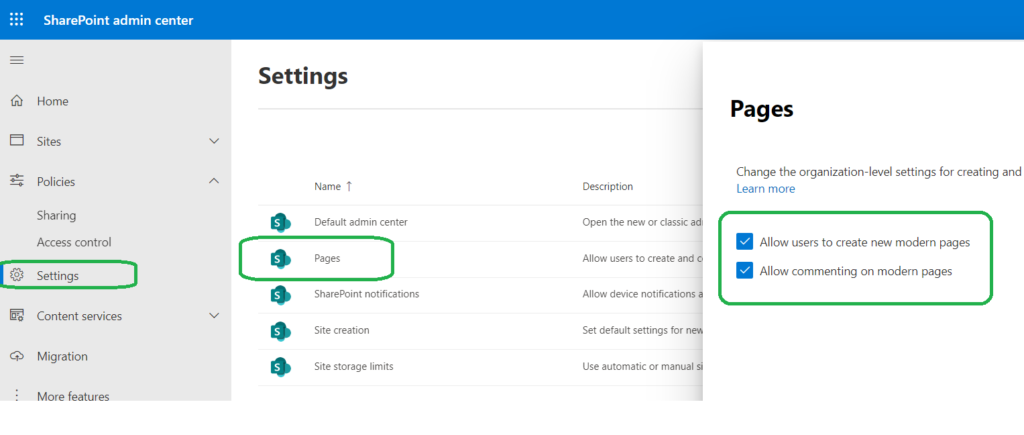
By default both – Allow users to create new modern pages – Allow commenting on modern pages are turned on (enabled)
Tenant or SharePoint admin can find settings under SharePoint Admin Center -> Settings -> Pages
When you are creating a modern site page – there is an option “Comments” turned On by default:
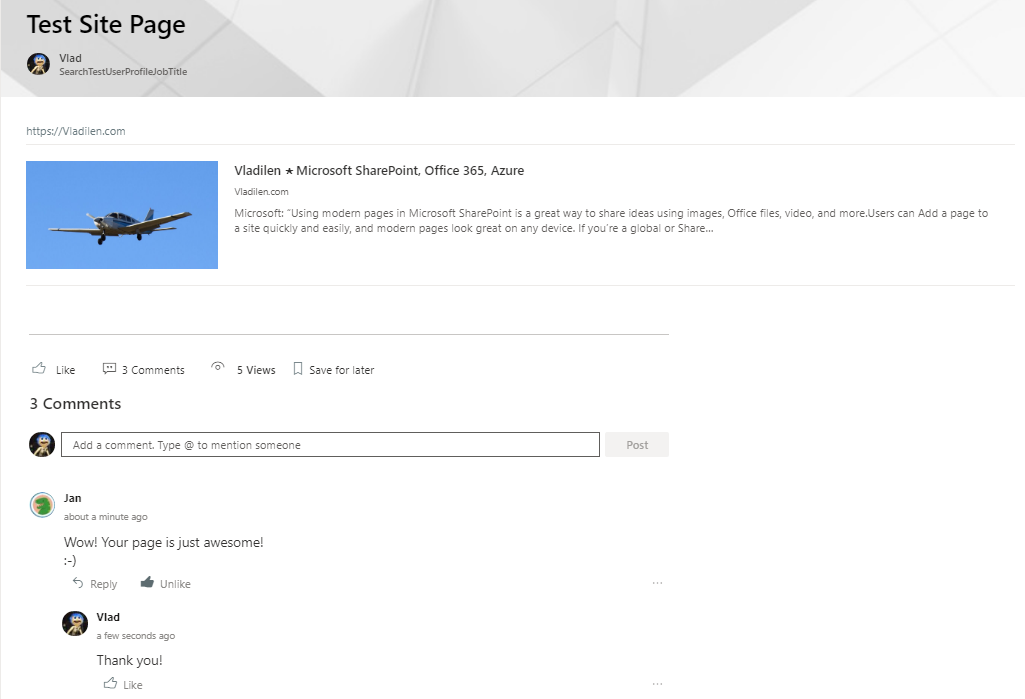
And page with comments looks like:
Comments on site pages (aka modern pages) can be enabled or disabled at each of the levels: – Tenant level – Site (aka site collection) level – Web (aka subsite ) level – Page level Here is how it is done:
Level
How it’s done
Who can do it
Tenant
GUI ( SharePoint Administration) or PowerShell
Global Administrator or SharePoint Administrator
Site (Site Collection)
PowerShell
Global Administrator or SharePoint Administrator
Web (Subsite)
PowerShell
Site Collection Administrator or Owner (Full Control rights to web)
Page
GUI (Page Editing screen)
Site Member (Edit right to page)
If commenting on modern pages disabled at higher level – lower level settings do not work. E.g. If you disable “Allow commenting on modern pages” at tenant level (it takes minutes) – the functionality will gone from all modern pages of all sites.
When you switch page comments Off – all existing comments will be hidden (but not deleted). If you later turn comments On – comments will reappear, including Likes.
If “Allow commenting on modern pages” disabled at tenant or web level – you will not see “Comments On/Off” switch while editing page. If “Allow commenting on modern pages” disabled at site collection level – you will see “Comments On/Off” switch while editing page, but you will not be able to turn it ON.
PowerShell
When you disable “Allow commenting on modern pages” at tenant level – PowerShell Object (site/web) property “CommentsOnSitePagesDisabled” will not be changed for any site/web. You can still with PowerShell set it to True/False: “Set-PnPWeb -CommentsOnSitePagesDisabled:$false” but it does not take any effect.
If you enable “Allow commenting on modern pages” at tenant level (it takes ~10 minutes) – the functionality will return to all modern pages and all webs and sites properties “CommentsOnSitePagesDisabled” will ???. You can change it with PowerShell: “Set-PnPWeb -CommentsOnSitePagesDisabled:$false”.
# having Site Collection Admin Permissions:
# disable Comments On Site Pages for a subsite:
$webName = "SubSite_02"
Set-PnPWeb -Web $webName -CommentsOnSitePagesDisabled:$true
# enable Comments On Site Pages for a subsite
# (only if comments enabled at tenant level):
Set-PnPWeb -Web $webName -CommentsOnSitePagesDisabled:$false


# having global admin or SharePoint admin permissions:
# site collection:
Set-PnPTenantSite -Url $siteUrl -CommentsOnSitePagesDisabled:$true
# tenant-level Comments:
Set-PnPTenant -CommentsOnSitePagesDisabled:$true # disable
 comments
Set-PnPTenant -CommentsOnSitePagesDisabled:$false # enable comments

# does not work:
Set-PnPSite -CommentsOnSitePagesDisabled:$true
How do I know if if the page is modern page or classic page (PowerShell)?
Note: We did not discuss “Wiki Pages” or “Web part Pages”, we discussed only “Modern Pages” (aka Site Pages). I have tested it all personally using Communication sites. MS-Team (group-based) and standalone SharePoint (no-group) sites – TBP.
… by teams you are bringing in collaboration but you are losing discoverability… … you put everything in one document library which becomes overloaded… … you have to rely on search to try to find it… … challenge for teams to become scalable (not everything can be added to tabs) – @DarceHess, Microsoft 365 & SharePoint PnP Weekly – Episode 91
The following solution is for Classic Search only.
What I did is:
User profile services -> Manage User properties: create custom property like “HideFromPeopleSearch”, boolean, do not allow users to edit value, Indexed
Client-side PowerShell script using PnP library:
Connect-PnPOnline -Url https://domain-admin.sharepoint.com
…
$nonPeople = Get-ADUser -filter … # based on what’s in your AD and how you separate people and non-people accounts
foreach($account in $nonPeople) {
Set-PnPUserProfileProperty -Property ‘HideFromPeopleSearch’ -Value ‘True’ -Account $account.UserPrincipalName
}
SearchCenter -> Site Settings -> Search Schema: use any pre-created RefinableString managed property (e.g. RefinableString33), add mapping to crawled property people:HideFromPeopleSearch,
SearchCenter -> Site Settings -> Search Query rules: Local People Results, new Query rule, change ranked results by changing query, {searchTerms} -RefinableString33=True
Remove orphan sites from SharePoint content database
Problem: When you patch SharePoint or perform database-attach migration or just do Test-SPContentDatabase, sometimes you can see errors with category “SiteOrphan”. Although it says “UpgradeBlocking : False”, Ignoring this error may cause severe issues, even data loss. Continue reading →