Oversharing remains one of the most persistent challenges in SharePoint Online. With the introduction of Microsoft Copilot and its AI-powered search capabilities, the issue has become even more visible—and more urgent to address. Microsoft has acknowledged this by introducing the SharePoint Advanced Management suite, aimed at helping administrators to bolster content governance throughout the Microsoft Copilot deployment journey.
Why Does Oversharing Happen?
In most cases, oversharing is unintentional. Based on my experience, the root causes typically fall into four categories:
Unaware Sharing: A user shares a site, library, or folder without realizing it contains sensitive information.
Unaware Uploading: A user uploads sensitive content to a location that is already broadly shared.
Human Error: Mistakes like selecting the wrong group or sharing a folder instead of a file.
Convenience: Users opting to share with “Everyone” to avoid the hassle of managing individual permissions.
Why It’s a Bigger Problem Today
In the past, search in Microsoft 365 was content-driven—you had to know what you were looking for. Today, search is context-driven. Microsoft 365 proactively surfaces content with suggestions like “Here’s what might be interesting to you” or “Here’s what others are working on.” This increases the risk of oversharing content being exposed.
Separate issue, non-technical, but related to the subject – not every user knows that search in Microsoft 365 is security-trimmed, i.e. provides results from only what this specific user has access to. Sometimes people might think of Microsoft 365 search the same way as general internet search (If a can see it – then everyone can see it, or why my private documents appear under Bing search?).
The Admin Dilemma
As SharePoint administrators, we’re caught in a classic catch-22:
Complex Microsoft products
Users prone to mistakes
Management demanding simple, fast solutions
What seemed like straightforward fixes for oversharing actually concealed the true issue, generating new problems, increasing admin burden, perplexing users, and ultimately hurting company productivity. Examples are (I would never do that):
Exclude sites from search indexing (Set “Allow this site to appear in search results?” to No)
Turn off Item insights, turn off People insights (turn off Delve)
Truncate enterprise search with “official” sites only (via query)
Microsoft offers two solutions: “Restrict discovery of SharePoint sites and content” and “Restricted SharePoint search”. Both solutions aimed to exclude content from search and from Copilot. Microsoft: “Restricted SharePoint Search allows you to restrict both organization-wide search and Copilot experiences to a curated set of SharePoint sites of your choice… and content users own or that they have previously accessed in Copilot.”. “With Restricted Content Discovery, organizations can limit the ability of end users to search for files from specific SharePoint sites.”
Microsoft clearly says that “limit the ability of end users to search” is a temporary measure that “gives you time to review and audit site permissions”… “to help you maintain momentum with your Copilot deployment while you’re implementing comprehensive data security”. Also: “Sites identified with the highest risk of oversharing can use Restricted Content Discovery to protect content while taking time to ensure that permissions are accurate and well-managed”.
Microsoft highlights that “Overuse of Restricted Content Discovery can negatively affect performance across search, SharePoint, and Copilot. Removing sites or files from tenant-wide discovery means that there’s less content for search and Copilot to ground on, leading to inaccurate or incomplete results”.
And finally “Restricted Content Discovery doesn’t affect existing permissions on sites. Users with access can still open files on sites with Restricted Content Discovery toggled on.”. I.e. solutions “Restricted SharePoint Search” and “Restricted Content Discovery” do not solve the root cause of the problem (oversharing), but make the problem less visible.
With over 15 years of experience in SharePoint and more than a decade working with Microsoft 365 and Azure—including large-scale tenants—I’ve seen this problem evolve. Now, with Copilot in the mix, it’s more critical than ever to implement a robust access management strategy.
How to solve the real oversharing problem (My Ideal “No-Oversharing” Tenant Configuration)
Here’s what I would recommend for minimizing oversharing in a Microsoft 365 environment (think of it as SharePoint Governance):
1. Remove “Everyone” and “Everyone Except External Users”
Disable these groups in the people picker to prevent broad, indiscriminate sharing. Instead, provide other options for sharing content with larger audiences (see below).
2. Implement Sensitivity Labels for Sites
Enforce mandatory sensitivity labels for all sites.
Labels should control site visibility (e.g., Private, Public) and be clearly named
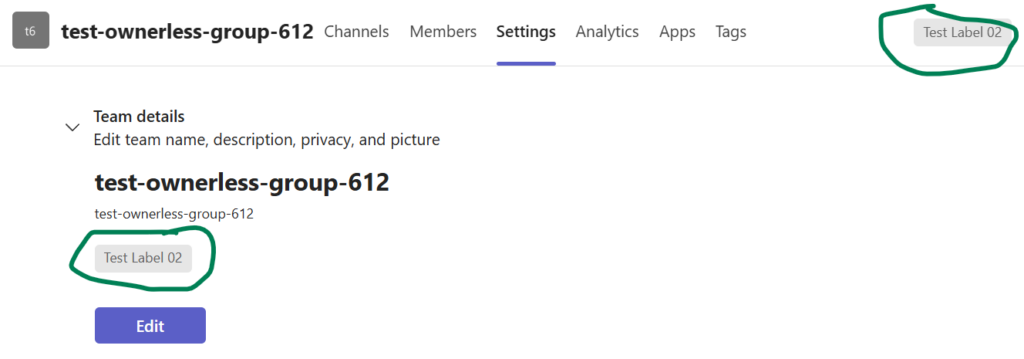
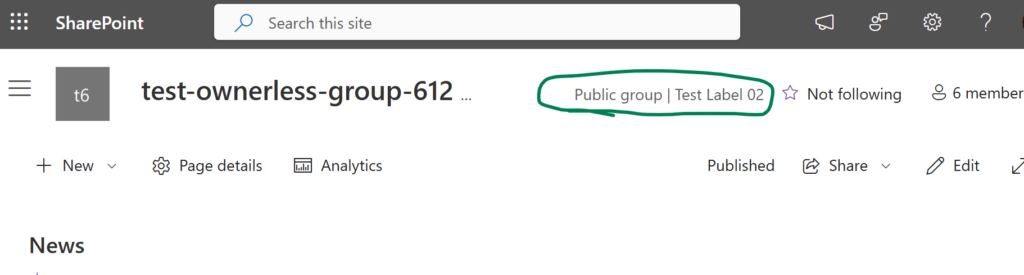
The label is visible across all interfaces—Teams, SharePoint, libraries, lists, folders—so users always know how wide the content is shared from the sensitivity label.
3. Empower Users with Guardrails
Allow users to create Teams and communities, but enforce sensitivity labels.
Enable requests for standalone sites (Team or Communication) with required labels.
Disallow private or shared channels under public Teams to avoid label mismatches (e.g., a private channel labeled “Public”).
Benefits of This Approach
Once implemented:
Users will always know whether a site is private or public.
Sharing with “Everyone” on private sites will be technically impossible.
Users needing broad access can request public sites, e.g.
Public Teams for collaboration with everyone (allows read/write access)
Communication site for publishing information (allows read only access)
Yes, this may lead to more sites and Teams. Yes, this may lead to more tickets from users who at private site wanted to break permissions as usual and share list or library or folder with everyone. Yes, we would need to develop automation that can help manage the scale. But that’s a worthwhile trade-off for reducing oversharing!
More to consider
Large Custom Security Groups
There might be Large Custom Security Groups in tenant. What if the user wants to share site with one of these Large Custom Security Groups? What kind of site that would be? Private? Public?
Consider the following. When a team owner adds a security group to team members – it’s not a group added, but individual users. That makes sense – all team members can clearly see who are the other team members. That makes the team private. Private team should not be additionally shared at SharePoint site level. Only permissions should be provided through team.
Public team – as well as public standalone site – can be shared with EEEU. But what if the requirements are not to share the site with “Everyone…” but share with some other Large Custom Security Group – e.g. “All employee” or “All Central Office Users”? Can we do it? Should site be private or public in this case? My opinion: site should be labelled as public. Site owner can request a public standalone site or create a team self-service, then site owner can remove “Everyone…” group from permissions and add a custom security group at any level.
Some orgs choose to recommend providing access to the standalone SharePoint sites via security groups vs SharePoint groups. So it is possible we have a private standalone site with access provided to security group (or m365 group). This is where an or should have their own policy – how big the group should be to be considered as large group and trigger site label as public. There are also dynamic security groups.
Automation Requirements
To support this model, we’ll need (at least) the following custom-designed solutions:
Automated Site Provisioning: A request-and-approval process for creating labeled standalone sites.
Channel Monitoring: A custom solution to detect and flag private/shared channels under public Teams, since there’s no out-of-the-box enforcement.
Large Custom Security Groups Monitoring: make a list of large custom security groups users can share information with – and check on scheduled bases – if the site is shared with large custom security group – site must be labelled as public.
Sharing site with “Everyone except external users” : If user accidentally removes “Everyone except external users” from public site – there must be an option for user to add “Everyone except external users” with permissions Read or Edit. Site can be shared with “Everyone except external users” only at the root site level and only if site labelled as Public.
Environment Clean-Up
To prevent oversharing, we should not only “from now on” follow the strategy described above, but also make sure our existing sites are compliant with our governance. This would be another challenge.
A common question in SharePoint Online is: How can we block access for a specific user to all sites? In SharePoint Server (On-Premises), this was relatively simple—we could apply a “Deny” policy at the web application level. However, SharePoint Online doesn’t expose web application settings, so there’s no direct way to say, “Block this user from accessing SharePoint.”
In SharePoint Online, access is granted—not explicitly denied. To prevent a user from accessing SharePoint content, you must ensure they are not granted access in the first place. This becomes tricky due to the built-in group “Everyone except external users”, which automatically includes all internal users. If a site or resource is shared with this group, the user in question will also gain access—there’s no way to exclude them from this group.
Despite this limitation, there is a workaround. While you can’t remove a user from the “Everyone except external users” group, there are strategies to restrict their access effectively. Consider the following options (and we’ll deep dive in all options, discussing pros and cons):
Though this option looks simple at first – it would require some extra work, because
you’d need to deal with existing shares with “Everyone Except External Users” should you remove all shares with “Everyone Except External Users”? What to replace it with?
you’d need to deal with “public” groups, teams, sites Public group-based site (team) will have “Everyone Except External Users” in members by default and even if you remove it – it’ll be added again automatically (?)
you’d need to provide an alternative for scenarios where sharing with everyone is a requirement what alternative? See below.
Assign Permissions Using Custom Groups
The idea is to create a custom security group (e.g. “All internal users”) or a couple of custom security groups (e.g. “All employee” and “All contractors”) and include in these groups all users who we want to have access to SharePoint except those who we want to keep out of SharePoint. Again, sounds simple, but I anticipate the following challenges.
You do not want to manually add every new account to these groups. So these groups must be dynamic – if so – you’d need to figure out criteria – consequently you’ll end up creating a custom user property and you’d have to setup this property. Alternatively – you’d need to automate assigning users to these groups as part of onboarding.
If you are a part of enterprise with on-prem directory synced to cloud – you’d told by Identity management that this is a very bad idea – to sync 99,900 accounts out of 100,000 total accounts to a custom group.
So, this option – using custom security group as an alternative to “Everyone Except External Users” would work well in small tenants, but in medium and large – would require some extra work.
2. Block Access via Conditional Access
You can create a Conditional Access Policy to block access for specific users to SharePoint Online from Microsoft Entra Admin Center -> Security > Conditional Access. You’d create a new policy, select the user(s) to exclude, select app – Office 365 SharePoint Online, choose Block access. Once the policy enabled, the selected user(s) will be blocked from accessing SharePoint Online and OneDrive.
First of all this option might cost you some money, as it requires Azure AD Premium P1 or P2 (or Microsoft 365 Business Premium or Microsoft 365 E3 or E5).
Second, as it says, your user in question will be fully blocked from accessing SharePoint Online and OneDrive. But what if they still need access a few sites while being removed from ‘Everyone Except External User’ group?
3. Make the user “Internal Guest”
This option is not so obvious, but in many cases might work better than all others. Here is the idea. Actually it is not always external users are guests and internal users are members. You can have internal guests and external members (see this Microsoft’s article). There is a property in Entra Id – “User type” and usually it’s a “Member” for internal users – users created in Entra Id or synced from on-prem AD. External users are usually have User type as “Guest”. Only users with type “Member” are included in the built-in “Everyone Except External User” group.
So you’d need to change user type in Entra Id from Member to Guest – and in a couple of hours this user will loose all access to SharePoint provided via “Everyone Except External User” group. But, at the same time – you’ll be able to provide access for this user on individual basis.
Note: changing user type from Member to Guest comes with important implications and limitations. In a nutshell, a user becomes a Guest, e.g. a user cannot browse the full directory, have restricted access to Microsoft 365 Groups and Teams features. Changing the user type may affect audit trails, compliance policies, and conditional access rules that differentiate between internal and external users.
Validate the user does not access SharePoint
This is not an answer to question “How to remove a user from “Everyone Except External User” group”, but answer to question “How to ensure a user is not a part of “Everyone Except External User” group” or “How to ensure a user does not have access to SharePoint if access is provided via “Everyone Except External User” group”.
site admin can check user’s permission via Site settings – Advanced – Permissions – Check Permissions
SharePoint admin can check audit log
Note: Removing a user’s SharePoint license does not remove their access if permissions are still granted via this group
This article is for SharePoint or Microsoft 365 admins focusing on governance and information protection. If you have SharePoint Advanced Management (SAM, aka SharePoint Premium) licensed or you got at least one Copilot for Microsoft 365 license (as having m365 Copilot license automatically enables SharePoint Advanced Management in tenant), then under reports – Data access governance (in SharePoint admin center) – you can not only get Content shared with ‘Everyone except external users’ (EEEU) reports, but also initiate access review. Let us look more closely at this functionality and discuss the pros and cons..
First of all, report does not provide you with all SharePoint content shared with “Everyone except external users”. Report helps you with what was shared with EEEU in the last 28 days. That drastically limits usage of this feature. I.e. you should first get initial report on the all content shared with EEEU, and somehow take care of it by other means (consider How to Find Content Shared with Everyone in SharePoint and Teams), and only then you can use this Microsoft’s content shared with EEEU report and access review.
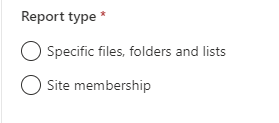
You can share content with EEEU or directly – by adding EEEU to resource permissions directly or by including EEEU into SharePoint group. So content shared with EEEU reports come in two flavors – “Specific files, folders and lists” and “Site membership”
“Specific files, folders and lists” user experience
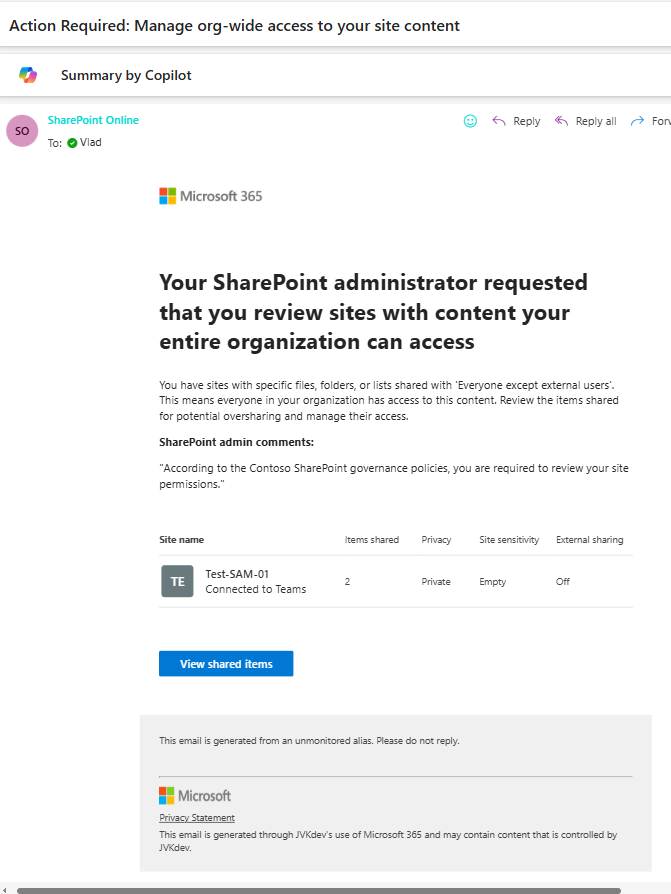
When you initiate access review from the “Specific files, folders and lists” type of report – users (site admins/owners) get email notification that says “You have sites with specific files, folders or lists shared with ‘Everyone except external users’. This means everyone in your organization has access to this content. Review the items shared for potential oversharing and manage their access.“
Scrolling down, in the email, site owner can see a list (table) of incompliant sites with the following columns: Site name, privacy, sensitivity, external sharing and “Items shared”. Site name is clickable and sends user to the root of the site.
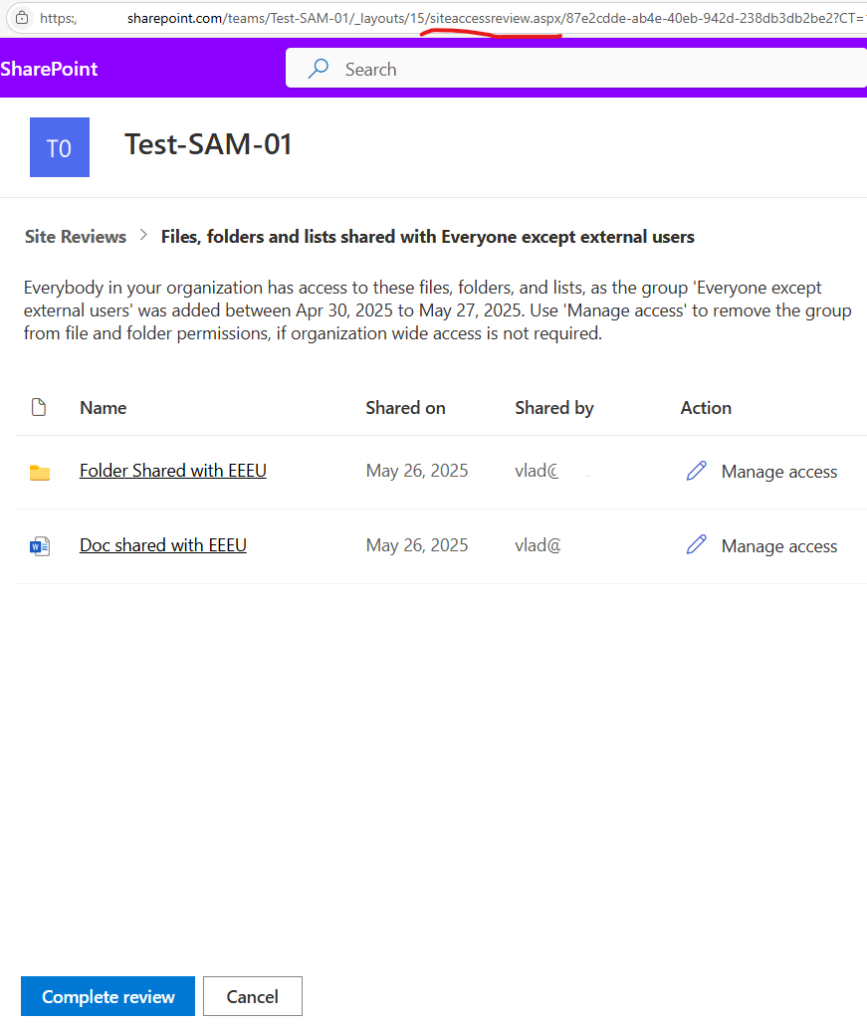
Below the list of sites there is a button “View shared items” that sends user to the special system page – “https://orgname.sharepoint.com/teams/site01/_layouts/15/siteaccessreview.aspx/<id>” where he/she can see list of SharePoint items shared with EEEU. Columns are: (item) Name, Shared on (date), Shared by (email), Action (manage access). Item name and manage access are clickable.
If an item is a library item – e.g. document or a folder – it is displayed correctly – with icon according to the doc type and doc name. Clicking on the doc name – an actual document opens so you can review it’s content.
If item is a list item – it is displayed incorrectly – no icon, no meaningful info about the item (it is displayed as “”). Clicking on the link – a warning icon and message “Can’t preview this file. Open the file or download it to view in your desktop app”. Buttons “Open” and “Download” are there but not helpful as well.
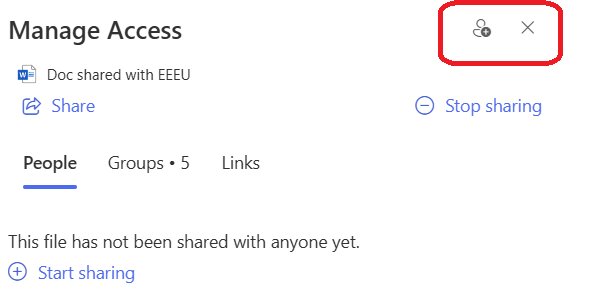
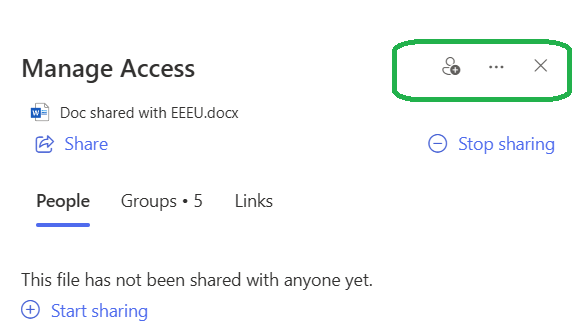
Clicking on “Manage access” opens almost standard “Manage access” dialogue you can have via “manage access” item context menu, but with no “…” more options at the top right:
which makes this dialogue screen useless, as you can only provide additional access to the item or remove all access. You cannot remove EEEU from access without three dots “More options”.
Manage Access from the Policy:
Regular Manage Access:
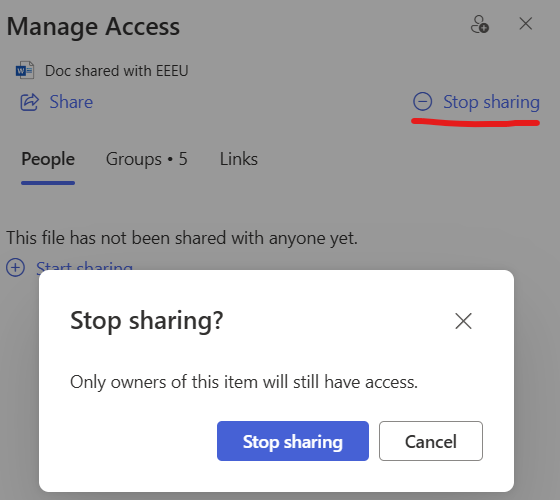
“Stop sharing” literally removes all permissions to the item except owners
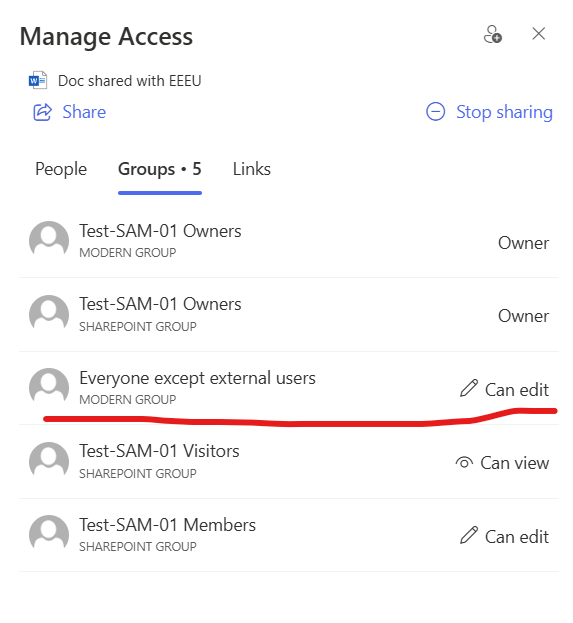
Under the “Groups” tab – you’d see that the item is shared with “Everyone except external users” but you will not be able to remove just this group from access…
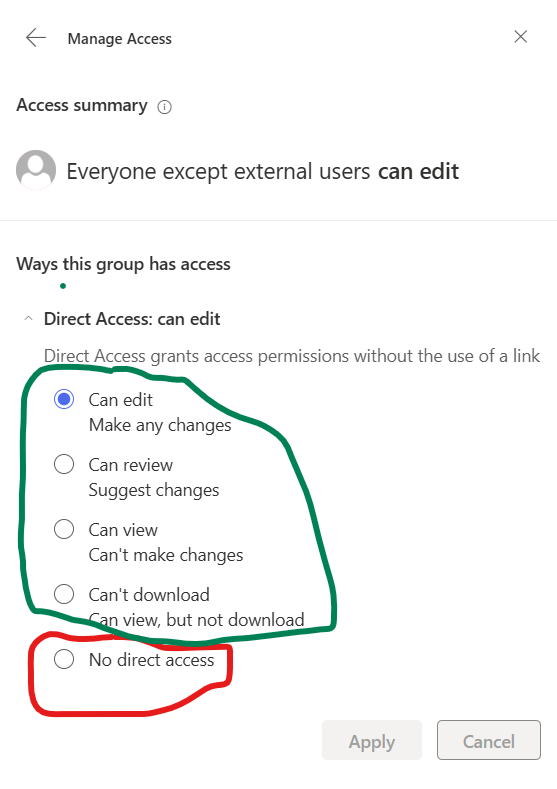
By clicking on a group name – site owner will be able to change this group permissions, but the option “No direct access” is not selectable…
“Site membership” user experience
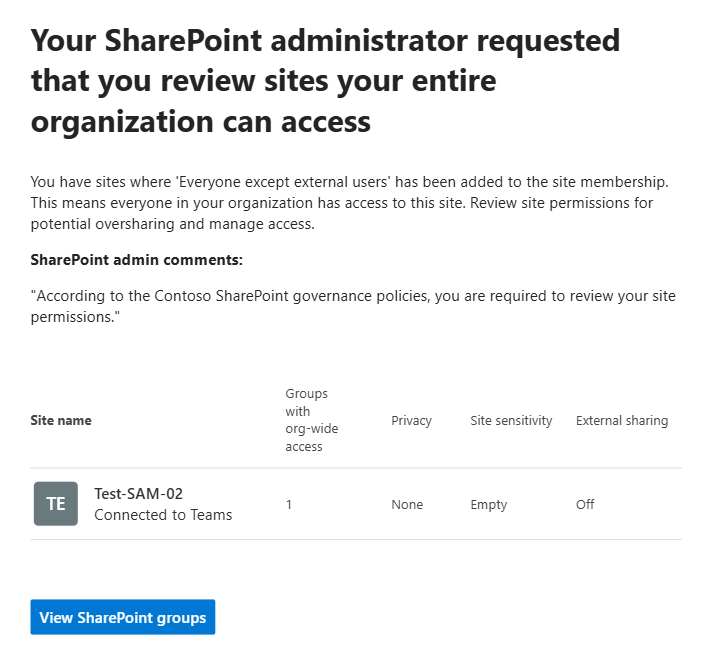
In the case with a “Site membership” report, text would be slightly different: “You have sites where ‘Everyone except external users’ has been added to the site membership. This means everyone in your organization has access to this site. Review site permissions for potential oversharing and manage access.“, which makes sense.
Right after that, in the email, site owner can see a list of incompliant sites with the following columns: Site name, privacy, sensitivity, external sharing and “Groups with org-wide access”. Site name is clickable and sends user to the root of the site.
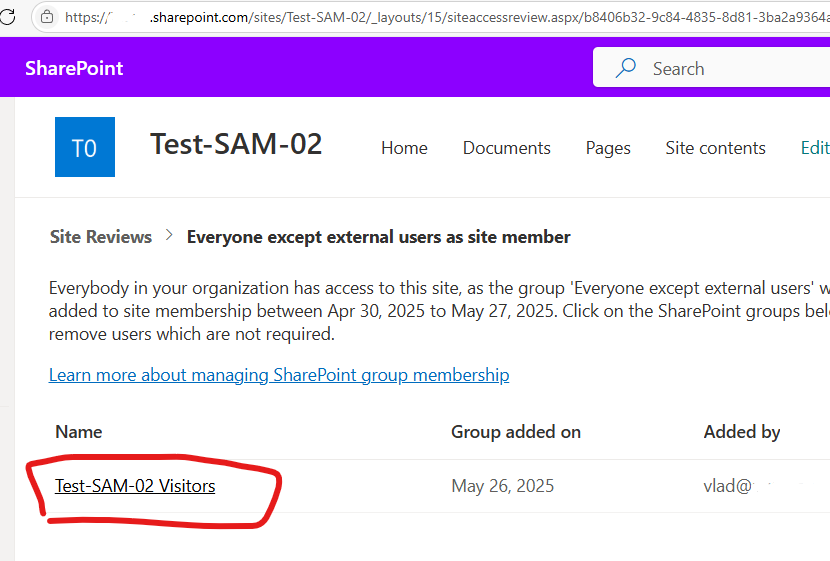
Then there is a button “View SharePoint groups” that sends user to the special system page – “https://orgname.sharepoint.com/teams/site01/_layouts/15/siteaccessreview.aspx/<id>” where he/she can see list of SharePoint groups (clickable) with EEEU as members.
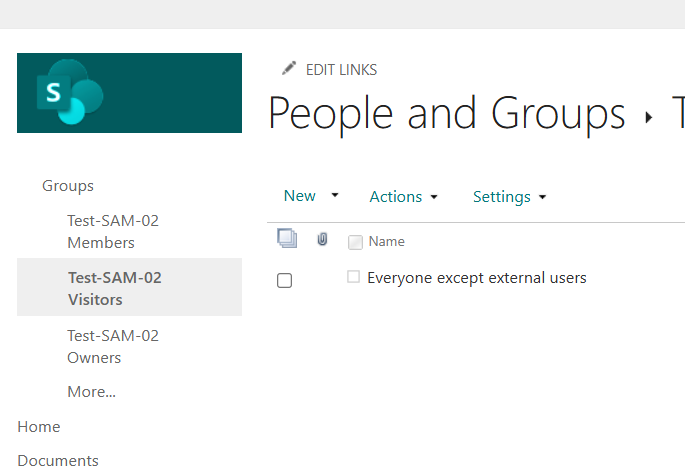
By clicking on a group name – admin opens standard SharePoint “People and Group” membership page: /_layouts/15/people.aspx?MembershipGroupId=X, which is nice, because from this screed a site owner can simply remove this group from the access list using Actions-> Remove:
siteaccessreview.aspx page
User can navigate directly to the reviews page: “https://orgname.sharepoint.com/teams/site01/_layouts/15/siteaccessreview.aspx” and if there were reviews initiated by SharePoint admins – and it’ll work – admin will see all access reviews initiated for this site – columns are: Review name, Description, Requested on (date), Status, reviewed by (email) and admin comment. In case no reviews were initiated against tie site – “You have no reviews to take action on” will be displayed. That’s good.
Complete review
On the bottom of the siteaccessreview.aspx page you’ll see “Complete review”
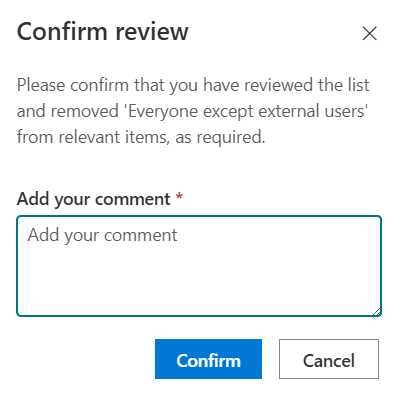
Click on it, add comment (optionally) and confirm:
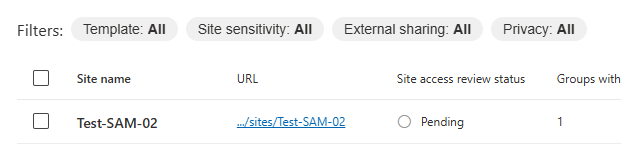
SharePoint Admin is able to see the status of every site access review stats – pending or completed – in GUI and in the .CSV report saved.
Admin experience: GUI only
Once you got report – you can initiate access review. All must be done in GUI, click-click-click selecting sites… But what if you have thousands? There is no PowerShell cmdlets or API for this functionality, which really limits your ability to implement it gracefully, especially in large Microsoft 365 environments and automate it.
Download detailed report
Report “Specific files/folders/lists…” does not include files, folders, list – i.e. it does not include what exactly is shared with EEEU. Report includes site id, url, name, template, is it teams-connected, sensitivity (?), privacy, external sharing, primary admin name and email, and number of items (?) shared with EEEU.
So technically you can communicate to site owners, but you’d need to rely on them to figure out what content is shared with everyone.
Email template
When you initiate Site access review – an e-mail notification is send to site owners. This e-mail is not customizable at all. The only admin can do is to add a message (for every “initiate Site access review” action). But the email looks really similar to the site lifecycle policies email notification, and Microsoft is working on version 2 of the policies with a customizable email template.
This email comes from “SharePoint Online <no-reply@sharepointonline>” address (not customizable), so comes “from outside of your organization” and can be considered as scam.
Microsoft’s logos and other graphics are blocked by default and e-mail includes a button “View shared items” – enough red flags for users to consider it as spam. Keep this in mind.
The good news is e-mail contains site name – so site owner can recognize it at act accordingly.
Usage scenarios
Small tenants
In small Microsoft 365 environments – yes, this functionality probably can be used “as is” (and should be used). Especially for new tenants – I’d recommend enable reports and use this feature on a regular basis.
Medium-size tenants
I’m not sure. It depends on your governance rules and company culture.
Enterprises would not like it
I’m very pessimistic if this functionality is useful in large environments. Reasons are:
In enterprises usually all the communication must follow approved templates, branding and so on. Currently SAM DAG does not support custom templates (though there are rumors Microsoft is working on it)
User experience of “reviewing shares with everyone”… and “managing permissions” designed very poorly… You SharePoint users need clearness and simplicity. Existing UX makes everything wort. In enterprise you do not want to deal with thousands of tickets from site owners who could not figure it out
In enterprises you’d think of automation. Currently all is just GUI.
if your tenant is not new – you already have a lot of overshared content. This functionality covers only new shares, so you still need to come up with your custom solution (idk – PowerShell scripts?) to deal with oversharing. But once you designed your custom solution – why don’t you continue to use it?
SharePoint Advanced Management is an add-on to Microsoft 365 for admins. Microsoft says that it is a powerful suite of tools for IT admins to bolster content governance throughout the Microsoft Copilot deployment journey. Let us have a closer look at what SharePoint Advanced Management (SAM) is how exactly it helps with governance enforcement in the Copilot era.
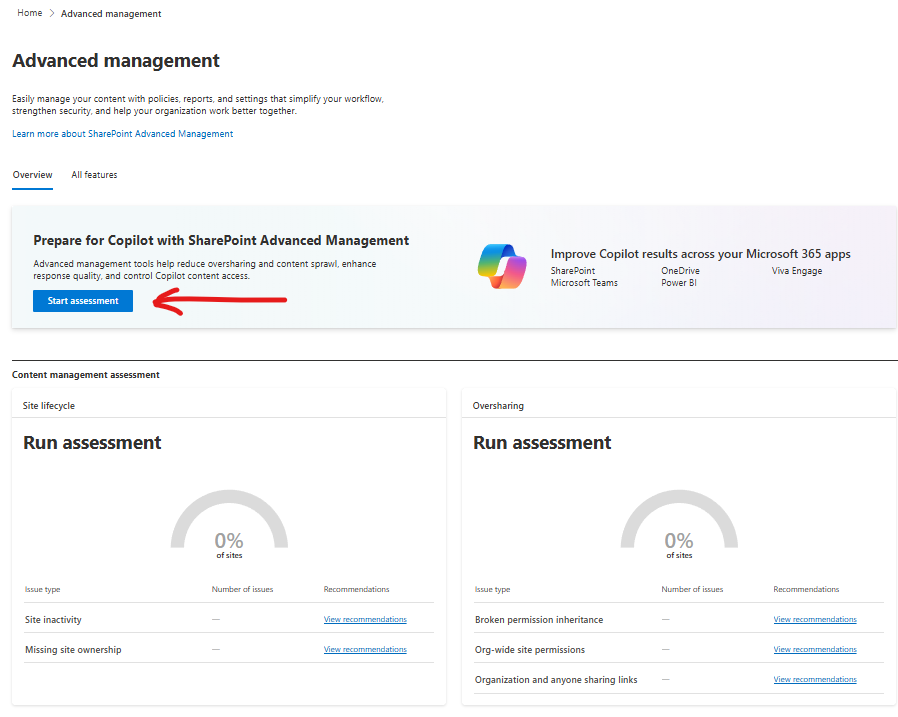
Microsoft recently updated SAM features (this KBA is based on Oct 2025 features set). Now Advanced management page has a dashboard – “Overview” tab and “All features” tab.
Advanced management – Overview
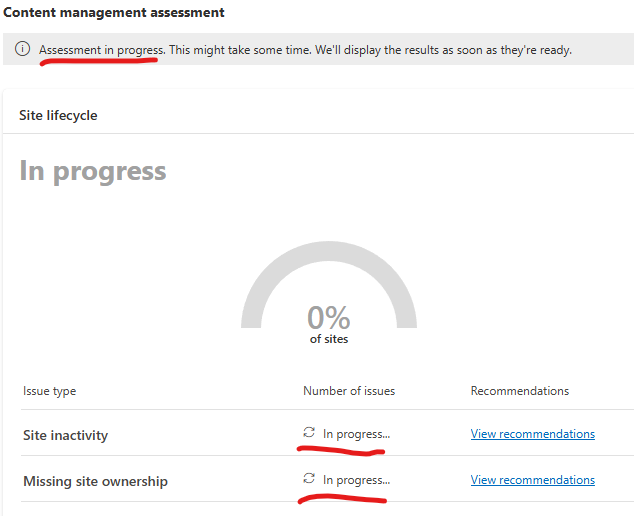
On the “Overview” page Microsoft wants us to run assessment. “Start assessment” button starts assessment immediately. So let us click “Start assessment” button and see what it does exactly. Btw, it might take from days to weeks for your tenant – depending on the tenant size. While assessment is in progress – it’ll display “Assessment in progress. This might take some time. We’ll display the results as soon as they’re ready.”
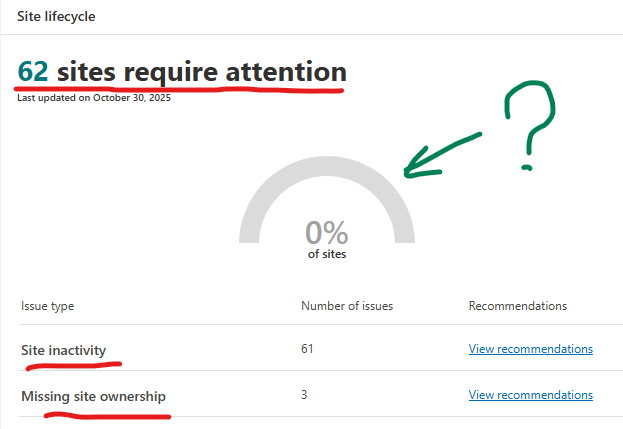
It took 3-4 hours for my small dev tenant to assess Site lifecycle and find 62 sites require attention:
Advanced management – All features
Microsoft classifies SAM’s features as “Manage content sprawl”, “Manage content lifecycle”, “Manage permissions and access”. I’d put SAM’s tools into these buckets: Reports, Policies, Search, Features.
SAM Reports
SharePoint SAM reports provide structured, actionable data that you can analyze to optimize governance strategies and implement immediate improvements. Reports available are:
Agent Insights – how agents are accessing the content on the sites
App insights – review apps registered in Entra allowed access to SharePoint sites
Change history reports – site actions or organization setting changes you can choose org-wide or site-level settings, specify date range, sites and all or specific admins
Content services reports – Term store, term sets and terms
Data Access Governance (4 different ones)
Site permissions across your organization
Sharing Links with 3 pre-configured reports: Anyone links, People in your org links and Specific People links shared externally
Sensitivity labels applied to files: select label -> generate report
Content Shared with Everyone Except External Users: to discover specific sites whose content was made accessible for EEEU you can choose from two types of report: where specific files/folders/lists are shared with EEEU or “Site membership” where EEEU was added as a member and initialize access review (see Deep Dive into SAM DAG Content shared with EEEU access review)
OneDrive Accounts report – about unlicensed OneDrive accounts
Site policy comparison – control oversharing by identifying sites with similar files and different policies
SAM Policies
Policies in SharePoint SAM define governance rules that are enforced automatically, minimizing manual intervention and ensuring consistent compliance. SharePoint Advanced Management policies are:
Site Lifecycle management: Inactive Site Policy. Allows:
AI Insights – report feature that uses a language model to identify patterns and potential issues and provide actionable recommendations to solve issues
Features
Features are smaller that policies, more like an update to existing functionality.
Conditional access to SharePoint site policy This enhances existing conditional access Entra Id feature with the ability to apply the policy to SharePoint sites directly or via Site sensitivity label.
OneDrive access restriction
SharePoint site-level access restrictions
Block download policy
Your recent actions
Default sensitivity labels for document libraries
Site access review
SAM for Search
I put it separately:
restrict discovery of SharePoint sites and content
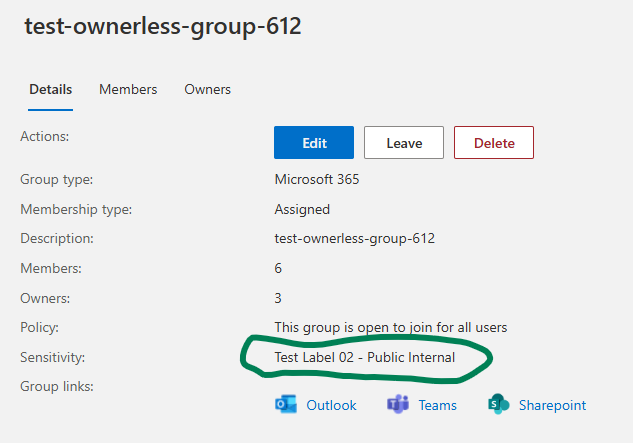
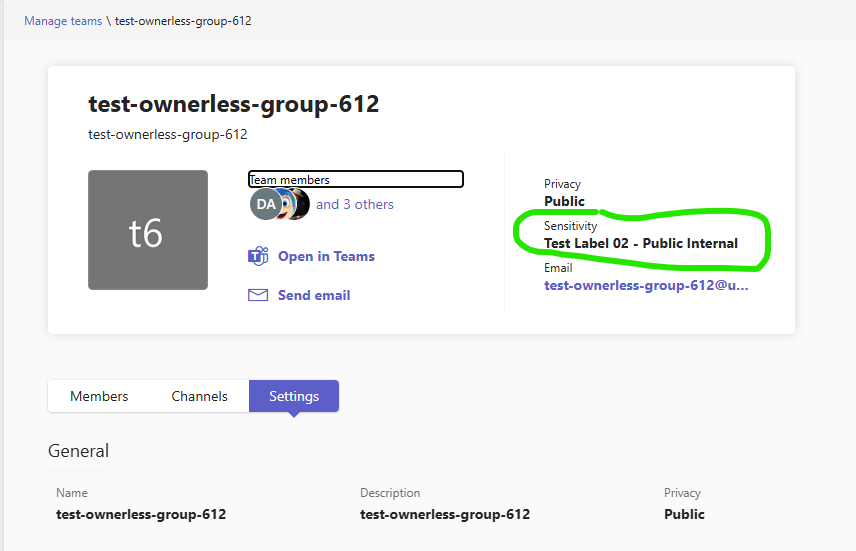
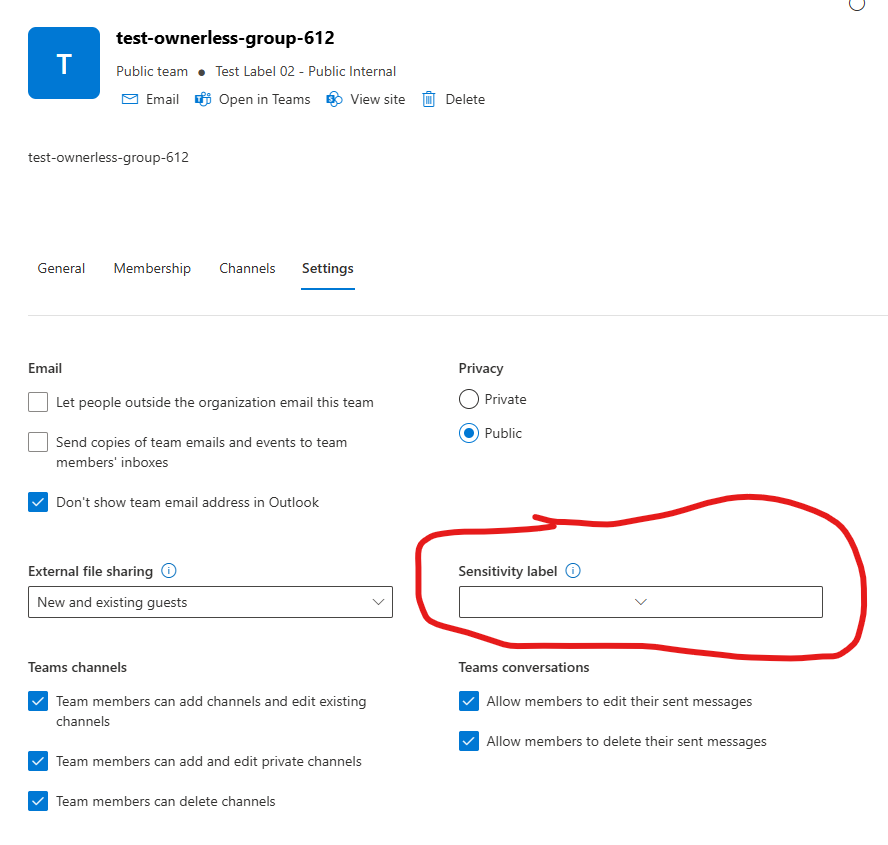
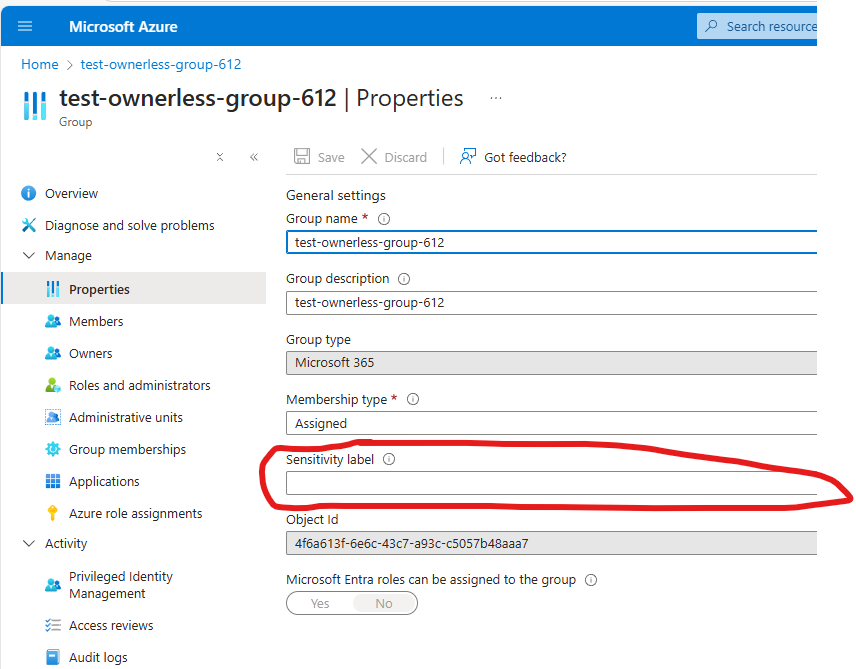
Found an issue in Microsoft 365 – it seems like if a sensitivity label is not published for a user – this user will see inconsistency when different sources display sensitivity label differently.
Scenario: A site/group sensitivity label was created under the Purview center. Label enforces some settings to the group/site, like privacy and external sharing. User cannot assign label to site/group until label is published to that user. In this scenario sensitivity label was published to the admin1 but not published to the admin2.
Admin1 assigned sensitivity label to a group-based site.
What admin2 can see in this case is:
Product
Sensitivity Label
Teams
correct sensitivity label
SharePoint Site
correct sensitivity label
My Groups – Groups I Own – View experience
correct sensitivity label
My Groups – Groups I Own – Edit experience
no label
SharePoint Admin Center
correct sensitivity label
Teams Admin Center
correct sensitivity label
Microsoft 365 Admin Center – Teams&Groups
no label
Entra Id – Groups
no label
Moreover, in some cases you could even see incorrect sensitivity label under Entra Id…
Microsoft says it’s by design. For me this kind of design simply does not make sense.
There is a Design Change Request: https://feedback.azure.com/d365community/idea/4246b7a8-2119-f011-9d47-7c1e52d4bdd3
If you think this behavior must be changed – please vote for the DCR.
Recently I helped one client to connect his Tableau Cloud to SharePoint, so let me share how it’s done, as Tableau documentation was not very helpful, so I had to do my own research.
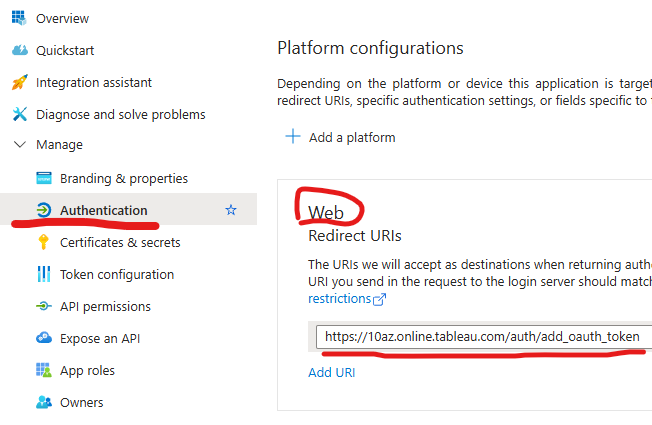
...Note the pod your Tableau Cloud site is located to ensure you enter the correct redirect URL during the registration process in Step 2 below. The redirect URL uses the following format:
https://<your_pod>.online.tableau.com/auth/add_oauth_token
For example, https://us-west-2b.online.tableau.com/auth/add_oauth_token
So, you would check this part in bold of your Tableau cloud instance: https://us-west-2b.online.tableau.com/ and construct a Redirection URI: https://us-west-2b.online.tableau.com/auth/add_oauth_token
You need an App Registration under Entra Id, with API permissions consented and Authentication configured
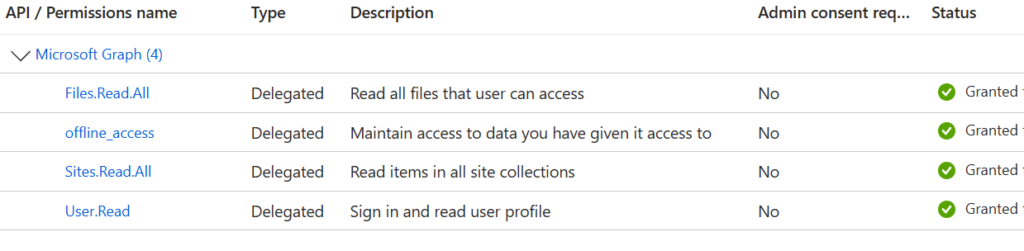
API permissions must be the following: Under Graph API, delegated Files.Read.All, Sites.Read.All, User.Read, offline_access:
Authentication blade. You’d add platform: Web and use Redirect URI as above. Example:
Secret
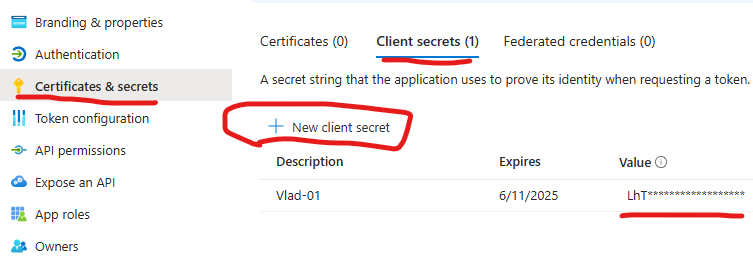
Secret you’d generate under App Registration Certificates and secrets:
Once secret is generated, copy the secret value in a safe place and do not share it.
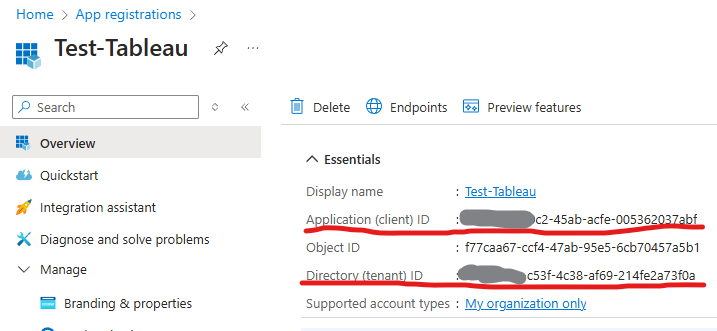
Also, get your app id and tenant id (those are not secrets but I still prefer not to share):
At this moment you should have from your App registration:
Tenant Id
Client (App) Id
Client Secret
Redirect Url
Now we are ready to configure
OAuth Client at the Tableau Site Settings
Having Site Admin permissions (Tableau Site Admin, not SharePoint), you should be able from the left menu navigate to the bottom “Settings” and under General tab scroll down to the “OAuth client registry” and click “Add OAuth Client”.
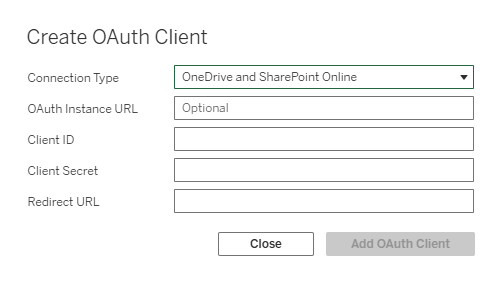
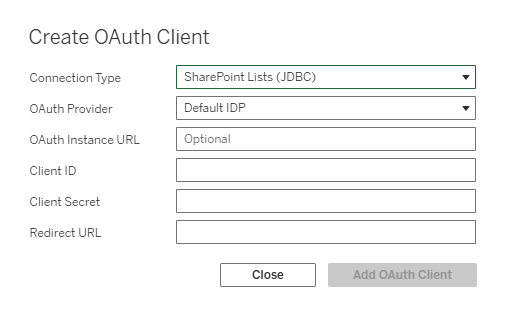
You’d need two OAuth client configured – one for “OneDrive and SharePoint Online” and the other one for “SharePoint List (JDBC)”.
“OneDrive and SharePoint Online” Experience is:
Here your OAuth instance Url would be: https://login.microsoftonline.com/<Teanan tId>/
Client Id, Client secret and Reirect Url you can get from Step 2.
“SharePoint List (JDBC)” experience:
Same here. OAuth instance Url is: https://login.microsoftonline.com/<your tenant id>/ Client Id, client secret and redirect Url you get from Step2.
Now you are ready to connect…
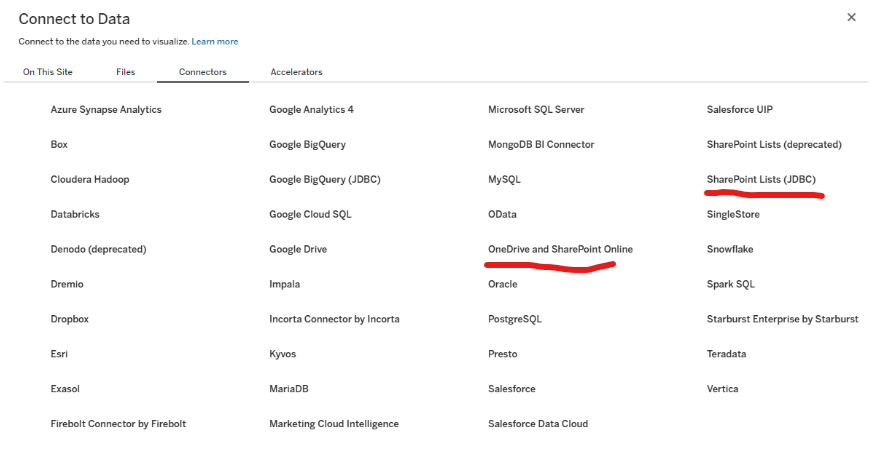
Tableau Connect to Data: OneDrive and SharePoint Online
Connecting to Data from Tableau, you’d select “OneDrive and SharePoint Online” or “SharePoint List (JDBC)”
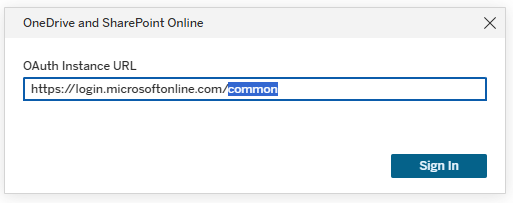
Connecting to “OneDrive and SharePoint Online” – you’ll be asked to provide “OAuth Instance Url” again:
So, again, you’d put your tenant Id instead of “common”. After connected, you’d see something like this:
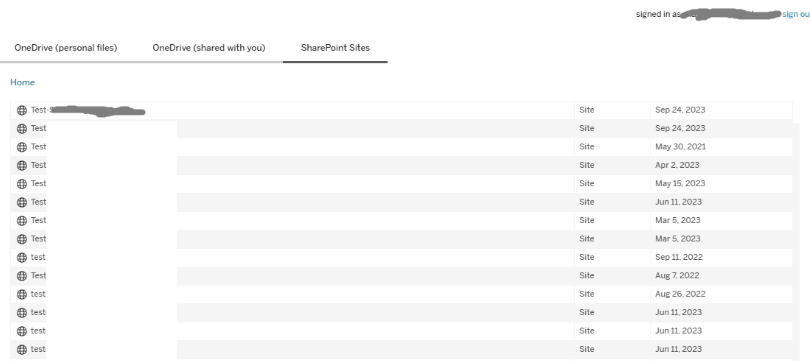
Under OneDrive (personal files) – you’d see your own content located at your personal OneDrive site. Under OneDrive (shared with you) – you’d see content shared with you and located at other’s personal OneDrive sites. Under SharePoint sites – you’d see content of SharePoint sites you have access to – all content – documents, lists etc.
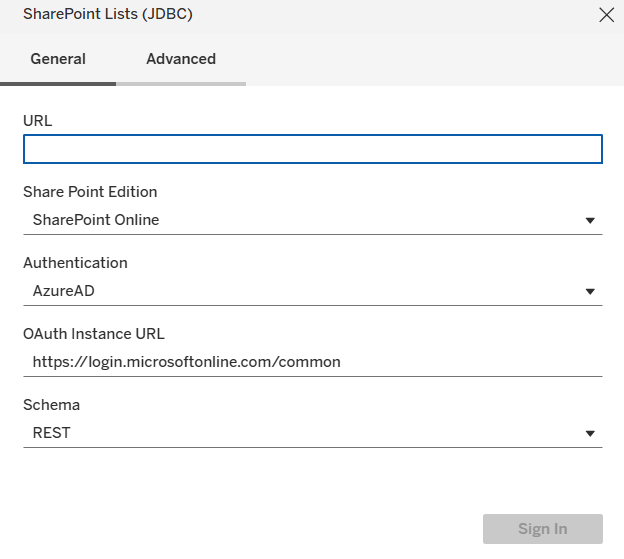
Connecting to “SharePoint List (JDBC)” – experience would be
So, you’d provide a specific site collection Url (not list), e.g. https://contoso.sharepoint.com/teams/Test-Site-01 and you’d provide “OAuth Instance Url” again, just remember – replace “common” with your Tenant Id.
In both cases you should get a pop-up authentication window – provide your credentials after that you should be able to see data in SharePoint.
Possible error messages
Client secret
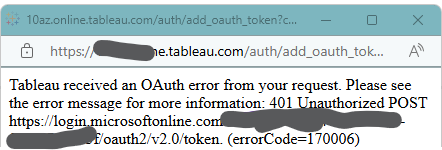
Client secret is an essential part. It is not market as required in the form, but without secret connection is not working. You can get something like this:
Tableau received an OAuth error from your request. Please see the error message for more information: 401 Unauthorized POST https://login.microsoftonline.com/—/oauth2/v2.0/token. (errorCode=170006)
Reply address
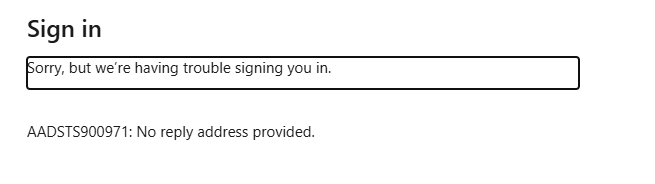
If you did not configure Authentication at your App Reg or configured incorrectly – you might get error message “Sorry, but we’re having trouble signing you in” “AADSTS900971: No reply address provided.”
Below is the sample Python code to authenticate against Microsoft 365 as current user with MSA library and to call Microsoft Graph API – specifically get SharePoint Site, get Site lists with requests library.
But first, you have to have an App Registration in Azure (Entra ID) with delegated permissions consented and authentication configured.
Delegated Permissions
If your solution needs access to all SharePoint sites – consider Sites.FullControl.All or Sites.Manage.All or Sites.ReadWrite.All or Sites.Read.All depending on access level you need. Effective permissions would be an intersection (minimum) from both – permissions configured for app registration and permissions current user have. Once consented at the app registration – these permissions will work right away.
If your solution needs access to a one (or a few) SharePoint sites – consider Sites.Selected API permissions as it will scope down access to the only sites that are required for your solution to work. Remember, Sites.Selected API permissions, even consented at the app registration, require second step – SharePoint admin should provide (read or write or manage or fullcontrol) permissions for the app registration to a specific site or sites.
Authentication
You’d also need to configure authentication blade. How? It depends on the kind of application you are building etc. For example for native apps I do: – add platform – “Mobile and Desktop app” – select “https://login.microsoftonline.com/common/oauth2/nativeclient” – select “msal096fd951-7285-4e4f-9c1f-23a393556b19://auth (MSAL only)” – add custom Redirect URI: “http://localhost”
This config works for Python code below
Python Code
You’d need to install/import the libraries: json, configparser, msal, requests
Here is the code:
import json
import configparser
import msal
import requests

config = configparser.ConfigParser()
config.read('config.cfg')
client_id = config.get('delegated','clientId')
authority = config.get('delegated','authority')
scopes = config.get('delegated','scope').split()
siteId = config.get('delegated','siteId')
print( client_id)
print( authority)
print( scopes)
print( siteId)

global_token_cache = msal.TokenCache()
global_app = msal.PublicClientApplication(
    client_id,
    authority=authority,  # For Entra ID or External ID
    token_cache=global_token_cache,
    )

def acquire_and_use_token():
    # The pattern to acquire a token looks like this.
    result = None
    result = global_app.acquire_token_interactive(scopes)

    if "access_token" in result:
        print("Token was obtained from:", result["token_source"])  # Since MSAL 1.25
        # print("Token acquisition result", json.dumps(result, indent=2))
        return result["access_token"]
    else:
        print("Token acquisition failed", result)  # Examine result["error_description"] etc. to diagnose error
        return None


token = acquire_and_use_token()


http_headers = {'Authorization': 'Bearer ' + token,
                'Accept': 'application/json',
                'Content-Type': 'application/json'}

graph_url = 'https://graph.microsoft.com/v1.0/sites/' + siteId + '?$select=id,webUrl,displayName'

siteResponse = requests.get(graph_url, headers=http_headers)
print(siteResponse.status_code)
site = json.loads(siteResponse.content)
# print("Site (raw) : ")
# print(site)
print("Site webUrl : ", site["webUrl"])
print("Site displayName : ", site["displayName"])

# Lists
graph_url = 'https://graph.microsoft.com/v1.0/sites/' + siteId + '/lists'
listsResponse = requests.get(graph_url, headers=http_headers)
print(listsResponse.status_code)
lists = json.loads(listsResponse.content)
# print("Site lists (raw):")
# print(lists)
print("Site lists:")
for list in lists["value"]:
    print("  Display Name:", list["displayName"])
    print("   Id:", list["id"])
    print("   Web Url:", list["webUrl"])
    print("   Created Date:", list["createdDateTime"])
    print("   Last Modified Date:", list["lastModifiedDateTime"])
Application permissions
If your scenario is to call Graph API from Python with application permissions (aka unattended or daemon app) – the main difference is authentication. It is described here. It also requires App registration configured like this.
With Microsoft officially announcing the retirement of legacy Azure Access Control Services (ACS), SharePoint administrators are now racing against time. For over a decade, ACS-based permissions—commonly known as SharePoint app-only service principals—have been widely used, with countless tutorials and blog posts guiding users on how to implement them in their applications.
However, many of these ACS-based apps are still actively accessing SharePoint sites. When Microsoft eventually disables ACS, we want to avoid a scenario where critical business processes suddenly break and teams are left scrambling.
To stay ahead of this change, our goal is to identify all app-only principals still relying on ACS to access SharePoint. This includes gathering details about the apps, their owners, the sites they access, and the site owners. The ultimate objective is to proactively reach out to the responsible stakeholders, inform them about the upcoming retirement, and encourage them to migrate their solutions to modern authentication methods.
Below is my deep dive into tracking/inventoring ACS apps, but for those who just want a quick solution – there is a Summary in the end.
Technical details
What kind of apps we are talking about, specifically? I can see the following options:
Apps that were registered in SharePoint via AppRegNew.aspx (aka SharePoint app-only service principals) and provided with permissions in SharePoint via AppInv.aspx
Apps that were registered in Azure (Entra Id) and provided with permissions in SharePoint via AppInv.aspx
Let us start with pulling data, then I’ll provide step by step instructions how to discover App-Only apps, get these apps activity and actions need to be taken.
Techniques we can use to get data
analyze audit log to get events where apps are accessing sites
analyze audit log to get events where ACS permissions were provided to sites
get data from system that tracks request for new ACS permissions
use reports from admin center
use the PnP Microsoft 365 Assessment Tool
get report on apps owners and permissions from from Entra Id
Let us deep dive into each data source to see if it is actually helps us to get ACS apps in use…
Audit log: apps accessing sites
Microsoft 365 audit log is supposed to save all events happening in Microsoft 365. It is available for admins via GUI, PowerShell Exchange Module and Graph API. GUI Search m365 audit log now lives under Microsoft Purview – Solutions – Audit.
Unfortunately, when an App registered in Azure is accessing SharePoint sites – not all events are logged. Here are some of the events that are stored in the Microsoft 365 unified audit log:
Accessing list items:
List Item Viewed
List Item Created
List Item Updated
List Item Deleted
Accessing Documents in libraries:
File Accessed
File Uploaded
File Modified
File Downloaded
File Deleted
Events would have a UserId “app@sharepoint”. Other event details include activity/operation (PageViewed, FileModified etc.), Item (full Url of a document or page etc.), AppAccessContext (includes ClientAppid, ClientAppName), ApplicationId (yes, this is how we know what app access what url on the site), and many other details. When an app fails to access SharePoint – due to expired secret or missing permissions or because ACS is disabled – no events are logged.
Unfortunately, from analyzing audit log events – you cannot say if the App that is accessing SharePoint were provided with ACS permissions (via appinv) or Graph API (e.g. Sites.Selected via Entra Id).
Get Service Principals activity via Microsoft Graph API
The following reports are available via MS Graph API (some as v1.0, others in preview only under beta):
Service principal sign-in activity
This report is available through the servicePrincipalSignInActivity resource type and details the sign-in activity for a service principal in your tenant. The sign-in activity can be delegated or application-only scenarios. For application-only scenarios, the application credential activity provides additional information on the credential usage.
Service principal sign-in activity report provides the following details for every service principal:
This report is available through the appCredentialSignInActivity resource type and details the usage of an app credential (secret, certificate, or federated identity credential) in your tenant.
Application credential sign-in activity report provides the following details for every service principal credential:
Graph API allows you to get Entra Id audit log events, including logins of service principals: Microsoft Entra audit logs API. Microsoft: “Microsoft Entra provides an audit trail of all user and app activity in your tenant to help you track all activities in your tenant and also be compliant. These logs include both app and user sign in activity“. Available under “/auditLogs/signIns”. The only thing is it does not work for us.
First (minor issue) – I could not get app sign in activity under production API (v1.0), only under beta (Feb 2026). The biggest issue is id does not catch events we want it to catch. See the table:
Action
Audit Log Event status, ErrorCode, FailureReason
(ACS enabled) Connect-PnPOnline: OK Get-PnPSite: Failed (secret expired)
Status: Failure errorCode=7000222; failureReason=The provided client secret keys for app ‘{identifier}’ are expired.
(ACS enabled) Connect-PnPOnline: OK Get-PnPSite: OK (secret renewed)
I.e. when ACS is disabled – the app is not able to get site, and no errors in Entra Id audit log…
Microsoft 365 Audit log ACS permissions provided events
This is relatively easy. There are just two kinds of events that might help us to understand ACS usage in tenant:
SharePointAppPermissionOperation
Pull audit logs with record type is SharePointAppPermissionOperation so you’d get events where permissions were provided to apps. Operation type (activity) would be like AppPermissionGrant.
Microsoft started logging this record type not long ago and there is no documentation found (as of Feb 2025). So the only I noticed that might help is:
if user id is “app@sharepoint” – that indicates Sites.Selected permissions were provided to the app (e.g. via Grant-PnPAzureADAppSitePermission ) under “AppId” you’d have an app (client) id of the client app (permissions provided to) in the form of “i:0i.t|ms.sp.ext|<appId>@<tenantId>” under “ApplicationId” and “AppAccessContext – ClientAppId” – you’d have an app (client) id of the admin app (permissions provided via) ApplicationDisplayName would contain the display name of the admin app Other fields: RecordType 205, UserType 5, AuthenticationType OAuth
if user id is one of your actual user’s account in tenant – that indicates ACS permissions were provided to the app (e.g. via appinv.aspx page at SharePoint site) under “AppId” you’d have an app (client) id of the client app (permissions provided to) in the form of “i:0i.t|ms.sp.ext|<appId>@<tenantId>” there would be no “ApplicationId” field and under “AppAccessContext” no ClientAppId ApplicationDisplayName Unknown Other fields: RecordType 205, UserType 0, AuthenticationType FormsCookieAuth
Appregnew.aspx and appinv.aspx pages viewed
You can pull audit logs with record type is SharePoint and activity type (operation) is PageViewed and keyword for free search is appregnew. You’d get events when there was an attempt to register a new SharePoint app-only service principal.
The same but with appinv as a search keyword – to get events when there was an attempt to provide ACS permissions for a SharePoint app-only service principal or for an Azure App registration.
In both cases we know that there was an intention to have a principal with an ACS access. We can reach these people to inform that ACS is deprecated and so and so. Worst scenario – we notify somebody who already know that.
Some time ago (around mid – 2023) Microsoft by default disabled ability for site owners registering apps and providing permissions in SharePoint via Appregnew.aspx and appinv.aspx. So since then only SharePoint service admins could provide ACS permissions to apps. In this case you’d check with your request tracking system – to whom ACS were provided.
System that tracks request for new ACS permissions
In case you have a process of providing ACS permissions… Process might include tickets to service desk or similar kind of system… Anyway – check if you can get data from that system – like who requested for what app to what site etc…
Reports available from Microsoft 365 Admin Center
So far the only report that might help is in development (see Microsoft 365 Roadmap – feature Id 417481) and scheduled to be available in May 2025. So far (July 2025) what I can see is the report is not working.
“Enterprise Application Insights is a powerful report which helps SharePoint Administrators to discover all the SharePoint sites that are allowed access by third-party applications registered in your tenant. The report also provides details on the application’s permission and requests count to help admins take further action to strengthen the security of the site. It is part of SharePoint Advanced Management capabilities.”
The feature is already documented here: Generate App insights reports and is seems like the report will not be available for all tenants – but just for tenants with Microsoft SharePoint Premium (SharePoint Advanced Management) or Copilot license assigned.
PnP Microsoft 365 Assessment Tool
Microsoft 365 Assessment Tool is an utility designed by PnP team a while ago and since then serves SharePoint admins very well. In particular, it helps us identify and evaluate the Azure ACS usage for tenant by providing the usage data of ACS principals, and even generating a Power BI reports.
If you run this tool specifying AddInsACS mode, it provides you with:
classicacsprincipals.csv report that includes all apps with access to SharePoint. Details are: App Ids, if the app has Tenant or Site Collection Scoped Permissions, if the app Allows AppOnly, RedirectUri, AppDomains and ValidUntil If the ValidUntil field contains specific date – that means the app was registered via appregnew If the ValidUntil field contains “01/01/0001 00:00:00” date – that means the app was registered in EntraId if the AllowAppOnly field equals TRUE – that means ACS permissions were provided to the app
classicacsprincipalsites.csv – report contains apps and sites they have access to Details are: AppIdentifier, ServerRelativeUrl
classicacsprincipalsitescopedpermissions.csv – list of apps permissions to sites Details: AppIdentifier, ServerRelativeUrl, SiteId, WebId, ListId, Right (Read/Write/FullControl/Guest etc.) If the WebId field equals zeros, that means permissions were provided to entire site collection
classicacsprincipaltenantcopedpermissions.csv – list of apps with tenant-wide permissions
some other reports, like list of sites, list of webs
Unfortunately, this tool does not provide when the app was last time authenticated or when the app accessed the site. Also, we do not know what kind of access was provided for the app to the site – Sites.Selected or ACS. If at least one access provided for the app was ACS-based – the app will have AllowAppOnly field equals TRUE.
Report on apps owners and permissions from from Entra Id
Using all the methods above – you’d get a list of active service principals that use legacy ACS authentication. But to whom we need communicate to regarding this service principals? Obviously, we are looking for these service principals owners and sites owners.
There are multiple options how to get an app owner from Azure (Entra Id):
So you’ll get a list of legacy apps sorted by recent activity. These apps need to be decommissioned. There should be no one App-only service principal or app registration (client id) with legacy ACS permissions provided in tenant.
Communicate to apps owners and site owners
Once you get a list of legacy (ACS/App-Only) apps – pull report on these apps owners. Having “classicacsprincipalsites.csv” report from m365 assessment tool – you can pull site owners for every app you need to decommission. This is a big topic itself. See details in my article How to prepare your tenant for Azure ACS retirement – Guide for SharePoint Admins
More Observations
Test scenario 1 DisableCustomAppAuthentication is true, i.e. ACS are not allowed in tenant. SiteOwnerManageLegacyServicePrincipalEnabled -s false, i.e. site owners cannot register apps at sites or provide permissions to app on sites. It is not possible for admin to go to appregnew.aspx and create an app (app-only spn). I registered apps in Azure. It is possible for admin to go to appinv.aspx and “provide” permissions to the azure app registrations.
Connect-PnPOnline works with certificates or with secrets. Get-PnPSite works only if connection was made with a Certificate (if connection was made with secret – it gives 401 unauthorized).
Test scenario 2 DisableCustomAppAuthentication is false, i.e. ACS are allowed in tenant. SiteOwnerManageLegacyServicePrincipalEnabled -s false, i.e. site owners cannot register apps at sites or provide permissions to app on sites. Connect-PnPOnline and Get-PnPSite works with certificates or secrets if ACS access was provided for an app to at least one site. If there was no ACS permissions provided for the app – Get-PnPSite gives “Access is denied. (Exception from HRESULT: 0x80070005 (E_ACCESSDENIED))”
Error messages and possible fixes
“Access is denied. (Exception from HRESULT: 0x80070005 (E_ACCESSDENIED))” – happens if you try to access SharePoint API with an Entra Id app registration that have an API permissions but do not have legacy ACS permissions being authenticated with a secret. Solution option 1: try authentication with a certificate. Solution option 2: use Microsoft Graph API.
“The remote server returned an error: (401) Unauthorized.” – happens if you try to access SharePoint API being authenticated with a certificate with an app registration that do not have modern API permissions correctly provided. Solution: ensure app registration is configured with SharePoint API permissions.
“(403) Forbidden” – happens if you try to access SharePoint API being authenticated with a secret with an app registration that do not have modern API permissions correctly provided. Solution: ensure app registration is configured with Graph API permissions.
“AccessDenied”,”Either scp or roles claim need to be present in the token.” – happens if you try to access Graph API being authenticated with a secret with an app registration that do not have modern API permissions correctly provided. Solution: ensure app registration is configured with Graph API permissions.
Get-MgServicePrincipal
Get-MgServicePrincipal returns servicePrincipal objects with properties and relationships. ServicePrincipalType = ‘Legacy’ indicates service principal was registered in SharePoint (via appregnew.aspx).
An issue with ACS apps discovery when Graph permissions also provided
There was an issue (before late June 2025)
How do we know the ACS permissions are provided for the app to the site? Two great options: appprincipals.aspx and Microsoft 365 assessment tool by PnP.
An app is shown under appprincipals.aspx only in case if ACS access was provided to app but Sites.Selected access was not provided. The moment you provide Sites.Selected access for the app to the site – the app disappears from list of apps under appprincipals.aspx page. The app is not visible for Get-PnPAzureACSPrincipal. PnP M365 Assessment Tool also fails to get list of ACS apps if the site also has Sites.Selected permissions. It does not help if you remove Sites.Selected permissions. This issue is reported to Microsoft and confirmed. Microsoft is working on it. Upd (June 2025) – Microsoft implemented fix, so all should be good now (but if you are seeing “Sorry, something went wrong” trying to access appprincipals.aspx – just wait, they said db needs to be updated as well, it takes time).
A fix, current state and changes
Microsoft deployed a fix and updated databases. So starting July 2025 we can see all apps (legacy, modern, with ACS and with Graph permissions assigned) under appprincipals.aspx page. The good is we finally can see apps, the bad is we cannot differentiate – is this an ACS app or app with permissions provided via Microsoft Graph, also we cannot see permissions.
Microsoft 365 Assessment Tool does a good job, detecting if the app allows App-Only permissions (AllowAppOnly equals true in the report classicacsprincipals.csv). Under reports classicacsprincipalsites.csv and classicacsprincipalsitescopedpermissions.csv, the tool provides what sites every app has access to and what permissions the app has, but again, it does not provide details if permissions were provided with ACS or Microsoft Graph.
Summary
use Microsoft 365 assessment tool to get list of apps with ACS permissions provided. It also gives you report on ACS apps and sites, and apps-sites-permissions.
use Graph API or PnP to get owners of active apps – so you can communicate to owners
AFAIK, generally, for apps with both kinds of permissions provided Entra Id and ACS permissions – we cannot establish for sure if the app is actually using ACS access or not. We only can say that ACS permissions were provided to the app and the App is still active.
If there are no Entra Id permissions provided to the app and app is still actively using SharePoint – that means that this app is leveraging ACS and very soon will stop working.
Azure key vault is something where you can store keys, secrets, certificates that you’d need to access services (e.g. call Graph API).
What if somebody malicious get access to key vault (that is not what we want but we should consider this as possible risk)? Surely leaked secrets is a serious issue (separate topic), but imagine if that somebody also deletes key vault content – if so, we will simply lose this data, which will break the functionality of the solution and our existing systems will stop working.
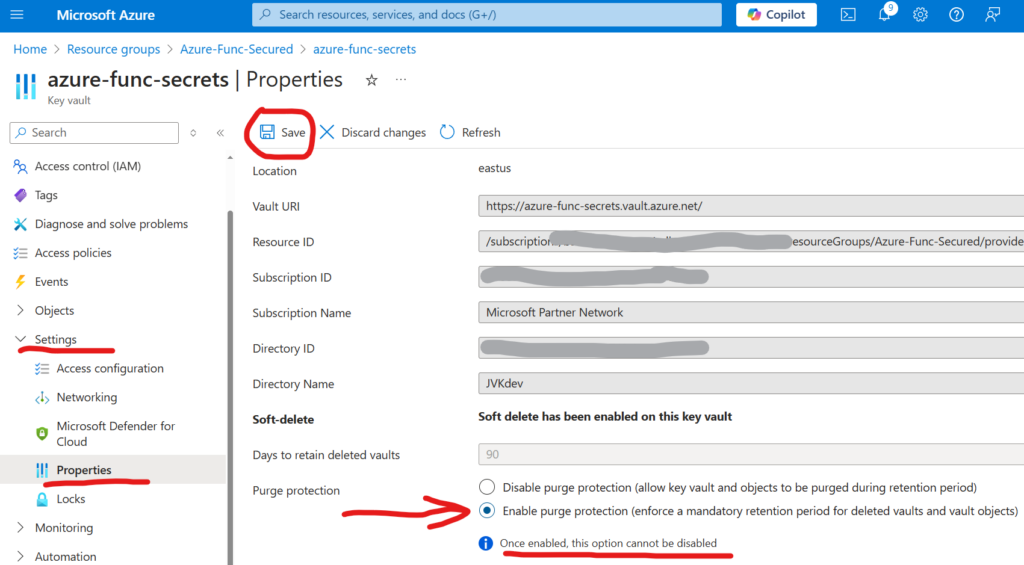
So enabling purge protection on key vaults is a critical security measure to prevent permanent data loss. This feature enforces a mandatory retention period for soft-deleted key vault contents (e.g. secrets), making them immune to purging during the retention period.
In a nutshell, you’d just select “Enable purge protection” under the key vault Settings/Properties (notice, that once enabled, this option cannot be disabled):
For details, please refer to the following articles:
There are many scenarios for SharePoint or Teams automations, and in most cases you need to run some code on scheduled basis (e.g. every 5 minutes or every 24 hours etc.). This is where timer-triggered Azure Functions might help. In this article I will provide use cases, overview of the whole scenario and technical setup, and provide links to the detailed step-by-step guides for configuring different parts of the entire solution.
Possible scenarios
Possible scenarios (end-user-oriented):
Create site upon user request
Convert site to a HUB site upon user request
Set site search scope upon user request
Setup site metadata (site custom properties)
Request usage reports/analytics
Possible scenarios (admin-oriented):
Provide temporary access to the site (e.g. during troubleshooting)
Provide Sites.Selected permissions for the App to the Site
Disable custom scripts or ensure custom scripts are disabled
Enable custom scripts (e.g. during site migration)
Monitor licenses – available, running out etc.
Typical setup
Front-end
SharePoint site works as a front-end. You do not need to develop a separate web application, as It’s already there, with reach functionality, secured and free.
The site can have: – one or more lists to accept intake requests – Power Apps to customize forms – Power Automate to implement (e.g. approval) workflows, send notifications etc. – site pages as a solution documentation – libraries to store documents provided as response to requests
You can provide org-wide access to the site if your intention is to allow all users to submit requests or secure the site if you want to accept requests only from a specific limited group of people.
Back-end
Timer-triggered Azure Function works as a back-end. The function can be scheduled to run based on job specific requirements (e.g. every 5 or 10 minutes, or daily or weekly etc.). The function can be written in PowerShell, C#, Python etc.
The function’s logic is to
read SharePoint list, iterate through items to get intake requests
validate request eligibility
perform action
share results (e.g. update intake form, send e-mail, save document to library etc.)
Configuration
There should not be an issue to setup a front-end. You’d just need a solid SharePoint and Power Platform skills.
For the back-end the solution stack would include the following tools/skills: – Azure subscription to host solution – Registered Apps to configure credentials and API access permissions – Azure Function App to actually run the code – Azure Key Vault to securely save credentials – programming skills in language/platform of choice – SharePoint API, Microsoft Graph API