Update: Sites.Selected API MS Graph permissions was introduced by Microsoft in 2021. It was a good move towards site-level development, but still developers were limited with only what MS Graph API provides for SharePoint dev. So devs had to use AppInv.aspx at site level to provide ACS permissions to their apps to be able to use SharePoint CSOM and REST APIs. Recently Microsoft introduced Sites.Selected SharePoint API permissions for registered Azure Apps! So now devs should be fully happy without ACS-based permissions.
Scenario
You have an application that needs access to Microsoft 365 SharePoint Online site/list/documents. Application is running without interaction with users – e.g. unattended, as daemon job.
There are two options you can authenticate to Microsoft 365 – with the secret or with the certificate. Authenticating with certificate is considered more secure.
Questions
What happens if SharePoint-Apps only principal is disabled (i.e. ‘set-spotenant -DisableCustomAppAuthentication $true’ )?
Why I’m getting 401 error when authenticating to SPO?
Why I’m getting 403 error when authenticating to SPO with secret?
What permissions to I need to work with SPO?
Findings
Note: we will use PowerShell 7.2 and PnP.PowerShell 1.9 to illustrate it.
Disabled SharePoint-Apps only principal
If SharePoint-Apps only principal is disabled in your tenant (i.e. ‘Get-PnPTenant | select DisableCustomAppAuthentication’ returns $true ), then the only way you work with SPO from code is:
an App registered in Azure
API permissions provided via Azure (MS Graph, SharePoint)
Certificate is used
In all other cases (even your Connect-PnPOnline command complete successfully) – you will be getting error 401 (unauthorized) when trying Get-PnPTenant or Get-PnPTenantSite or Get-PnPSite
Enabled SharePoint-Apps only principal
If SharePoint-Apps only principals are enabled in your tenant (i.e. ‘Get-PnPTenant | select DisableCustomAppAuthentication’ returns $false ), then you have three options to work with SPO from code:
Azure App with a secret (Client Id + Client Secret) and permissions to SharePoint provided via SharePoint (AppInv.aspx) to access SharePoint REST API
Azure App with a certificate (Client Id + Certificate) and permissions provided via Azure to access SharePoint REST API
Azure App with a certificate or secret (Client Id + Secret or Certificate) and permissions provided via Azure to access SharePoint via Microsoft Graph API
There are scenarios when you need to pull only newly created SharePoint sites, e.g. get sites created since yesterday or get last 100 created sites. Usually other articles and existing PowerShell scripts solve this by pulling all sites from tenant and then iterating through sites to get only new sites. That approach is not nice and simply does not work in large environments. How can we get only sites created recently, not all sites? Here is how I use Microsoft Graph API to get only new sites.
Update (6/28/2024): Microsoft announced updates to it’s delta API for SharePoint, so I added option 3 – see below.
Scenario
Let say you administer Teams, OneDrive and SharePoint Online in a Microsoft 365 tenant. You have a pretty big environment – ~10k or more sites and you want to quickly find just new SharePoint sites or teams (e.g. sites created recently – during last hour/day/week/month). This might be required for ad-hoc reports and for automation scenarios – like applying required configurations or assign some property value to all newly created sites.
With GUI it’s done easily: SharePoint Admin Center -> Active Sites -> sort based on “Date Created” – done.
With PowerShell – not so simple. “Get-PnPTenantSite” cmdlet returns a site object but the object does not have “Created” field. It’s a web property (not site property). But to get a web object – you have to connect separately to each site and get root web object to check when the web was created. For small environments it is possible, for large environments it can take days… And still not nice. “Get-PnPTenantSite” with “-Filter” option would help, but “…Currently, you can filter by these properties: Owner, Template, LockState, Url.”
but… 1) it’ll give you group-based sites only 2) it is not easy to automate 3) this might take long for large environments. I know much better solution:
Solution
Microsoft Graph API helps. It returns result in seconds and you can sort or filter results based on created date . Below are two methods: Option 1 is based on Search and filtering and Option 2 is based on Sites Search and sorting. So there are some pros and cons for each method.
Microsoft Graph Search API allows KQL in queries. So we can form a query with something like “created>=1/1/2021” and use entity type = ‘[“site”]’. Search should return only sites created after Jan 01, 2021.
This option is also based on Microsoft Graph API, but sites entry point, which allows search too and sort results by property “createdDateTime”. So we will just search for everything and select how many results we need based on createdDateTime property.
You can use “Get delta” under SharePoint Graph API – check for details here. It says “Get newly created, updated, or deleted sites without having to perform a full read of the entire sites collection”. I’ll do my own testing, but for now check this: Video: Microsoft Graph Delta Capabilities in SharePoint API
How can I get HTML content of a SharePoint online page from code, e.g. PowerShell?
Invoke-WebRequest returns “Sign in to your account” page, not a real page, even with -Token option.
Thanks to Denis Molodtsov, the solution is found. It turns out the “Invoke-PnPSPRestMethod” PnP cmdlet works not only against /api endpoints, but also against site pages and system pages.
But (as per my experience) it works only with PnP.PowerShell and with -UseWebLogin authentication option and with -raw parameter.
Other combination of authentication options ( -interactive, -clientId, -Token, -SPOManagementShell, -PnPManagementShell ) – worked well, but only for /_api endpoints, and gave me “401 UNAUTHORIZED” against system/site pages. Unattended authentication (with clientId, clientSecret and certificate) – same.
Legacy PnP module SharePointPnPPowerShellOnline did not work at all: “EXCEPTION,PnP.PowerShell.Commands.Admin.InvokeSPRestMethod”.
I tested it with – SharePointPnPPowerShellOnline v 3.29.2101.0 (under Windows PowerShell 5.1) and – PnP.PowerShell 1.8.0. (both Windows PowerShell 5.1 and .net core PowerShell 7.1.5)
The error “The term ‘Search-UnifiedAuditLog’ is not recognized”:
Search-UnifiedAuditLog: C:\scripts\PowerShell.auth\Search-AuditLog-w-App.ps1:16:12
Line |
16 | $results = Search-UnifiedAuditLog -StartDate $start -EndDate $end -Re …
| ~~~~~~
| The term 'Search-UnifiedAuditLog' is not recognized as a name of a cmdlet, function, script file, or executable
| program. Check the spelling of the name, or if a path was included, verify that the path is correct and try again.
means a proper administrative role (e.g. “Exchange administrator”) is not assigned.
Microsoft announced SharePoint Alerts retirement. Starting from October 2025 – the SharePoint Alert expiration feature will be gradually activated. In January 2026 Microsoft will turn off creation of new SharePoint Alerts (gradually). In July 2026 the ability to use SharePoint Alerts will be removed.
How do we know how many alerts are configured in our tenant? Can we get a report on all alerts of all users from all tenant SharePoint sites?
Approaches are:
use Microsoft 365 Assessment tool (they have a mode to get all alerts – here is the doc) Microsoft 365 Assessment tool is a great tool, but it is an .exe software, so in large orgs it might be difficult to use it and it requires admin’s permissions to run
use custom PowerShell scripts – this option might help if you – need a specific report format/data/columns – want to quickly get report on alerts for a specific site or site/user – can run the script as a site collection admin/owner (does not require tenant admin permissions)
It requires connection to a specific site, and it allows to get all alerts for the specific user, all alerts for the specific library and all alerts for all users and all lists/libraries:
Get-PnPAlert -AllUsers
The cmdlet returns an alert object with the following properties: AlertFrequency, AlertTemplateName, AlertTime,AlertType,AllProperties,AlwaysNotify,DeliveryChannels,EventType,Filter,ID,Item,ItemID,List,ListID,ListUrl,Properties,Status,Title,User,UserId,Context,Tag,Path
This is an old-style CSOM-based script we used before PnP designed their beautiful cmdlet. Notice that what took 20 lines of code PnP implemented in one cmdlet.
PowerShell Script to get All Alerts of all Users from a specific SharePoint Online Site Collection, including subsites:
You have a Microsoft 365 subscription with SharePoint Online. You use PowerShell, PnP.PowerShell module and MS Graph API to work with SharePoint under current user’s credential. You need to authenticate to SharePoint Online via Connect-PnPOnline and to Microsoft Graph API interactively on behalf of a current user.
Problem
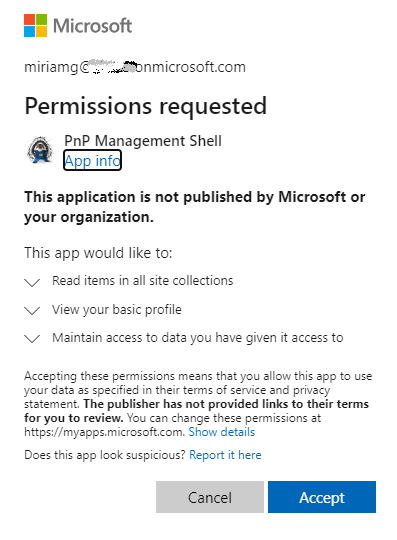
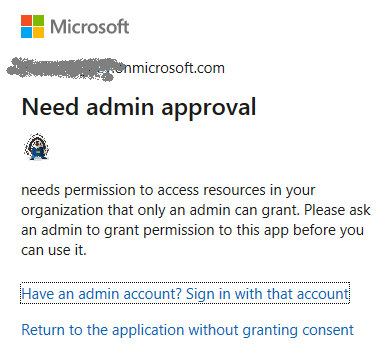
Unfortunately, both “Connect-PnPOnline -Interactive -Url <siteUrl>” or “Connect-PnPOnline -UseWebLogin -Url <siteUrl>” might fail with something like “Need admin approval”, “App needs permission to access resources in your organization that only an admin can grant. Please ask an admin to grant permission to this app before you can use it.” or “Permissions requested” or similar
configure API permissions blade: – add delegatedpermissions you need (refer to specific API you’ll use) e.g. Microsoft Graph Sites.FullControl.All and SharePoint AllSites.FullControl
A pop-up window will appear to authenticate interactively. If you are already authenticated with another credentials (or single-sigh-on) – an interactive window might pop up and disappear – that prevents you enter your other id. To ensure Connect-PnPOnline prompts you for your credentials – use ” -ForceAuthentication” option.
If you are a SharePoint tenant admin – you can connect to a tenant with:
By default token expires in ~ 1 hour. But you can refresh it silently. This helps you in long-running PowerShell scripts that takes hours to complete. So you can include something like this in the loop:
Somehow using Connect-PnPOnline with AccessToken option did not work if the token was acquired with MSAL.PS interactively. But it did work when you get msal.ps token unattended (using App credentials). So…
If you can get an Application (non Delegated) permissions to your azure-registerd-app, you can use msal token to connect to site with PnP
=========================
NB: For delegated permissions, the effective permissions of your app are the intersection of the delegated permissions the app has been granted (via consent) and the privileges of the currently signed-in user. Your app can never have more privileges than the signed-in user.
Update (May 2023): You can use Get-PnPAzureACSPrincipal to returns the lists of all Azure ACS principals installed in your Tenant including subsites.
Update: Sites.Selected API MS Graph permissions was introduced by Microsoft in 2021. It was a good move towards site-level development, but still developers were limited with only what MS Graph API provides for SharePoint dev. So devs had to use AppInv.aspx at site level to provide ACS permissions to their apps to be able to use SharePoint CSOM and REST APIs. Recently Microsoft introduced Sites.Selected SharePoint API permissions for registered Azure Apps! So now devs should be fully happy without ACS-based permissions.
Update: I’m not sure when Microsoft implemented that, but I recently found another Record Type – “SharePointAppPermissionOperation”. There is an Activity type – AppPermissionGrant… To be explored…
After all the updates the original article below is probably obsolete…
Scenario
Developers in the organization can use both – Azure Apps and SharePoint Apps to work with SharePoint sites in their “daemon” applications.
It is recommended to use Azure apps so, you want to know – what are SharePoint Apps registered and their owners, who registered SharePoint Apps. Eventually you would disable SharePoint Apps-only principal but before that you’d move Devs from SP-App-only to Azure App (see Disable Custom App Authentication).
(SharePoint App-only service principals aka SP-App-Only are SPN or App registered from within SharePoint using AppRegNew.aspx system page).
One of the approaches is to track Apps/Owners (or who register an app) with Unified Audit Log
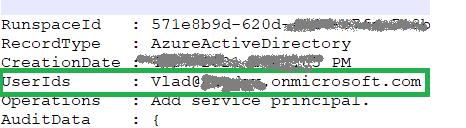
returns events with operation = ‘Add service principal.’ Nice, but… if an app was registered in Azure – event contains an UPN under UserIds property:
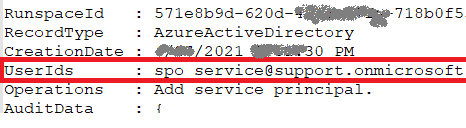
Unfortunately, in case with registering app in SharePoint, an audit log event will be like:
i.e. UserId registered is “spo_service@support.onmicrosoft.com”, so we do not know who registered a SharePoint-only app
In theory – we could use events recorded immediately before and after “Add service principal” event to track a user and site who has registered a SharePoint-only app… But for me it seems like too complicated for automation.
Instead we can do simple search through audit log for events “AppRegNew.aspx page visited”. This gives us a good approximation of who registered SP-App-only principal. Worst scenario – we reach more people than we really need (including those who started registering sp-app-only but did not complete) but all of them would be definitely our target auditory.
You have imported a list into SharePoint Online. Every list item contains information for specific users and users’ accounts. You want list items be visible to specific users only. You want to leverage Item-Level Permissions under List Advanced settings: “Read access: Read items that were created by the user”. But the problem is – since this list was imported – it was not users who created items. So the item-level access feature to work properly – you’d need to update the list so for each item the field “Created By” will have a user account you want the item be visible for.
Solution:
PnP.PowerShell helps. Using “Set-PnPListItem”, you can re-write “Author” field in the list item. In the example below I’m using just static user’s UPN:
There is a known problem in SharePoint (and Teams*) – complicated permissions system. Site owners/administrators provide access, site contributors upload documents and at any particular moment nobody knows – who has access to what files. As a result – sometimes content becomes overshared. The most frequent way to over-expose sensitive documents is when sites content is shared with “Everyone”. As admins, how do we know what content is shared with “Everyone”? Is there a report?
Obviously, only data owner decides who should have access to site documents, so we (SharePoint admins) do not fix permissions automatically (until there is a policy), but at least we can help site owners with reports and maybe initiate permissions review for “nasty” sites?
Below I’m sharing 3 possible solutions:
Solution #1 – also OotB report that comes with some 3-rd party tools
Solution #2 – PowerShell “Brute force” – free but require advanced skills and efforts
Solution #3 – Search-based – also free, and require less skills and efforts
Add-On – SharePoint Advanced management – EEEU report, comes with Premium license only
(*) Microsoft with the introduction of Teams had to simplify permissions in SharePoint – since there should only be 3 types of access levels – owner, member and visitor. It was… in some ways, but in other ways it made things worse.
Solution #1 (3-rd party tools)
You are lucky if you can use 3-rd party tools (e.g. ShareGate, SysKit Point, AvePoint, Metalogix etc.), with the ability to get full permissions report. Though – if your m365 environment is not small – there might be a problem to get full permissions report for all tenant sites. Some tools allow you to get tenant-wide permissions report for specific Ids e.g. EEEU – this option should work better for large environments.
Still there might be another problem. Consider the following. When I say “shared with Everyone” – I actually mean at least 3 possible “everyone” system logins:
Everyone
Everyone except external users
All users
– those are system id’s, but what if there are other ids – e.g. migrated from on-prem or cloud-born custom security groups in tenant that also include everyone or big portion of users (e.g. dynamic security group that includes all or many accounts)?
What if your Identity management operates security groups “All employee” or “Contractors” or “All licensed users”? Do you think these groups can be identified as “Everyone” groups? Do you think it’d be a good idea to check if content is shared with other large groups (not only system Everyone…)? Would you like to run permissions report separately for all groups that include “all” or “almost all” users?
Also, knowing that full reports heavily load the system, 3-rd party tools might by default limit “how deep report is” to the root site and lists/libraries, not including e.g. folders and items. So you might need go to settings and turn on “full deep” option Keep it in mind.
Obviously this option #1 is not free, as it requires licenses to be obtained. For “free” reports – consider options below.
Solution #2 (PowerShell “Brute force”)
You can get full permissions report per site or for entire tenant with PowerShell, which if free… The only you need is to write a script yourself or find/adopt existing one. Sounds easy?
Well, first problem is it takes a decent amount of time and competences to write such script. If if you find one – it would require some skills to adopt and run it. Frankly say, I have not seen so far scripts that were out-of-the-box ready to do that job. And it is not a good idea to run scripts you got from internet against your production environment until you understand it tested it and fully confident with.
Another possible problem – size of environment. The script I designed and use to get comprehensive permissions report might run hours against a good single site – if I need full details on site/subsites, lists/libraries, folders and list items levels. So if you have less than 1000 sites – probably this approach can fly. But if your environment is 10K+ sites – it will take forever. So the approach might not work for large enterprise environments.
One might say – we can limit report with only top permissions (root web or default library) to get it faster. But this would be not accurate. And in IT security what is not accurate – leads to even bigger risks. So, we need check permissions up to every item level deep, as even one file with sensitive info shared inappropriately can cause security issue. (Btw, 3-rd party tools usually by default limit reports to libraries level, so check reporting options…)
The other issue with this approach… Let say you got full permissions report… It would look like “resource -> group -> permissions”… How do you know for each group – what is the group in terms of membership?
Ok, if this solution is not easy to get working – what are other options?
Solution #3 (Search-based)
This solution is based on simple but clever idea: why do we need to iterate through all the tenant documents/items if all the content is already crawled by search? Search is also respect permissions. Can we just use search to get files shared with Everyone? Let us see.
The idea is: what if we use some dummy user account with no specific permissions provided (in terms of groups membership – let it be the same as anyone else – member of all default groups). That means if this user can see some data – then these content is open to everyone. Now what if we do search on behalf of that account? All the content returned would be content shared with Everyone except external users (EEEU). For background – check this and this articles.
With this option we would use search query “*” and all 5 possible SharePoint entities – driveItem’,’listItem’,’list’,’drive’,’site’ to find everything that is shared with everyone. We’d pull results with paging (we’d use “from” option in a loop to pull all results). After we get all results – we can sort and select only unique site collections. But! We might have some problems here.
Problem #1. Again, for small environments or if there are not much “Open” sites – it would work. But for large enterprise environments the problem is the same as in “brute force”. Search would returns too many results – and it might take days and weeks (exact time is unpredictable) to get all of them. (Surely there are sites “legally” shared with everyone – Communication sites, public Teams, Yammer communities… So your search will be flooded with content from sites you already know are shared with all).
Problem #2. We are getting results with paging. But recently Microsoft started limiting number of returning results. E.g. your search request result might say like “there are 3659735 total hits” but after result number 1000 it just stops returning anything, even with paging. And Microsoft explains it like “search is for search… nobody goes through 100 result pages”.
At first, we can get only list of all sites and exclude legally open sites. Private sites are not usually supposed to be shared with everyone.
Now the idea is: why do we need to get all search results if even one result from a site would be enough to put the site to the list of “open” sites. In other words, we do not need all results from the site, we only need to know if there are any results from the site, at least one – so we know if the site is open for everyone or not.
So, consider the following approach:
You get list of all sites in tenant.
You run search request against each site in the loop (e.g. consider KQL option “Site: https://yourTenant.SharePoint.com/sites/YourSite”. If at least something found in the site – add the site to the “Open Sites” list. With this approach you will get list of sites shared with “Everyone…” in a predictable time.
Solution#3 Option #3 – exclude known “open” sites
There are sites “legally” shared with everyone – e.g. corporate portal, department communication sites, public teams, public Viva Engage communities etc. If it is know that these sites are public – you can exclude them from all sites list – so in the “Solution#3 Option #2 – loop sites” – you’d loop only through sites that are not supposed to be public. I know – percentage of “legally public” sites in tenant to all sites is a relatively small number, so should not significantly decrease elapsed time… but still.
Pros and cons of the Solution # 3
Pro 1: the only fast enough (at least predictable time to complete) and accurate enough to rely on solution.
Pro 2: There might be custom security groups intended to hold all or part of the enterprise (e.g. “All employee” or “all contractors”). If the enterprise comprises from several businesses or regions – it might be “All Business 1” or “All EMEA”… you got the idea. So you can tweak this search-based solution by adding your dummy account you are running search on behalf of to some of theses groups to find out if there are resources shared maybe not with everyone but with all “North America based” users or with “all employees”, which might make sense also.
Con 1 : crawling and indexing takes time, so search-based reports can miss recent changes in data and permissions
Con 2: this approach cannot be automated (since we need an interactive authentication). I.e. we need to run it manually every time.
Con 3: After we get all sites shared with everyone – we do not know – at what level permissions are broken and provided to everyone. It might be entire site or one file. It does not really help if you try to get all search results from the site. If you want to know what exactly is shared with everyone – on the site – run permissions report against this site (shortlist of sites).
Notes
Note 1: consider there are resources like “Styles Library” shared with everyone by default, especially on migrated sites
Note 2: this is a separate topic, but consider implementing/using sensitivity labels. At least you can start with high-sensitive sites. With sensitivity labels – site owners/member would know – what kind of site they are working on.
it does not give you ALL content shared with EEEU, it gives you content shared with EEEU in the last 28 days, so you have to have full report and initial clean-up, then you can consider this solution
Ok, we know list of SharePoint resources shared with everyone, but what would be the next step? Should we communicate to site owners – if so how to let site owners know that there are resources shared with Everyone… on their sites. To be continued…
You are a developer or power user in a company with Microsoft 365 tenant. You need to connect to Microsoft Graph and then call Microsoft Graph API to consume some MS Graph resources on behalf of authenticated user programmatically with PowerShell – e.g. add/remove documents or list items, search for sites or documents content etc. – whatever available with Graph API.
You do not have tenant admin permissions or any tenant-level admin permissions (SharePoint, Teams, Exchange etc. ). But you can register an Azure App and request tenant admin consent.
Solution
register an Azure App
under authentication blade – add platform – “Mobile and Desktop app” add “http://localhost” (and select …/nativeclient Url ?)
under API permissions blade – add delegatedpermissions you need (refer to specific API you’ll use)