How do we know when the SharePoint site was last updated?
We have multiple “when the site was modified last time” properties – e.g. some we can retrieve with SharePoint CSOM:
Site LastContentModifiedDate
Web LastItemModifiedDate
Web LastItemUserModifiedDate
Also we can get
MS Graph site object with LastModifiedDateTime property
get usage reports via Microsoft Graph (activity reports), and
use “Last activity” field via Admin Center GUI
On the other hand – we can view and modify site in multiple ways – visit site home page, open and/or update document/list item, change site/library settings, configure site permissions, assign site sensitivity label, setup site property and so on.
Question: which site “last modified” or “last activity” properties reflect what events/actions?
This might be important if we think of retention policies, or any kind of clean-up processes… Let say, we are getting report on abandoned sites (inactive sites), but we are also assigning sites sensitivity labels, or we are updating site custom properties (e.g. for adaptive scopes), we have an ownerless groups policy working etc.
What if we assign site sensitivity label to an old inactive (5 years old) site – would it affect retention policy since site was updated this way?
Results
So i did some tests and based on detailed results below, it seems like
Web LastItemModifiedDate is triggered when user just visited site (but property LastItemUserModifiedDate is not triggered)
If a document or list Item updated by user or app – all properties are triggered
MS Graph site property LastModifiedDateTime, root web property LastItemModifiedDate and Site LastContentModifiedDate – same values
If site custom property is updated – it does not affect any site “last modified” property
The same for sensitivity label updated by app – it does not affect any site “last modified” property
The same for Microsoft ownerless groups policy – when user accept or decline group membership – no site “last modified” properties are changed (the same is true for Microsoft 365 group last modified date/time property).
Please refer to the table below
Detailed test results
Test results if the event triggers property update:
Event
Last Content Modified Date
Last Item Modified Date
Last Item User Modified Date
Graph Last Modified DateTime
GUI Last activity
Page viewed by user
Yes
Yes
No
Yes
Home Page viewed by user
Site Page viewed by user
Document or list item updated by user
Yes
Yes
Yes
Yes
Document or list item updated by app
Yes
Yes
Yes
Yes
Site config settings updated by user
Site config settings updated by app
Site custom property updated by app
No
No
No
No
Site Sensitivity label updated by user via SharePoint
Yes
No
No
No
Site/Group Sensitivity label updated by user via Teams
Site/Group Sensitivity label updated by user via Azure
No
No
No
No
Site Sensitivity label updated by app
No
No
No
No
Site collection admin updated by user
Yes
Yes
No
Yes
Site collection admin updated by app
Yes
Yes
No
Yes
SharePoint group membership updated by user
Yes
Yes
No
Yes
Standalone Site connected to a group by user
Yes
Yes
Yes
Yes
Add Microsoft Teams to Site by User
Yes
Yes
Yes
Yes
Update m365 group membership via M365 admin console by admin
Yes
Yes
No
Yes
Update m365 group membership via Azure by admin
Update m365 group membership via Teams by user
No
No
No
Yes
Update m365 group membership via App
Accept group ownership invitation sent by ownerless groups policy
No
No
No
No
Decline group ownership invitation sent by ownerless groups policy
After many years working with SharePoint I wrote a lot of PowerShell scripts that help me support, troubleshoot, administer and secure SharePoint. So I’m sharing my scripts with you.
This PowerShell script pulls all tenant sites and all sites owners. The script require app authentication with Sites.FullControl.All and Directory.Read.All permissions. PnP.PowerShell for PowerShell 7 is used.
The script generates two reports
Owners report: one user per line, include: Site Url, Title, Owner e-mail, name and type
Sites report: one site per line, include: Site Url, Title, list of owners e-mails
Bert Jansen (Microsoft) revealed some details on throttling when you access Microsoft 365 programmatically – via Microsoft Graph or CSOM and guided developers on how to regulate request traffic for optimized throughput using RateLimit headers (Here).
Demystifying SharePoint throttling
Throttling is necessary to ensure that no single user or application consumes too many resources compromising the stability of the entire system, which is used by many clients.
Throttling happens at
User (there are user request limits. Microsoft counts all requests linked to user
Application (Delegated or Application permissions)
Resource units per app per minute
Resource units per app per day
Farm – Spike protection
Very common reason for throttling – when an Application (Delegated or Application permissions) reaches “Resource units per app per minute” threshold.
Usually you catch HTTP errors 429 or 503, wait for some time (respect Retry-after header) and try again.
SharePoint provides various APIs. Different APIs have different costs depending on the complexity of the API, but Microsoft favor Graph API over SharePoint REST/CSOM. The cost of APIs is normalized by SharePoint and expressed by resource units. Application’s limits are also defined using resource units.
Quota depends on tenant size.
Resource unit limits for an application in a tenant (please refer to the Microsoft article)
Predefined costs for Microsoft Graph calls:
Assuming 2 resource units per request is a safe bet.
Here I’m trying to figure out – how much PowerShell Parallel option is beneficial and how to avoid throttling…
Let us test, how long would it take to create a SharePoint site, if we use regular (sequential) loop or parallelism (I’m creation a sample set of 50 SharePoint Sites in a row):
Regular (Sequential) seconds per site
Parallel, 100 sites in batch seconds per site
Parallel, 500 sites in batch seconds per site
Regular (Sequential)
3.0
Parallel, ThrottleLimit = 2
1.60
0.91
Parallel, ThrottleLimit = 5
0.69
Parallel, ThrottleLimit = 10
0.2 – 0.3
Parallel, ThrottleLimit = 20
0.17
Interesting, but I did not get even one (throttling or any other) error during creation 500 sites.
Get sites details
Now let us test, how long it takes to get sites details with Get-PnPTenantSite (I use a sample set of 500 sites):
Test type
Regular (Sequential), seconds per site
Parallel sample = 100 sites, seconds per site
Parallel sample = 200 sites, seconds per site
Parallel sample = 500 sites, seconds per site
Regular (Sequential)
0.65
Parallel, ThrottleLimit = 2
0.40
0.33
0.31
Parallel, ThrottleLimit = 5
0.17
0.14
0.36 (errors)
Parallel, ThrottleLimit = 10
0.11 (errors)
0.11 (errors)
0.34 (errors)
Parallel, ThrottleLimit = 20
0.12 errors+
0.07 errors+
0.52 (errors)
(errors) means there were small number of errors during test… e.g.
Some templates can be applied by regular users (site admins) and some templates would require SharePoint tenant admin permissions. But now it’s only via PowerShell. You can get an idea how templates look like at
PnP provisioning engine is something that us used under the hood.
If you are interested in automation of provisioning templates – please let me know in comments below or via site feedback.
===============================
So the information below is obsolete and I will keep it just for the sake of history of SharePoint:
SharePoint Look Book
SharePoint Look Book – a site with a collection of modern SharePoint site templates. You can browse through dozens of good-looking templates… but how do you apply chosen template to your site?
Gotcha #1
There is a button “Add to your tenant>” and it says “You must be a tenant administrator to deploy this template.” Really? No… but Actually, SharePoint Administrator role is required to apply template from lookbook. So yes, tenant-level admin role but just SharePoint service admin role. Site admin role is not enough…
Gotcha #2
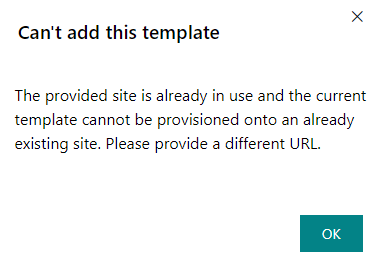
Next, when you try to get template by clicking “Add to your tenant>” button, it actually offers you to create a new site. But it also says “…can use existing URL”. Really? No. When you type existing site Url into the “Relative URL to be used for the site” field – You can get “Can’t add this template. The provided site is already in use and the current template cannot be provisioned onto an already existing site. Please provide a different URL” message:
Or, if you managed to enter existing Url, you might get: “Unfortunately your site provisioning at least partially failed!”:
If I get token with (Graph, MSAL, PnP) and use this token for (Graph API, SharePoint CSOM API, SharePoint REST API) matrix.
An App used in this tests has Sites.FullControl.All MS Graph API and SharePoint API permissions, as well as FullControl ACS based permissions to SharePoint (AppInv.aspx).
Published: May 1, 2022 Update from Mar 5, 2023: Microsoft confirmed this as valid solution. Update from May 20, 2024: still true Update from June 12, 2024: I have just found “ABP in Exchange Online“ Update from Oct, 2025: Teams Search now respects hidden user attributes (e.g., ShowInAddressList, HiddenFromAddressListsEnabled)
Scenario
You want specific users do not appear in Microsoft 365 SharePoint, Teams or Outlook search results. For instance, when user left company and the account is not deleted, but just disabled in Entra Id (Azure AD), so account is present and searchable. Or there are two accounts of the same person – main one and a secondary one – so you want secondary account is removed from org structure and search. Etc.
Solution
Set “ShowInAddressList” Azure AD User object property to false. It’s done using Az module, e.g. with PowerShell:
In many cases we do not need some accounts to appear in Microsoft 365 Search. Examples are:
a) secondary or admin accounts e.g. a person have several roles and several accounts under the same name, e.g. regular user: John Smith John.Smith@contoso.com administrative account: John Smith John.Smith.Admin@contoso.com b) role, shared or service accounts: marketing@contoso.com c) non-mail-enabled objects d) disabled accounts
Getting multiple search results for the same person might confuse users and even lead to miscommunication and broken processes.
There is a good article by Tania Menice (Microsoft): Exclude Users From Delve and SharePoint Online People Search with the latest updates explaining how it is done for classic search and stating that currently it is not possible for modern search, but Microsoft is working on it.
In short, the article says:
Set the profiles AD property msExchHideFromAddressLists to True or Yes,
Sync/wait, so finally SharePoint UPA service SPS-HideFromAddressLists property will be updated (as it is mapped to msExchHideFromAddressLists AD property)
Under SharePoint classic search – update query to: {searchboxquery} -“SPS-HideFromAddressLists”:1
It works perfect for classic search. The problem is it does not work as expected in modern Microsoft Search.
“People” vertical is not customizable so far. So we cannot change query in Microsoft 365 search to do the same trick. But… it seems like Microsoft is working on it so finally it should be done by some kind of ootb config.
Here is how different services or search entry points respect SPS-HideFromAddressLists SharePoint UPA property:
So only “People” vertical in Microsoft search does not respect SPS-HideFromAddressLists (msExchHideFromAddressLists).
(Modern) Microsoft 365 Search
What about cloud-based accounts (not synchronized from local AD)?
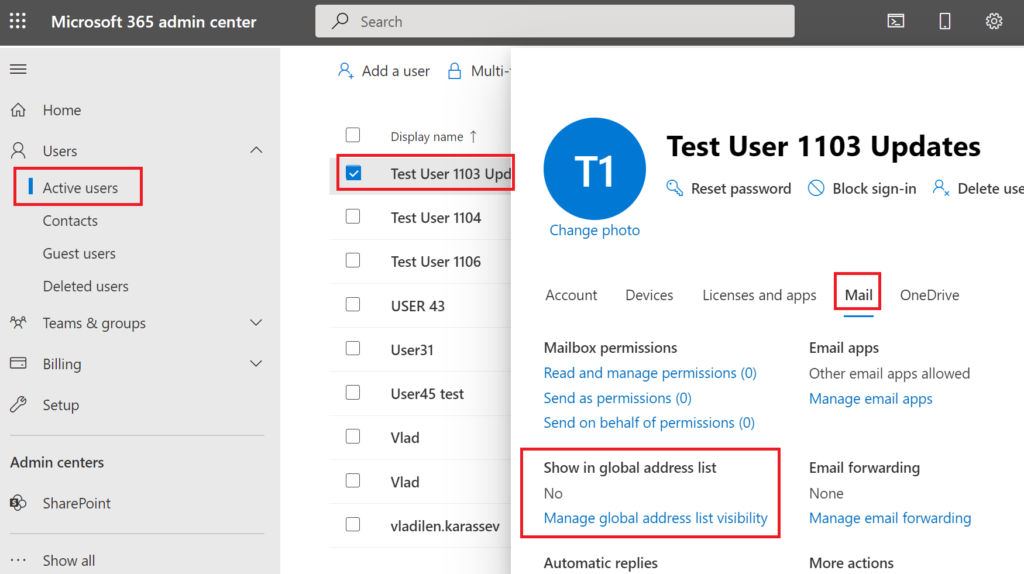
There is a configuration setting “Show in global address list” that does the same job. It’s under Microsoft 365 admin center -> Active Users -> User – Edit -> Mail -> Show in global address list:
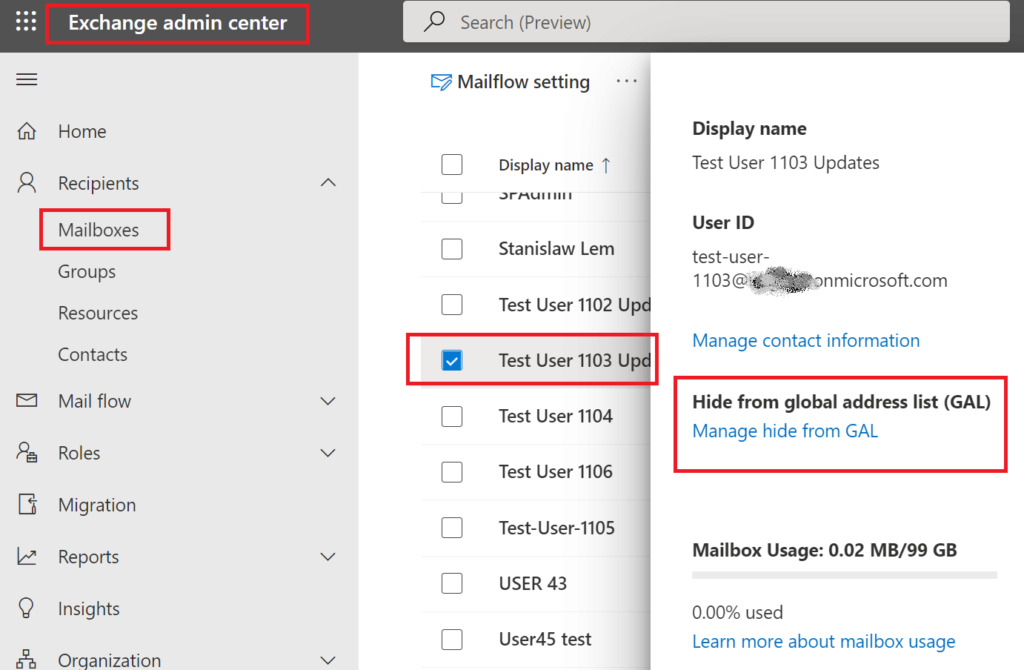
And another configuration settings “Hide from global address list (GAL)” under Exchange Admin Center:
I tested behavior for different kind of accounts and here are results:
User Account
#1
#2
#3
#4
#5
Enabled
Yes
No
Yes
Yes
Yes
Licensed (E5)
No
Yes
Yes
Yes
Yes
m365 Admin Center: Show in Global Address List
n/a
No
No
Yes
No
Exchange Admin Center: Hide from global address list (GAL)
n/a
Yes
Yes
No
Yes
ShowInAddressList Entra Id property value
null
null
null
null
False
SPO UPA ‘SPS-HideFromAddressLists‘ value
False
False
False
False
True
Outlook Address List “All Users”
Shown
Office.com Search: Vertical “All”
Shown
Office.com Search: Vertical “People”
Shown
Shown
Shown
Shown
Bing Work Search: All/People verticals
Shown
Shown
Teams Search: “All” Vertical
Shown
Shown
Teams Search: “People” vertical
Shown
Shown
Shown
Shown
Microsoft 365 Profile card – Organization
Shown
Shown
Teams Profile card – Organization
Shown
Shown
Shown
Shown
Teams People Picker
Shown
Shown
Shown
Shown
SharePoint People Picker
Shown
Outlook People Picker:
Shown
* – some users can see changes after hours, for some it takes days
It seems confusing we have 4 properties responsible for the same:
“Show in Global Address List” under m365 Admin Center
“Hide from global address list (GAL)” under Exchange Admin Center
“ShowInAddressList” Azure AD User object property
“SPS-HideFromAddressLists” SharePoint User Profile property
Are these properties related to each other?
Let’s test it:
Action-Consequences (immediate reaction – minutes if not other mentioned)
“Show in Global Address List” under m365 Admin Center
“Hide from global address list (GAL)” under Exchange Admin Center
ShowInAddressList Azure AD User object property
SPS-HideFromAddressLists SharePoint User Profile property
New user created, license assigned
Yes
Off
null
False
Uncheck “Show in my organization address list” under Microsoft 365 admin center
No
On
after one minute: null after 24 hours: null
after one minute: False after 24 hours: False
Set “ShowInAddressList” Azure AD User object property to “True”
Yes
Off
True
False
Set “ShowInAddressList” Azure AD User object property to “False”
“Show in Global Address List” under m365 Admin Center and “Hide from global address list (GAL)” under Exchange Admin Center – same switch, i.e. if you change one – another is updated automatically Neither of them affect “ShowInAddressList” Azure AD User object property or “SPS-HideFromAddressLists” SharePoint User Profile property
“SPS-HideFromAddressLists” SharePoint User Profile property is not changeable. If you try to change the property value you get an error message: “Set-PnPUserProfileProperty : Property Not Editable: This property can not be modified.“
“ShowInAddressList” Azure AD User object property is editable and synchronized to “Show in Global Address List” under m365 Admin Center and “Hide from global address list (GAL)” under Exchange Admin Center, and also with “SPS-HideFromAddressLists” SharePoint User Profile property (takes minutes), but then search crawler must pick this change up (takes hours) to hide/show the user (this was tested and validated for cloud-born accounts only)
What Microsoft says
Here is what Microsoft says: regarding showInAddressList – Do not use in Microsoft Graph. Manage this property through the Microsoft 365 admin center instead. Represents whether the user should be included in the Outlook global address list. See Known issue.
Known issue (Microsoft): showInAddressList property is out of sync with Microsoft Exchange. When querying users through Microsoft Graph, the showInAddressList property may not indicate the same status shown in Microsoft Exchange. We recommend you manage this functionality directly with Microsoft Exchange through the Microsoft 365 admin center and not to use this property in Microsoft Graph.
Microsoft (Oct 2025): Teams Search now respects hidden user attributes without requiring “Scope Search” (MC1168293)
Summary: Microsoft Teams will now respect hidden user attributes like ShowInAddressList without needing Scope Search, aligning with Outlook and Exchange. This change, rolling out in October 2025, simplifies user visibility management by removing Scope Search for hiding users, though it should remain for Information Barriers.
To improve consistency across Microsoft 365 services and reduce reliance on Scope Search, Microsoft Teams will now respect hidden user attributes—such as ShowInAddressList and HiddenFromAddressListsEnabled—without requiring Scope Search. This change aligns Teams behavior with Outlook and Exchange, simplifying user visibility management and resolving issues caused by Scope Search, such as difficulty locating Call Queues and Auto Attendants.
Teams will respect hidden user attributes (e.g., ShowInAddressList, HiddenFromAddressListsEnabled, msExchangeHiddenFromAddressList) without requiring Scope Search.
Guest users with ShowInAddressList set to False will no longer appear in People Search.
Scope Search is no longer needed to hide users.
If Scope Search is used for Information Barriers (IB), it should remain enabled.
This change aligns Teams behavior with Outlook and Exchange.
Ensure hidden user attributes are correctly configured:
Online: HiddenFromAddressListsEnabled
On-premises: msExchangeHiddenFromAddressList
Guest users: Set ShowInAddressList to True if they should appear in search results.
Disclaimer
I used and tested all cloud-born accounts only. I do not have on-prem AD, so If your users are synchronized from local AD – do your own research – is this property synced from some local AD property, and if so – set AD property instead.
Microsoft is constantly changing the product. So what I found out here now might differ with what you work with.
It’s a good idea to test/validate this solution in your non-prod environment and against test users in your prod environment.
Bottom line
Setting “ShowInAddressList” Azure AD User object property to “false” is the most effective way to hide user account from search, but it could be changed only with PowerShell:
If you have an opposite issue – user account is missing from search – check this property value: msExchRemoteRecipientType – generally it should be “1”, all other might indicate account type not indexed.
Video tutorial
Here is the video tutorial on the same – excluding account from people search in Microsoft 365
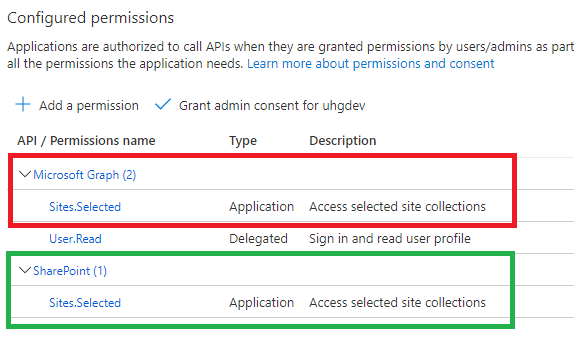
Sites.Selected MS Graph API permissions were introduced by Microsoft in March 2021. One year later, in 2022 they added SharePoint Sites.Selected API permissions.
Why is this so important? Because MS Graph API for SharePoint is still limited and cannot cover all possible needs. I’d estimate: 90% of applications use SharePoint CSOM, so developers have to use AppInv.aspx to provide permissions for their applications to SharePoint API.
But from this moment – having SharePoint API permissions in MS Graph – in theory – we can fully rely on permissions provided in Azure and – in theory – this should allow us disable SharePoint-Apps only principal:
Meantime I’ll test providing SharePoint Sites.Selected API permissions via Graph API call.
(wip) Test set #1: Certificate vs Secret
DisableCustomAppAuthentication: $false (SP-app-only spns are enabled). All applications have “write” access provided to a specific site only. Connecting with Connect-PnPOnline and then test access with Get-PnPSite
App / Get-PnPSite
Secret
Certificate
ACS based (Azure+AppInv)
OK
The remote server returned an error: (401) Unauthorized.
MS Graph API Sites.Selected
The remote server returned an error: (403) Forbidden.
The remote server returned an error: (401) Unauthorized.
SharePoint API Sites.Selected
OK
OK
MS Graph API + SharePoint API Sites.Selected
Access is denied. (Exception from HRESULT: 0x80070005 (E_ACCESSDENIED))
OK
App with no permissions
The remote server returned an error: (403) Forbidden
The remote server returned an error: (401) Unauthorized
(wip) Test set #2: Sites.Selected SharePoint vs MS Graph (secret)
DisableCustomAppAuthentication = $false (SP-app-only spns are enabled).
All applications have “write” access provided to a specific site only.
Using Client Secret (not a certificate)
Using PnP.PowerShell
Action/Via
SharePoint + MS Graph Sites.Selected “secret”
SharePoint Sites.Selected “secret”
MS Graph Sites.Selected “secret”
Connect-PnPOnline
WARNING: Connecting with Client Secret uses legacy authentication and provides limited functionality. We can for instance not execute requests towards the Microsoft Graph, which limits cmdlets related to Microsoft Teams, Microsoft Planner, Microsoft Flow and Microsoft 365 Groups.
WARNING: Connecting with Client Secret uses legacy authentication and provides limited functionality. We can for instance not execute requests towards the Microsoft Graph, which limits cmdlets related to Microsoft Teams, Microsoft Planner, Microsoft Flow and Microsoft 365 Groups.
WARNING: Connecting with Client Secret uses legacy authentication and provides limited functionality. We can for instance not execute requests towards the Microsoft Graph, which limits cmdlets related to Microsoft Teams, Microsoft Planner, Microsoft Flow and Microsoft 365 Groups.
Get-PnPSite
OK
OK
The remote server returned an error: (403) Forbidden.
Get-PnPList
OK
OK
Get-PnPListItem
OK
OK
Set-PnPSite
Attempted to perform an unauthorized operation.
Set-PnPList
Attempted to perform an unauthorized operation.
Set-PnPListItem
OK
OK
New-PnPList
Access is denied. (Exception from HRESULT: 0x80070005 (E_ACCESSDENIED))
Add-PnPListItem
OK
(wip) Test set #3: Read vs Write vs FullControl
DisableCustomAppAuthentication = $false (SP-app-only spns are enabled). All applications have Sites.Selected SharePoint and MS Graph API permissions. Using Client Secret (not a certificate) Using PnP.PowerShell
Read
Write
FullControl
Connect-PnPOnline
WARNING: Connecting with Client Secret uses legacy authentication and provides limited functionality. We can for instance not execute requests towards the Microsoft Graph, which limits cmdlets related to Microsoft Teams, Microsoft Planner, Microsoft Flow and Microsoft 365 Groups.
WARNING: Connecting with Client Secret uses legacy authentication and provides limited functionality. We can for instance not execute requests towards the Microsoft Graph, which limits cmdlets related to Microsoft Teams, Microsoft Planner, Microsoft Flow and Microsoft 365 Groups.
WARNING: Connecting with Client Secret uses legacy authentication and provides limited functionality. We can for instance not execute requests towards the Microsoft Graph, which limits cmdlets related to Microsoft Teams, Microsoft Planner, Microsoft Flow and Microsoft 365 Groups.
Get-PnPSite
Access is denied. (Exception from HRESULT: 0x80070005 (E_ACCESSDENIED))
Get-PnPList
Access is denied. (Exception from HRESULT: 0x80070005 (E_ACCESSDENIED))
Get-PnPListItem
Set-PnPSite
Set-PnPList
Set-PnPListItem
New-PnPList
Add-PnPListItem
(wip) Test set #5: Certificate vs Secret
C#, SharePoint CSOM, PnP.Framework
Findings
PnP.PowerShell Get-, Grant-, Set- and Revoke-PnPAzureADAppSitePermission cmdlets require Azure App with MS Graph Sites.FullControl.All app permissions (otherwise it says “Access denied”) and authentication via certificate (otherwise it says “This cmdlet does not work with a ACS based connection towards SharePoint.”)
The same actions – managing permissions for the client app to the specific site collections – could be done via Microsoft Graph Sites Permissions API using just secret-based authentication.
If an azure app does not have Sites.Selected API permissions configured – “Grant-PnPAzureADAppSitePermission” works as expected – no error messages – the output is normal – as if Sites.Selected API permissions were configured in the app. The same for Get-, -Set and Revoke-. Permissions provided for the app to the site are not effective though: Connect-PnPOnline works well, but all other commands – starting from Get-PnPSite – returns “The remote server returned an error: (403) Forbidden.”
If an app have no permissions to SharePoint – “Connect-PnPOnline” works ok, but “Get-PnPSite” return an error: “The remote server returned an error: (403) Forbidden.”
Set-PnPAzureADAppSitePermission gives an error message “code”:”generalException”,”message”:”General exception while processing” if the site is not specified.
AppInv is not working?
Error: Access is denied. (Exception from HRESULT: 0x80070005 (E_ACCESSDENIED))
How to provide permissions for an Azure registered application with MS Graph SharePoint Sites.Selected API permissions to a specific site via calling Microsoft Graph API from PowerShell.
We need an “admin” application – Azure registered application with with Sites.FullControl.All MS Graph API permissions. This method can use secret, so we need Client Id and Client Secret for this “admin” app.
We also need a Client Id and Application Display Name for an Azure application with Sites.Selected MS Graph and/or SharePoint API permissions provided.
And we need our “target” site Url.
With PowerShell scripts you can:
Get Microsoft Graph Access Token with an “admin” app
Get client (target) site Id
Get current app permissions provided to client site
Add read or write permissions for the client app to the client site