You run some PnP PowerShell code unattended e.g. daemon/service app, background job – under application permissions – with no user interaction. Your app needs to connect to SharePoint and/or Microsoft Graph API. Your organization require authentication with a certificate (no secrets). You want certificate stored securely in Azure Key Vault.
Solution (Step-by-step process)
Obtain a certificate (create a self-signed or request trusted)
In Azure where you have Microsoft 365 SharePoint tenant
Create a new Registered App in Azure; save App (client) id, Directory (Tenant) Id
Configure App: add MS Graph and SharePoint API application (not delegated) permissions
Upload the certificate to the app under “Certificates & secrets”
In Azure where you have paid subscription (could be same or different)
Create an Azure Key Vault
Upload certificate to the Key Vault manually (with GUI)
While you develop/debug your custom daemon application at your local machine
Provide permissions to the Key Vault for your personal account
Connect to Azure (the one where your Key Vault is) running Connect-AzAccount – so your app can get a Certificate to authenticate to SharePoint Online
For your application deployed to Azure (e.g. Azure Function App )
Turn On managed identity (Your Function App -> Identity -> Status:On) and Save; notice an Object (Principal) Id just created
Provide for your managed identity principal Id permissions to the Key Vault, so when your daemon app is running in the cloud – it could go to the key Vault and retrieve Certificate
Here is the sample PowerShell code to get certificate from Azure Key Vault and Connect to SharePoint with PnP (Connect-PnPOnline):
# ensure you use PowerShell 7
$PSVersionTable

# connect to your Azure subscription
Connect-AzAccount -Subscription "<subscription id>" -Tenant "<tenant id>"
Get-AzSubscription | fl
Get-AzContext

# Specify Key Vault Name and Certificate Name
$VaultName = "<azure key vault name>"
$certName = "certificate name as it stored in key vault"

# Get certificate stored in KeyVault (Yes, get it as SECRET)
$secret = Get-AzKeyVaultSecret -VaultName $vaultName -Name $certName
$secretValueText = ($secret.SecretValue | ConvertFrom-SecureString -AsPlainText )

# connect to PnP
$tenant = "contoso.onmicrosoft.com" # or tenant Id
$siteUrl = "https://contoso.sharepoint.com"
$clientID = "<App (client) Id>" # Azure Registered App with the same certificate and API permissions configured
Connect-PnPOnline -Url $siteUrl -ClientId $clientID -Tenant $tenant -CertificateBase64Encoded $secretValueText

Get-PnPSite
Yes, sure… But! Since it’s a cloud operation against Microsoft 365 – you will be throttled if you start more than 2 parallel threads! Using just 2 threads does not provide significant performance improvements.
Batching
So, try PnP.PowerShell batches instead. When you use batching, number of requests to the server are much lower. Consider something like:
PowerShell is our best friend when it comes to ad-hoc and/or scheduled reports in Microsoft 365. PnP team is doing great job providing more and more functionality with PnP PowerShell module for Office 365 SharePoint and Teams.
Small and medium business organizations are mostly good, but for large companies it might be a problem due to just huge amount of data stored in SharePoint. PowerShell reports on all users or all sites might run days… which is probably OK if you run this report once, but totally not acceptable if you need this report e.g. daily/weekly or on-demand.
How can we make heavy PowerShell scripts run faster?
Of course, you start with logic (algorithm) and leveraging full PowerShell functionality (e.g. PowerShell 7 parallelism or PnP batching).
(examples)
What if you did everything, but it still takes too long? You need something like brute force – the closer your code runs to your tenant – the better. What are the option? – Automation account runbook (+workflow) – Azure Function Apps – Azure VM in the region closest to your Tenant
Automation account runbook (+workflow)
Seemed like a good option, but not something Microsoft promotes. Even opposite – automation accounts support only PowerShell 5 (not 7), no plug-ins for VS Code and recently there were messages on some retirement or smth.
Meantime, I tested it – and did not find any significant increasing in speed. In a nutshell, what is behind this service? Same windows machines running somewhere in Azure .
Quick answer: spin-up a few VMs in different Azure regions, then ping your SharePoint tenant. The moment you see 1ms ping you know the tenant exact location.
Full story
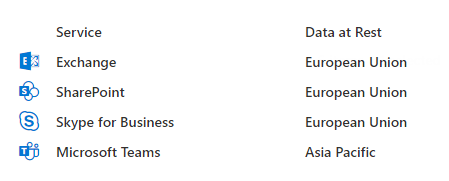
Microsoft says: “Customers should view tenant specific data location information in your Microsoft 365 Admin Center in Settings | Org settings | Organization Profile | Data location.” And it might look like:
That’s accurate to the geography (e.g. US, UE, AP), but not to the region (for instance – “Central US”, “UK West” or “Australia Southeast”). In other words, If you know your data are in the US, you do not know where exactly – East/West/Central or South US. Meantime when you create an Azure resource (e.g. Virtual Machine) – you can select specific region.
How do I know – where is my Microsoft 365 tenant actually located?
Can we just ping the tenant, analyze result and find Office 365 tenant region? Luckily, SharePoint tenant is pinging with just PS>ping tenantName.SharePoint.com I have tested 5 regions and 4 different tenants:
ping from/to (ms)
tenant 1 (US)
tenant 2 (EU)
tenant 3 (US)
tenant 4 (US)
North Europe
73
17
96
101
East US
1
83
39
31
Central US
22
114
23
23
West US
63
146
36
33
South Central US
31
112
1
1
So I figured it out: My o365 tenants #3 and #4 regions are South Central US (Texas, San Antonio), tenant #1 resides in East US.
Why do I need this?
Imagine you are running heavy reports against your tenant. So probably you want your code running as close as possible to your tenant. For this, you can spin-up a VM in Azure or use Azure Functions – just select proper region 🙂 (please check also “Long-running PowerShell reports optimization in Office 365“)
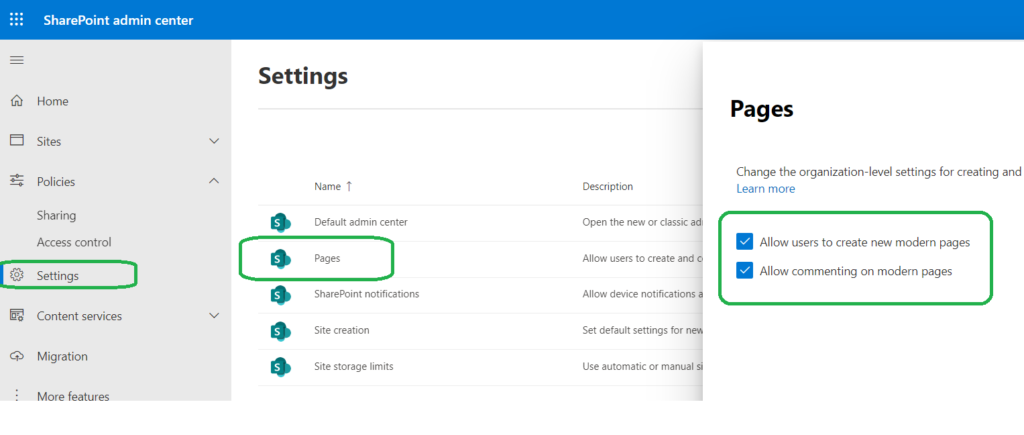
Microsoft: “Using modern pages in Microsoft SharePoint is a great way to share ideas using images, Office files, video, and more. Users can Add a page to a site quickly and easily, and modern pages look great on any device. If you’re a global or SharePoint admin in Microsoft 365, you can allow or prevent users from creating modern pages. You can do this at the organization level by changing settings in the SharePoint admin center. If you allow the creation of site pages as the organization level, site owners can turn it on or off at the site level.“
By default both – Allow users to create new modern pages – Allow commenting on modern pages are turned on (enabled)
Tenant or SharePoint admin can find settings under SharePoint Admin Center -> Settings -> Pages
How it looks like:
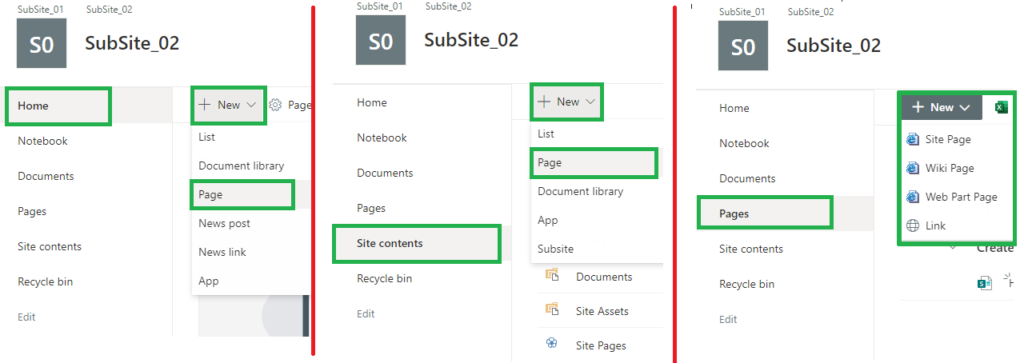
Site Pages are created under “Pages” Library.
Let us test it, with: – (tenant-level) Allow users to create new modern pages: ON – (tenant-level) Allow commenting on modern pages: ON – web feature “Site Pages” – “Allows users to add new site pages to a site”: Activated
User Permissions
can create Page
can edit page
can Enable/Disable page comments
can comment on Page
Full Control (Owner)
Yes
Yes
Yes
Yes
Edit (Member)
Yes
Yes
Yes
Yes
Read (Visitor)
No
No
No
Yes
There is a web feature “Site Pages” – “Allows users to add new site pages to a site”. The feature is activated by default:
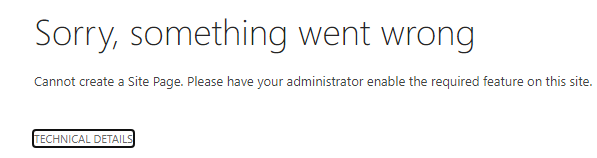
What if we disable this feature? “New -> Page” has disappeared from “New” menu under “Site Contents” for Owners and Members… From “Home” and “Pages” you still can see “New -> Page” options. You can still create a new page from but if you try to create a page from Pages – “Sorry, something went wrong” “Cannot create a Site Page. Please have your administrator enable the required feature on this site.” :
Office 365 behavior, with: – (tenant-level) Allow users to create new modern pages: ON – (tenant-level) Allow commenting on modern pages: ON – web feature “Site Pages” – “Allows users to add new site pages to a site”: Deactivated
User Permissions
can create Page
can edit page
can Enable/Disable page comments
can comment on Page
Full Control (Owner)
Yes, but only from “Home” not from “Site Contents” or “Pages”
Yes
Yes
Yes
Edit (Member)
Yes, but only from “Home” not from “Site Contents” or “Pages”
Yes
Yes
Yes
Read (Visitor)
No
No
No
Yes
If we disable feature “Site Pages” – “Allows users to add new site pages to a site” on the root web – it does not affect subsites (subwebs).
Can we Activate/Deactivate the feature “Site Pages” using PowerShell?
Search is everywhere in Microsoft 365. You can search from SharePoint, Teams, Delve, Yammer etc.
But! You cannot search for anything from everywhere!
Upd Oct 2025: Microsoft finished moving all services to cloud.microsoft and launched web-based Copilot and Search from m365.cloud.microsoft. E.g. – Copilot: https://m365.cloud.microsoft/chat – Search: https://m365.cloud.microsoft/search What is interesting is search here works across all services – Exchange, SharePoint, Teams so from one place you can search content in emails, SharePoint pages, documents, lists, Teams chats.
Original article:
Search for your Teams chat messages works only in Teams.
But from Teams you cannot search for regular (non-group) sites and public teams sites
All descriptions are totally out of search (e.g. site description, library/list description – including Yammer groups, Teams and regular sites).
Public Team Sites content is not searchable from Teams and Yammer
So, what are the scopes of each search entry point in Office 365 and is there an entry point you can search for everything?
Search scopes
SharePoint Search center
SharePoint home Office portal Office desktop app Delve
Teams
Bing
SharePoint content
Yes
Yes
Yes
Teams content
Yes
Yes
Yes
Yes
Teams chats
(*1)
Yes
Yes
Yammer content
Yes
Yes
Yes
Yammer chat
(*1)
Yes
User profiles
Yes
Yes
Email
(*1) Microsoft announced they are working on bringing conversations (both Teams chats and Yammer) to SharePoint landing page first, then to Office home page.
Detailed:
Scope
Out of Scope
SharePoint Search Center
– all sites content (Teams, Yammer, regular), – user profiles – OneDrive
Teams chat Yammer chat
SharePoint Landing Page
same as SharePoint Search center but Teams chats and Yammer Conversations are coming
same as SharePoint Search Center
Office.com
same as SharePoint (Teams chats and Yammer Conversations are coming after SharePoint)
same as SharePoint
Delve
Teams
Teams content Teams chat
OneDrive Yammer User Profiles regular SharePoint sites
Bing
Everything*
* except people profiles content (e.g. about me)
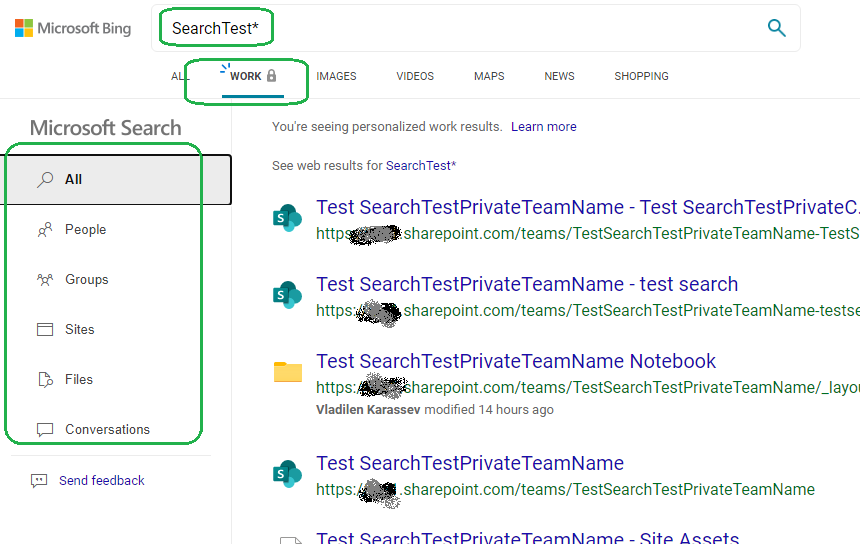
Seems like the only tool you can search for EVERYTHING with is Microsoft Bing:
Update: there are rumors that Microsoft is decommissioning work search in Bing… Pity… But something tells me that decomm is due to lack of usage/popularity, so Microsoft will introduce something similar…
After Microsoft add Teams chats and Yammer conversations to SharePoint landing page search scope (then to Office home page) – it’ll be the best place to search from for everything.
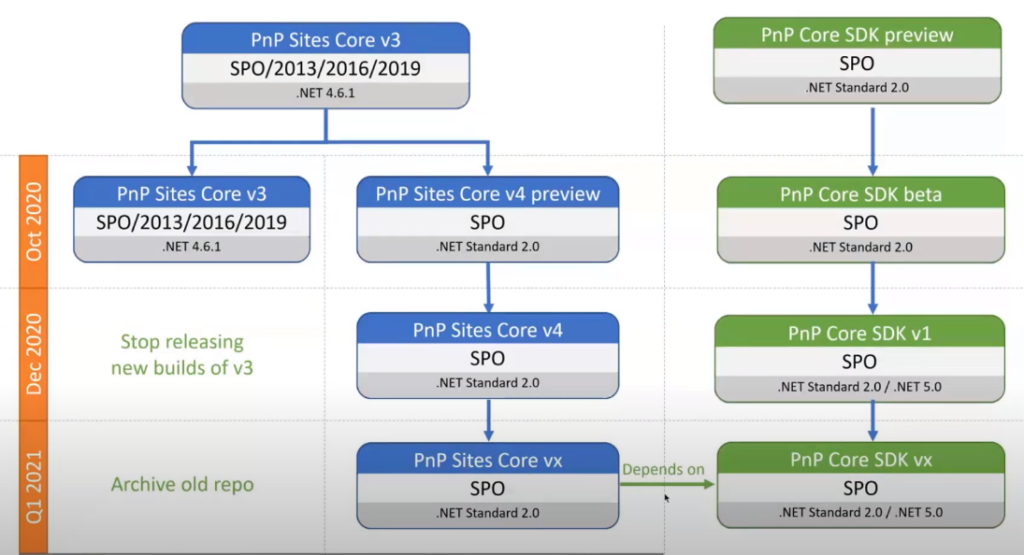
Good news! On Sep, 18 during the SIG community call, PnP Team shared their plans on PnP Sites Core library and PnP Core SDK. “PnP Sites Core v4” library and “PnP Core SDK v1” with .net core support (.net Standard 2.0) – expected in December 2020!
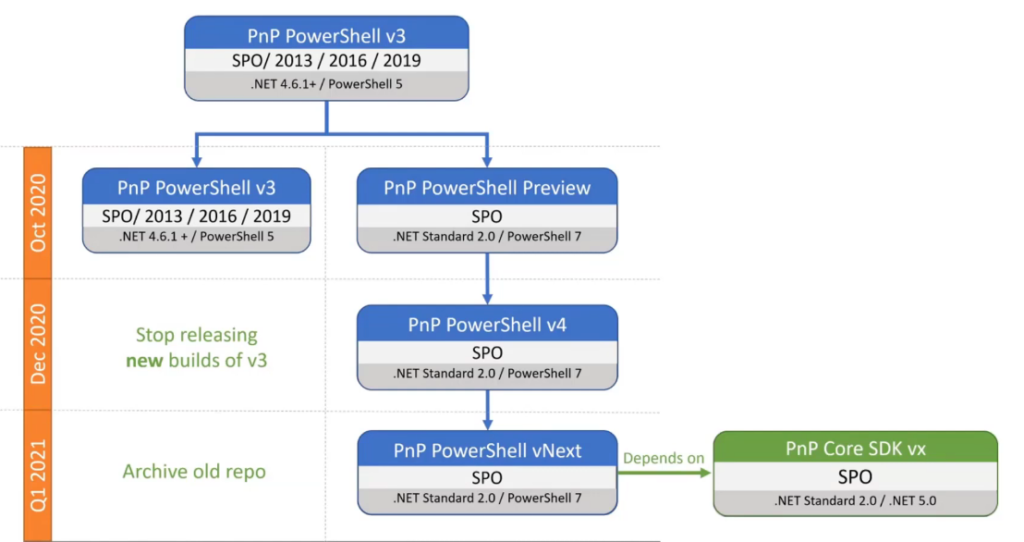
PnP PowerShell v4 for SPO library built for .Net Standard 2.0 / PowerShell 7 will be released in Dec 2020 as well.
Scenario: You have a large (>5k items) list in SharePoint Online you need to clean-up, for instance:
You need to delete the entire list
You need to delete all the list items, but keep the list
You need to delete some of list items, but keep the others
Deleting a large SharePoint Online list
There was a problem in SharePoint Online – you could not delete a large list – you had to remove all items first, but removing all items was also a challenge. Microsoft improved SharePoint Online, so now it takes ~1 second to delete any SharePoint list, including 5000+ items list via GUI or PowerShell:
Remove-PnPList -Identity $list
command works very fast – ~1 second to delete entire list with >5000 items.
Delete all items in a large SharePoint Online list
In this scenario we need to keep the list, but make it empty (clean it up).
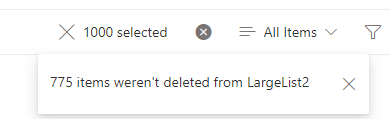
GUI: You can change the list view settings “Item Limit” to <5000 and try to delete items in chunks, but (at least in my experience) when you try to select, let say, 1000 items and delete them via GUI – it says “775 items were not deleted from large list”:
so this option seems like not a good one.
ShareGate: 3-rd party tools like Sharegate, SysKit give a good results too.
for me both methods gave same good result: ~17 items per second ( ~7 times faster than regular).
Deleting some items from a large SPO list
Consider the following scenario: in a large SharePoint list there are items you need to delete and the rest items must stay (typical case might be to purge old items – e.g. items created last year).
In this case you’d
get all list items (or use query to get some list items)
select items that need to be deleted based on your criteria, e.g. created date or last modified date etc.
use PnP.PowerShell batches to delete only what you need
# to get all list items
$listItems = Get-PnPListItem -List Tasks -PageSize 1000
# or to get some list items
$listItems = Get-PnPListItem -List Tasks -Query <query>
# select items to delete
$itemsToDelete = $listItems | ?{$_.Modified -lt $threshold}
# delete some list items
$batch = New-PnPBatch
$itemsToDelete | Foreach-Object { Remove-PnPListItem -List $list -Identity $_ -Batch $batch }
Invoke-PnPBatch -Batch $batch
PnP.PowerShell batch vs ScriptBlock
How fast are PnP batches? What is better in terms of performance – ScriptBlock or Batching? Here are my measurements:
Time elapsed, seconds
with batches
with scriptBlock
without batches
Add-PnPListItem (100 items)
6-10 seconds
60-120 seconds
Add-PnPListItem (500 items)
20-40 seconds
230-600 seconds
Add-PnPListItem (7000 items)
314-600 seconds
Add-PnPListItem (37000 items)
3200 seconds
Remove-PnPListItem (1000 items)
58-103 seconds
58 seconds
430-1060 seconds
Remove-PnPListItem (7000 items)
395-990 seconds 3000 seconds
397-980 seconds
Remove-PnPListItem (30000 items)
one big batch : 13600 seconds 30 batches 1000 items each: 3500 seconds
both – PnP PowerShell batches and ScriptBlocks are 7-10 times faster than plain PnP PowerShell!
Can we use Microsoft Graph API to complete the same task? TBC…
Note… For the sake of history: It used to be like that for 5k+ lists: “Remove-PnPList” fails with a message “The attempted operation is prohibited because it exceeds the list view threshold enforced by the administrator”. Deleting with GUI failed too.