A read-only PowerShell solution that evaluates governance, security, ownership, lifecycle, and operational controls across Microsoft 365 and highlights areas that require attention.
Microsoft 365 Governance Health Check
Leave a reply
A read-only PowerShell solution that evaluates governance, security, ownership, lifecycle, and operational controls across Microsoft 365 and highlights areas that require attention.
There is no Microsoft Graph API that pulls list of site users. With PnP.PowerShell it’d be easy: Get-PnPUser. Here is the Graph site resource type – there is nothing like that. For group-based sites (e.g. Teams, Viva Engage communities – you get get group members via MS Graph API, but that’s different. So, what do we do to get all SharePoint site users with MS Graph API?
The answer is very simple. Every SharePoint site has a hidden (system) list called User Information List. And that is exactly what you need. So, you’d get list “User Information List” and get all it’s items via graph API:
P.S. using Get-PnPUser against sites with large population could fail with HttpClient.Timeout error, so in such cases we’d use the same approach – get items from User Information List via Get-PnPListItem -List “User Information List” -PageSize 1000. See details in the “Use Get-PnPUser correctly for large sites” KBA.
If you are trying to access somebody’s OneDrive site and it says “The site is archived” – here is what you need to know. Microsoft recently implemented a new feature (process) of mandatory archiving OneDrive sites after 93 days since account becomes unlicensed.
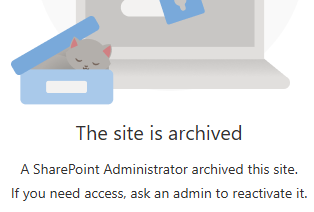
So now it two processes that applied to OneDrive sites of the off-boarding personnal:
This KBA describes how these mechanisms interact, and provides a decision matrix for common offboarding scenarios.
When a user’s Microsoft 365 license is removed, the OneDrive becomes unlicensed. Microsoft’s enforcement (began Jan 27, 2025) introduces these behaviors: [learn.microsoft.com]
Note: Microsoft’s guidance indicates exceptions for certain clouds/segments (e.g., EDU, GCC, DoD). [learn.microsoft.com]
When OneDrive content is being deleted, Microsoft honors retention mechanisms in the following order: [learn.microsoft.com]
After those are satisfied, the account/site is recycled and then permanently deleted. [learn.microsoft.com]
Think of it this way:
So you can have a OneDrive that is:
There are two major branches in Microsoft’s guidance: [learn.microsoft.com]
When the user is deleted in Entra ID, the OneDrive is removed following the standard OneDrive deletion process, honoring retention in this order: OneDrive retention period → retention policies → legal holds. [learn.microsoft.com]
What the 93-day rule changes here:
Microsoft states enforcement does not change retention timelines or the deletion process for this branch. [learn.microsoft.com]
Result patterns
These accounts are archived on their 93rd unlicensed day.
What happens next depends mainly on billing for unlicensed OneDrive accounts: [learn.microsoft.com]
Combine with retention policies / holds:
Retention can still apply for compliance, but in practice this path commonly results in “archived but preserved” behavior. Microsoft also clarifies Purview mechanisms still apply and retention order remains relevant. [learn.microsoft.com]
What this means in practice
Best practice: If business requires access to the files later, plan either (a) content migration/transfer before Day 93, or (b) enable billing and document cost/ownership.
Best practice: If you need long-term preservation, ensure Purview retention/holds are correctly scoped before deletion.
Important operational impact: Retention does not guarantee admin access to content at all times—archival can restrict access even while content is preserved. [learn.microsoft.com]
Microsoft provides admin reporting for unlicensed OneDrive accounts and guidance for identification/monitoring and management actions. [learn.microsoft.com]
Depending on business need:
No. Microsoft states the standard deletion process still honors retention mechanisms (OneDrive retention period → retention policies → legal holds) and enforcement does not change retention timelines. [learn.microsoft.com]
Not necessarily. The OneDrive can be archived and inaccessible until admins take specific actions. Retention can preserve data, while archival can restrict access. [learn.microsoft.com]
Assuming “retention == access.” Retention ensures preservation rules, but enforcement can still move unlicensed OneDrives into an archived state where access is blocked unless admins take action. [learn.microsoft.com]
Microsoft enforces Content Security Policy (CSP) in SharePoint Online.
What does that mean to SharePoint Admins? Should we be concerned? What do we need to undertake? Before? After?
Generally, in web development – the policy (Content Security Policy – CSP) is needed to minimize the risk of security threats by controlling which resources, in particular JavaScript resources, a page/site is allowed to load.
In SharePoint web development is done via SPFx, so the CSP policy affect SPFx solutions. In a nutshell, from now on, for the SPFx solutions to work properly, admins should whitelist external domains. Admins can maintain allowed domains list via GUI in SharePoint admin center or via PowerShell:
# List current sources
Get-SPOContentSecurityPolicy
# Remove a source
Remove-SPOContentSecurityPolicy -Source "https://cdn.host.com/source/"
# Add a source
Add-SPOContentSecurityPolicy -Source "https://cdn.host.com/source/"
The CSP policy was enforced on March 1, 2026, but as per Microsoft, if clients need more time to review and update existing SPFx solutions, we can delay the enforcement by 90 days, until June 1, 2026, via
Set-SPOTenant -DelayContentSecurityPolicyEnforcement $true
# IMPORTANT: List the applied setting again as mandatory step to correctly persist the setting (will be fixed)
(Get-SPOTenant).DelayContentSecurityPolicyEnforcement
Admins can view the Content Security Policy Violations via Purview.
So there are cmdlets:
And for the Set-SPOTenant cmdlet there are options related to CSP:
So the question I ask for myself is what exactly each command does and how are the options correlated to each other and affect SPFx solutions.
It seems like using Set-SPOTenant with a ContentSecurityPolicyEnforcement parameter change nothing. I.e. “Set-SPOTenant -ContentSecurityPolicyEnforcement:$false” does not disable policy and vise versa
“Set-SPOTenant -ContentSecurityPolicyEnforcement:$true” does not enforce the CSP policy.
My guess it’s because this article is written in April 2026. Microsoft started Content Security Policy (CSP) enforcement since March 1, 2026. So probably before March 1, 2026 we could use ContentSecurityPolicyEnforcement to enable the policy, but since March 2026 the policy is enforced anyway and parameter ContentSecurityPolicyEnforcement is not needed (and probably will go away in the next versions of the Microsoft.Online.SharePoint.PowerShell Module).
DelayContentSecurityPolicyEnforcement parameter effectively switches the policy on and off. It takes a few minutes for Microsoft to propagate the change across so you can start seeing the policy enforced or not. But this is true only during 90 days – in Mar, Apr and May 2026. Since June 1, 2026 the Content Security Policy (CSP) will be enforced in SharePoint Online.
How do I know if my site compliant with CSP or not before CSP enforcement?
There are some good findings for developers in the article Preparing for SharePoint Online CSP Enforcement by Nello D’Andrea, MVP. But I will share some more.
Use browser’s dev tools (F12). Select console and filter/search output with “policy”. You can find something like:

“Loading the image ‘<URL>’ violates the following Content Security Policy directive” or
“Loading the script … violates the following Content Security Policy directive” or
“Executing inline script violates the following Content Security Policy directive” or
If the message is just informational (in white) and there is also “The policy is report-only, so the violation has been logged but no further action has been taken.” that means the policy is not enforced yet… and the site functionality should not be affected.
Otherwise – when you see the same “… violates the following Content Security Policy directive” in red – this would be an error message and the policy prevents something on your site due to the CSP policy so functionality will be broken.
Get-PnPUser PowerShell cmdlet is to get the list of site user. For small sites it work OK, but for sites with a large number of site users the cmdlet fails throwing a warning/error “Get-PnPUser: the request was canceled due to the configured HttpClient.Timeout of 100 seconds elapsing.”. Typically suggested fixes like to increase timeout do not work. Here is how to solve the issue.
If you need a list of site users – just get the hidden “User Information List” and get all it’s items:
# Target the hidden list object specifically by its internal title
Get-PnPList -Identity "User Information List"
# Extract the list rows and select the relevant columns
Get-PnPListItem -List "User Information List" -PageSize 1000
Surely you’d get a different object type, but still you’ll be able to find properties you need via something like $user[“Name”] for Get-PnPListItem object versus $user.LoginName for Get-PnPUser object. But if you need a Get-PnPUserObject – you always can do something like
Get-PnPUser -Identity $listItem["Name"] That is it. You’ll figure out the rest.
P.S. If you need to get all SharePoint site users via Microsoft Graph API – use the same trick – get items from the UIL (as there is no dedicated API entry point to get site users). Here is the “Get SharePoint Site Users via Graph API” KBA.
In large Microsoft 365 environments, leadership and governance teams often need visibility into collaboration resources owned by a specific organization unit – typically defined by a manager and their reporting chain. Native tools make it easy to inspect a single Team or site, but not to answer a simple question at scale: “What Teams and SharePoint sites are owned by anyone under this leader?” This PowerShell script builds that inventory by expanding a manager’s hierarchy and correlating owners to Microsoft 365 Groups/Teams and their associated SharePoint sites.
Here are the scripts (beta):
https://github.com/VladilenK/m365-PowerShell/tree/main/Solutions/HierarchyReports
Update: Added Get-Hierarchy.ps1 script
The script retrieves the hierarchy of all subordinates for a given manager in Entra Id
Update: Added Get-Sites.ps1 script
The script pulls all group-based sites owned by anyone from the hierarchy
This article address “Orphaned Users” in SharePoint and applies mostly to medium and large tenants.
Orphaned users are user accounts that no longer exist in Entra ID (Azure AD) but still appear inside Microsoft 365 SharePoint or OneDrive sites, specifically in the User Information List (UIL). A SharePoint User Information List (UIL) is a hidden system list that exists in every SharePoint site collection and stores cached profile information about users who have interacted with that site. In short about orphaned users and UIL: The identity is gone, but its footprint remains.
Orphaned users should be eliminated not only because their presence in sites confuses active users, but mostly because they cause “User ID Mismatch” issues when UPNs are reused.
User ID Mismatch is a known problem in SharePoint. It happens usually when a user account is deleted from the directory, and then a new account is created with the same UPN (re-used user principal name). Symptoms are: a user is provided with the access to the site, but still cannot get access.
The reason behind it is that SharePoint caches users data in the UIL, including not only UPN, but also Entra Id user object Id. So when a re-used UPN tries to access the site – SharePoint does not allow access, because even if UPN is the same – Id is different – e.g. SharePoint treats user as a different one. So access needs to be re-provided. And this is where the actual issue happens. When a site owner shares the resource with a new user (or approves access request) – Microsoft does dot update the UIL with the new user ids. So for the user and for the site owner it looks like access was provided, but in fact it was not.
Microsoft provides a “fix”, but this solution is really weak as it allows only to remove one orphaned user from one site reactively. Here are some more details: “Fixing SharePoint User ID Mismatch Issue“.
Can we address the issue proactively, tenant-wide (all users, all sites, before the issue happens)? Probably – yes, but it takes a lot. Here are some more details: “Preventing SharePoint User ID Mismatch: a Tenant‑Wide Approach“. In a nutshell solution is at the moment of an employee offboarding – when a user account is deleted from directory (Entra Id) – we need to remove that user from all sites UIL they had access to. But how? And the other question: is it safe?
How do we remove deleted Entra is users from all SharePoint sites? This is a huge problem, as there is no native (out-of-the-box) Microsoft’s tools or reports to get all sites a specific user has access to. But here is where a 3-rd party tools might help. E.g. SysKit Point – with it’s “Orphaned Users” policy or ShareGate.
Is it safe to remove all orphaned users from all sites in SharePoint? Though Microsoft did not publicly say “yes” (at least I have not seen it), a high-skilled SharePoint support engineers says yes, generally it’s safe if you do it correctly. My research on the question says the same – yes, it is safe (“Is It Safe to Remove a User from a SharePoint UIL?“).
Can we just turn the SysKit’s “Orphaned Users” policy on? In small tenants – yes, in new tenants – yes. But your tenant is not new and not small – you probably already have tens or hundreds of thousands of orphaned users. Unfortunately, in SysKit there is no options to implement the policy in chunks – so we do orphaned users clean-up against test sites, then pilot, then step-by-step all other sites. Also the “orphaned users” report just fails due to enormous amount of data.
So the idea is to do an initial clean-up in the environment – gracefully remove all existing orphaned users before implementing “Orphaned Users” policy. This is exactly the topic of this KBA.
A controlled, script-based clean-up must be completed before the Orphaned Users policy can be safely enabled. PowerShell is identified as the primary tool for this effort.
Below is a draft (preliminary considerations) – to be tested/proved/updated.
The clean-up approach must:
Recommended initial strategy:
Execution Model
For each site processed:
Deleting orphans immediately avoids duplicate scanning and unnecessary re-validation.
Orphan Detection Approach
Preferred identifier: Entra ID Object ID. UPNs must not be used to determine orphan status due to reuse.
Options considered:
Recommended technique:
Note: UIL does not always store Entra Object ID directly; sometimes only login name (claim) is available.
Handling Large Sites
The clean-up cannot be completed with a single script run.
Expected characteristics:
Worker execution options:
With multiple workers, a global STOP flag should be supported.
Tracking and State Management
Tracking is mandatory to avoid reprocessing completed work.
Tracking by user-site pairs is not feasible due to scale.
Preferred approach: Tracking by site.
Minimum tracking fields per site:
Tracking Storage Options
Each worker:
Reused UPNs and User ID Mismatch
Because the tenant contains many reused UPNs:
Deleting users by site user ID or login name is safe because reused UPNs are not added to UIL until the previous orphan entry is removed.
An alternative approach is to skip reused UPNs entirely:
This tradeoff may be acceptable if performance gains are significant.
WIP…
:li:/t is a modern Microsoft 365 “link indirection” prefix used for List Item–based sharing links, where the link does not directly expose a file or site path, but instead points to an internal resource ID that SharePoint resolves at runtime.
with :li:/t links, the “managed path” (/teams/ vs /sites/) can be completely absent from the URL, even when the underlying site is clearly under /teams/....
Why Shared Links Don’t Show /sites or /teams — and How to Get the Real Site URL?
Covers why modern Microsoft 365 sharing links omit managed paths and how to use Microsoft Graph to identify the actual SharePoint site associated with a shared item.
$sharingUrl = "https://contoso.sharepoint.com/:u:/s/tst/subsite01/IQDT1WnS2vtERpmwXi1aOxruAViMmZ7-C5miAFamf6sQMnE?e=gtEfMD";
# string base64Value = System.Convert.ToBase64String(System.Text.Encoding.UTF8.GetBytes(sharingUrl));
$base64Value = [Convert]::ToBase64String([Text.Encoding]::UTF8.GetBytes($sharingUrl))
$base64Value
# string encodedUrl = "u!" + base64Value.TrimEnd('=').Replace('/','_').Replace('+','-');
$encodedUrl = "u!" + $base64Value.TrimEnd('=').Replace('/','_').Replace('+','-')
$encodedUrl

$apiUrl = "https://graph.microsoft.com/v1.0/shares/{shareId}/site"
$result = Invoke-RestMethod -Uri $apiUrl.Replace("{shareId}", $encodedUrl) -Headers $headers
$result | fl
Actually, this article is more about “Is it safe to remove all deleted user accounts from all SharePoint sites UIL?”, as managing user lifecycle changes in Microsoft 365 goes far beyond deciding whether it’s safe to remove a single user from an individual SharePoint UIL. In large Microsoft 365 tenants, deleted or inactive accounts – sometimes called orphaned identities – can create clutter and confusion in permissions and UI elements affecting governance clarity, audit readiness. This KBA explains the broader tenant‑scale implications of cleaning up deleted user accounts across all SharePoint sites.
My immediate motivation was researching the ‘User ID Mismatch’ issue in SharePoint and figuring out how to address it proactively across the tenant. Why a dedicated KBA? Because, In isolated cases, it’s generally considered safe to remove a single user from a single SharePoint UI location after their Entra ID account has been disabled or deleted. However, there is no official guidance recommending a tenant‑wide cleanup of all UI entries for disabled or deleted accounts. In fact, when asked why such cleanup might be needed, Copilot typically responds that performing it tenant‑wide is not considered safe.
One of the reasons Copilot says it is not safe is
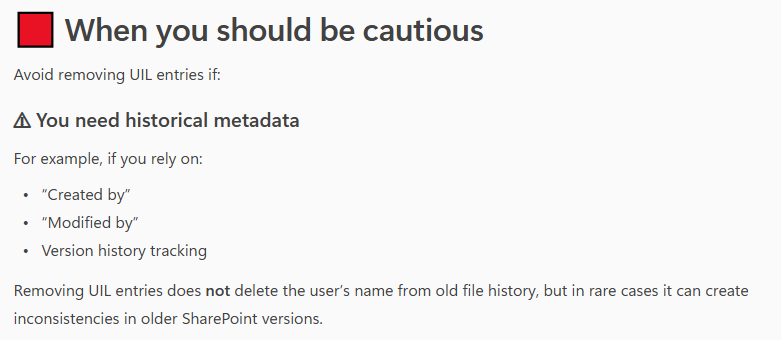
“Avoid removing UIL entries if you need historical metadata
For example, if you rely on “Created by” or “Modified by” or Version history tracking
In my personal experience, removing a user from the UIL does not affect item edit history — the removed user still appears correctly. Moreover, when a new user with the same UPN/email but a different display name is added to a site and begins working on the same document, SharePoint handles this correctly. But let’s test it to confirm or refute this.
I have created 3 new accounts in tenant and provided them with an m365 license:
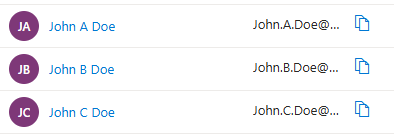
Then created a test site, and all three users one-by-one were working on the site, creating documents, lists, providing permissions
Ensure that “Created by” or “Modified by” and Version history are tracking users correctly:
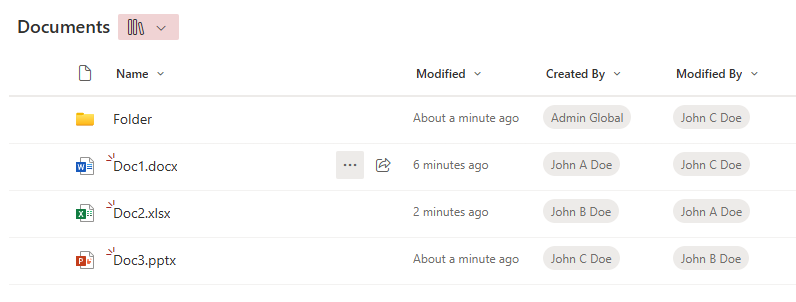
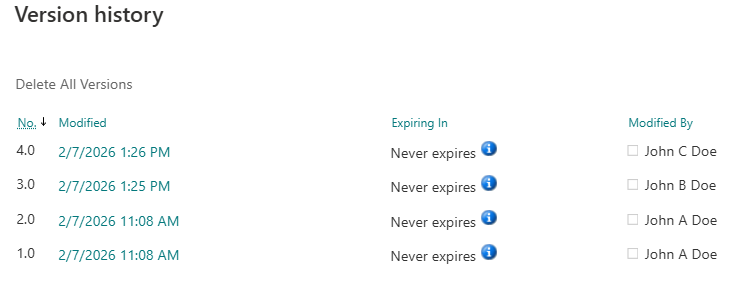
Now let us delicense, disable and delete all three users – John A Doe, John B Doe and John C Doe.
These does not change anything, as users are still in the UIL. Now let me remove all three users from the site UIL. Sources say that “Microsoft has a series jobs to clean-up users after deletion” and “never re-create users within days after deletion, wait at least 30 days.”
So let me check what is happening with “Created by”, “Modified by” and “Version history” after we delete users from the UIL and re-create users with the same UPN and provide access to the site…
| Event | Consequenses |
|---|---|
| User deleted from Entra Id and from UIL | all looks good |
| After a few minutes | all looks good |
| After a few hours | all looks good |
| User John A Dow is recreated with the same UPN (less than 24 hours since deletion), provided with permissions to the site and started working on documents | all looks good |
| After a few minutes | all looks good |
| After a few hours | all looks good |
| User John B Dow is recreated with the same UPN (less than 7 days since deletion), provided with permissions to the site and started working on documents | all looks good |
| After a few minutes, and after a few hours | all looks good |
| User John C Dow is recreated with the same UPN (less than 30 days since deletion), provided with permissions to the site and started working on documents | TBP |
| After a few minutes, and after a few hours | TBP |
So far all looks good, i.e. I’m not seeing any issues.
Proof is below (in the form of screenshots):
Users deleted from Entra Id and from UIL, after a few minutes:
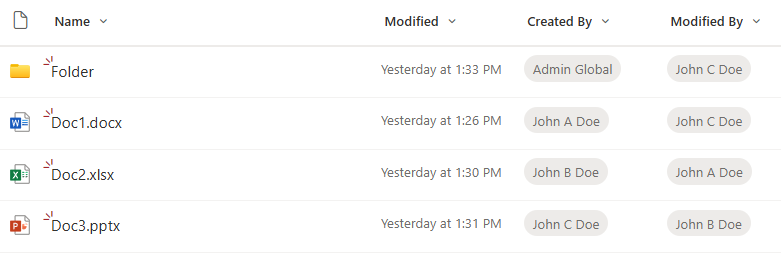
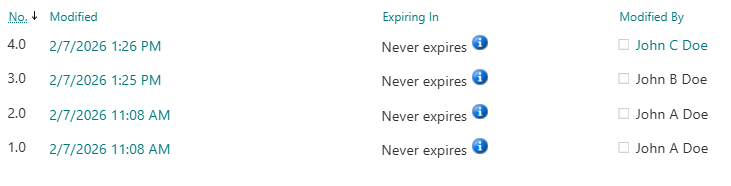
After ~1-2 hours, I created a user with the same UPN “John.A.Doe@vladev.xyz” but with different display name – “John A2 Doe”. A new user requested access to the site, got approval and was able to access the site with no issues, then created a new document. Here is how it looks like:
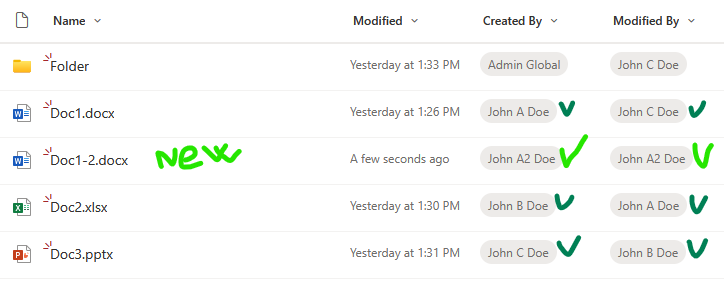
Then a new user – John A2 Doe – updated Doc2. Again, all looks good. An old John.A.Doe and a new John.A.Doe are reflected correctly. Here is the version history:
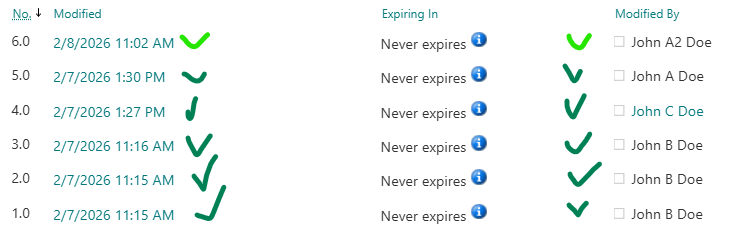
Let us wait for 24+ hours…
After 10 days I undeleted “John B Dow”. Checked their access to site – permissions are here. Why? It turns out I did not remove the user from the associated Microsoft 365 group. So when I restored (undeleted) account from Entra Id – the account regain groups membership. And after some time the user was able to access the site correctly. I did not expect that, and I’m not sure is it OK. I need to keep this in mind.
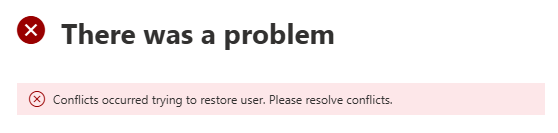
Now let me try to undelete “John A Dow” (remember I already created another account with the same UPN). User accounts that you can find under “Deleted Users” have a username like “457be210d0344040a530dc99cfaa2ba6John.A.Doe@contoso.com”.
Admin center did not let me undelete this account. The message I got was “There was a problem” and “Conflicts occurred trying to restore user. Please resolve conflicts.”. So that is OK as well.
In short, User Information List (aka UIL) is a hidden system list that exists in every SharePoint site collection and stores cached profile information about users who have interacted with that site.
The UIL is normally hidden, but you can access it adding the following to the site URL: “/_catalogs/users/simple.aspx”, “/_catalogs/users/detail.aspx” or “/_layouts/15/people.aspx?MembershipGroupId=0”, e.g.
https://<site-collection-url>/_catalogs/users/simple.aspx
https://<site-collection-url>/_catalogs/users/detail.aspx
https://<site-collection-url>/_layouts/15/people.aspx?MembershipGroupId=0
There is a known problem in Microsoft 365 SharePoint called “User ID Mismatch”. It happens if a user account is deleted from the Entra Id directory, and then a new account is created with the same UPN (e.g. rehired person or a person with a popular name like John Smith). Symptoms are: a user is provided with the access to the resource, but still cannot open it and gets “Access denied” error or “Sorry, something went wrong” and “There is a legacy user account in this site with same email. Please ask site owner or administrator to remove the legacy user account from this site”.
The reason behind it is that SharePoint stores users data in it’s own database (accessible via hidden system list called User Information List – UIL). Properties include display name, title, UPN, and (!) AD SID and Entra Id user object id. So when a re-used UPN tries to access the SharePoint site – Microsoft 365 compares Ids and declines access. So access needs to be re-provided. And this is where the actual issue appears.
If the site was accessed by the “old” user in the past, site UIL contains information about that “old” user. When the site owner shares the site with the “new” user – Microsoft does dot update the UIL with the new user ids. Microsoft 365 behave “normally”, no error messages are displayed. So for the user and for the site owner it looks like access was provided, but in fact it’s not.
Microsoft knows about the issue. But instead of fixing the root cause – Microsoft recommends removing the old user from the UIL. Obviously this fix is a) reactive, b) for one specific user and c) for one specific site. In my previous article – Fixing SharePoint User ID Mismatch Issue – I explained the issue in details, outlined 3 options to fix the issue, including PowerShell script.
Again, the issue is scoped with a specific site (site collection). The mentioned PowerShell-based solution and all Microsoft’s fixes are designed for one specific site, but in real life what is happening is the “old id user” had access to many sites, and “new id user” has access to many sites, so after a several “access denied” issues a user might be confused and ask SharePoint admins to fix the issue “everywhere”. We should not bother users with “please provide us list of site Url you are having issues with”… or saying to user “please create a new ticket when you hit the same issue again” also does not sound nice.
The issue is tricky to recognize. From the user perspective it looks like “normal” permissions issue – so it takes some time for user and site admin to realize that something is wrong and reach support. So can we do it proactively? I mean, can we prevent the issue to appear instead of fixing the issue after a user hit the issue?
Let us try to go deeper into the issue, as we would need to start from basics to find some more consistent solutions. Again, approaches could be
We know how to fix the issue for one user at one site (here). But the User ID Mismatch issue does not come for a one site and one user. Usually it impacts many sites.So how do we fix the User Id Mismatch Issue on all sites for a specific user?
At first, the solution looks simple: we need to check all sites old user had access to and remove UPN from UIL. Well… yes… But how do we get a list of sites the old user present in the UIL?
Spoiler alert: So far – I’m not seeing a good solution. But let us go through possible options.
This option is comprehensive, i.e. it should fix the issue for all sites, so in case of reused UPN we should not have issues for any tenant site for the same user. But this is a really “heavy” solution and can work well for small tenants only. I do not think this option is feasible for medium or large tenants.
There are 3-rd party tools (I’m not aware if there is a built-in m365 tool for that) you can use to get report on all SharePoint resources user have access in tenant. So you’d export the list, select unique sites Urls and scan these sites. Possible issues – usually we no not know how the 3-rd party tool builds this report (if the UPN or object Id is used), would it be “old” user access report or “new” user access report?
We can use MS Graph “membership” and “people” API to get list of sites around. We can get our user membership – m365 groups and related sites. People API would return users related to our client – a collection of person objects based on their relevance to the user, which is determined by the user’s communication and collaboration patterns, and business relationships. We can get these people OD sites, we can get their groups memberships and sites. We can do the same for people related to people. NB: I know, this option would give us sites related to a new user, not old user.
Add-on to Option 3: common sites.
With Option 3 we’d get group-based and OD sites. How about standalone sites? Also there might be public teams…
Usually in any tenant number of group-based sites (teams sites) are much bigger than non-group-based sites. So we can simply scan all standalone sites. But, again, in large tenants this might not be a feasible option. But we can get list of “open” standalone sites and public teams and Yammer communities (i.e. “common sites” usually accessed by everyone in tenant). Additionally, over the time we can get “most popular impacted sites” form the fixing history to update our list of common sites.
Reactively, we can use audit log to get AccessDenied sites for a new user
What I do not like here is getting audit log is a slow operation, and still re-active. I use it when I cannot reach impacted user and I need to know list of sites user already having issues with.
My personal experience.
Option 1. In my simple tests – it takes ~1 hour to scan ~500 sites (keep in mind, we need to scan all sites, including personals/OneDrive).
Options 2 and 3 helps, as allows to cover majority of impacted sites our re-used UPN user might have issues with. But we cannot guarantee we fixed all sites for the specific user.
The older your tenant is – the more reused UPNs you get. The bigger the tenant – the bigger the problem.
Obviously, for proactive solution, we need to start from Identity Management. Below are just thoughts so far…
No re-used UPNs.
Providing a unique UPN each time we create a user might help.
Know re-used UPN.
If we knew every reused UPN at the moment of account creation (an employee onboarding) – we could proactively apply Options 1,2,3 from our reactive approach.
Total clean-up
In theory – we could use our reactive Options 1, 2, 3 and 5 at the moment of the employee off-boarding to find all sites user had access to and just remove the terminated employee’s account from all sites UIL.
That would prevent user mismatch Id in the future. Removing a user from UIL should not impact edit history – i.e. user’s Name will still be populated correctly if you want to check versions history of documents created or updated by this user. Scanning all sites for every off-boarded employee could be an option for small tenants.
There are 3-rd party tools (e.g. SysKit Point).
SysKit’s Orphaned users governance policy currently is very simple, but new updates – i.e. Dec 16, 2025 – as advertised would allow to reove orphaned users automatically from sites. Once I got this update installed – I’ll test it and share here, as if all good – this might be the only real solution to a user id mismatch issue.
One of the approaches could be:
this approach allows us work proactively and prevent user id mismatch issue, it can be semi-automated as it still require some manual steps – e.g. get sites accessed by an orphan user report from SysKit
The other approach would be as follow:
this approach would eventually fully resolve the issue and can be fully automated
Currently, there is no out-of-the box or free, effective, tenant-wide, proactive solution that guarantees protection from user id mismatch issue. The bottleneck here is inability to quickly get list of sites a user had access to (we’d need 3-rd party tools for that).
Custom PowerShell scripts would work only in small environment, as the “total scan” approach would hardly be realistic in large environments.
There are though 3-rd party tools that build it’s own database with all the permissions of all users, which could be the foundation for the “Prevent user id Mismatch” functionality. Some tools even have the issue addressed (e.g. SysKit Point has an orphan users policy).
References