Initially, *.Selected permissions scope in Graph API only restricted app access to a site collection. Now, it also supports lists, items, folders, and files, and all ‘Selected’ scopes work in both delegated and application modes. This means more granular SharePoint content access for custom apps using the Graph API. Below, I’ll deep-dive into SelectedOperations.Selected permissions and include Python and PowerShell samples for using them.
Client Application
There must be an App Registration for client application that would have access to a SharePoint list.
At this moment (we have a client app and secret, and “” API permissions, but did not provide for this app access to specific sites or libraries) – we should be able to authenticate to Microsoft 365, but not able to get any kind of data (we can get token, but other call to Graph API would return 403 error – Error: b'{“error”:{“code”:”accessDenied”,”message”:”Request Doesn\’t have the required Permission scopes to access a site.”,):
This app registration should have Microsoft Graph “Lists.SelectedOperations.Selected” (or “ListItems.SelectedOperations.Selected” or “Files.SelectedOperations.Selected”) API permissions consented. Registered app Microsoft Graph API permissions should look like:
I use Python console app as a client application. Link to the code at the GitHub is shared below under References, but the core part of the Python code is (I do not use any Microsoft or other libraries here, just plain requests to Microsoft Graph for authentication and for data):
import requests
import json
from secrets import clientSc, clientId, tenantId, siteId, listId

# specify client id, client secret and tenant id
# clientId = ""
# clientSc = ""
# tenantId = ""

apiUri = "https://login.microsoftonline.com/" + tenantId + "/oauth2/v2.0/token"

body = {
    "client_id"     : clientId,
    "client_secret" : clientSc,
    "scope"         : "https://graph.microsoft.com/.default",
    "grant_type"    : "client_credentials"
}

try:
    response = requests.post(apiUri, data=body)
    token = json.loads(response.content)["access_token"]
except:
    print("Error: ", json.loads(response.content)["error_description"])
    exit()

print("Got token: ", token[0:10], "...")
headers={'Authorization': 'Bearer {0}'.format(token)}

# Get specific site list
print("Geting specific site list")
# graph_url = 'https://graph.microsoft.com/v1.0/sites/' + siteId + '/lists/' + listId
graph_url = 'https://graph.microsoft.com/beta/sites/' + siteId + '/lists/' + listId
graphResponse = requests.get(   graph_url, headers=headers )
print(" Response status code: ", graphResponse.status_code)
if graphResponse.status_code == 200:
    list = json.loads(graphResponse.content)
    print(" List display name: ", list["displayName"])
There is a known problem in SharePoint: 5,000 Items List View Threshold. Actually any SharePoint list can have up to 30 million items and a library can have up to 30 million files and folders. See more SharePoint capabilities and limits. The important moment is you cannot have more than 5k items in a single view (explained here). So obviously you’d need to create a custom view with a filter that would show less than 5,000 items and you are good (here Microsoft explains how it works and provide more options to manage large lists). But there are scenarios where we have to use PowerShell to deal with large lists.
Scenario 1 (most frequent): List is close to 5k items view threshold, and business wants you to remove items based on some criteria and keep the list (e.g. remove older items, or completed items etc.). Optionally business wants you to archive older items into another list, and keep original list short. It is too
Scenario 2: users did not create a smaller views in advance and now stuck with the list not functioning without ability to edit/create a custom view. This could happen with a regular list or library, or
Scenario 3: overflow of the access request list. This is a particular case of the scenario 2. In SharePoint site we have an “access request” functionality. If a user have no permissions to a site, and tries to open this site – he/she will get “Access denied” page with an ability to request access to a resource. These requests are saved in a special hidden list. Sometimes when you have too many requests – this list grows to 5,000 requests and you cannot go to the list to approve/decline new requests.
All these scenarios require us to use PowerShell. Here is the technique.
In this article I’ll guide you through how to get PowerShell and configure your environment for PowerShell scripting against Microsoft 365. For those who do not need detailed instructions:
Install PowerShell 7 (cross-platform one)
Install Visual Studio Code
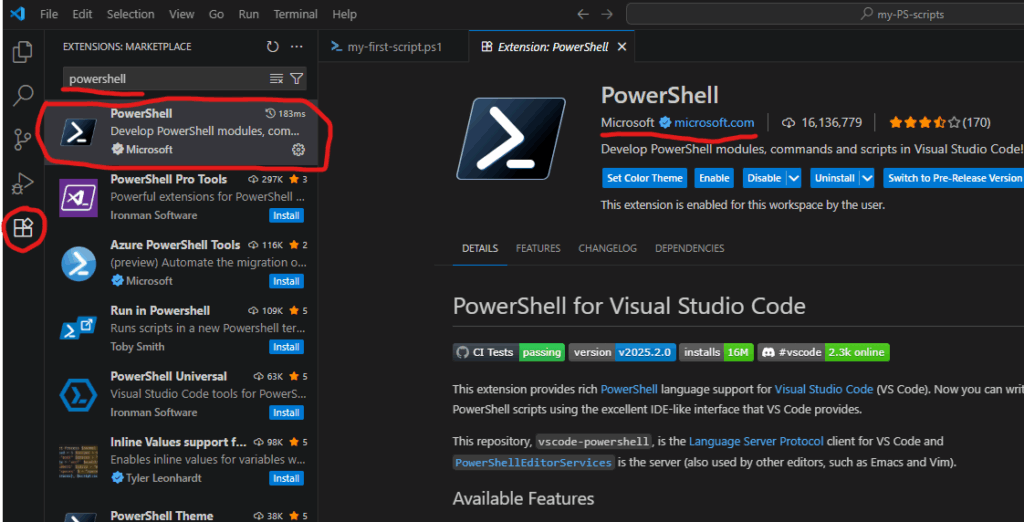
find and install PowerShell plugin for VSCode
install MgGraph (Microsoft Graph) module
install PnP.PowerShell module
Get and configure Azure App Registration
registration a new Azure App
configure API permissions and get admin consent
configure authentication
Windows PowerShell
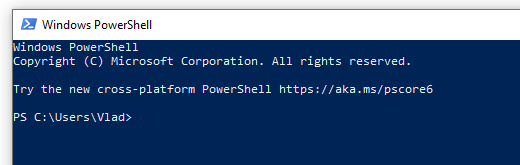
Every Windows computer comes with PowerShell pre-installed. So if you are on a Windows machine – try the following: Start -> Windows PowerShell. You’ll see:
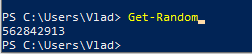
So you can type something like “Get-Date” or “Get-ComputerInfo” or “Get-Disk” or “Get-Random” and see results right away, e.g.:
But, hold on! This is not the PowerShell we need. This is so-called PowerShell 5 (classic, legacy one, nowadays called “Windows PowerShell”). Though you can use Windows PowerShell OotB, we will use new, modern, cross-platform PowerShell (for Windows, Linux, and macOS).
PowerShell
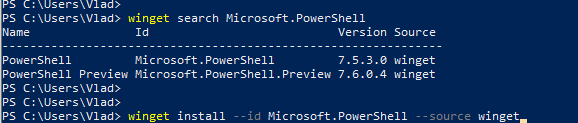
This is how nowadays called a new cross-platform PowerShell. Just “PowerShell” (or PowerShell 7, as 7 is it’s current/latest major version. Here is the Microsoft’s official guide “Install PowerShell on Windows, Linux, and macOS“. There are multiple options to install PowerShell 7 – just choose your one (you are Power User, you should figure it out). E.g. you can use your Windows PowerShell window to install PowerShell 7:
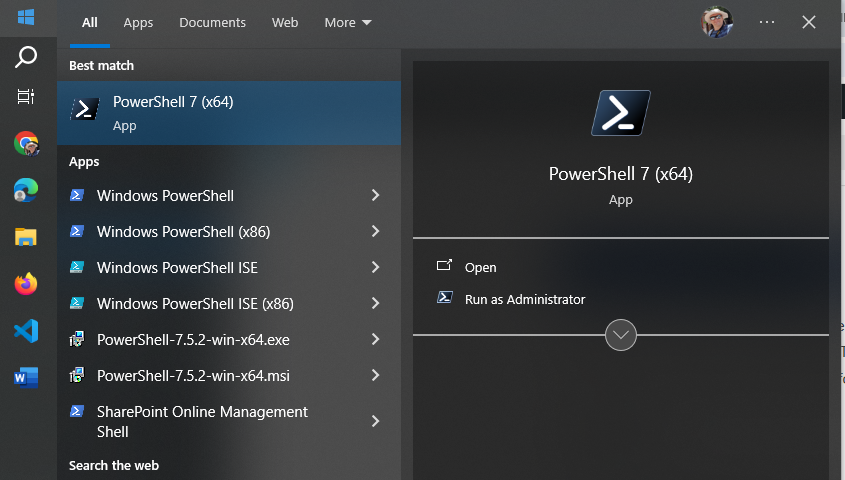
Once modern PowerShell, your Start->PowerShell experience should look like:
Notice that you have both – PowerShell 5 (for Windows) and PowerShell 7 (cross-platform).
Start PowerShell 7 and try something like “Get-Command” or “Get-Help”. Congratulations! Let go to the next step.
IDE – Integrated Development Environment
So far what you did – you used PowerShell cmdlets in command-line window. It is ok to use plain PowerShell window to quickly run one or a few PowerShell commands, but usually we work with scripts. A PowerShell script is a program written in PowerShell – composed of a sequence of PowerShell cmdlets, structured with logic to perform specific tasks. So we would need some kind of editor for PowerShell programs. Actually you can use any universal text editor – like Notepad, Notepad++ to create your code, you’d save it as .ps1 file (e.g. myFirstScript.ps1) and than run you script with PowerShell. But there is a better way – using IDE. IDE stands for “Integrated Development Environment” – a developer-oriented text editor equipped with a bunch of goodies that help creating and debugging code.
Visual Studio Code
One of the most popular IDE is Visual Studio Code (or vscode) – a free open-source IDE from Microsoft. You can get it from code.visualstudio.com – just download it and install it.
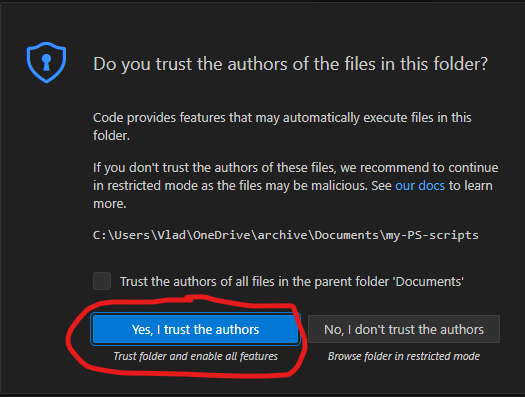
I’d recommend you to take some brief vscode introduction lessons – like this one from Microsoft. VScode can be used to code in many programming languages – Python, C#, Javascript etc. We will be using it to code in PowerShell. I’d recommend to create a new folder for your PowerShell scripts, and from VSCode open a folder. After you trust yourself – you’ll see something like:
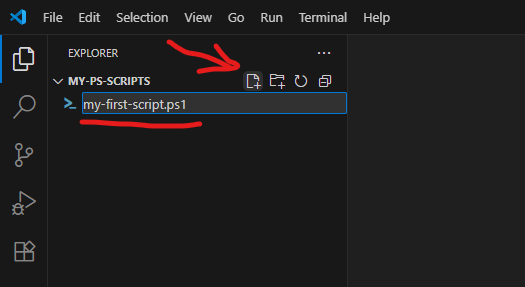
Using “New file” icon – create a new file, name it e.g. “my-first-script.ps1” (.ps1 extension is required).
PowerShell plugin
VSCode will realize that you are coding in PowerShell and suggest you to install a PowerShell plugin (or you can install it manually):
PowerShell plugin is the last piece we need to start scripting in PowerShell.
PowerShell Modules
Technically, what we already installed – enough to start coding for SharePoint (e.g. calling Microsoft Graph API via built-in Invoke-RestMethod), but there are some much more convenient ways – using modules.
PowerShell is built around modules. Every command you use is provided by a module. PowerShell includes built-in modules out of the box that offer essential cmdlets (such as Get-Host). However, to work with Microsoft 365 services, you’ll need additional modules that contain cmdlets specifically designed for interacting with Microsoft 365. There are modules to work with Teams, Exchange, SharePoint, Entra Id etc. Below are the most popular modules.
Microsoft Graph
Microsoft Graph is a unified API endpoint developed by Microsoft that allows developers and IT professionals to access and interact with a wide range of Microsoft 365 services and data. It acts as a gateway to data stored across Microsoft services. Utilizing Microsoft Graph from PowerShell code is better done with Microsoft Graph PowerShell SDK. So check it out and install.
PnP.PowerShell
The other very popular and useful module is PnP.PowerShell. PnP is an open source community backed by Microsoft (but PnP products are not officially supported by Microsoft). The PnP team does an excellent job of developing and providing a wide range of tools, SDKs, documentation, learning videos, and other resources to help developers work with Microsoft 365 efficiently. For PowerShell developers they maintain PnP.PowerShell module. So please go ahead and install it as well.
Authentication and Authorization
To work with Microsoft 365, the first step is authentication – essentially proving that you are actually who you claim to be (via providing login name and password or fingerprint etc.). Once you authenticated to Microsoft – you can access resources if you have permissions and cannot access others because you do not have permissions provided. This is called authorization.
This is true for your interactive experience with Microsoft 365 via browser, or Teams app etc. The same is true when you access Microsoft 365 programmatically – via PowerShell code. You need to authenticate and being authorized.
For smooth authentication and authorization to Microsoft 365 from your PowerShell code you’d need so called App Registration properly configured. App Registration is where API permissions and authentication methods are specified.
There are two authentication methods most commonly used in programming – interactive and non-interactive. Interactive authentication – is when a program acts on behalf of a user (e.g. you as a current user). The other method is used when your program needs to work unattended (without user presence) – on behalf of an application itself with it’s own permissions. You’d need separate app registration for each of these methods.
Interactive Applications
Interactive programs is what we will mostly use in this “PowerShell for Power Users” series of tutorials. Interactive login require delegated API permissions configured in the App Registration and proper authentication configuration Authentication blade. When your interactive program works – it’s effective permissions are the intersection of your personal permissions and permissions specified in the app registration.
Non-Interactive programs (also called daemon apps or background services or scheduled jobs etc.) are used mostly used by admins for tenant-level automation. But it is possible to automate something for a specific site, e.g. one of the common scenarios – data analytics can automate pulling some data from SharePoint site into e.g. Azure Data factory via pipeline. Non-Interactive authentication require application API permissions configured in the App registration and a secret generated or certificate uploaded. When a non-interactive program works – it’s effective permissions are the permissions specified in the app registration.
Are you ready to elevate your Microsoft 365 experience? Whether you’re a SharePoint site owner, Teams channel manager, or a power user working across OneDrive, Exchange, and other services, PowerShell can be the game changer you didn’t know you needed. This blog series, “PowerShell for Power Users, Unlocking the Full Potential of Your Microsoft 365 Workflow” introduces you to Microsoft’s powerful command-line shell and scripting language—and shows you how it can transform your productivity, automate repetitive actions, and give you deeper control across your Microsoft 365 workspace.
Why PowerShell in Microsoft 365?
Traditionally seen as a tool for IT professionals, PowerShell is now essential for power users who want to automate tasks, customize environments, and solve problems efficiently across Microsoft 365. PowerShell empowers you to:
Automate routine operations in SharePoint, Teams, OneDrive, and Exchange
Pull reports on usage, structure, and compliance that are not available out-of-the-box
Manage site collections, lists, libraries, Teams channels, and mailbox settings
Perform bulk operations that would be tedious through the UI
Audit and troubleshoot environments with precision
Integrate with Microsoft Search, Copilot, and Power Platform for intelligent workflows
What Can You Expect from This Series?
We’ll start with the basics—demystifying the PowerShell interface, understanding cmdlets, and connecting to services like SharePoint Online, Teams, and Exchange. Then we’ll dive into real-world scenarios. Each article will include clear explanations, sample scripts, and best practices—making PowerShell approachable even if you have no prior scripting experience.
Who Should Follow This Series?
This blog is for any Microsoft 365 user who wants to:
Move beyond manual, repetitive tasks
Learn scripting at their own pace, with practical examples
Boost productivity and efficiency across Microsoft 365
Bridge the gap between business needs and IT solutions
Getting Started
If you’re curious but feel intimidated by scripting, don’t worry—PowerShell is more user-friendly than you might think, and this series is designed with beginners in mind. All you need is a willingness to learn and experiment. In the next articles, we’ll cover how to set up your environment, write your first simple script, and start automating tasks you do every day across Microsoft 365. Your journey toward becoming a PowerShell power user starts here!
In all cloud models – IaaS, PaaS, SaaS, user is always responsible for data. Microsoft is responsible for service, but data is something that client should take care of. Microsoft says “Microsoft 365 Backup helps your organization recover from data corruption events like ransomware attacks or accidental deletions”. That is exactly the point… Backup is a part of disaster recovery and business continuity concepts and should always be taken seriously. So let us go deeper in Microsoft’s “Microsoft 365 Backup ” offering.
Usually I do not retell what is already documented and explained by Microsoft itself or by other Microsoft 365 MVPs and gurus. What I do is I go beyond and share some insights from researches and real-world practices or at least highlight what seemed to me interesting or important.
SharePoint backup
What to backup
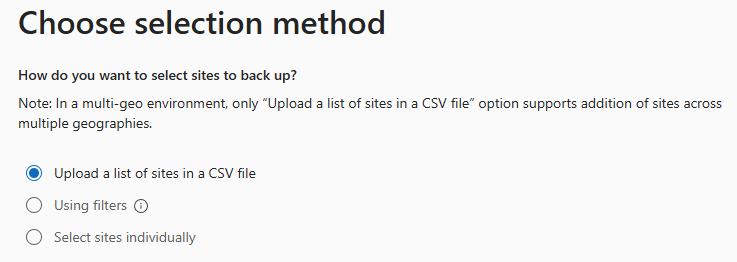
At the step 1 “Choose selection method” of the SharePoint backup policy creation, we have a choice: “How do you want to select sites to back up?” and our options are:
Upload a list of sites in a CSV file
Using filters
Select sites individually
First option – “Upload a list of sites in a CSV file” – you’d create a list of up to 50,000 sites as CSV file (example provided, but it’s just one column with sites Urls no header) and upload it.
Third option – “Select sites individually” is also straightforward . Good news – you can search (filter) sites by name or url.
Second option – “Using filters” seemed like the most promising, but a) you can only use “Site name or URL contains” and “Site last modified”, and b) Only existing sites that match these filters will be added to this policy. If new sites are created that match these filters, they won’t be added to the policy automatically. You can add or remove sites by setting the policy scope again later.
Thinking that first and third options are static by definition, that means the policy is not actually a policy, it’s just a master that produces a static SharePoint backup configuration.
Worth to highlight:
Literally we can modify only what to include, we cannot modify “Retention”, i.e. how exactly sites are backed up. Microsoft says: “Backups are initially kept for 14 days. After 14 days, the latest backup from each week will be kept for one year after it was created.”
Some sites within the scope might already be included in other policies. If so, they will not be added to this policy again.
Each policy is a static backup configuration that includes static list of sites selected during the policy setup.
SharePoint backup limitations:
CSV list cannot have more than 50,000 sites (but you can have more than one policy)
There is a known problem in SharePoint called “User ID Mismatch”. It happens if a user account is deleted from the Entra Id, and then a new account is created with the same UPN (User Principal Name) – e.g. rehired person or a person with common name like John Smith. In other words – re-used UPN in the directory causes SharePoint User ID Mismatch issue. Symptoms are: a user is provided with the access to the resource, but still cannot open it and gets “Access denied” error or “Sorry, something went wrong” and “There is a legacy user account in this site with same email. Please ask site owner or administrator to remove the legacy user account from this site”.
SharePoint User ID Mismatch Issue Explained
The reason behind it is that SharePoint caches users data in it’s own database, including not only UPN, but also local AD SID and Entra Id user id. So when a re-used UPN tries to access the site – SharePoint does not allow access, and this makes sense as we do not know if the user is the same person (rehired) or different (same name). Rehired person might be re-hired with a different role. Different person with the same name definitely should not get access to the site for automatically. So access needs to be re-provided. And this is where the actual issue appears.
Here is what happens
There is a hidden system list at every SharePoint site called User Information List (UIL) where all users who visited the site or was explicitly provided with access are stored. Let say, the site was accessed by the “old” user in the past. So UIL contains information about that “old” user. Now the site owner shares the site with the “new” user (or this new user requests access to the site resource, then site owner approves request). Once a site owner shares the resource or approves new user’s request to the site – Microsoft does not update the UIL with the new user ids. So for the user and for the site owner it looks like access was provided, but in fact it’s not.
Update. It seems like Microsoft acknoledged the importance of the issue and frustration users are getting and updated experience. So now if it’s a user id mismatch issue and a user with a reused UPN is requesting access to a resource where an old id is saved – is says “Sorry, something went wrong” and “There is a legacy user account in this site with same email. Please ask site owner or administrator to remove the legacy user account from this site”
Microsoft’s “fix”
Microsoft knows about the issue. But instead of fixing it in the product itself (e.g. instead of removing the root cause of the issue) – Microsoft developed a separate “fix” (details are below). Actually what is needed to “fix” the issue is to remove the old user from the UIL. E.g. once the old user id is removed from the site – the site works for this user normally, e.g. once access provided (request approved) – user will actually have access to the site.
Notes:
Deleting user from UIL does not actually clears everything related to the user. User information stays in a hidden SQL databases behind (e.g. if you go to document history on the site – you still should be able to see user name etc.). Let say, if an old and new users have the same UPN but different display names – this information will be preserved, e.g. in a document history updates made by old user will be shown with old user display name and updates made by new user will be shown with new user display name.
Every user or group on the site has “site user id” – it’s an integer number, e.g. first user/group added to site would have id:1. So deleting and re-adding the same user would keep user’s site id. In the case with the re-used UPN it’d be different number.
Can a user facing the issue differentiate if it’s a user id mismatch issue or it’s a regular access denied page due to lack of permissions? Yes (please see below).
Solutions to fix the SharePoint User ID Mismatch Issue
So there are 3 possible solutions:
by admin, via Microsoft 365 Admin Center, using Diagnostics tools
by site owner or SharePoint admin, via site settings and “MembershipGroupId=0” trick
by site owner or SharePoint admin, with PowerShell
Fixing the SharePoint User ID Mismatch Issue with Microsoft Diagnostic
SharePoint Admin: run the “Site User Mismatch” diagnostic “The diagnostic performs a large range of validations for internal users and guests who try to access SharePoint and OneDrive sites“
SharePoint Admin: run the “Check User Access” diagnostic “The diagnostic performs a large range of verifications for internal users and guests who try to access SharePoint and OneDrive sites“
What exactly Microsoft’s diagnostics do?
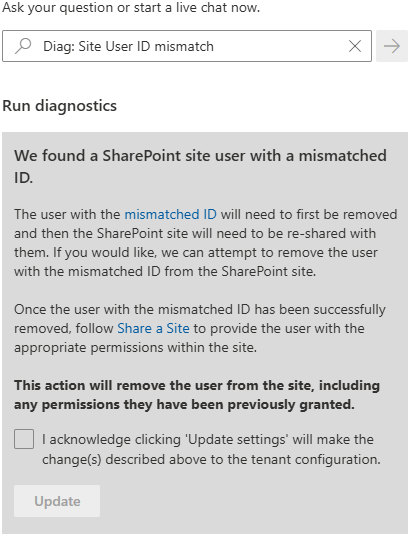
Diag: Site User ID mismatch
When you run this, it asks for a site Url and UPN, then it says:
We found a SharePoint site user with a mismatched ID.
The user with the mismatched ID will need to first be removed and then the SharePoint site will need to be re-shared with them. If you would like, we can attempt to remove the user with the mismatched ID from the SharePoint site.
Once the user with the mismatched ID has been successfully removed, follow Share a Site to provide the user with the appropriate permissions within the site.
This action will remove the user from the site, including any permissions they have been previously granted.
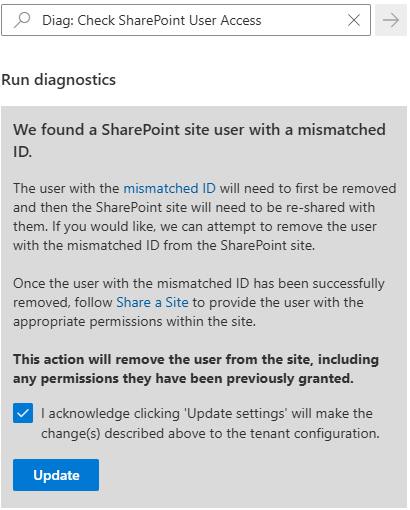
Diag: Check SharePoint User Access
This diag does the same:
Let us run it.
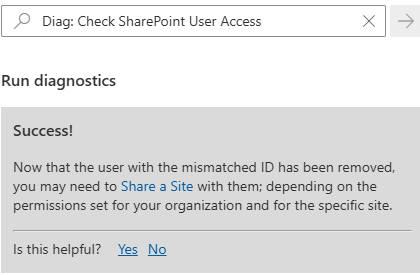
Success! Now that the user with the mismatched ID has been removed, you may need to Share a Site with them; depending on the permissions set for your organization and for the specific site.
Actually Microsoft not only removes user from UIL, but adds a new one (without permissions).
Fixing the SharePoint User ID Mismatch Issue with Site Settings
This option is available for site owners or site collection admins, but only in cases there are not many site users. If you have thousands user in the site – it might be difficult to find a user in the UIL.
Site owner or admin – navigate to Site Settings -> Site Permissions -> Advanced Permissions -> Select any group, then update group id number in the browser address bar (Url) to “0”, so it’ll look like: https://domain.sharepoint.com/teams/mySite/_layouts/15/people.aspx?MembershipGroupId=0 then find the user in the list and delete it (Actions -> Delete User from site collection).
You can use PowerShell to detect if the issue with user’s permissions is actually user id mismatch issue and Fix the issue. Specifically I will use PnP.PowerShell module v 3.1. Here is what you’d do:
# this script
# 1) detects if there is a User id Mismatch Issue on the site
# 2) if yes - deletes User Id from the site and adds it again (with no permissions)
# NB! removing User from the UIL also removes all user's permissions, so user needs to request permissions again - but this time it should work
# NB! dew to nature of user id mismatch issue - these could be two different users - removing user's permissions is OK

# parameters
# specify User email and site url here:
$userEmail = "John.Smith.qerdgfq@$orgname.onmicrosoft.com"
$userEmail = "John.Smith@$orgname.onmicrosoft.com"
$siteUrl = "https://$orgname.sharepoint.com/teams/UserIDMismatchTest01"
$siteUrl = "https://$orgname.sharepoint.com/sites/UserIDMismatchTest02"
$siteUrl = "https://$orgname.sharepoint.com/teams/UserIDMismatchTest03"

# end of parameters section
#

# authenticate
$connectionAdmin.Url

# let's find a user in entra id:
# try to get user by email (in most cases email equals upn)
$adUser = Get-PnPAzureADUser -Connection $connectionAdmin -Identity $userEmail
if ($adUser) {
    # Found user in entra id
} else {
    # otherwise (in case upn -ne email) let us try to find user by email
    $filter = "Mail eq '" + $userEmail + "'"
    $adUser = Get-PnPAzureADUser -Connection $connectionAdmin -Filter $filter
}

if ($adUser) {
    $upn = $adUser.UserPrincipalName
    Write-Host "Found user in entra id: " $adUser.DisplayName
    if ($adUser.AccountEnabled) {
    } else {
        Write-Host "Note that user's account entra id is disabled."
    }
} else {
    Write-Host "Could not find user in entra id." -ForegroundColor Yellow
    Write-Host "Please double-check email specified: " $userEmail -ForegroundColor Yellow
    exit 1
}

# now we need to pull user profile from UPSA
$userProps = $null
$userProps = Get-PnPUserProfileProperty -Connection $connectionAdmin -Account $upn
if ($userProps) {
    Write-Host "Found user in SharePoint User Profiles Service: " $userProps["AccountName"]
} else {
    Write-Host "Could not find user in SharePoint User Profiles Service." -ForegroundColor Yellow
    exit 1
}

# let's connect to site
$connectionToSite = Connect-PnPOnline -ReturnConnection -ClientId $ClientId -Thumbprint $Thumbprint -Tenant $tenantId -Url $siteUrl
if ($?) {
} else {
    Write-Host "Could not connect to site:" $siteUrl -ForegroundColor Yellow
    exit 1
}

# let's get site
$site = Get-PnPSite -Connection $connectionToSite
if ($?) {
    Write-Host "Connected to site:" $siteUrl
} else {
    Write-Host "Could not connect to site:" $siteUrl -ForegroundColor Yellow
    exit 1
}

#  let's get site user
# Get-PnPUser -Connection $connectionToSite
$siteUser = $null
$siteUser = Get-PnPUser -Connection $connectionToSite -Identity ("i:0#.f|membership|$upn") -Includes AadObjectId
if ($siteUser) {
    Write-Host "Found user in the site: " $siteUser.Title
} else {
    Write-Host "Could not find user in the site: " $siteUser.Title
}


# now we detect if there is a user id mismatch issue
# normally user id and sid should be the same in all 3 user objects from entra id, upsa and site
$userIdMismatch = $false

# compare SID from site and UPSA
$upsaSID = ($UserProp["SID"].split("|") | Select-Object -Last 1).split("@") | Select-Object -First 1
if($upsaSID -eq $siteUser.UserId.NameId) {
} else {
    Write-Host "SID mismatch found." -ForegroundColor Yellow
    Write-Host "SID from User Profile:" $upsaSID
    Write-Host "SID from Site User   :" $siteUser.UserId.NameId
    $userIdMismatch = $true
}

# compare User Id from site and UPSA
if ($UserProp["msOnline-ObjectId"] -eq $siteUser.AadObjectId.NameId) {
} else {
    Write-Host "User directory object Id mismatch found." -ForegroundColor Yellow
    Write-Host "User Id from User Profile:" $UserProp["msOnline-ObjectId"]
    Write-Host "User Id from Site User   :" $siteUser.AadObjectId.NameId
    $userIdMismatch = $true
}

# compare User Id from site and directory
if ($adUser.Id -eq $siteUser.AadObjectId.NameId) {
} else {
    Write-Host "User directory object Id mismatch found." -ForegroundColor Yellow
    Write-Host "User Id from Directory:" $adUser.Id
    Write-Host "User Id from Site User:" $siteUser.AadObjectId.NameId
    $userIdMismatch = $true
}

if ($userIdMismatch) {
    Write-Host "The User Id Mismatch Issue was found on the site for the user."
    Write-Host "We'll remove User from the UIL which also removes all user's permissions."
    Write-Host "User will need to request permissions again - but this time it should work."
} else {
    Write-Host "We did not find User Id Mismatch Issue on the site." -ForegroundColor Green
    Exit
}

# Next, we'll ask for confirmation then delete user id from site and add it back

$confirmation = Read-Host "Please confirm (y/n)"
if ($confirmation.ToLower() -eq "y") {
} else {
    Write-Host "User deletion was not confirmed. The Issue is not fixed."
    Read-Host "Press any key to exit"
    Exit
}

# Fix the issue by removing the user and re-adding
# remove
Remove-PnPUser -Connection $connectionToSite -Identity ("i:0#.f|membership|$upn") -Force
if ($?) {
    Write-Host "Successfully removed user from site."
} else {
    Write-Host "Something went wrong... Could not remove user from site."  -ForegroundColor Yellow
    exit 1
}
# add
$web = Get-PnPWeb -Connection $connectionToSite
$web.EnsureUser("i:0#.f|membership|$upn")

# Validate
$newSiteUser = Get-PnPUser -Connection $connectionToSite -Identity ("i:0#.f|membership|$upn") -Includes AadObjectId
if ($newSiteUser) {
} else {
    Write-Host "Something went wrong... Just added user was not found on the site..."  -ForegroundColor Yellow
    Exit 1
}
if ($newSiteUser.Id -ne $siteUser.Id) {
    Write-Host "Added user to the site with no permissions."
} else {
    Write-Host "Something went wrong... Just added user got the same site user Id..."  -ForegroundColor Yellow
    Exit 1
}

Write-Host "Finished."
Read-Host "Press any key to exit"
Exit
Fix the issue “everywhere” at once
The “fix” provided by Microsoft and my PowerShell script above resolves the issue for one specific user at one specific site. But usually the issue is not isolated to one site… All sites accessed by “old” user are impacted. How can we fix all sites for the user?
Also, usually it’s not the only one reused Id in tenant. The older your tenant is the more reused Ids you have. How can we fix all sites for the all user with reused UPNs?
When the UPN is reused – we already know that the user sooner or later will be facing the SharePoint user id mismatch issue. From the user perspective the issue is not an easy to detect. It might take time for user to realize that something is wrong and submit ticket and get a solution. Is it possible to take care of the issue proactively, for all sites and all user?
Sometimes a restored SharePoint site looks like it’s connected to a Microsoft 365 group (and Teams), but it’s actually a standalone site. So just restoring a deleted SharePoint site that was previously connected to team is not enough, there is some more work to be done. This article explains (from SharePoint admin standpoint) how that could happen and how to fix the broken SharePoint site to restore it’s lost connection to group and teams (the right way).
Scenario
A Teams-connected SharePoint site was deleted by one of the team owners during a cleanup. They didn’t see any useful content in Teams channels or files, so they deleted the team—along with the connected SharePoint site.
However, some team members had been using the SharePoint site directly (not through Teams). Two months later, they tried to access the site and received a 404 error. They contacted IT support to ask what happened and whether the data could be restored.
IT support found that the team was deleted by someone who had already left the company. Fortunately, the SharePoint site was still in the recycle bin (retained for 90 days), so it could be restored. But the Microsoft 365 group and the team (with chat messages, etc.) were already permanently deleted (retention is only 30 days).
After restoring the site, it appeared to be group-connected, but the group no longer existed.
Symptoms of a Broken Connection
Site permissions show ownership by a group, but clicking the group name does nothing.
Searching for the group in Microsoft 365 returns no results.
PowerShell shows a RelatedGroupId, but that group ID doesn’t exist in Entra ID.
The site behaves like it’s group-connected but lacks full functionality.
Normal Teams-Connected Site vs. Standalone Site
Let us test it from scratch. I will create a new team called “Test-Broken-Team-Site”.
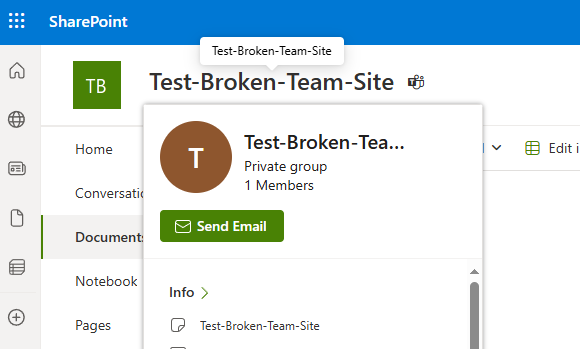
Here is how the normal teams-connected SharePoint site looks like. When you hover your mouse over the site name, a pop-up window appears showing team details.
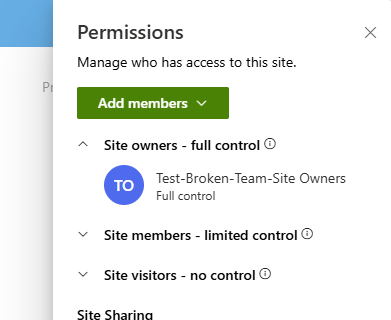
When you go to the site permissions – you can see that the site is owned by group “SiteName Owners”:
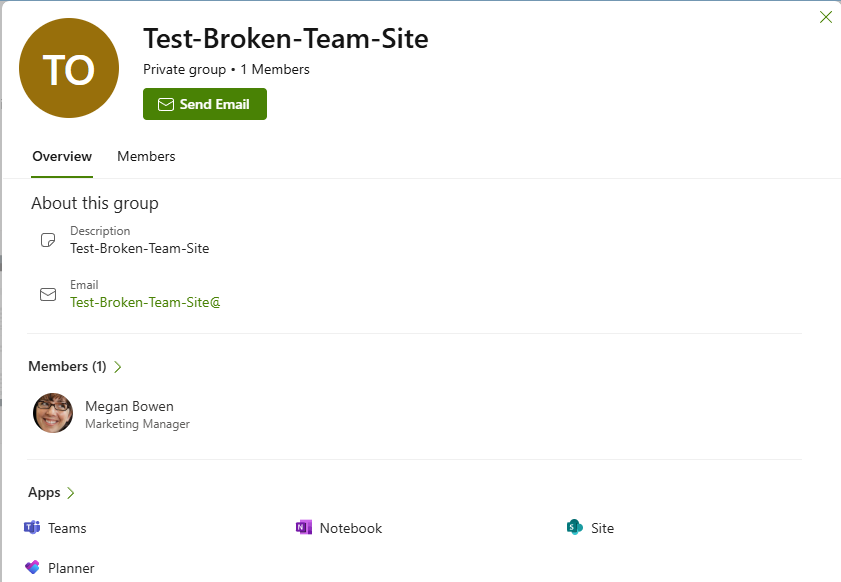
If you click the group name, another pop-up window appears with more information, including group members:
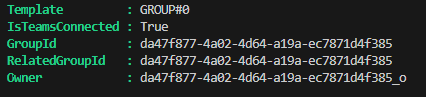
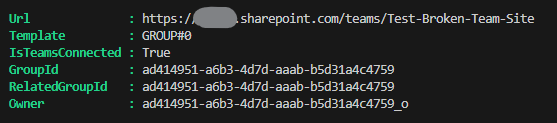
You can see that IsTeamsConnected property is true and GroupId and RelatedGroupId are specified and the site owner is the same group Id with “_o” suffix.
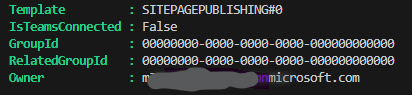
Compare this with the same request against a standalone site:
IsTeamsConnected property is false, Group id is “00000000-0000-0000-0000-000000000000” and the site owner is the real user id.
Deleting the team and the site
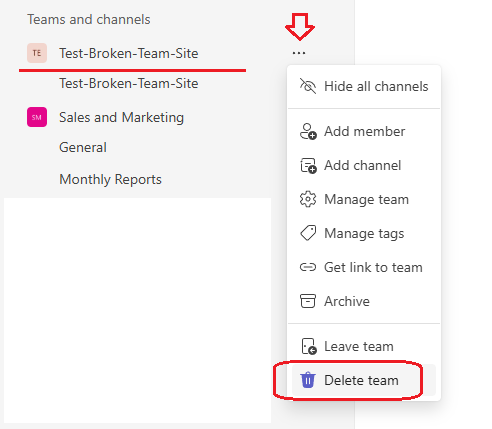
I also posted some messages in the general team channel and created some test documents. Now let me delete the team. Any team owner can do this via:
What users will see after the team deletion:
“404 FILE NOT FOUND” error upon any attempt to go to the SharePoint site via browser:
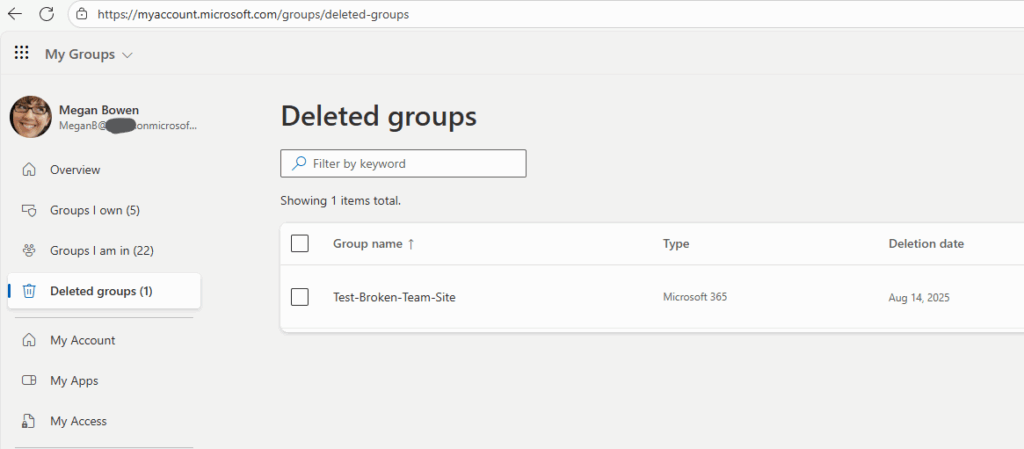
The deleted group under “https://myaccount.microsoft.com/groups/deleted-groups”:
From the admin standpoint the deleted resource looks like.
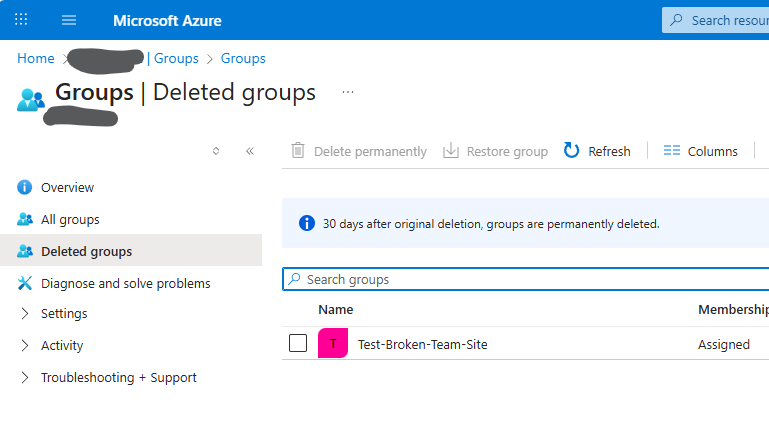
The group appears under “Deleted Groups” in Entra ID and Microsoft 365 Admin Center (note that the group can be restored within 30 days):
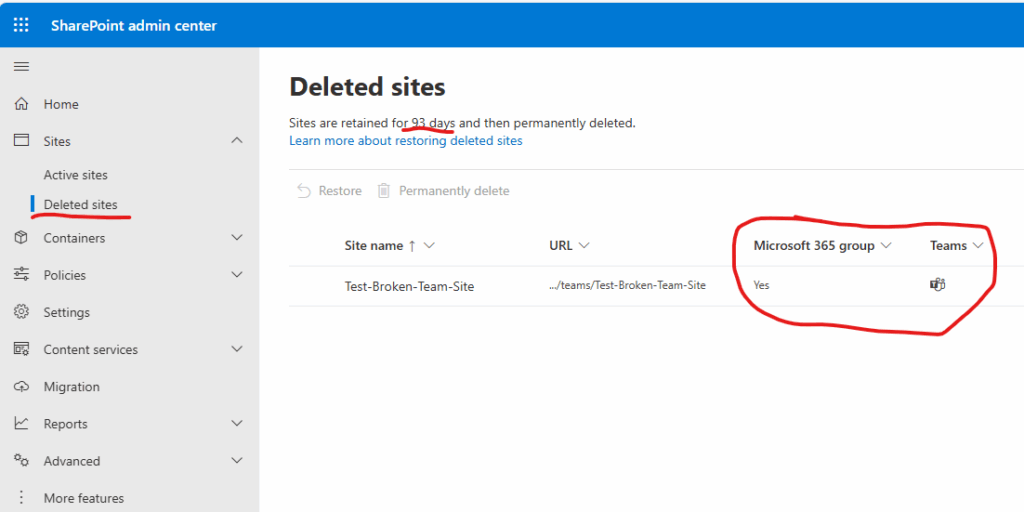
The site appears under “Deleted Sites” in SharePoint Admin Center (retained for 93 days and marked as group-connected with a team), and the site is marked as Microsoft 365 group connected and with a team:
Restoring SharePoint site
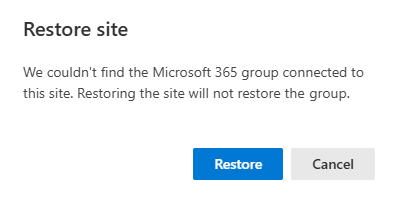
After 30 days the group is deleted permanently, including teams stuff, but SharePoint site is still retained. So we can go ahead and restore SharePoint site from the SharePoint admin center. It warns us that “We couldn’t find the Microsoft 365 group connected to this site. Restoring the site will not restore the group.”:
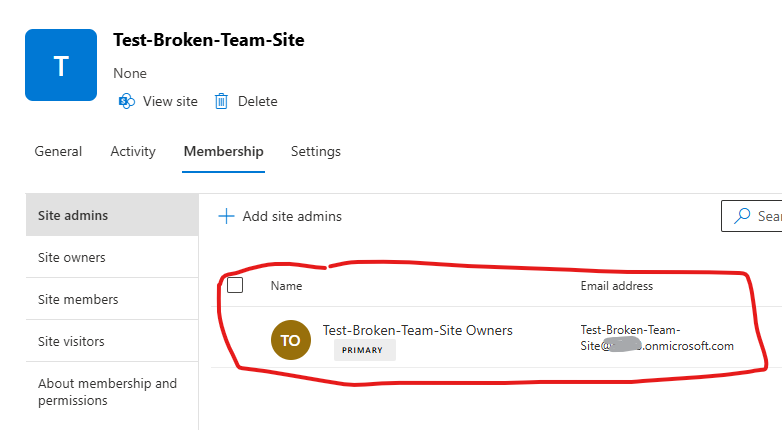
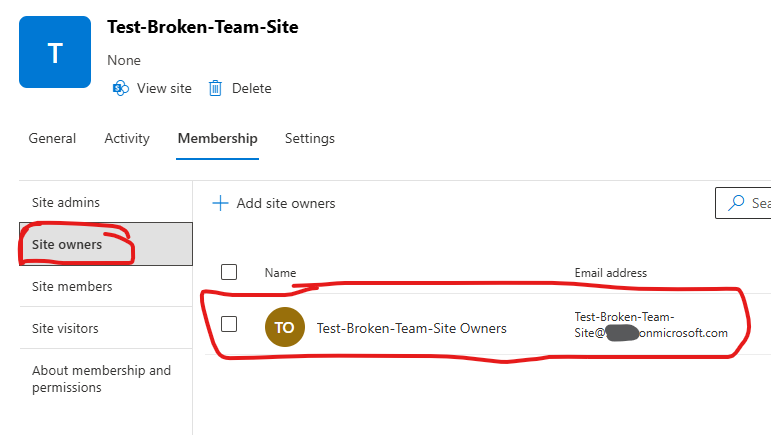
Ok, for the restored site – let us look at the site memberships. You’ll see the site is still owned by the Microsoft 365 group—but the group no longer exists. 🙁
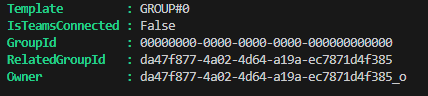
That is the reason that users (team members) will not get access to the site automatically once the SharePoint site is restored. But let us get the SharePoint site PowerShell object:
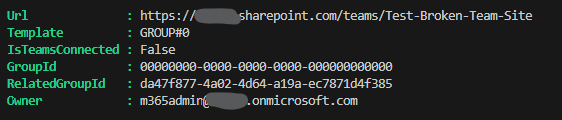
GroupId is zeroes, which is good, IsTeamsConnected if false, which is correct, but the RelatedGroupId is still the same (as if it is a channel site) and the owner is the same.
Note: the site’s status described above is not always lake that. I’m not sure why, but in my practice so far some sites are getting restored with GroupId specified (and running ahead, in such cases this solution does not work).
User experience
(I provided access for myself to this site as admin).
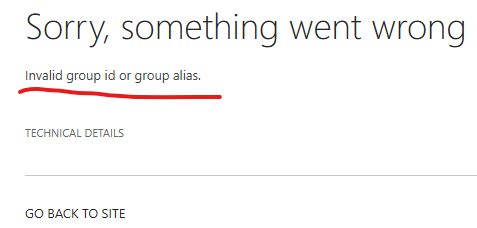
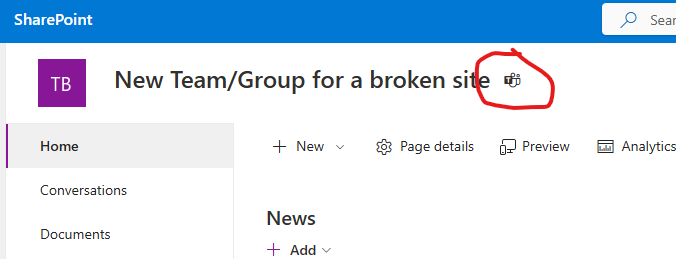
The home page (site root) looks like something in between a Teams-connected and standalone site. There is no Teams icon and no pop-up window when hovering over the site title. But there is a “Conversation” menu we usually have on group-based sites (by the way, it fails if you click on it, because it’s supposed to send you to the group in Outlook… so you’ll get “Sorry, something went wrong” – “Invalid group ID or group alias.”)
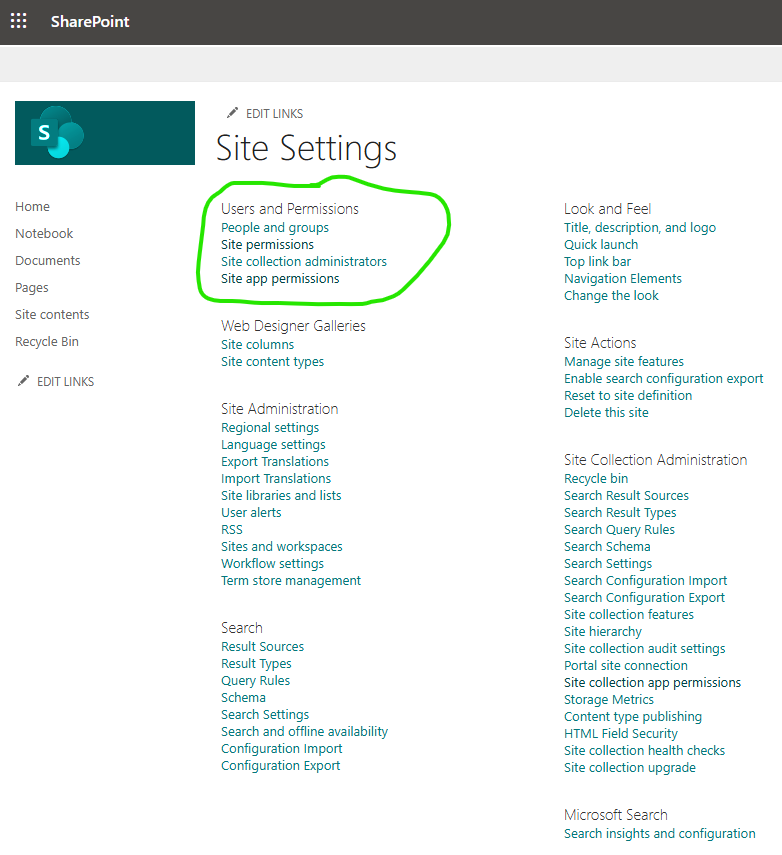
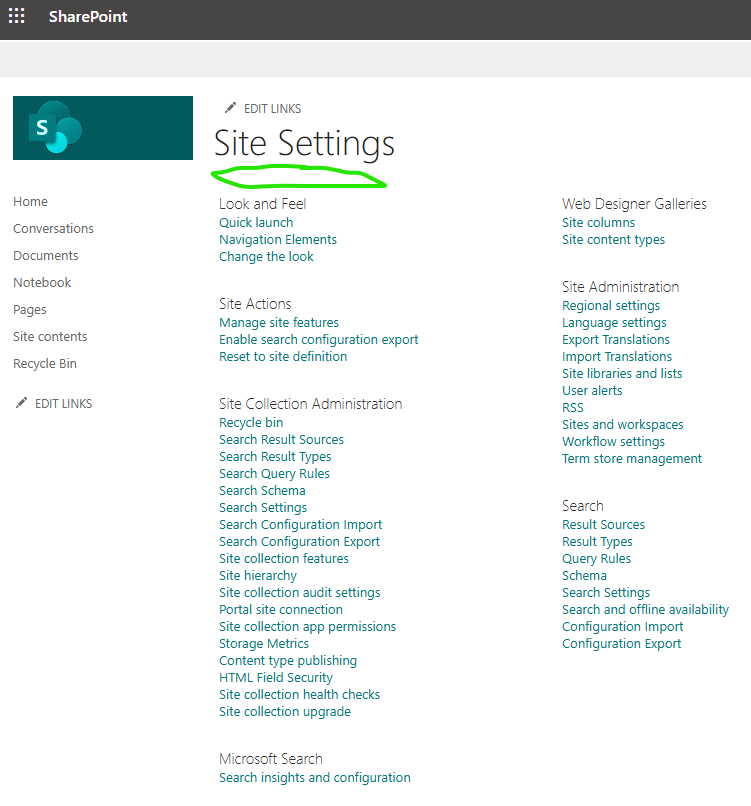
Site settings page looks like the group-based site settings page. Compare standalone site settings page:
and broken teams connection site settings page… Specifically, you still do not have the “Users and Permissions” section (as it is supposed to be handled via Teams and group membership).:
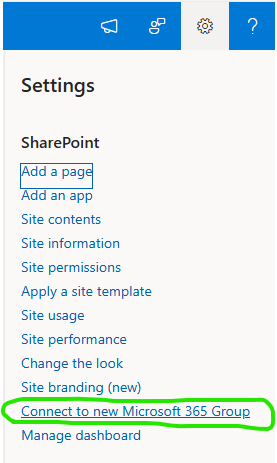
And here is one more difference. On a regular standalone site when you are clicking on a gearbox – you can see “Connect to new Microsoft 365 Group” link which would allow user to convert this standalone site to a teams-connected site. Unfortunately, there is no such option on the broken site.
So what should we do? Can we re-connect this site to teams or make it true standalone site? Would this broken site stay as broken forever?
Is there a fix for broken teams connection in SharePoint site
First of all, you can’t change GroupId or RelatedGroupId directly—they’re read-only.
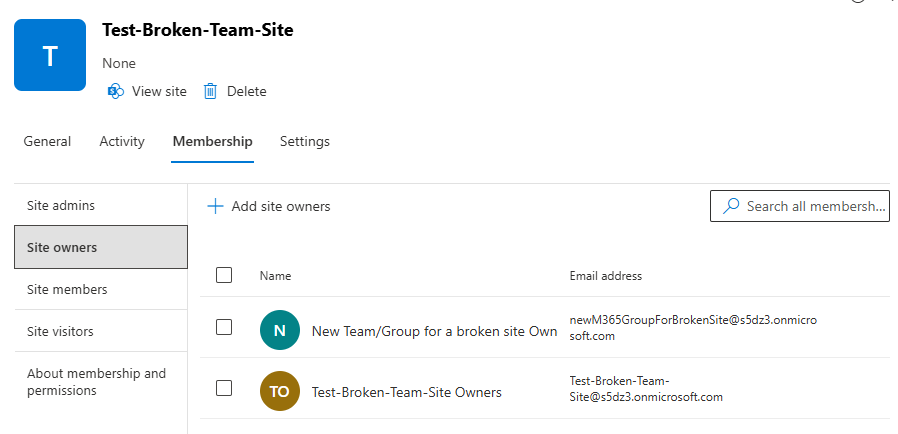
Let us try to change site primary site owner (remember it was a group) and see what has changed:
The only 🙂 problem: it says the site is team-connected, but it’s not.
If you click on a Teams icon near to the site title – it’ll give you “We’re still setting up the Microsoft Team for this group” “Please come back in a few minutes”. This message might last forever…
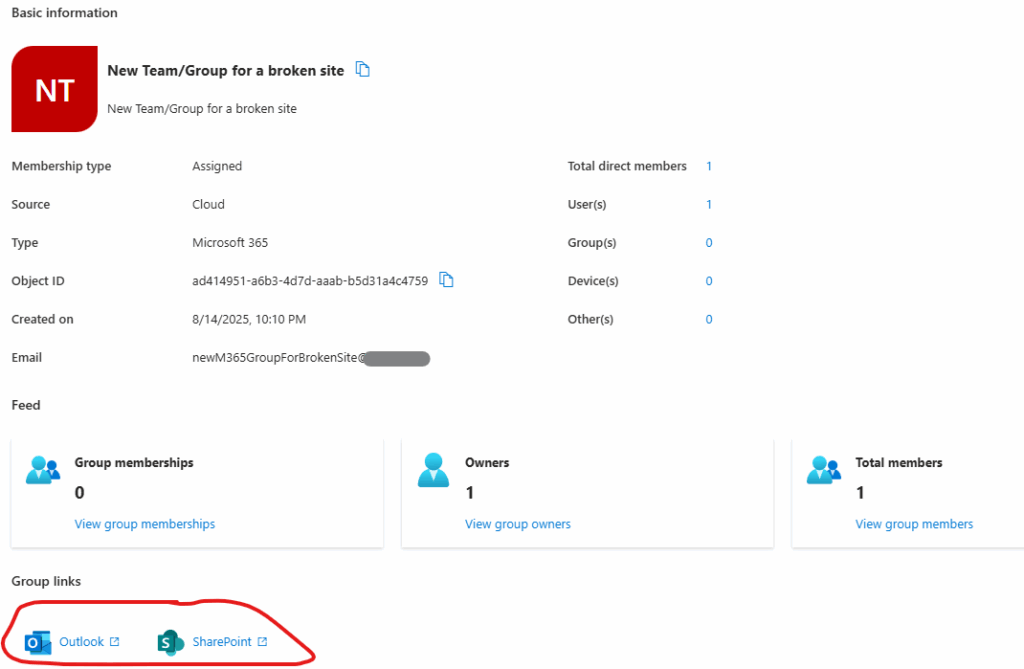
Ok, we have a m365 group and a group-based site without a team. Can we create a team from an existing group? Yes. Let us try it.
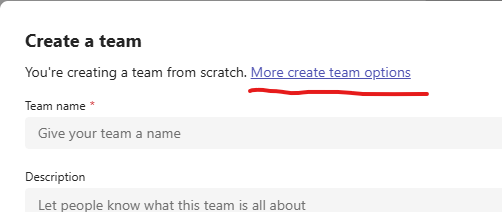
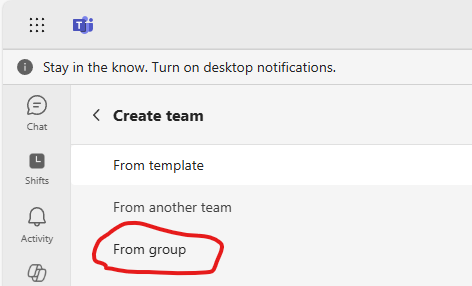
When you create a team – there is a link “More create team options”. It leads us to the list of options and one of them – create a team from group. There will be a list of groups and one of them would be our “New Team/Group for a broken site”. Select it. It say OK, a new team created.
Now let us see what we got.
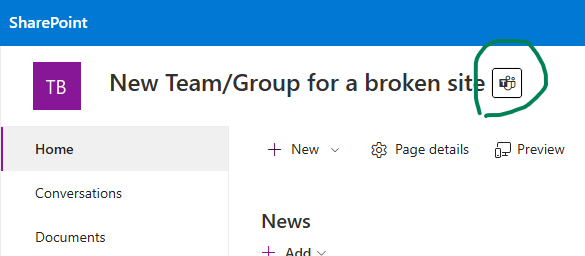
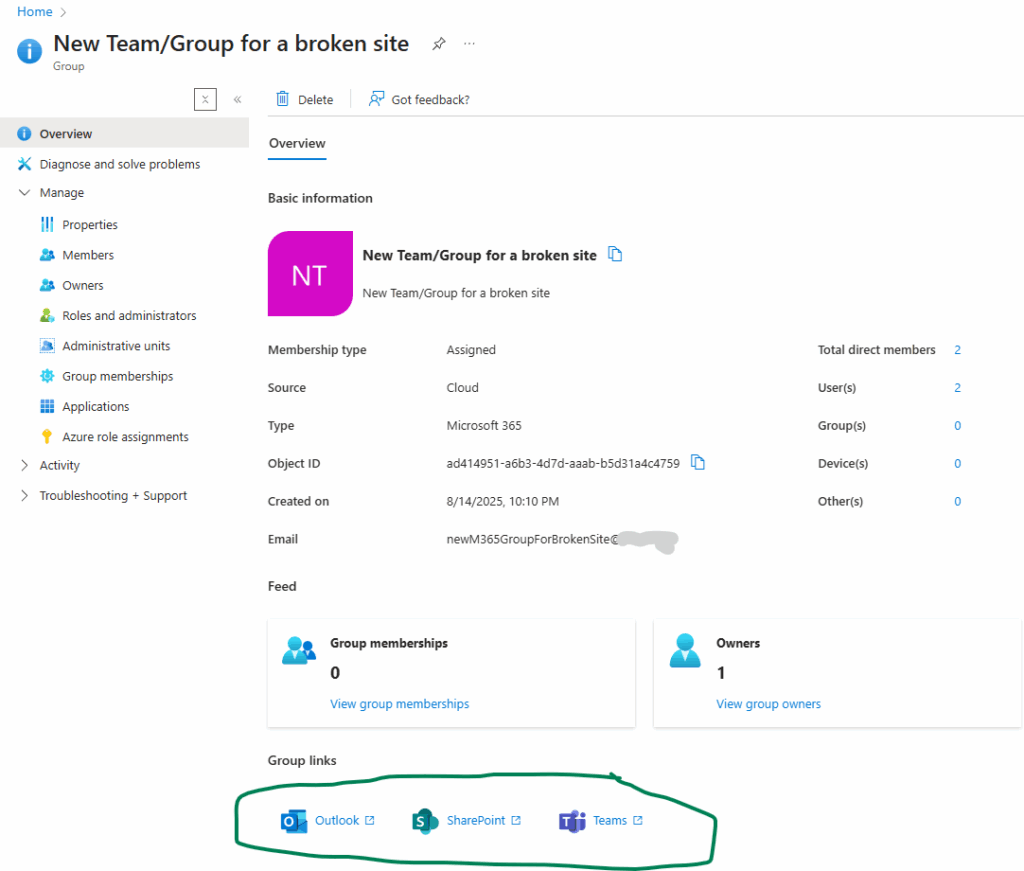
It seems like it worked! Now we have a consistent full-functioning group-based site connected to team.
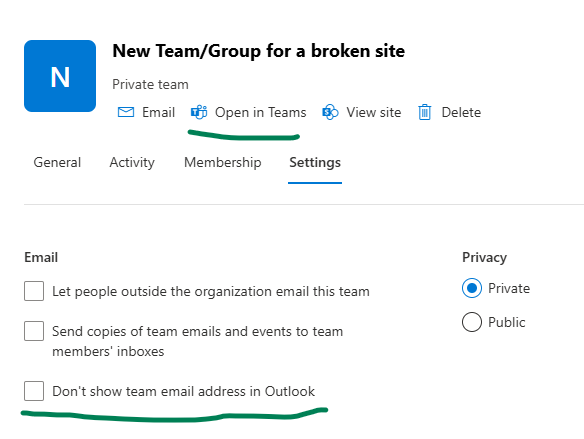
At the SharePoint site – teams icon redirects us to a team channel. In the teams app – the team is listed among other teams. Entra Id displays all the services correctly. Teams admin center can see the team and all the settings look good. SharePoint admin center also displays a team correctly. You might want to update “Don’t show team email address in Outlook”.
Standard Channels Confusion
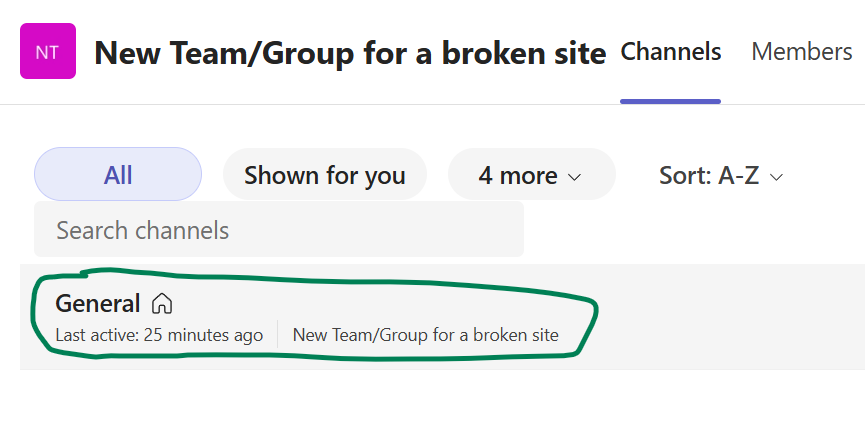
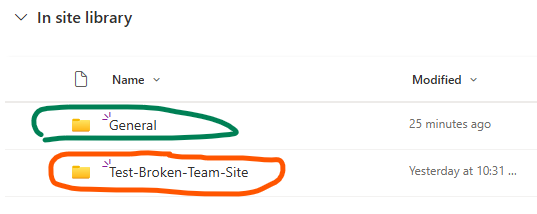
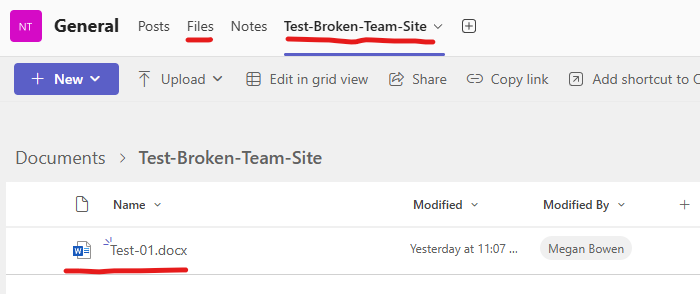
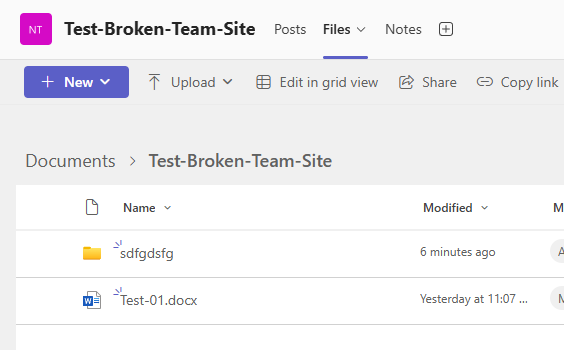
One thing that might confuse users is channels. Long ago when you create a team – a channel named “General” was created by default. Not far ago Microsoft changed creating team experience – now you need to provide a name for channel. As you know – channel is a folder in the default document library. So our “broken” site has a folder “Test-Broken-Team-Site” that used to be a sole channel. When we created a team from an existing group (group with site) – a new default main channel was created named “General”, so under SharePoint we can see two folders, and under teams we can see only “General” channel.
But all our data was under the old folder. Can we fix it? I think of two options.
Option 1 – add a tab to the channel – so we can see the existing folder under the main channel:
Option 2 – moving content of the “old” folder to a “new” folder, then you can delete the old folder and rename channel to the original name.
Private and Shared channels
The other thing that went wrong is private and shared channels. As you know, these channels are created as standalone sites related to team (site object has GroupId as zeroes, but RelatedGroupId would be an Id of the main site’s group id.). These sites are not getting restored automatically when a main site is restored. Moreover, in the SharePoint admin center those site are not visible under deleted sites.
The good news is these sites are visible with PowerShell. And you can restore the site with PowerShell:
The site will be restored, but, again, with broken connection to team. And I’m afraid it cannot be re-connected to a team, so it has to stay broken standalone site (or converted to a new-group-based which is a preferred option and if you like – with a team.
Summary
Quick Step-by-Step Recovery Guide
Restore the site via SharePoint Admin Center
Verify that the site connection is broken Check properties IsTeamsConnected, GroupId, and RelatedGroupId. Ensure group is permanently deleted.
Set yourself as a new primary site collection admin
Connect to a New Microsoft 365 Group via PowerShell “Add-PnPMicrosoft365GroupToSite”
Create a New Team from the Group. In Teams, go to Create Team > More Options > Create from Existing Group. Verify Everything Works.
Handle Folder/Channel Conflicts.
Option 1: Add it as a tab in the new “General” channel.
Option 2: Move content to “General” folder, delete old folder, and rename channel.
Channel sites (private channel, shared channel) are not restored and connected automatically.
There are several assertion regarding how an Azure Function App should be configured according to security best practices. Think of each one as a requirement or policy Azure Function App should be compliant with. Azure Function App setup usually includes other Azure services – like Storage account, Key Vault, Networking etc. Some of the requirements contradict others. Blindly following remediation steps might break function app. Let us think of it holistically and propose an ideal Azure Function App configuration.
Azure geo-redundant storage should be enabled for storage accounts
function apps should only be accessible over https
function apps should have client certificates (incoming client certificates) enabled
storage account public access should be disallowed
versioning for Azure Storage should be enabled
storage account should use private link
storage accounts should restrict network access using virtual network rules
storage accounts should prevent shared key access
managed identity should be enabled on function apps
Azure key vaults should have purge protection enabled
Azure key vaults should use private link
Azure key vaults should use RBAC permission model
Azure app service diagnostics logs should be enabled
Azure app should use private link
Azure function app should have authentication enabled
Our ideal Azure Function App configuration.
Step-by-step guide securing Azure Function App
Create an OotB Function App
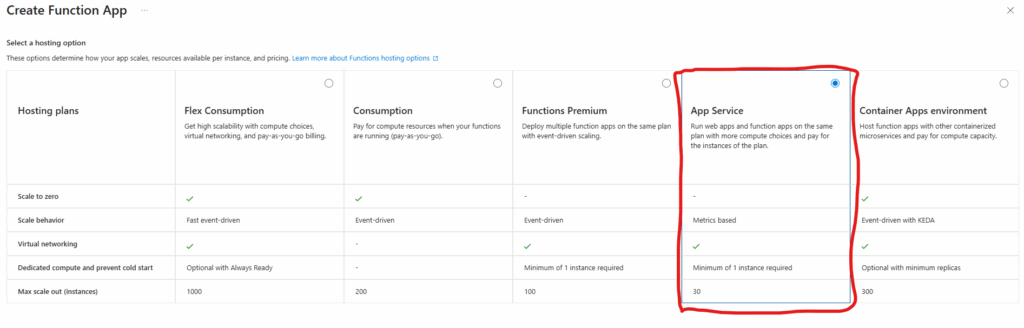
Let us first build a working function app created “as is”, with all settings left by default, so we could apply best practices later. First, we’d need a new resource groups, then we’d create a function with “App Service” (aka Dedicated) hosting plan:
“App Service” (Dedicated) hosting plan is required as it is the only one that will allow us to satisfy all security best practices under Windows. Alternatives might be (tbc) Container or Flex Consumption – both Linux-based.
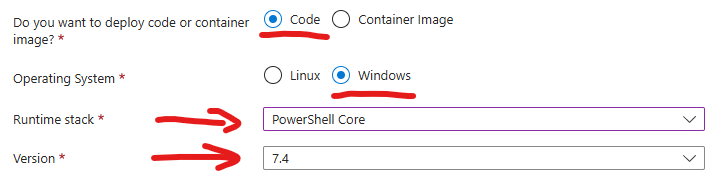
I will use PowerShell – so I have selected Code (not container) under Windows and PowerShell 7.4. runtime stack. All the other settings are by default – new auto-created storage, “Enable public access” – On, “Enable virtual network integration” – Off, new auto-created application insights etc.
You can use whatever runtime stack you are comfortable with – C#, Python etc. As this is what we need to ensure function is working before and after we applied all the security best practices. Actual steps to secure the function app are not depending on runtime stack chosen.
Create a simple Function and deploy it to Function App
We`d need a fully working function that access SharePoint. Ideally, I’d create a key vault and save credentials in the key vault. I’d provide access to the key vault for my function app so my code would pull credentials when needed and access Microsoft 365 (you can refer to “Connect to SharePoint via Graph API from Azure Function App” for the detailed step-by-step process), but since we are going to get rid of key vaults and use Managed Identities – I’ll save app secret in the environment variable for now.
Import modules
So, I created a simple OotB PowerShell timer-triggered function and deployed it to My function app. Then I updated requirements.psd1:
Check function invocations, ensure function is running correctly – PnP.PowerShell module is imported and ready to use.
Credentials to access SharePoint
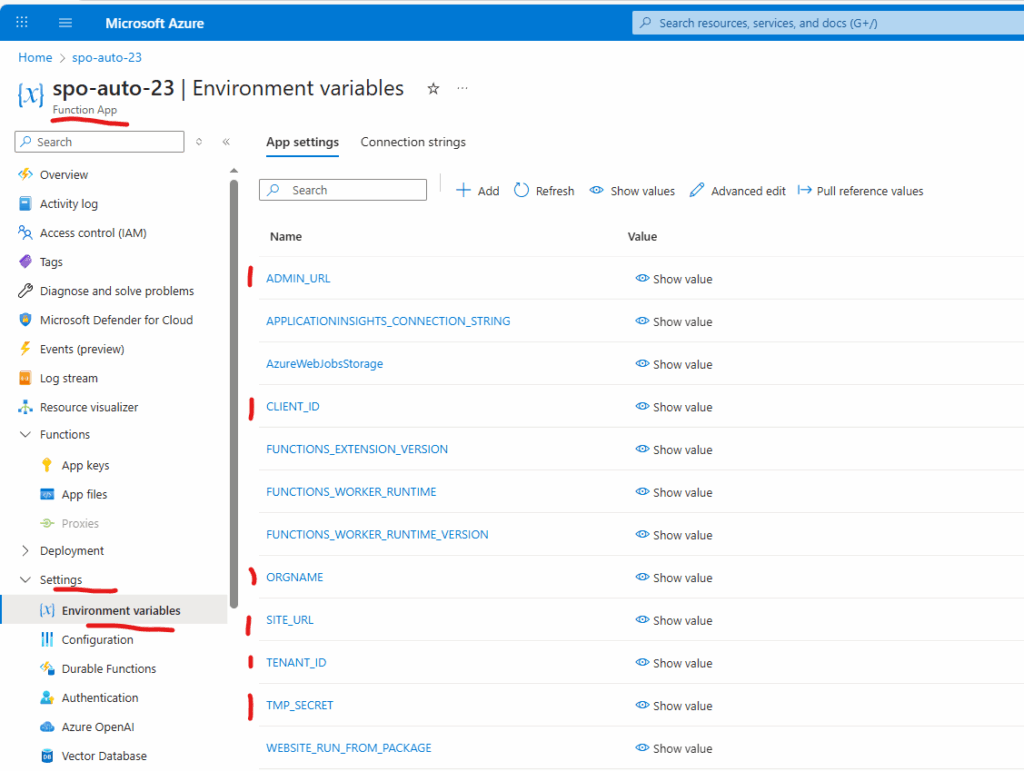
As I mentioned, we will temporary be using environment variables to keep secrets – so we ensure the function does have access to SharePoint. For this we need
Finally you should have something like this under environment variables of you Function App:
Access SharePoint from function
Now let us update the function code with actual connections to SharePoint tenant and to Specific site. I will try to connect to SharePoint via PowerShell module PnP.PowerShell and via plain web-requests calls to Microsoft Graph API.
Add the following (PnP part) to your function code run.ps1:
#############################################################################################
Write-Host "##############################################"
Write-Host "Let us get token to connect to Microsoft Graph:"
# Construct URI and body needed for authentication
$uri = "https://login.microsoftonline.com/$tenantId/oauth2/v2.0/token"
$body = @{
    client_id     = $clientid
    scope         = "https://graph.microsoft.com/.default"
    client_secret = $clientSc
    grant_type    = "client_credentials"
}
$tokenRequest = Invoke-WebRequest -Method Post -Uri $uri -ContentType "application/x-www-form-urlencoded" -Body $body -UseBasicParsing
Write-Host "Token request status:" $tokenRequest.StatusDescription
$token = ($tokenRequest.Content | ConvertFrom-Json).access_token
$headers = @{Authorization = "Bearer $token" }

Write-Host "Let us connect to SharePoint via Microsoft Graph:"
$apiUrl = "https://graph.microsoft.com/v1.0/sites/$orgname.sharepoint.com"
$rootSite = Invoke-RestMethod -Headers $Headers -Uri $apiUrl -Method Get
Write-Host "Root site Url:" $rootSite.WebUrl
Write-Host "Root site display name:" $rootSite.displayName
#############################################################################################
Check function invocations, ensure function is working good getting SharePoint site via Microsoft Graph, but failing trying to get SharePoint site via PnP. The reason is PnP use SharePoint API under the hood, and calling SharePoint API require authentication with a certificate (but we have a secret here), though it’s OK to call Microsoft Graph API being authenticated with secret.
We will solve the SharePoint API secret/certificate problem below. Now it’s time to secure function according to the best practices.
Securing Azure Function App
Azure key vaults should have firewall enabled
If you are using key vaults to keep secrets or certificates – it is highly recommended to enable and configure the key vault firewall, so your secrets will not be accessible to any public IPs, but to only selected IP addresses/services. More details: Microsoft Network security for Azure Key Vault
Alternatively you can use environment variables for secrets (considered as valid option, but less secure).
Azure network peering restrict to same subscription
It is highly recommended to prevent the creation of vNet peerings outside of the same subscription. Check Microsoft Azure virtual network peering for details.
In this article I will share what I would recommend to configure on every new Microsoft 365 Tenant.
The Challenge: Why Many Microsoft 365 Tenants Become Unmanageable and Inefficient Over Time
Many organizations adopting Microsoft 365 quickly discover that while the platform offers immense power, its default configuration often leaves crucial features disabled. These “dormant” functionalities, designed to enhance data governance, search capabilities, content management, and user experience, remain untapped. The real problem arises when a tenant matures: as users populate SharePoint sites and OneDrive accounts with vast amounts of information, and as collaboration intensifies, attempts to enable these critical features become incredibly complex, disruptive, and even risky. Retrofitting governance, re-indexing content, or restructuring information architecture on an existing, data-rich tenant can lead to compliance headaches, data inconsistencies, user frustration, and significant administrative overhead. SharePoint administrators frequently struggle with the technical debt accrued from these missed initial configurations, spending countless hours trying to bring order to an environment that could have been optimally set up from day one.
Consider the following.
Ownerless resources
Having an owner for every Microsoft 365 resource should be enforced from day one.
Relatability: It immediately speaks to the pain points experienced by many SharePoint admins (“unmanageable,” “inefficient,” “struggling with it,” “technical debt”).
Highlights the “Why”: It explains why these features are off and why it’s a problem to turn them on later.
Emphasizes Proactivity: It sets the stage for your solution, which is about proactive setup.
Strong Call to Action (Implied): It makes the reader understand that your KBA will provide the solution to avoid these common pitfalls.