Author Archives: Vlad Software Engineer

About Vlad Software Engineer

Microsoft 365 Teams, SharePoint, Search, PowerShell, Azure...

Office 365 Search scopes

Search is everywhere in Microsoft 365. You can search from SharePoint, Teams, Delve, Yammer etc.

But! You cannot search for anything from everywhere!

Upd Oct 2025: Microsoft finished moving all services to cloud.microsoft and launched web-based Copilot and Search from m365.cloud.microsoft. E.g.
– Copilot: https://m365.cloud.microsoft/chat
– Search: https://m365.cloud.microsoft/search
What is interesting is search here works across all services – Exchange, SharePoint, Teams so from one place you can search content in emails, SharePoint pages, documents, lists, Teams chats.

Original article:

  • Search for your Teams chat messages works only in Teams.
  • But from Teams you cannot search for regular (non-group) sites and public teams sites
  • All descriptions are totally out of search (e.g. site description, library/list description – including Yammer groups, Teams and regular sites).
  • Public Team Sites content is not searchable from Teams and Yammer

So, what are the scopes of each search entry point in Office 365 and is there an entry point you can search for everything?

Search scopesSharePoint
Search center
SharePoint home
Office portal
Office desktop app
Delve
TeamsBing
SharePoint contentYesYesYes
Teams contentYesYesYesYes
Teams chats(*1)YesYes
Yammer contentYesYesYes
Yammer chat(*1)Yes
User profilesYesYes
Email
(*1) Microsoft announced they are working on bringing conversations (both Teams chats and Yammer) to SharePoint landing page first, then to Office home page.

Detailed:

ScopeOut of Scope
SharePoint Search Center– all sites content
(Teams, Yammer, regular),
– user profiles
– OneDrive
Teams chat
Yammer chat
SharePoint Landing Pagesame as SharePoint Search center
but Teams chats and Yammer Conversations are coming
same as SharePoint Search Center
Office.comsame as SharePoint
(Teams chats and Yammer Conversations are coming after SharePoint)
same as SharePoint
Delve
TeamsTeams content
Teams chat
OneDrive
Yammer
User Profiles
regular SharePoint sites
BingEverything* * except people profiles content
(e.g. about me)

Seems like the only tool you can search for EVERYTHING with is Microsoft Bing:

Update: there are rumors that Microsoft is decommissioning work search in Bing… Pity… But something tells me that decomm is due to lack of usage/popularity, so Microsoft will introduce something similar…
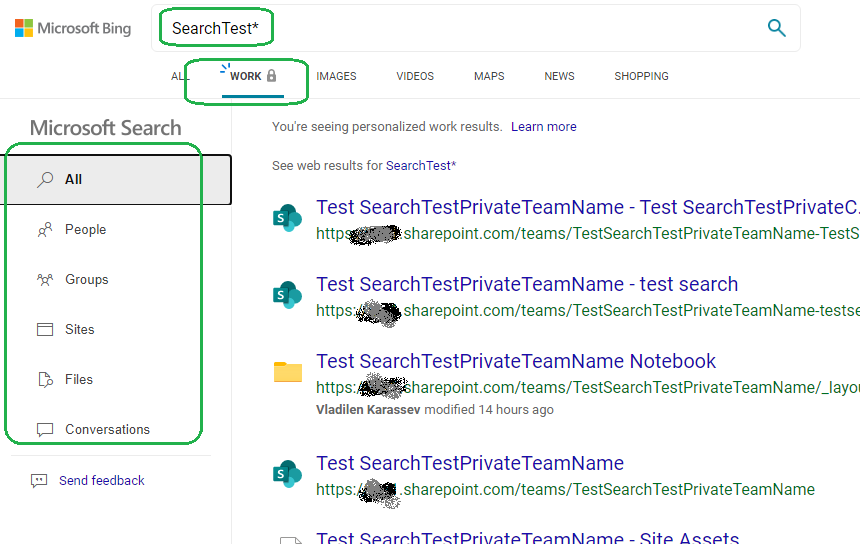
After Microsoft add Teams chats and Yammer conversations to SharePoint landing page search scope (then to Office home page) – it’ll be the best place to search from for everything.

More on Microsoft Search vs SharePoint Search and Microsoft Search RoadMap

Microsoft Office 365 Search: Find what you need with Microsoft Search in Bing

It is possible customize Modern Microsoft Search pages with PnP Modern Search

Microsoft Licensing

Как купить Microsoft

  • Office Suite (Word, Excel, PowerPoint)
  • Office 365 (SharePoint, Teams, Exchange etc.)
  • Azure cloud subscription

Option 1: прямо на сайте Microsoft :
Office 365 for Home
Office 365 for Business
Azure subscription (начать бесплатно)

Option 2: через партнёров Microsoft :
Find a Microsoft Solution provider
Top 200 Partners

IT Certifications: how much do we need them?

Scott Hanselman at Ignite (session 9/23/2020) said: if you are at the beginning of your career, certification is important, but if you have experience – experience matters, not certs. In other words – certification shows what you learned, experience shows what you know.

Does certification prove what you know?
It does in some ways, but I would not rely heavily on it. The reason is below…

To get certification in IT you’d need to pass one or more exams. To pass exam you need to prepare for the exam. Just knowing the subject – even with experience – is not enough to pass exam. You need to prepare specifically for this exam (there are specific courses, materials, tools etc.). Why? It’s not a subject experts who prepare exams.

People who prepare exams – are specialists in building tests and exams. What they do to create test questions – in simplified way – they read documentation trying to find key points and convert affirmative sentence from manual to a question. Let say the documentation says “The most important aspect of securing data is encryption.” So they put it like

What is the most important aspect of securing data? Options:
– Backup
– Encryption
– Authentication and authorization
– Access Control

or like this:

What is encryption? Options:
– The process of converting information or data into a code
– A way to conceal information by altering it
– A form of data security in which information is converted to ciphertext
– The most important aspect of securing data
– One of the aspects of securing data

So, having 10 years experience in cyber security – do you think you’ll pass such exam?

So to pass exam you need to memorize the right answers. If you know the subject – it helps. Less to memorize. But if you do not – you can just memorize answers and pass exam.

I know, vendors work hard on exams, they do not want to loose reputation. Exams contain not only such questions but some really good questions, and even complex scenarios where you spend first 10 minutes just trying to wrap your head around all the details… but still…

Does certification help if you already know the subject?

Definitely yes. Knowing the subject from practice – allows you to do the job – in most cases in some specific ways. But preparing for the exam – allows you to understand the whole big picture. Combination of your experience “how it works in fact” with the theory knowledge “how it should be done” is what you need to be an expert in your area.

So, the bottom line

Id’ say just certification does prove your competency.
But it definitely adds value to experience.

SharePoint PnP roadmap

Good news!
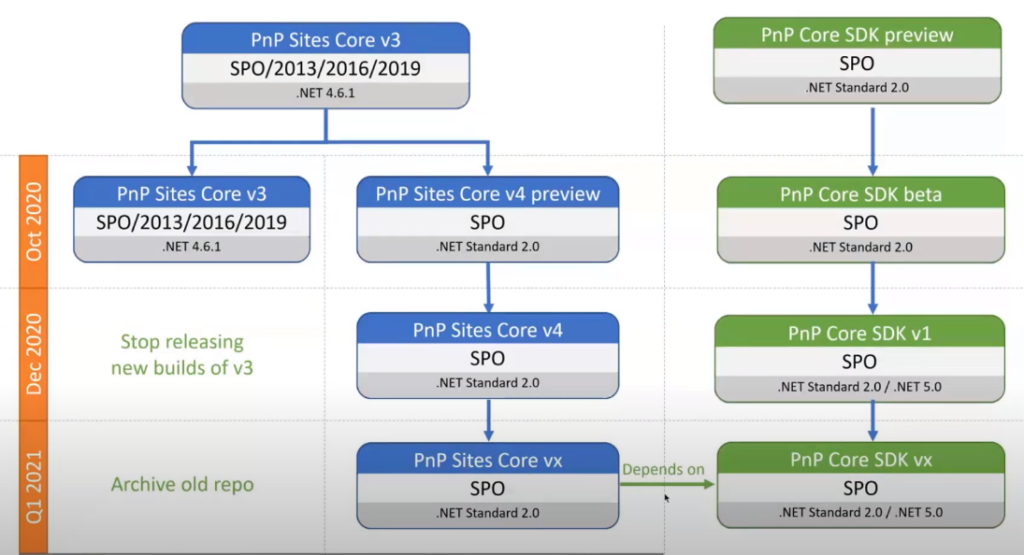
On Sep, 18 during the SIG community call, PnP Team shared their plans on PnP Sites Core library and PnP Core SDK.
“PnP Sites Core v4” library and “PnP Core SDK v1” with .net core support (.net Standard 2.0) – expected in December 2020!

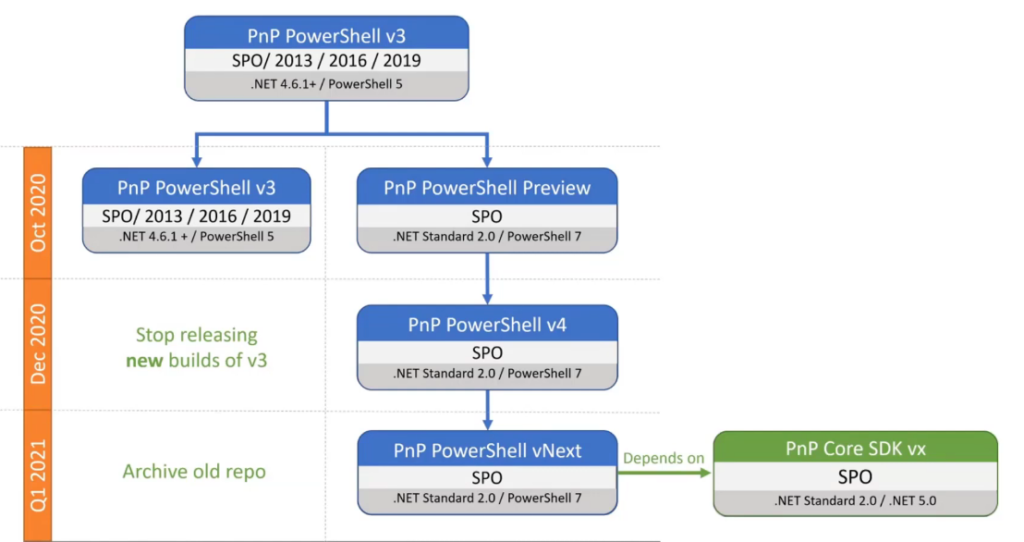
PnP PowerShell v4 for SPO library built for .Net Standard 2.0 / PowerShell 7 will be released in Dec 2020 as well.

How to delete a large SPO list or all/some items in a large SPO list

Scenario: You have a large (>5k items) list in SharePoint Online you need to clean-up, for instance:

  • You need to delete the entire list
  • You need to delete all the list items, but keep the list
  • You need to delete some of list items, but keep the others

Deleting a large SharePoint Online list

There was a problem in SharePoint Online – you could not delete a large list – you had to remove all items first, but removing all items was also a challenge. Microsoft improved SharePoint Online, so now it takes ~1 second to delete any SharePoint list, including 5000+ items list via GUI or PowerShell:

Remove-PnPList -Identity $list

command works very fast – ~1 second to delete entire list with >5000 items.

Delete all items in a large SharePoint Online list

In this scenario we need to keep the list, but make it empty (clean it up).

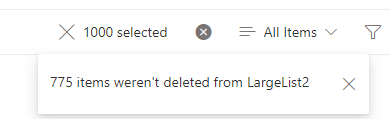
GUI: You can change the list view settings “Item Limit” to <5000 and try to delete items in chunks, but (at least in my experience) when you try to select, let say, 1000 items and delete them via GUI – it says “775 items were not deleted from large list”:

so this option seems like not a good one.

ShareGate: 3-rd party tools like Sharegate, SysKit give a good results too.

PowerShell

Try this PowerShell command with ScriptBlock:

Get-PnPListItem -List $list -Fields "ID" -PageSize 100 -ScriptBlock { Param($items) $items | Sort-Object -Property Id -Descending | ForEach-Object{ $_.DeleteObject() } } 

or this PowerShell with batches:

$batch = New-PnPBatch
1..12000 | Foreach-Object { Remove-PnPListItem -List $list -Identity $_ -Batch $batch }
Invoke-PnPBatch -Batch $batch

for me both methods gave same good result: ~17 items per second ( ~7 times faster than regular).

Deleting some items from a large SPO list

Consider the following scenario: in a large SharePoint list there are items you need to delete and the rest items must stay (typical case might be to purge old items – e.g. items created last year).

In this case you’d

  • get all list items (or use query to get some list items)
  • select items that need to be deleted based on your criteria, e.g. created date or last modified date etc.
  • use PnP.PowerShell batches to delete only what you need
# to get all list items
$listItems = Get-PnPListItem -List Tasks -PageSize 1000
# or to get some list items 
$listItems = Get-PnPListItem -List Tasks -Query <query>
# select items to delete
$itemsToDelete = $listItems | ?{$_.Modified -lt $threshold}
# delete some list items
$batch = New-PnPBatch 
$itemsToDelete | Foreach-Object { Remove-PnPListItem -List $list -Identity $_ -Batch $batch } 
Invoke-PnPBatch -Batch $batch

PnP.PowerShell batch vs ScriptBlock

How fast are PnP batches? What is better in terms of performance – ScriptBlock or Batching? Here are my measurements:

Time elapsed, secondswith batcheswith scriptBlockwithout batches
Add-PnPListItem (100 items)6-10 seconds60-120 seconds
Add-PnPListItem (500 items)20-40 seconds230-600 seconds
Add-PnPListItem (7000 items)314-600 seconds
Add-PnPListItem (37000 items)3200 seconds
Remove-PnPListItem (1000 items)58-103 seconds58 seconds430-1060 seconds
Remove-PnPListItem (7000 items)395-990 seconds
3000 seconds
397-980 seconds
Remove-PnPListItem (30000 items)one big batch : 13600 seconds
30 batches 1000 items each: 3500 seconds

both – PnP PowerShell batches and ScriptBlocks are 7-10 times faster than plain PnP PowerShell!

Can we use Microsoft Graph API to complete the same task? TBC…

Note… For the sake of history: It used to be like that for 5k+ lists:
“Remove-PnPList” fails with a message “The attempted operation is prohibited because it exceeds the list view threshold enforced by the administrator”. Deleting with GUI failed too.

References:

How to find a public team in Microsoft Teams not knowing exact team name

Generally, if you want to join a public team – you must know exact team name to find it. This KBA explains how to find a public team by name or description or content even when you do not know exact team name. Quick and simple answer: use SharePoint Search center or Microsoft Search, (or Bing if it is integrated).

Detailed explanation

Below is why it is so complicated in teams and on how to find a public Team…

In Microsoft Office 365, under MS Teams, there are 3 types of teams:

  • Private team
  • Public team
  • Org-wide team

Private team: you can only join the team if you are invited or know the team code.
SharePoint site behind the private team is shared only to members – not for everyone. You cannot see team name or description or content until you are team member (details). You are not able to search for the team name or content.

Public team: you can join the public team if you wish. The site behind the public team is shared with everyone except external users, so you can see public team name and description, but from MS Teams (desktop or web application) you cannot see public team content until you are team member.

Org-wide team: you are joined the team automatically (details)

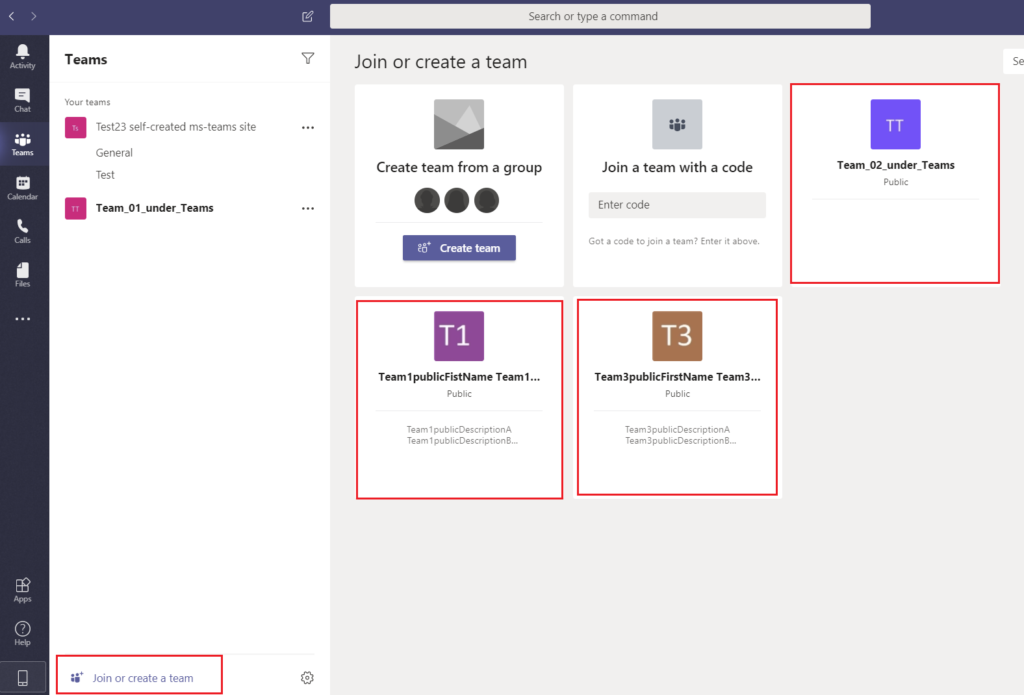
From Teams – you can click on “Join or create a team” and you should be able to see some public teams (but not all):

See how Microsoft describes it – Find and Join a team

There is a “Search teams” box at the top right,
so what if you are looking for a specific public team (not in the list) …

Scenario 1

You know exact team name or at least some first letters.
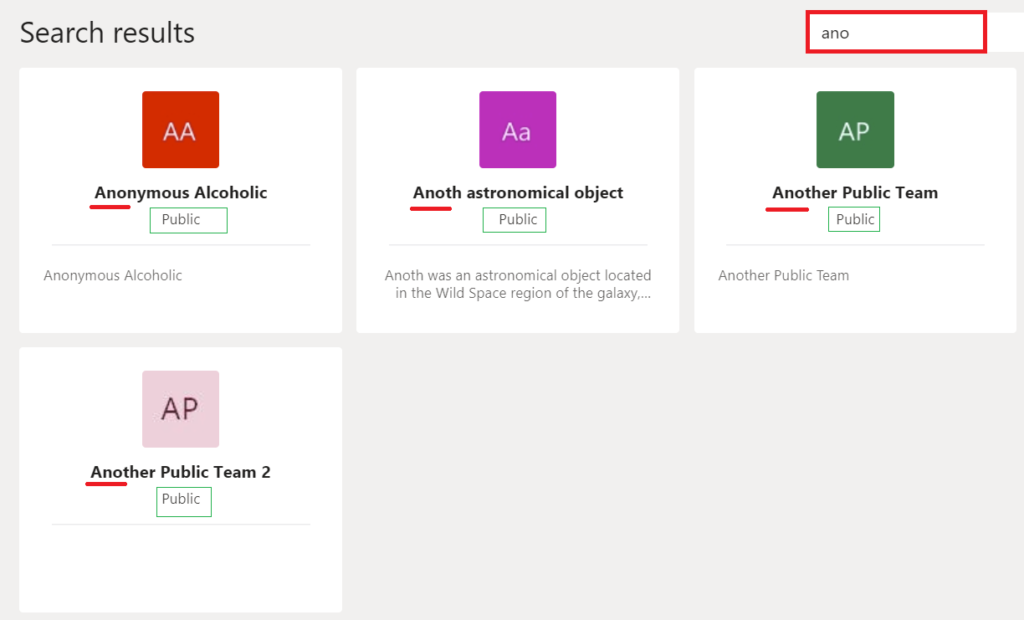
Solution: You are lucky. Just start typing team name in search bar at top right and hit “enter”- you will see shortened list of public teams matching your search criteria:

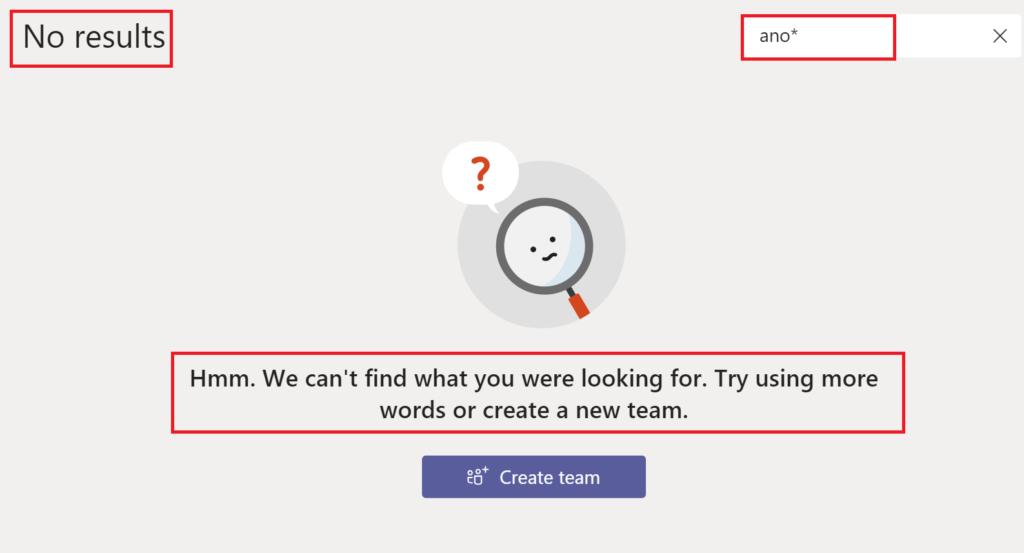
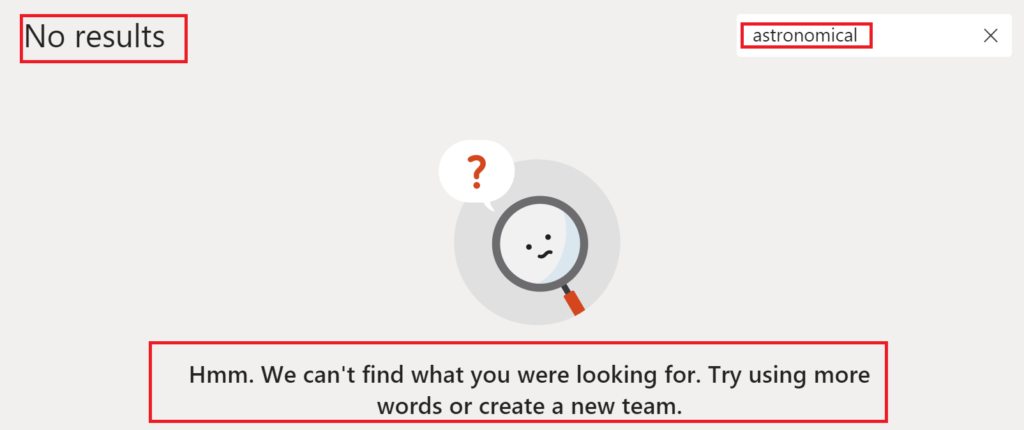
NB: do not use wildcards, it will not work:

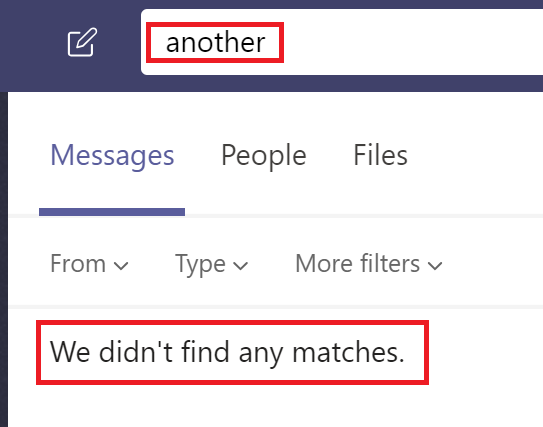
NB: do not use top search bar, it will not work:

Scenario 2

You want to join a public team, but you do not know exact team name.
You know (or guess) something about the team, like

  • part of the team name
  • part of the team description
  • some keywords from team content files

Unfortunately, in this case both great Microsoft technologies – Search and Team – fail. You will not be able to find a public team:

What Microsoft says

Actually Microsoft does not have a solution and just did not provide workaround:
here is the concern “Search for a public team WITHOUT providing the exact name” with no answer from Microsoft.

Solution

Just use SharePoint search of Bing Search or Office.com – any other plain search wherever you can.
SharePoint site is created once a team is created to store actual content. If the team is public – SharePoint site behind will be accessible for everyone.

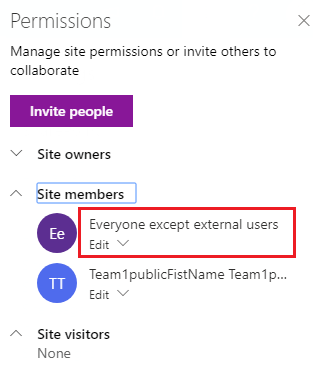
For public teams – SharePoint site has “Everyone except external users” by default in “Members” group:

which means literally “Everyone except external users” has access to the site with “Edit” permissions.

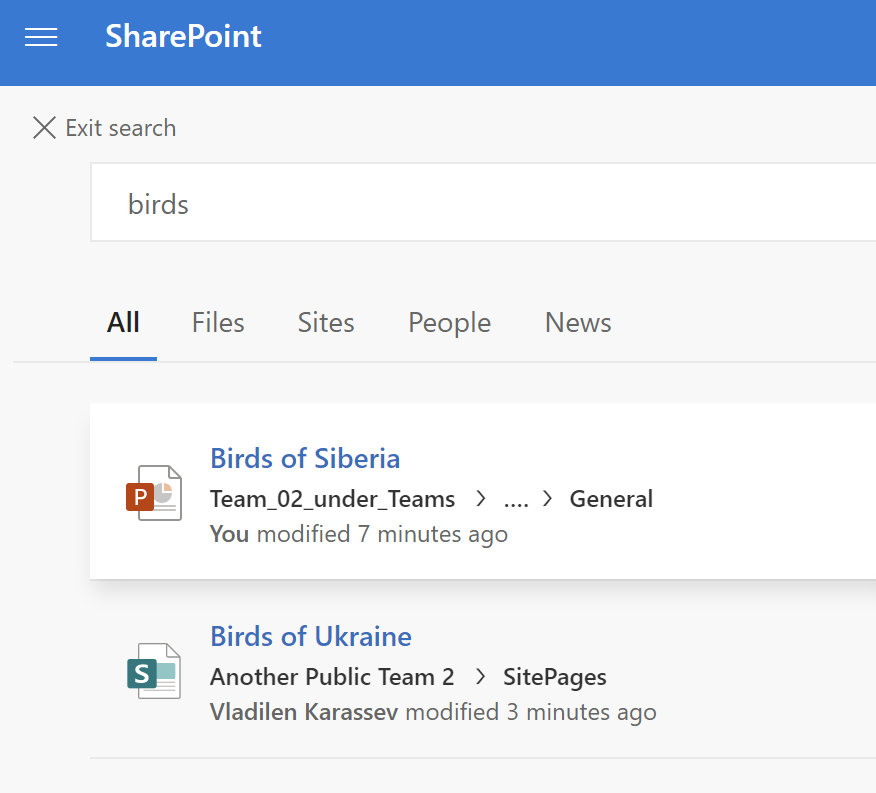
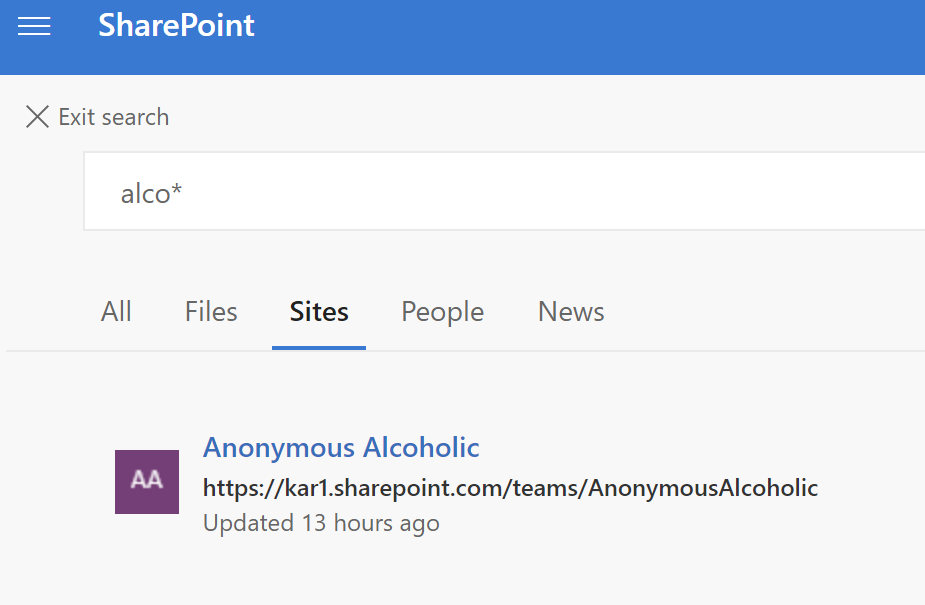
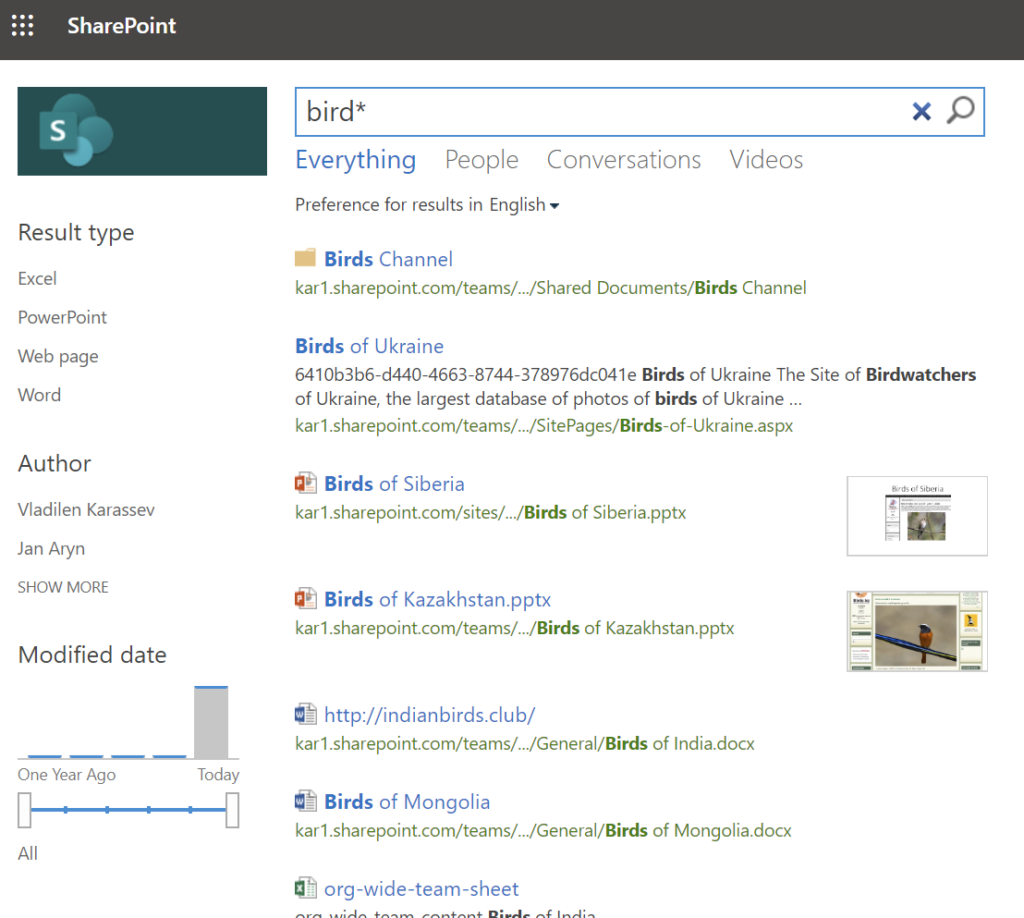
SharePoint search is security-trimmed, i.e. you will see the site content in search results only if you do have access to the site. So just go to the SharePoint landing page or SharePoint search center of Office.com and search for what you know or guess about the team:

You can use all the power of SharePoint search (wildcards, refiners, keyword query language KQL etc)

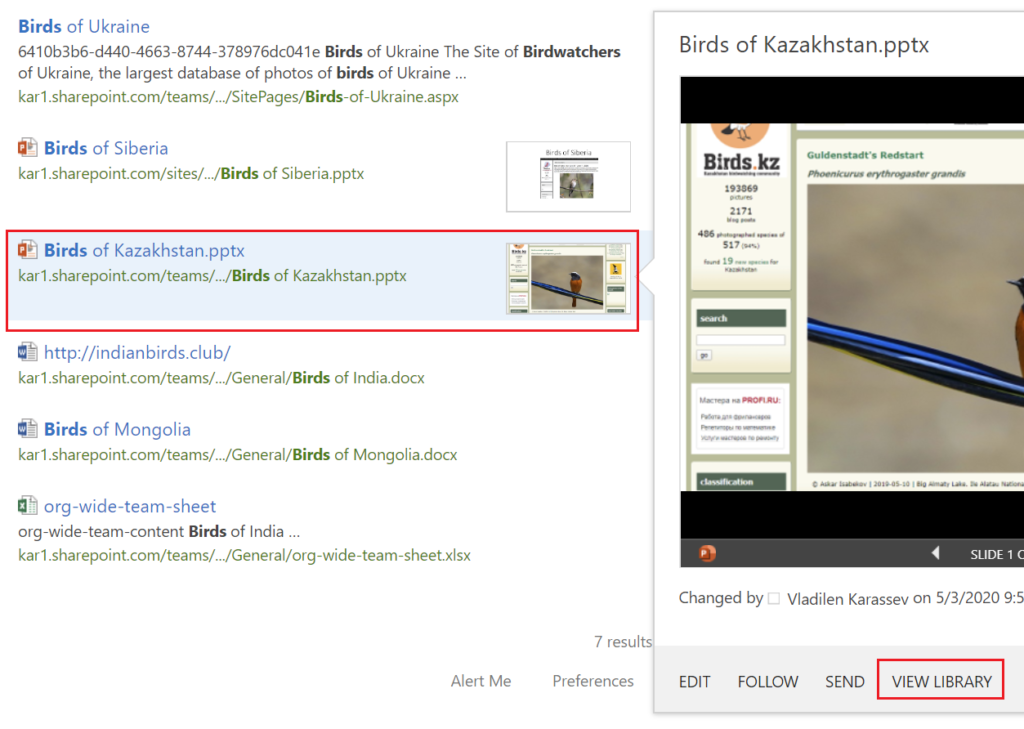
Once you found something – you can go to the SharePoint site:

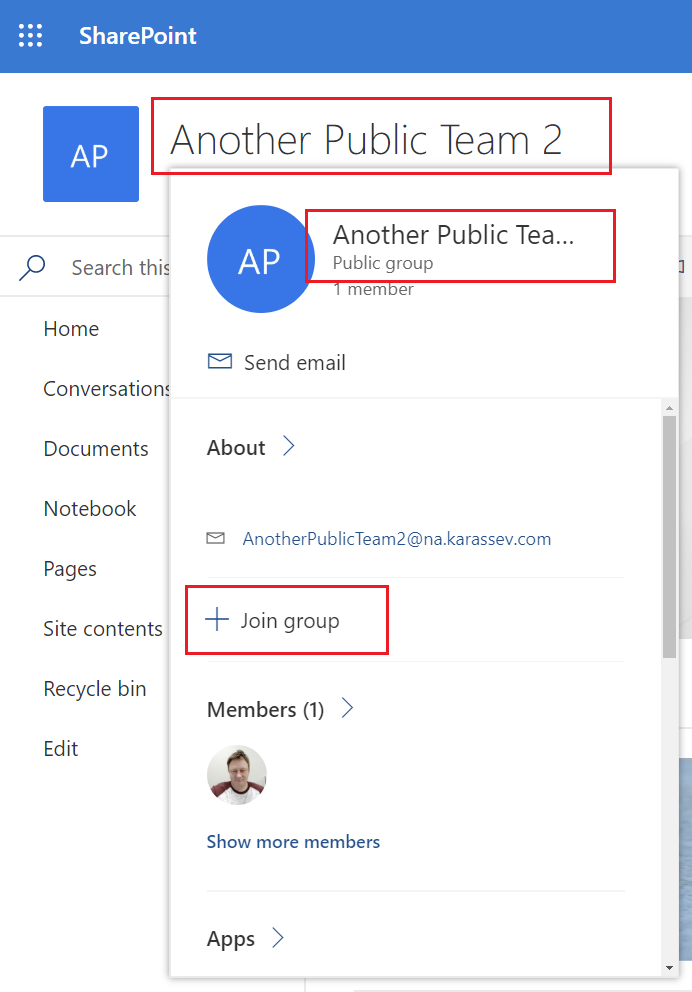
Now from the site – look at the site name and hover the mouse over the site name – you’ll see pop-up window.
Now you know exact team name – and you can search for the team under Teams,
or, if you are so lucky you see “Join” button – just join the team.click site title or hove over the site title:

One moment – you cannot see team’s chat messages in SharePoint, as chats are kept in Azure. But you can search for chat content after you joint the team.

Somehow both – SharePoint Search and Teams Search are not working against site/team description. Hopefully this bug will be addressed.

You can also search for site Url in teams.
When you create a team – Office 365 generates a short team name (removes spaces and adds numbers if the team name is not unique; e.g. if the team name “Test” you might have “test381” as a short name, but if the team name is “This Is My Unique Team” – short name might be “ThisIsMyUniqueTeam”).
After you can change team name and/or SharePoint site name.
Team search under MS teams work for both names – short name initially assigned (kept as site specific Url) and new team name. But only starting with the beginning of the string.

Video tutorial

What is the correct way of searching for a Public Team in Microsoft Teams

Related articles:

btw, there is a good video tutorial on how to find a public team in Office 365 using full-text search