If you are seeing “Ownerless group policy configuration failed” and “Please try again.” error message:
there might be some different reasons:
Microsoft said it is (was) a know problem – it happens sometimes (timeout?), if you configured the policy properly and have enough permissions. So just go back one step and try again – all should be good.
Sometimes “Ownerless group policy configuration failed. Failure in configuring ownerless groups policy” is a permissions issue SharePoint admin, Teams admin: cannot configure Ownerless Groups Policy Global admin: yes, can configure Ownerless Microsoft 365 Groups Policy. What is the minimum role required? According to a recent update of the Microsoft’s article – “A Global administrator can create a policy…”. In my experience – groups admin can also configure the policy
Note: Groups admin when configuring the policy can see warning message “You don’t have permissions to save changes”. No worries 🙂 => You will be able to save changes 🙂
Video tutorial on the policy configuration (at around 5:00 you can see this error message):
getOffice365GroupsActivityDetail – details about Microsoft 365 groups and activity
getSharePointSiteUsageDetail – details about SharePoint sites and usage
getTeamsTeamActivityDetail – details about Microsoft Teams and activity by teams
Also we know, that Teams sites are group-based, and you can have private and shared channels under Teams – but these sites are not actually group-based and there are group-based SharePoint sites with no Teams behind.
And activities might be different – update document or just visit home page, provide permissions and update channel properties etc.
So the question is what kind of activity at what level is recorded at which report?
So far what I noticed is
If there were activities in Teams or SharePoint – the corresponding group will be included in Groups Activity report as well.
I analyzed sites activities as part of inactive sites decommissioning – and I found out that most of “active” group-based sites that have one or two in “active SharePoint files” under Groups Activity report are not really active. In many cases that activity is just OD sync or site logo read from desktop applications (word, excel) – with no actual documents reading/updating or teams activity. So consider “visited pages” from SharePoint Site Usage Detail report or “read messages” from Teams Activity report as a stronger indicator of activity.
Sometimes, mostly during PoC or testing policies like retention policy or lifecycle policy you would need some documents created and updated weeks, months or even years ago.
But if you create or upload a document in SharePoint library – it will be just a regular new document. So, how to get old documents in the new environment?
I see two options:
Sync with OneDrive If you sync a library with your local folder (done Microsoft by OneDrive desktop app) and put some old document in your synced folder – the doc will be synchronized back to SharePoint library with Created and Modified properties preserved.
Make the document older with PowerShell With “Set-PnPListItem” PowerShell command you can update not only such properties like Title, but also “Created By”, “Modified By” and even date and time document was created and modified via “Created” and “Modified”. Optionally you can play with document history with “-UpdateType” parameter. UpdateType possible values are:
Update: Sets field values and creates a new version if versioning is enabled for the list
SystemUpdate: Sets field values and does not create a new version. Any events on the list will trigger.
UpdateOverwriteVersion: Sets field values and does not create a new version. No events on the list will trigger
As SharePoint or Teams admin you manage Microsoft 365 groups (create, update, delete, manage membership etc.) having your admin role activated. I prefer PowerShell 7 and Microsoft.Graph PowerShell module, and I need an Azure registered app with “Group.ReadWrite.All” Microsoft Graph API delegated permission.
Some findings:
If a user was not a group member or group owner – and the user is added to the group members – this user will get notification “You’ve joined the <Group Name> group” via e-mail that comes from a group e-mail address.
When a user is added to the group owners (or elevated to group owner if user was a group member) – user does not get notification.
When a user was a group owner and now you are adding this user to the group members – user does not get notification.
All the actions are logged into Microsoft 365 audit log under your personal Id.
Script samples:
# This script is just a sample to demonstrate basic technique on getting, updating groups membership and deletion m365 groups with PowerShell and MS Graph
#
# please do not run this script as is, but update it based on your needs

# authentication with personal Id
#  app must have as minimum "Group.ReadWrite.All" Microsoft Graph API delegated permission
#  user must have SharePoint admin (or Teams admin) roles activated
Connect-MgGraph -ClientId $clientid -TenantId $tenantId
Get-MgContext | Select-Object Scopes -ExpandProperty Scopes

# sample data
$groups = @()
$groups += [PSCustomObject]@{GroupId = '443d22ae-683a-4fe4-8875-7bd78227a026' }
$groups += [PSCustomObject]@{GroupId = 'e5805388-c18c-48c0-b42d-6223cf8f3d82' }

# Get Groups
foreach ($group in $groups) {
    Get-MgGroup -GroupId $group.GroupId
}

# add members to the group
$groupId = '443d22ae-683a-4fe4-8875-7bd78227a026'
$userId = 'df74e0d3-d78c-495b-b47a-549437d93cf7' # Adele
New-MgGroupMember -GroupId $groupId -DirectoryObjectId $userId

# add Owner to the group
$groupId = '443d22ae-683a-4fe4-8875-7bd78227a026'
$userId = 'eacd52fb-5ae0-45ec-9d17-5ded9a0b9756' # Megan
New-MgGroupOwner -GroupId $groupId -DirectoryObjectId $userId

# Delete group
$groupId = '443d22ae-683a-4fe4-8875-7bd78227a026'
Remove-MgGroup -GroupId $groupId
It is known that a single Microsoft Exchange account is not sending more than 10k emails per day.
It is also know that once activated – Microsoft 365 groups ownerless policy will be sending notifications for all groups in scope to specified number of group members within 24 hours.
The question is: what if there are more than 10,000 notifications to send (e.g. 4,000 ownerless groups and the policy is configured to send notification to 3 members per group – that gives us 12,000 notifications to send)? Would the policy send 10k notifications and the rest 2k notifications the next day?
I’m conducting an experiment. I created 10k groups in my lab tenant with one owner and 3 random members. Then I configured a policy that is sending notification to a 3 most active members (in this case – random members). And then I made all these groups ownerless by deleting the single owner Id from Azure AD (Microsoft Entra).
Here is what I got from users perspective:
user
user groups number
got messages day 1
got messages day 2
got messages total
1 Roger
5012
1374
2 Dick
5039
1349
3 Bob
5108
3412
4 Bapu
4908
1376
5 Stas
4996
1437
6 David
4959
1377
total
10325
Here is what audit log says:
Events “OwnerlessGroupNotified” day 1: 4949 Events “OwnerlessGroupNotified” day 2: 95 Events “OwnerlessGroupNotified” total: 5044 Each event details says 3 members were notified.
It seems like groups are selected by policy in random order.
Massive E-mails sending was started 43 minutes after midnight UTC
“OwnerlessGroupNotified” were logged at the rate of 1925 events during 1-st hour, 2029 events during 2-nd hour, 785 events during 3-rd hour, 176 events during 4-th hour, 26 events during 5-24 th hour, 95 events during next 25-48 hours so max rate was one event every 3 seconds in the beginning (or 1 e-mail per second) …
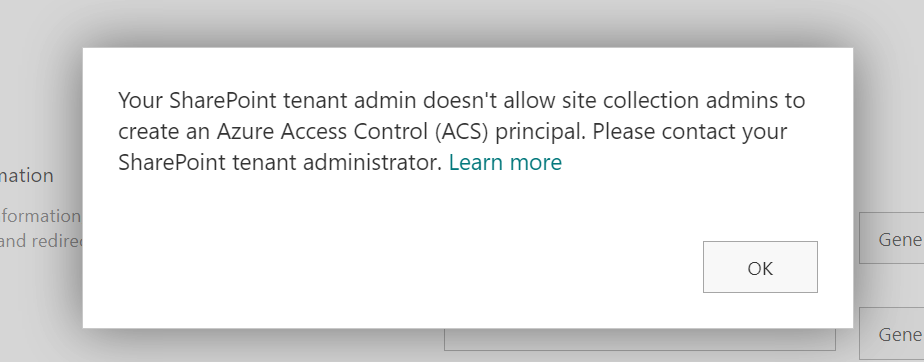
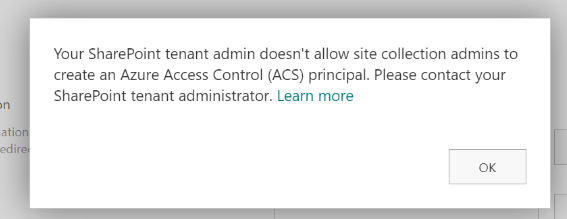
You are trying to register an application at SharePoint site with appregnew.aspx page and you are getting an error or notification message “Your SharePoint tenant admin doesn’t allow site collection admins to create an Azure Access Control (ACS) principal“.
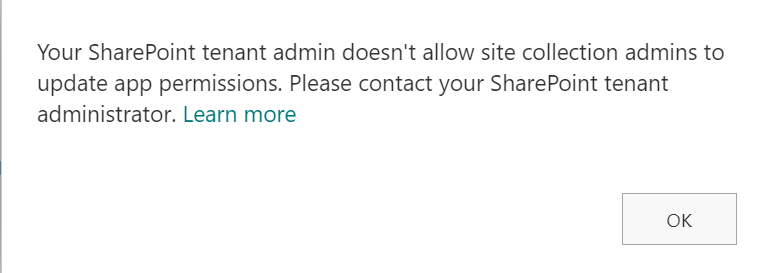
Or you are trying to provide ACS-based permissions for an application to SharePoint site with appinv.aspx page and you are getting “Your SharePoint tenant admin doesn’t allow site collection admins to update app permissions. Please contact your SharePoint administrator.”
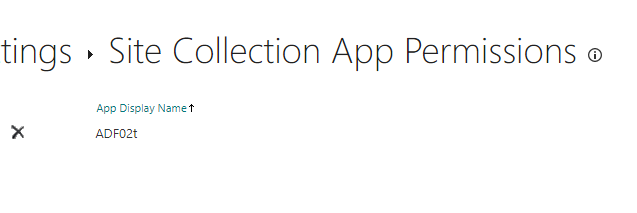
You can still view and even delete your apps permissions from /_layouts/15/appprincipals.aspx page:
Reason
This is due to a recent update to Microsoft 365 (tenant governance security measures enhancement MC660075) implemented by Microsoft in Aug/Sep 2023. According to the update, only tenant administrators can create or update ACS service principal by default.
The root cause for this is that the Microsoft is pushing developers out of that legacy ACS-based SharePoint Apps-only service principals towards Azure-registered applications with Sites.Selected API permissions as they are more secure etc. In Nov 2023 Microsoft announcement retirement of ACS principals.
Key differences between ASC and Sites.Selected are:
ACS-based SharePoint app/permissions
Apps registered in Azure with Sites.Selected API permissions
Support authentication with client secret only, Secrets are valid for 1 year exactly.
Support authentication with client secret and/or certificate, custom expiration time.
Support granular access to SharePoint site, e.g. to site collection or web (subsite) or a specific list or library.
Support only access to entire site collection (but Microsoft says granular access is coming) Granular permissions are available – ‘Lists.SelectedOperations.Selected’, ‘ListItems.SelectedOperations.Selected’ and ‘Files.SelectedOperations.Selected’ permissions allows to provide application access to list, library or list item or particular documents
Support only classic SharePoint REST API and CSOM
Support both – classic SharePoint REST API and CSOM and Microsoft Graph API
App id (client id) is created via appregnew.aspx at a specific SharePoint site by site collection administrator (disabled in Sep 2023).
App id (client id) is created in Azure portal (Entra Id), API Sites.Selected permissions are configured via Azure portal (Entra Id) and require tenant admin consent.
Permissions for the app to a site are provided at the site by site collection administrator via appinv.aspx page (disabled in Sep 2023).
Permissions for the App to to a specific SharePoint site are provided via Graph API by SharePoint admin with PowerShell script.
Solution #1 – switch to Sites.Selected
Register an application in Azure (via Entra Id – Azure portal GUI, PowerShell script or your company’s specific helpdesk/servicedesk request)
Update the app so both – MS Graph API Sites.Selected and SharePoint Sites.Selected permissions are configured, then
API permissions must be consented – so you’d seek/request your tenant admin consent
Obtain and upload client certificate (recommended) or generate client secret (at this moment you should be able to authenticate to tenant)
Request access for the app to a specific SharePoint site – your SharePoint service admin should be able to do that (at this moment you should be able to authorize to your SharePoint site).
Validate your app has access to the target SharePoint site with PowerShell (check validation scripts below under References).
Use recommended by Microsoft technique, code samples are available for the most popular languages/platforms – Python, C#, Java etc. (check below under References).
Secure your certificate and/or secret. It is not a good idea to use hard-coded secrets, so consider using special services/storages for secrets (aka Vaults)
If you are hosting your application in Azure – consider using managed identity.
There are 3-rd party (and Microsoft) apps developed using classic approach (examples – Azure data Factory, Alteryx). So in some cases Sites.Selected permissions are not enough to get access to SharePoint.
Solution #2 – admin to register/update an ACS app
This option is acceptable if you have existing application that require ACS-based access. This option is not recommended for new development, as ACS is deprecated and scheduled for retirement.
Microsoft (MC660075 in Message Center): “site collection admin will be unable to register app or update app permissions through above pages unless authorized explicitly by the SharePoint tenant admin” and “With this update site owners will not be able to register/update apps unless the tenant admin explicitly allows it.”
That is incorrect. Site collection admin cannot register app (appregnew) or provide permissions to the app (appinv) anymore. Tenant admin does not authorize site collection admins. Instead tenant (or SharePoint) admin can register an app or provide permissions to the app at a specific site (not changing the entire default behavior back…). But there was no such option (!) in the middle of October 2023, when this feature was enabled at all tenants. Even having a SharePoint admin or tenant admin permissions – if you tried to register an app with AppRegNew.aspx – you got the same error message “Your SharePoint tenant admin doesn’t allow site collection admins to…”.
Later (Checked today – Nov 6, 2023) it seems like Microsoft has implemented it! E.g. now SharePoint or tenant admin is able to register an app with AppRegNew.aspx or update it with AppInv.aspx at any specific site collection. SharePoint or tenant admin must also be among this site collection admins.
It is ok (and I’d say the preferred way) to provide ACS permissions to the app registered in Azure, so do not register apps in SharePoint anymore (do not use AppRegNew.aspx).
Bottom line: if ACS-based permissions are required for app here you go:
register application in Azure (Entra id)
activate your SharePoint service/tenant admin role
ensure you are also target site collection administrator
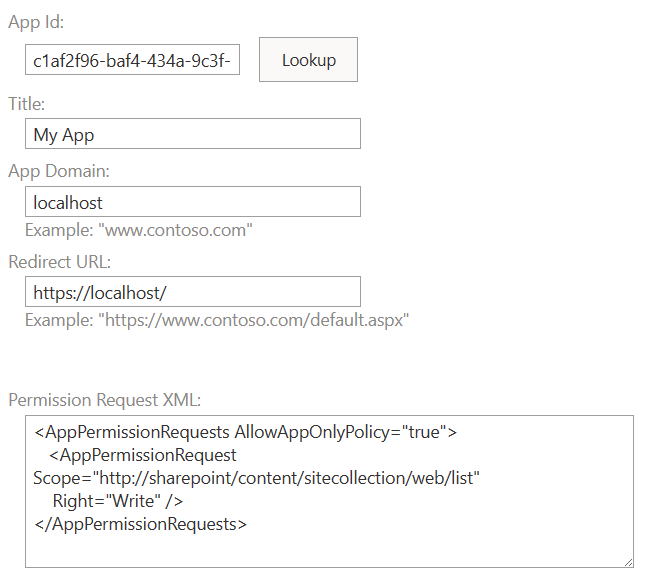
navigate to the site appinv.aspx page – e.g. “https://yourtenant.sharepoint.com/sites/yoursite/_layouts/15/appinv.aspx” and us Azure registered app (client) Id. E.g. for lookup provide
Azure registered app (client) Id for – click lookup
localhost as app domain
https://localhost as redirect url
Permission Request XML – depending on permissions you need, e.g. for full app access to entire site collection:
It is possible to switch back this new default behavior that prevents site collection admin to register/update apps at SharePoint. This is done with PowerShell command
To run this command – you’d need to be a SharePoint service or tenant admin.
But this will be a step back on your journey in improving m365 tenant safety, as after that you’ll have a self-registered service principals out of control again. So devs will be using it not being aware of ACS retirement and when Microsoft switch off ACS – it will be a disaster, as all app will stop working. That is why Microsoft implemented this feature to soft-disable ACS and allowed us 2 years to redesign or apps and migrate from ACS to Entra Id apps with Sites.Selected. So this solution is not recommended.
In case you really need an exception to provide an ACS-based service principal – there is Solution number 2.
Full text of Microsoft’s MC660075 message
(Updated) SharePoint admin control for App registration / update
Tag MAJOR UPDATE ADMIN IMPACT FEATURE UPDATE
Message Summary Updated August 30, 2023: We have updated the content below for clarity. Thank you for your patience.
This is an enhancement to the security measures for administrative governance that modifies the default procedures for SharePoint app registration via AppRegNew.aspx page and permission updates via AppInv.aspx page. Following the implementation of this change, site collection admin will be unable to register app or update app permissions through above pages unless authorized explicitly by the SharePoint tenant admin.
Upon attempting to register an application on AppRegnew.aspx page, a notification will be displayed stating “Your SharePoint tenant admin doesn’t allow site collection admins to create an Azure Access Control (ACS) principal. Please contact your SharePoint tenant administrator.”
Similarly, upon attempting to update app permissions on AppInv.aspx page, a notification will be displayed stating “Your SharePoint tenant admin doesn’t allow site collection admins to update app permissions. Please contact your SharePoint tenant administrator.”
Kindly note that app registration and permission update via Microsoft Azure portal are not impacted by this change.
When this will happen:
The rollout process is scheduled to commence in late August and is expected to conclude in mid-September.
How this will affect your organization:
With this update site owners will not be able to register/update apps unless the tenant admin explicitly allows it.
To modify the default behavior, the tenant administrator must execute the following shell command to explicitly establish the flag as TRUE, thereby superseding the default value of FALSE. The service principal can only be created or updated by the tenant administrator by default. However, when the flag is set to TRUE, both the SharePoint tenant admin and site collection admin will be able to create or update the service principal through SharePoint.
The shell command is: Set-SPOTenant -SiteOwnerManageLegacyServicePrincipalEnabled $true
Note: The property ‘SiteOwnerManageLegacyServicePrincipalEnabled’ becomes visible in tenant settings after SharePoint Online Management shell is updated to 16.0.23710.12000 or a later version. But before this rollout, the value will always be TRUE even explicitly set to FALSE. It will only automatically be switched to FALSE as the default value after the rollout is launched.
What you need to do to prepare:
No proactive measures are required to prepare for this change. Nevertheless, it is advisable to inform your users of this modification and update any relevant documentation as necessary.
There are well‑known SharePoint app‑only service principals and ACS‑based permissions. This is an old‑school approach—introduced as part of SharePoint Add‑Ins for SharePoint 2013—to provide unattended access to a SharePoint site (application access, i.e., access without a user being present). Such applications are often referred to as daemon apps, service apps, background jobs, and similar terms.
For you to smoothly switch to new, recommended Entra Id based service principals and permissions – it is important to know some details about classic app-only service principals and ACS-based permissions. As you know, any access is a two-step procedure:
Authentication, when systems ensure you are indeed the one you claim you are
Authorization, when system grants you access to the resource, as it knows that this id is allowed to access specific resource with these permissions
So, when it comes to deprecated SharePoint app-only service principals and ACS-based permissions, AppRegNew is responsible for authentication and AppInv is responsible for authorization.
AppRegNew.aspx
To get a SharePoint app-only service principal – you’d need to register a new one at any SharePoint site using the AppRegNew.aspx page. This page is not available from GUI, so you’d need to type the Url manually. You’d need to be a site collection admin to register a new app.
Let’s say, your site Url is “https://YourTenant.sharepoint.com/teams/YourSite“. Then this appregnew page’s Url would be “https://YourTenant.sharepoint.com/teams/YourSite/_layouts/15/appregnew.aspx“
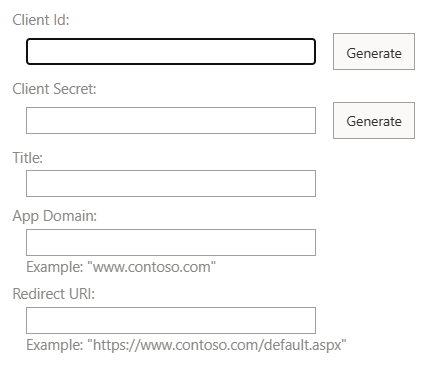
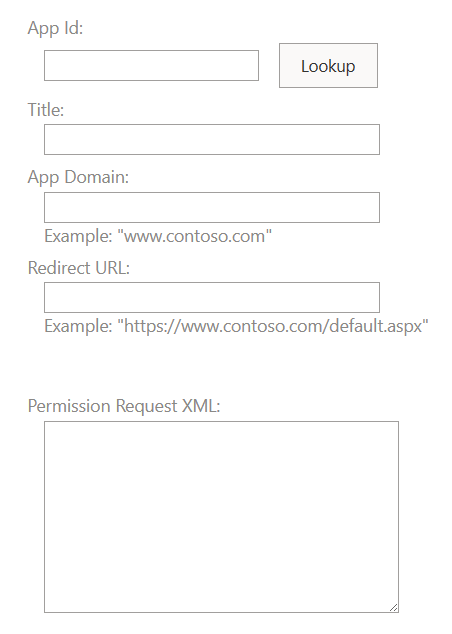
If you go to this page, you’ll see (*) something like
You’d click generate client id, then generate client secret and type your app display name. I usually use “localhost” as app domain and “https://localhost” as redirect Url.
If all good – you’d get app id (client id) and app secret (client secret) and you’d be able to authenticate to your SharePoint site.
AppInv.aspx
Providing permissions for your SharePoint app-only service principal to your SharePoint site is done using AppInv.aspx page. This page is also not available from GUI, so you’d need to type the Url manually again. You’d need to be a site collection admin to use this page.
Let say, your site Url is “https://YourTenant.sharepoint.com/teams/YourSite“. Then this appinv page’s Url would be “https://YourTenant.sharepoint.com/teams/YourSite/_layouts/15/appinv.aspx“
If you go to this page, you’ll see (*) something like
At this moment – you need to enter app (client) id here and click lookup – so all the app metadata would be populated, then you’d need to enter Permission Request XML. Via this “Permission Request XML” you are specifying exact permissions your app will have in this site. E.g. you can specify scope – all site collection or one specific subsite (web) or even one specific list or library. Also you can specify permissions level – e.g. read, read/write, manage or full control. This is tricky, but let me share some examples with you.
Permission Request XML for the app to have full control over entire site collection:
Any mistake in XML might prevent app access, so be very careful.
Finally, your AppInv.aspx page would look like
If you specify scope as web – you’d do it on the specific web url, e.g. “https://YourTenant.sharepoint.com/teams/YourSite/SubSite/_layouts/15/appinv.aspx”
If you specify scope as list – you’d do it on the specific web url, e.g. “https://YourTenant.sharepoint.com/teams/YourSite/SubSite/_layouts/15/appinv.aspx” and after you click “Save” – there will be a page – you’ll be asked to choose a list from available web lists.
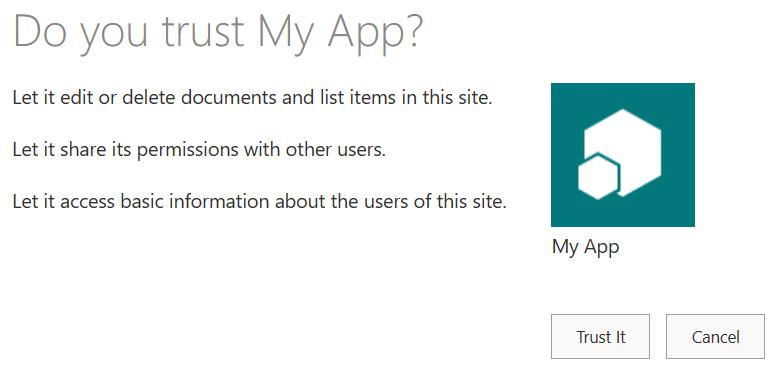
After all, you’ll be asked to confirm that you trust the app:
And after that your app (SharePoint app-only service principal) will have access (ACS-based access) to you site.
AppPrincipals.aspx
From site settings page (/_layouts/15/settings.aspx) you should be able to see apps registered on your site with “Site app permissions” or “Site collection app permissions” links available via GUI. That would be “appprincipals.aspx” page.
Update Since July 2025 – modern apps (Entra id apps) appears under AppPrincipals.aspx page as well (see details here). Unfortunately, AppPrincipals.aspx page, you cannot see what kind of app has permissions to your site, what kind of permissions were provided, or secret expiration time. Some data can be pulled via PowerShell with Get-PnPAzureACSPrincipal though…
Possible complications
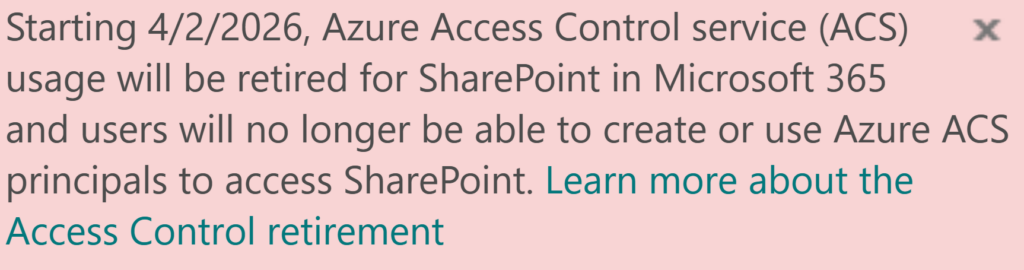
After Microsoft announced retirement of ACS – you can see this message on appinv and appregnew pages:
You might also see “Your SharePoint tenant admin doesn’t allow site collection admins to create an Azure Access Control (ACS) principal” message at appregnew page and “Your SharePoint tenant admin doesn’t allow site collection admins to update app permissions. Please contact your SharePoint administrator.” at appinv page.
That’s because a recent update to Microsoft 365 (MC660075) pushed by Microsoft in Aug/Sep 2023 changes default behavior so only tenant administrators can create or update ACS service principal by default.
Microsoft 365’s default setup for user profiles creates a significant problem: multi-value fields like “Skills,” “Education,” and “Hobbies” automatically dump all user-entered data into a single, unmanaged “Keywords” term set. This lack of organization means that diverse information is jumbled together, making it impossible to categorize, filter, or effectively use this valuable data for business needs, like finding internal experts or tracking project experience. While it’s possible to manually fix this by linking each property to a dedicated, managed term set (e.g., a “Skills” term set), this complex configuration ideally needs to happen before users start filling out their profiles. If an organization goes live without this crucial setup, retroactively restructuring the data becomes a major, custom undertaking, ultimately hindering the ability to leverage rich user profile information effectively. Please find solution below.
SharePoint User Profiles Metadata
Users of Microsoft 365 can go to “My Microsoft 365 profile”:
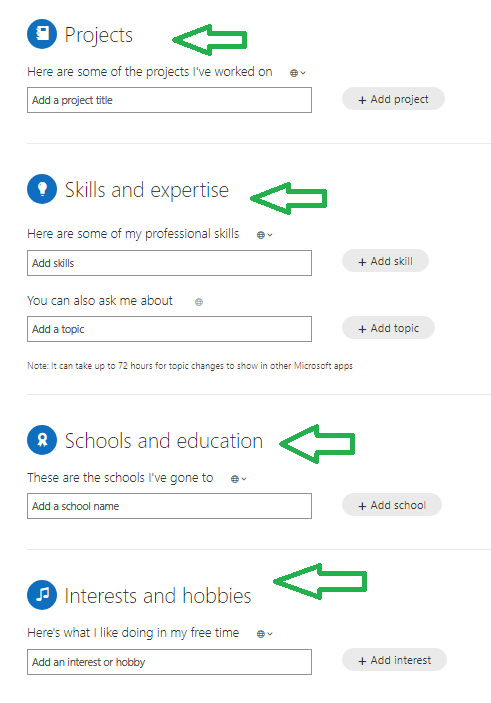
and update profile providing some details like birthday, home/mobile phone, summary, education, hobbies, skills and projects. Some properties are text fields, some are metadata. Specifically – projects, “skills and expertise”, “schools and education” and “Interests and hobbies” are backed by metadata:
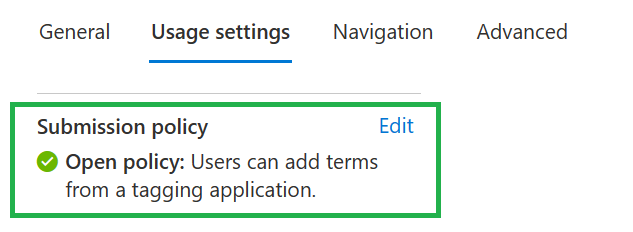
People can add information free, as the corresponding term store’s submission policy is “Open policy: Users can add terms from a tagging application.” by default.
The Problem
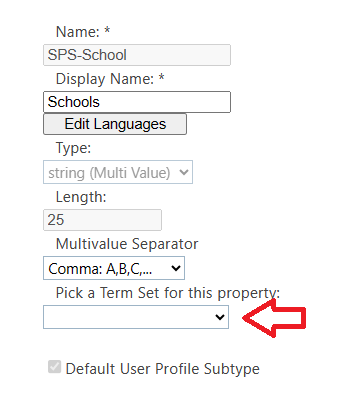
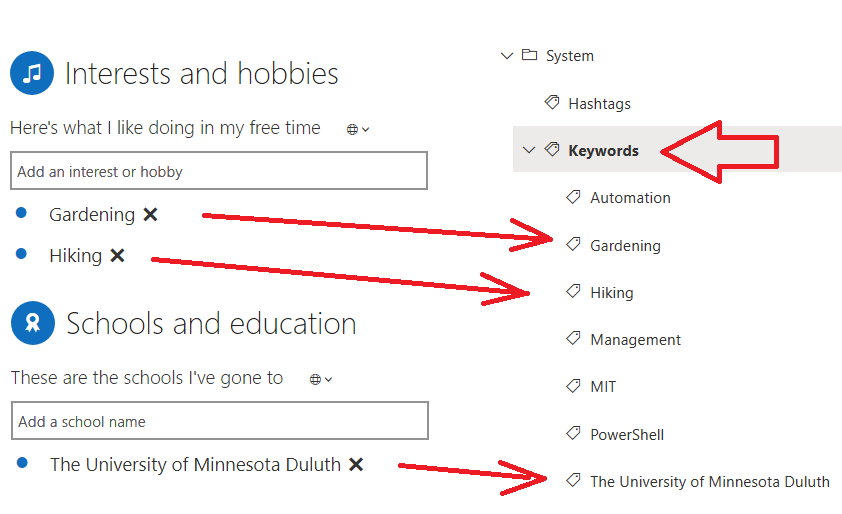
The problem is: all mentioned user profile properties are not connected to term store by default:
and everything users add to their profiles goes to the default “Keywords” term store under “System” term group:
(To ensure – a SharePoint admin can go to “More features” – “User Profiles” – “Manage User Properties” and “Content services” – “Term Store” from SharePoint admin center.)
Obviously, after some time there will be a mess… Universities, hobbies, skills and projects are different subjects and should not be in the same list.
Solution
Once the problem is understood, the solution would be straight-forward:
If you are just implementing Microsoft 365:
Create a Term Set
Map User Profile Property to a Term Set
The only you need is to
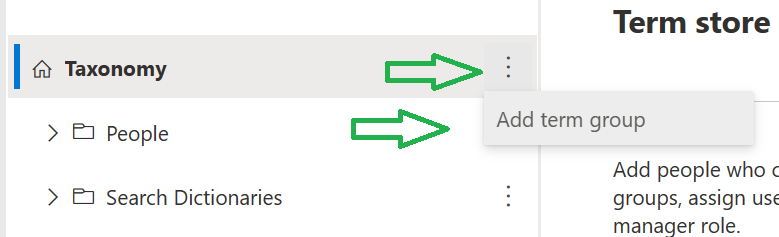
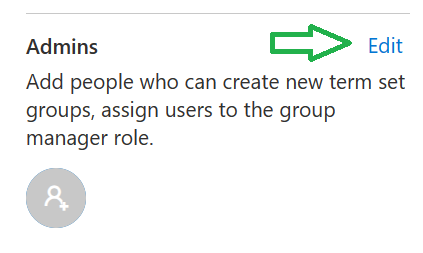
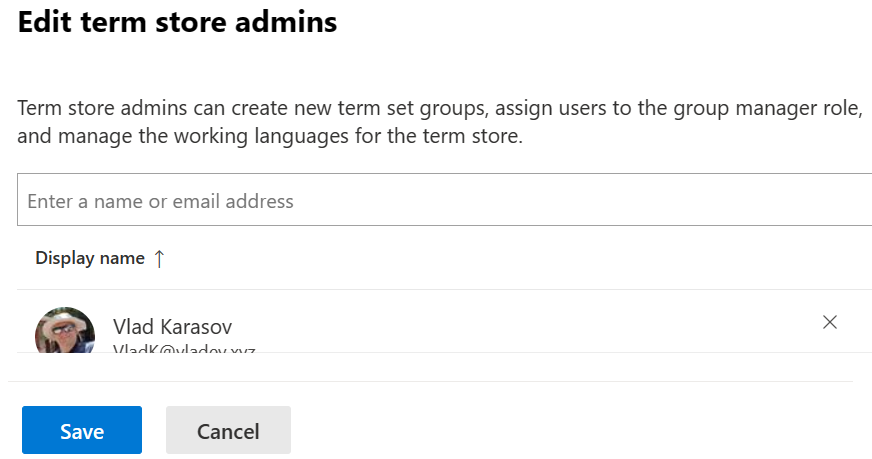
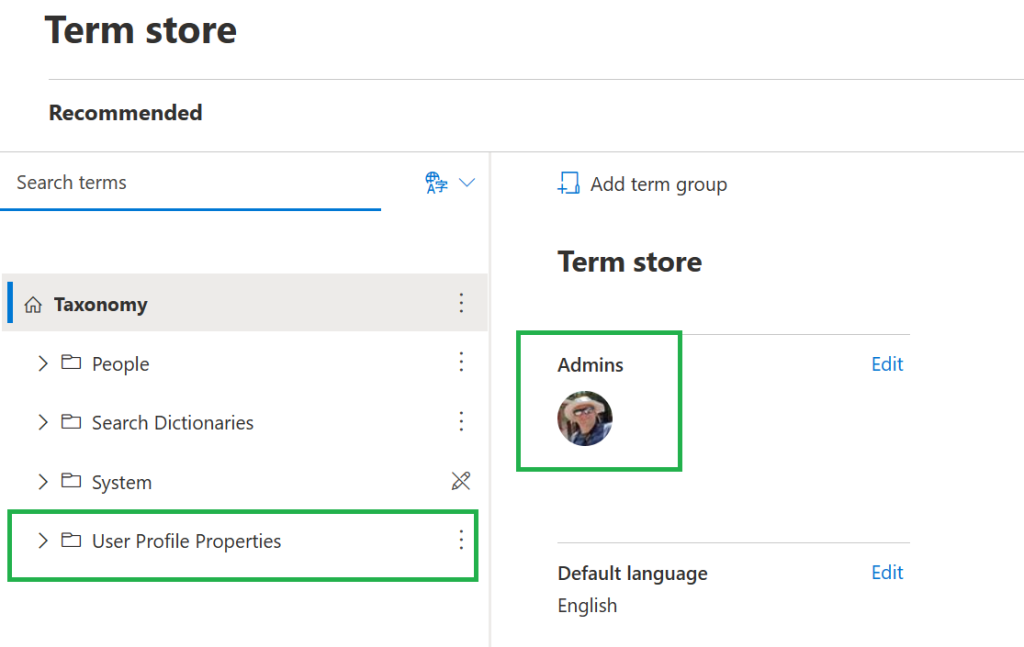
1. Provide permissions to yourself so you can create a term group and term store:
Under SharePoint admin center – Content Services – Term Store
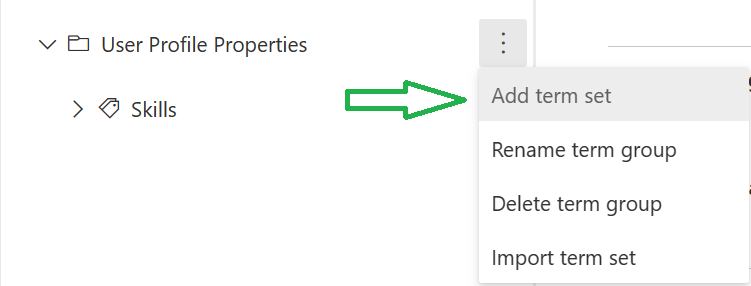
2. Create a term group, e.g. “User Profile Properties”
and 3. come up with names for your term sets, as default naming is ambiguous/controversial:
How a user can see it in his/her personal profile (Delve)
SharePoint Admin Center User Profiles Properties Display Name
SharePoint Admin Center User Profiles Properties Internal Name
Project
Past projects
SPS-PastProjects
Skills and expertise: Here are some of my professional skills
Skills
SPS-Skills
Skills and expertise You can also ask me about
Ask Me About
SPS-Responsibility
Schools and education
Schools
SPS-School
Interests and hobbies
Interests
SPS-Interests
Create term set:
Configure submission policy, so users can add terms:
(alternatively, you may want to have closed submission policy but in this case you would pre-create terms so users can choose from existing)
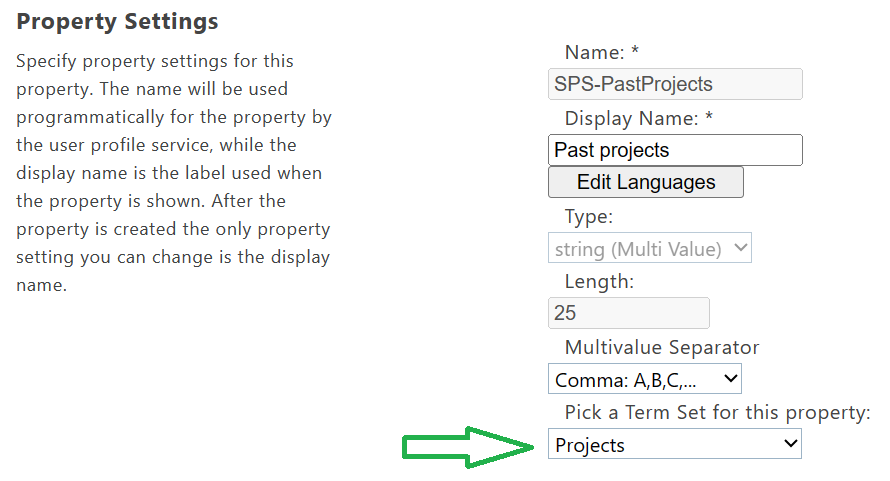
Map User Profile Property to a Term Set (Under SharePoint admin center – More features – User Profiles – Manage User Properties):
If you already have users with their profiles filled with values
In case you already have users with their profiles filled with values, you need to deal with it, and you have 3 options:
Inform users about the change and that all values will be lost and ask them to update their profiles again
(if number of profiles/values relatively small) – just manually write it down and re-create after reconfiguration
Develop a custom PowerShell script to save all the values and custom PowerShell script to restore the values.
Adaptive scopes are good, but what if both policies are implemented? Which one wins? The scenario for two policies might be: static retention policy is implemented as default retention policy for all sites, and if site require different retention or deletion – it should fall under one of the adaptive scopes and an adaptive retention policy will be applied.
This post is dedicated to one specific subject: implementing Microsoft 365 groups lifecycle (expiration) policy in large Microsoft 365 environments.
But this post is also a part of a bigger problem – dealing with ownerless resources in Large Microsoft 365 environments. Please refer to the umbrella post.
Scenario
You administer a large Microsoft 365 environment. Let say you have 100k users or more, 50K or more sites. Environment is not new, so after some years you have a lot of ownerless groups and sites (thousands probably), and a lot of inactive groups and sites (probably tens of thousands). You are getting more and more ownerless groups – hundreds each month. You are thinking of stopping bleeding and cleaning this up…
Implementing Microsoft 365 groups expiration policy
If you are thinking of activating in an existing environment – you would probably have a spike – all the old groups will be subject to policy. The ide is to avoid situation when a specific person – group owner will get dozens of email. It would be better if a person will receieve, let say one email per week.
Here is my 4 possible approaches to avoid this spike, distribute notifications evenly across the time and ease the pain:
By changing Group Lifetime
You would need to change the policy every, e.g. week or month, specifying group lifetime in days starting with maximum period. Consider – calculate number of days between the oldest group created an today, plus 35 days – it’ll be your first “group lifetime” – activate the policy with this number of days in “group lifetime” – and within a week you will get notifications on the oldest group/groups – after a week or two – change the “group lifetime” decreasing it by e.g. 30-60 days and reactivate the policy… and so on
You can easily calculate it all and choose your pace depending on how many groups you have to renew, how much time you need to clean-up. You got the idea.
Downside – in the email notification it will be said “otherwise the group will be deleted on …”, but you joggling with lifetime period – so these dates might confuse users
By renewing groups as admin
As an admin, you can use PowerShell “Reset-PnPMicrosoft365GroupExpiration” or graph API “POST /groups/{id}/renew“ to renew any group.
So depending on total number of groups, number of active/inactive groups, number of ownerless groups in your organization – you can come up with a strategy, using one or more of the following techniques:
renew all active and known and important groups (build list of groups to re-activate based on your own criteria) and then trigger the policy
build list of definitely inactive groups and renew all other groups
split groups into chunks and every day or week (depending on numbers) renew groups in a chunk… after that you can activate groups expiration policy, the policy will be triggered against small number of groups every day/week (with this trick you would avoid policy triggering against large number of groups and sending thousands of emails at one)
By sending customized e-mails to users
Another technique to avoid surge in your e-mail system (and most importantly – avoid sudden influx of support requests) – you can send emails to group owners with a link to renew a group. Surely you’d need to build your custom solution for that, but this does not seem like a complicated task. Some PowerShell scripting – and you are good.
“Renew group” link would look like: https://account.activedirectory.windowsazure.com/Group/RenewGroup?tenantId=<tenantId>&id=<groupId> where <tenantId> is tenant id and <groupId> is group Id. So with PowerShell you’d just pull groups in question, their owners and send email with the link dynamically built. Consider spreading this activity across the time to avoid spikes.
By sending users to the groups page
Probably the easies option to smooth the expiration policy implementation is to send group owners to a Microsoft “Groups I own” page – where they could renew or delete their groups. The page is:
Groups I Own (https://myaccount.microsoft.com/groups/groups-i-own)
The downside is – the policy should be in active state (otherwise owners will not see when the group is expiring and option to renew it). So consider a maximum lifetime period in policy, then you’d decrease this period).