There were also rumors on (in development/preview) Yammer REST API v 2.0 – https://api.yammer.com/ – but nothing specific…
Classic Yammer REST API ( v 1.0 )
Classic Yammer REST API is rich and mature, but Microsoft said that no further updates are planned on classic Yammer API, so here is my article on how to call Classic Yammer API from code, including search in Yammer … Since Microsoft Graph API for Viva Engage (Yammer is very limited), we have to rely on classic Yammer Viva Engage API, including search through Viva Engage communities posts.
You’d call this classic API with your personal credentials, i.e. if operation requires admin access, you’d need activate your Yammer Admin role.
Update (Message ID MC1045211, Published Mar 31, 2025): Microsoft Viva Engage will retire the private content mode by June 30th, 2025. This also affects (classic) Yammer API. E.g. before June 30th, 2025: as Yammer admin, you were able to activate private mode and get access to all Yammer communities via Yammer API. E.g. before June 30th, 2025: as Yammer admin, you will need to be a community (Microsoft 365 group) member or owner to access community content.
There are scenarios when you need to pull only newly created SharePoint sites, e.g. get sites created since yesterday or get last 100 created sites. Usually other articles and existing PowerShell scripts solve this by pulling all sites from tenant and then iterating through sites to get only new sites. That approach is not nice and simply does not work in large environments. How can we get only sites created recently, not all sites? Here is how I use Microsoft Graph API to get only new sites.
Update (6/28/2024): Microsoft announced updates to it’s delta API for SharePoint, so I added option 3 – see below.
Scenario
Let say you administer Teams, OneDrive and SharePoint Online in a Microsoft 365 tenant. You have a pretty big environment – ~10k or more sites and you want to quickly find just new SharePoint sites or teams (e.g. sites created recently – during last hour/day/week/month). This might be required for ad-hoc reports and for automation scenarios – like applying required configurations or assign some property value to all newly created sites.
With GUI it’s done easily: SharePoint Admin Center -> Active Sites -> sort based on “Date Created” – done.
With PowerShell – not so simple. “Get-PnPTenantSite” cmdlet returns a site object but the object does not have “Created” field. It’s a web property (not site property). But to get a web object – you have to connect separately to each site and get root web object to check when the web was created. For small environments it is possible, for large environments it can take days… And still not nice. “Get-PnPTenantSite” with “-Filter” option would help, but “…Currently, you can filter by these properties: Owner, Template, LockState, Url.”
but… 1) it’ll give you group-based sites only 2) it is not easy to automate 3) this might take long for large environments. I know much better solution:
Solution
Microsoft Graph API helps. It returns result in seconds and you can sort or filter results based on created date . Below are two methods: Option 1 is based on Search and filtering and Option 2 is based on Sites Search and sorting. So there are some pros and cons for each method.
Microsoft Graph Search API allows KQL in queries. So we can form a query with something like “created>=1/1/2021” and use entity type = ‘[“site”]’. Search should return only sites created after Jan 01, 2021.
This option is also based on Microsoft Graph API, but sites entry point, which allows search too and sort results by property “createdDateTime”. So we will just search for everything and select how many results we need based on createdDateTime property.
You can use “Get delta” under SharePoint Graph API – check for details here. It says “Get newly created, updated, or deleted sites without having to perform a full read of the entire sites collection”. I’ll do my own testing, but for now check this: Video: Microsoft Graph Delta Capabilities in SharePoint API
Yammer (now Viva Engage) is an internal (corporate) social network, and part of the Microsoft 365 suit of services. How do we work with Viva Engage programmatically? Can we read messages or search through communities? Can we get groups (communities) details and membership – etc. Is there an API we can use? How do we authenticate? Here you go.
There are two API’s available to work with Viva Engage (Yammer) from code:
(modern) Microsoft Graph API
(classic) Yammer API
Microsoft Graph API
Microsoft Graph API is a preferred way to work with Viva Engage programmatically. You’d just need an Entra Id App Registration configured correctly to authenticate and be authorized to call Graph API:
Unfortunately, Microsoft Graph API is still limited (Mar 2025) with respect to Viva Engage – you can only do CRUD operations against communities. You cannot search through community messages, you cannot post messages or read what is posted. You cannot reply or react on messages.
Since any Yammer community membership is based on Microsoft 365 group – you can use all group operations (including managing membership).
Since any Yammer community has a SharePoint site behind – you can use SharePoint Graph API to manage community documents.
Yammer API
Classic Yammer API is old, but still relevant API. With Classic Yammer API you can do what is not possible yet with Graph API, e.g. get messages (all or latest or within specific community or about some topic, etc.), search through messages, as well as post and delete messages.
Here is the full list of available operations. Unfortunately, Microsoft just keeps light on there (no plans for development). Below is how to authenticate to Yammer API and some usage samples of classic Yammer API for Viva Engage.
Update (May 2025): Private content mode will retire as of June 30th, 2025 (MC1045211) This includes classic yammer API. Since Viva Engage (Yammer) communities access is now based on Microsoft 365 groups membership – you’d need to be a group member to access community messages via GUI or via classic Yammer API, (no exceptions after June 30th, 2025 MC1045211). Though export data will continue working as usual.
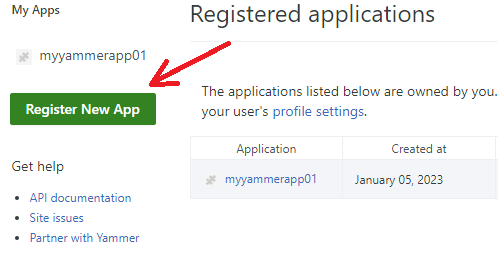
Register Yammer Application
Navigate to the page: https://www.yammer.com/client_applications
Click “Register new application”:
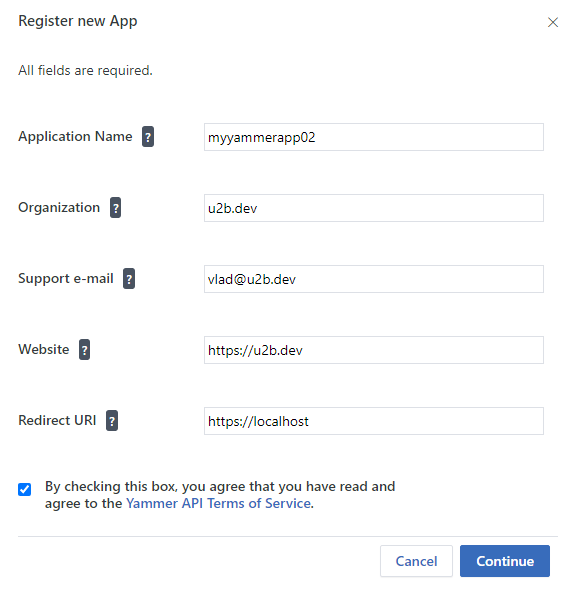
Fill all the fields:
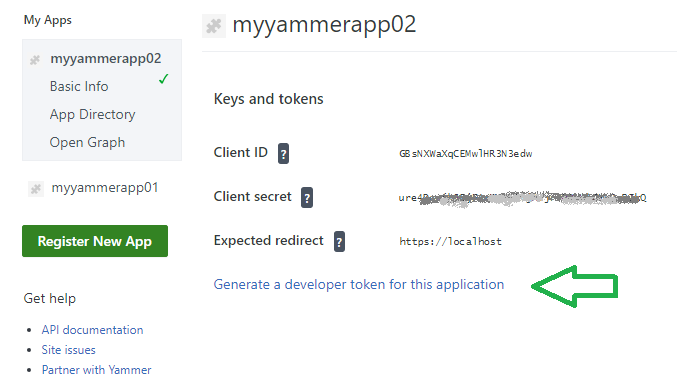
Client ID and Client secret will be generated automatically:
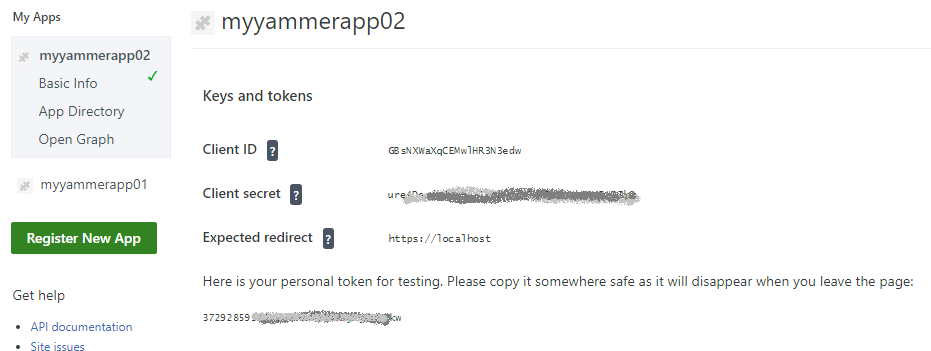
I’m not sure – how to get access token from Client ID and Client secret, so I use link “Generate a developer token for this application”. When you click this link, a token will be generated, and it says “Here is your personal token for testing. Please copy it somewhere safe as it will disappear when you leave the page:”
Calling Yammer API
Once you get the toke – you can use it in your code (consider vaulting or other save methods). Here is an example based on powershell, but surely you can do the same with programming language you comfortable with:
Your organization use Microsoft 365. You are implementing or configuring an Intranet Portal (Home Site). Search plays an important role here – you want search be relevant to the context – i.e.
Official Results – if a user searches something on a company’s intranet portal – user expect “official” results, not a something from somebody’s OneDrive or Yammer chat
Promoted Results – so information management team can adjust search with search answers – Bookmarks, Acronyms and Q&As
Problem
Microsoft Bookmarks are working only at tenant level search – i.e. if you want bookmarks work on site level search – you need to set up site search scope as tenant.
So if you configure the Intranet Portal site (Home site) search scope to “site” or “hub” to limit results with site/hub content – you will loose “answers” functionality.
Solution
The solution is very simple:
Keep site search scope as tenant-wide to use answers (boormarks), and
Configure search verticals and query to limit results to “official” sites only
Update Query field with KQL – e.g., with something like
(path:http//contoso.sharepoint.com/sites/IntranetPortal/ OR path:http//contoso.sharepoint.com/sites/CompanyNews/ OR path:http//contoso.sharepoint.com/sites/Onboarding)/)
to get results only from “Intranet Portal” and “Company News” sites.
Keep in mind that this will affect all other SharePoint search entry points – SharePoint landing page, Office.com etc. – so although you can configure All (and Files) verticals, but it’s not recommended. It will confuse users – they expect to search for everything under “All” vertical. Instead, consider custom vertical – e.g. “Official” scope.
After configuring – It might take 1-24 hours for the change to take effect, depending on tenant size.
Service vs Site search
If you configure that at the tenant level – i.e., Microsoft 365 Administration -> Settings -> Search and intelligence -> Customizations -> Verticals then search results will be trimmed everywhere – SharePoint Landing Page, Office landing page (Office.com), Office App, Bing search. Teams search will not be affected as from Teams you only search for teams content. Same for Onedrive and Yammer.
If you want the “official” search results only under Intranet Portal and leave other search entry points unaffected – then you need to configure the same at Home (Intranet Portal) site level: Site Settings -> Microsoft Search -> Configure search settings -> Verticals and configure site search scope to site or hub scope. But in this case you will loose answers functionality.
Global search settings – like acronyms, bookmarks and verticals – works only if site search scope is tenant. If site search scope is site or hub – then site-level search verticals will apply (and no answers functionality will be possible).
Home site is a root site
There might be two problems with that:
if a home site configured as a root site – you KQL will look like(path:http//contoso.sharepoint.com/ OR path:http//contoso.sharepoint.com/sites/CompanyNews)and that query will not work as any site Url will match the root site Url.
if you need to mention many sites in KQL – like 50 sites with an Official Information – you might hit the “number of allowed character” limit
The solution is DepartmentId property:
DepartmentId
Use DepartmentId={<Hub Site ID>} in the KQL qury and your search results will be limited to your hub content while answers will still be working too. You can even combine DepartmentId with other conditions to add more sites (that are not in hub) to search scope:
(DepartmentId={4965d9be-929b-411a-9281-5662f5e09d49} OR path:http//contoso.sharepoint.com/sites/Onboarding OR path:http//contoso.sharepoint.com/sites/CompanyNews)
It worth to mention, that DepartmentId is the property that propagated from the root of the hub site to all associated sites and their content – list items, documents and pages.
Site Property Bag
Another possible option would be – site property bag… The ultimate goal is to provide users with “Official” results only. But official sites might not be all part of one Home site hub. We can include in All search vertical query 10, 50, 100 sites, but what if we have 10k official sites in enterprise – e.g. operated by different departments – and all of them might want to be present in search results. So, how about – if the site is considered official – we create an indexed site property, e.g. “SiteIsOfficial” with a value “Yes”. Then we map the crawled property to a managed property – e.g. RefinableString89 – and use this managed search property in query – e.g. (SiteIsOfficial=Yes).
This is actually clever idea, but this does not work… This query would only return sites, not sites content. E.g. what was indexed as site object – will be included (including home page). But site items – i.a. documents, lists, other pages – all site content – will not be included…
So let’s get back to DepartmentId…
Rename All Vertical
Again – the ultimate goal is to give users option to have “Official” results. But they still might want to be able to search through all content. What if we rename the default “All” vertical to “Home Site” and configure query for official results only. Then we can create a custom vertical called “Everything” or “All” with no query limitations to give users all reasults
Update: not a good idea either… If the home site search scope is tenant – so verticals are configured and be visible at tenant level – i.e. everywhere…
Separate Official Vertical
My personal preference is to keep All vertical as real All, and create a custom Vertical “Official” for official results only where we would use query trick.
There is a new feature in Microsoft 365 SharePoint Online – “Restricted SharePoint Search“. With Restricted SharePoint Search you can restrict organization-wide search to a curated set of “allowed” SharePoint sites – sites that you have checked the permissions and applied data governance for.
UPDATE: this approach only works if the mobile number is stored in SPO UPA. If the mobile number is stored in AAD only, the admin will need to remove the mobile number from AAD for the affected users.
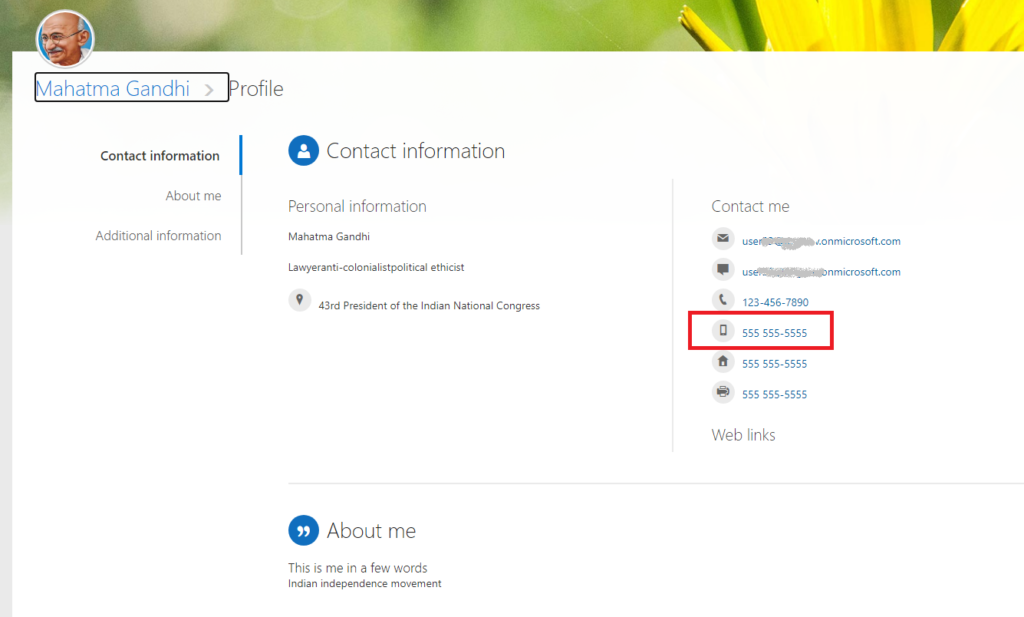
Scenario: you administer SharePoint Online Microsoft 365 tenant business asks you to remove mobile phone numbers from SharePoint User Profiles:
Solution:
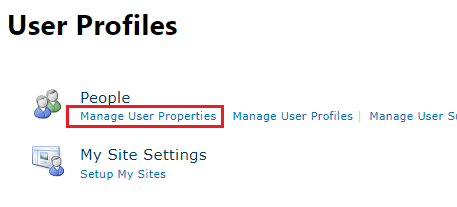
As a SharePoint administrator, you can do it: 1. Start Microsoft 365 SharePoint Admin Center 2. Navigate to More Features -> User Profiles -> Manage User Properties
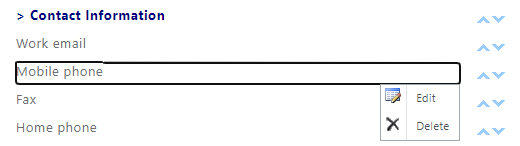
3. Under “Contact Information” -> Mobile phone -> Edit
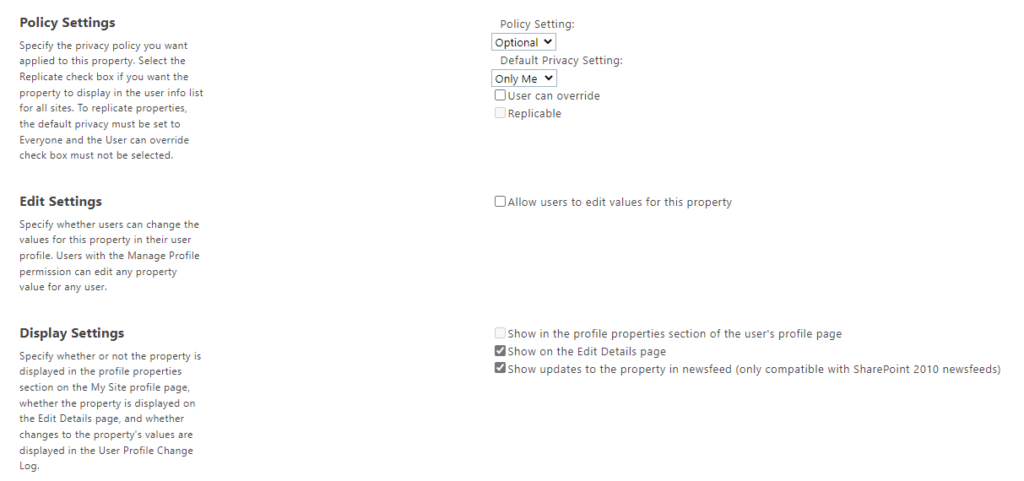
4. Uncheck “Replicable”, Save, wait a minute or two 5. – Select “Default Privacy Settings”: “Only Me” – Uncheck “User can override” – Uncheck “Allow users to edit values for this property” – Uncheck “Show in the profile properties section of the user’s profile page” – Uncheck “Indexed”
6. Save
Note: Microsoft implemented new MS-Graph API that adds or deletes profile card custom properties using the profile card API in Microsoft Graph
How can I get HTML content of a SharePoint online page from code, e.g. PowerShell?
Invoke-WebRequest returns “Sign in to your account” page, not a real page, even with -Token option.
Thanks to Denis Molodtsov, the solution is found. It turns out the “Invoke-PnPSPRestMethod” PnP cmdlet works not only against /api endpoints, but also against site pages and system pages.
But (as per my experience) it works only with PnP.PowerShell and with -UseWebLogin authentication option and with -raw parameter.
Other combination of authentication options ( -interactive, -clientId, -Token, -SPOManagementShell, -PnPManagementShell ) – worked well, but only for /_api endpoints, and gave me “401 UNAUTHORIZED” against system/site pages. Unattended authentication (with clientId, clientSecret and certificate) – same.
Legacy PnP module SharePointPnPPowerShellOnline did not work at all: “EXCEPTION,PnP.PowerShell.Commands.Admin.InvokeSPRestMethod”.
I tested it with – SharePointPnPPowerShellOnline v 3.29.2101.0 (under Windows PowerShell 5.1) and – PnP.PowerShell 1.8.0. (both Windows PowerShell 5.1 and .net core PowerShell 7.1.5)
The error “The term ‘Search-UnifiedAuditLog’ is not recognized”:
Search-UnifiedAuditLog: C:\scripts\PowerShell.auth\Search-AuditLog-w-App.ps1:16:12
Line |
16 | $results = Search-UnifiedAuditLog -StartDate $start -EndDate $end -Re …
| ~~~~~~
| The term 'Search-UnifiedAuditLog' is not recognized as a name of a cmdlet, function, script file, or executable
| program. Check the spelling of the name, or if a path was included, verify that the path is correct and try again.
means a proper administrative role (e.g. “Exchange administrator”) is not assigned.
Microsoft announced SharePoint Alerts retirement. Starting from October 2025 – the SharePoint Alert expiration feature will be gradually activated. In January 2026 Microsoft will turn off creation of new SharePoint Alerts (gradually). In July 2026 the ability to use SharePoint Alerts will be removed.
How do we know how many alerts are configured in our tenant? Can we get a report on all alerts of all users from all tenant SharePoint sites?
Approaches are:
use Microsoft 365 Assessment tool (they have a mode to get all alerts – here is the doc) Microsoft 365 Assessment tool is a great tool, but it is an .exe software, so in large orgs it might be difficult to use it and it requires admin’s permissions to run
use custom PowerShell scripts – this option might help if you – need a specific report format/data/columns – want to quickly get report on alerts for a specific site or site/user – can run the script as a site collection admin/owner (does not require tenant admin permissions)
It requires connection to a specific site, and it allows to get all alerts for the specific user, all alerts for the specific library and all alerts for all users and all lists/libraries:
Get-PnPAlert -AllUsers
The cmdlet returns an alert object with the following properties: AlertFrequency, AlertTemplateName, AlertTime,AlertType,AllProperties,AlwaysNotify,DeliveryChannels,EventType,Filter,ID,Item,ItemID,List,ListID,ListUrl,Properties,Status,Title,User,UserId,Context,Tag,Path
This is an old-style CSOM-based script we used before PnP designed their beautiful cmdlet. Notice that what took 20 lines of code PnP implemented in one cmdlet.
PowerShell Script to get All Alerts of all Users from a specific SharePoint Online Site Collection, including subsites:
Office graph = codename for collective set of services and insights we generate on top of the infrastructure that fast office graph group developed = social Intel concepts (SharePoint home, Delve, OneDrive Discoverview) are derivatives of Office graph
Microsoft Search API provides one unified search endpoint that you can use to query data in the Microsoft cloud – messages and events in Outlook mailboxes, and files on OneDrive and SharePoint – that Microsoft Search already indexes.
Turing technology – understands you, answers your question e.g. hover over doc -> doc summary (based on “deep speed” AI model) announcement at Ignite Spring, more on Ignite Fall 2021
Modern Search: MS nailed the fundamentals, now start bringing it everywhere – to Teams first, then SharePoint (said Nov 2020).
Modern Search Customizations – we’ll take the best from Classic SharePoint Search, a lot will retire – investing in more flexibility
Bill Baer: “People use search in a different ways 1) you have organisations who have a well-established intranet built around set of governance controls, a very clean architecture and they want to build a search into that intranet scenario; that’s why a lot of SharePoint capabilities are going to come along with Microsoft search for that particular endpoint 2) then you have other people who live their day in teams“
Updates
Shared search engine results page (developed once – transitioned everywhere) Ctrl-F to search through teams (chats?) (contextual search) Natural language search (starting from Outlook) Image search (before eoy), +
Metadata content type search Syntex customers will be able to use content type to search in the advanced search flyout in document libraries that contain content types beyond the default types. Syntex only.
Conversations: teams chats, outlook groups conversations, yammer conversation can be found under Conversations vertical in Bing search. Later – in Office.com and SharePoint landing page. E-mail messages are added to Conversations vertical in Bing search
Bookmarks (new promoted results), acronyms, Q&A – all under “Answers”
BookmarksTargeting – for the specific audience based on device/OS, Country/Region, security groups…
SharePoint Search Admin Center -> will be migrated from SharePoint admin center to to Microsoft Search Admin Center transitioning (Search and Intelligence Admin Center) – long-running project custom dictionaries, spelling suggestions – will retire, (move to a graph-driven speller)
+ Viva Topics – based search capabilities
Create Topic Answers with Microsoft Viva Topics to bring together people, content, and information (including synonyms and acronyms)
Knowledge answers provide a direct answer to questions authoritative information in an organization across SharePoint and OneDrive content
Files/Calendars/Links answers
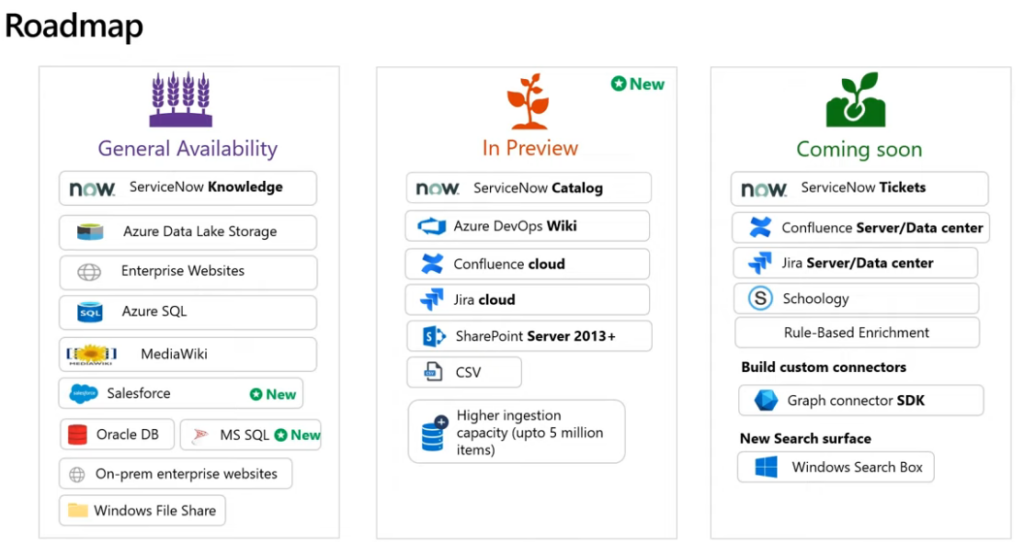
Graph Connectors Graph Connectors are generally available (ADLS – Azure Data Lake Storage Gen2, Azure DevOps, Azure SQL and Microsoft SQL Server, Enterprise websites, MediaWiki, File share, Oracle SQL, Salesforce, Jira, Confluence, ServiceNow + 100+ from partners; New connectors coming to Microsoft Search: Jira Graph connector, Confluence Graph connector).
Graph Connector allows to connect external source of information to Microsoft 365 and makes that data available across all m365 apps and services so you can find what you need wherever you’re working, whether in one of your favorite productivity apps or one of the many Microsoft 365 services such as SharePoint or Office.com
Graph Connectors roadmap:
Actionable experiences Search results on select Graph connectors will soon support actions that will allow users to interact with the result and perform changes to the Connector content within the Search application.
Results clusters The results shown in a result cluster are grouped together based on the search vertical configuration.
Profile Query variables Define any attribute from the user’s Profile, as a query variable and it would be resolved during query evaluation (This feature is currently in preview)
Profile enrichment with Graph connectors …you will soon be able to enrich Microsoft 365 profile properties like Job title, Phone numbers, Skills etc. with data from HRMS systems using graph connectors. …then surface this rich profile information on people experiences like profile cards.
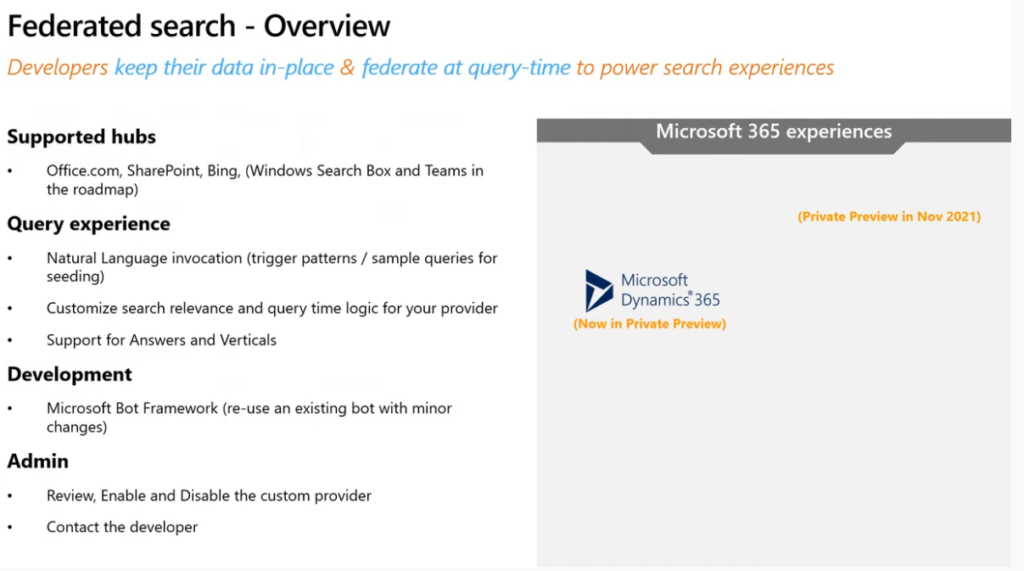
Search Federation federation capabilities will allow enterprises build and integrate their custom LOB search experiences, customized search providers, into the overall Microsoft Search. With federated search, you can make information from systems where the data cannot leave the systems boundaries available to search across in Microsoft 365 productivity apps and services, without indexing its data with Microsoft Search.
Standalone Search – AAD identity – Graph connector – Ingest your data – use Search = in Windows 10, Office.com ( e.g. for those who have their data in other productivity suite, have no intent to use m365, but want to search)
You have a Microsoft 365 subscription with SharePoint Online. You use PowerShell, PnP.PowerShell module and MS Graph API to work with SharePoint under current user’s credential. You need to authenticate to SharePoint Online via Connect-PnPOnline and to Microsoft Graph API interactively on behalf of a current user.
Problem
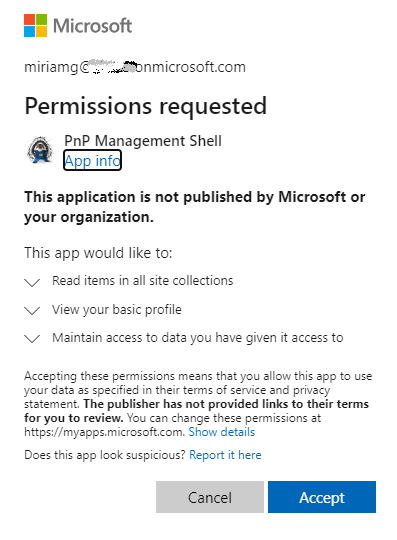
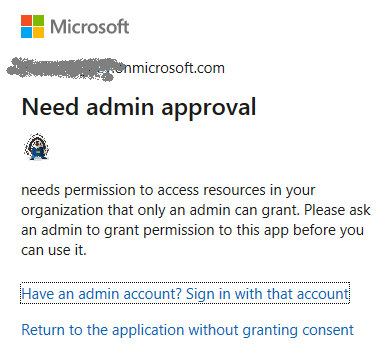
Unfortunately, both “Connect-PnPOnline -Interactive -Url <siteUrl>” or “Connect-PnPOnline -UseWebLogin -Url <siteUrl>” might fail with something like “Need admin approval”, “App needs permission to access resources in your organization that only an admin can grant. Please ask an admin to grant permission to this app before you can use it.” or “Permissions requested” or similar
configure API permissions blade: – add delegatedpermissions you need (refer to specific API you’ll use) e.g. Microsoft Graph Sites.FullControl.All and SharePoint AllSites.FullControl
A pop-up window will appear to authenticate interactively. If you are already authenticated with another credentials (or single-sigh-on) – an interactive window might pop up and disappear – that prevents you enter your other id. To ensure Connect-PnPOnline prompts you for your credentials – use ” -ForceAuthentication” option.
If you are a SharePoint tenant admin – you can connect to a tenant with:
By default token expires in ~ 1 hour. But you can refresh it silently. This helps you in long-running PowerShell scripts that takes hours to complete. So you can include something like this in the loop:
Somehow using Connect-PnPOnline with AccessToken option did not work if the token was acquired with MSAL.PS interactively. But it did work when you get msal.ps token unattended (using App credentials). So…
If you can get an Application (non Delegated) permissions to your azure-registerd-app, you can use msal token to connect to site with PnP
=========================
NB: For delegated permissions, the effective permissions of your app are the intersection of the delegated permissions the app has been granted (via consent) and the privileges of the currently signed-in user. Your app can never have more privileges than the signed-in user.