WIP
What if we provide Sites.Selected App permissions to SharePoint Admin Site?
TBP
WIP
What if we provide Sites.Selected App permissions to SharePoint Admin Site?
TBP
Sites.Selected MS Graph API permissions were introduced by Microsoft in March 2021. It was a good move towards site-level access for non-interactive (daemon) applications, but still developers were limited with only what MS Graph API provides for SharePoint. SharePoint CSOM and REST API still provides much more than MS Graph API.
So developers had to use AppInv.aspx at site level to provide ACS-based permissions to their apps to be able to use SharePoint CSOM and REST APIs. The bad news is ACS-based permissions have some downsides so some SharePoint/m365/security engineers consider them legacy and deprecated. But if we decide to disable SharePoint App-only service principals – all apps with ACS-based permissions provided via AppInv.aspx will stop working.
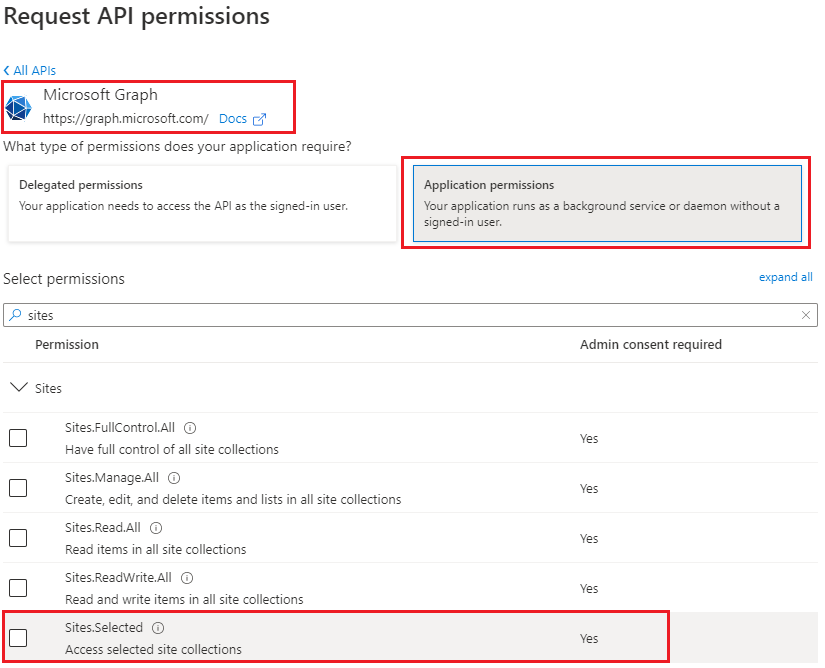
Recently Microsoft introduced Sites.Selected SharePoint API permissions for registered Azure Apps! So from now developers should be fully happy with API permissions provided in Azure (without SharePoint ACS-based permissions).
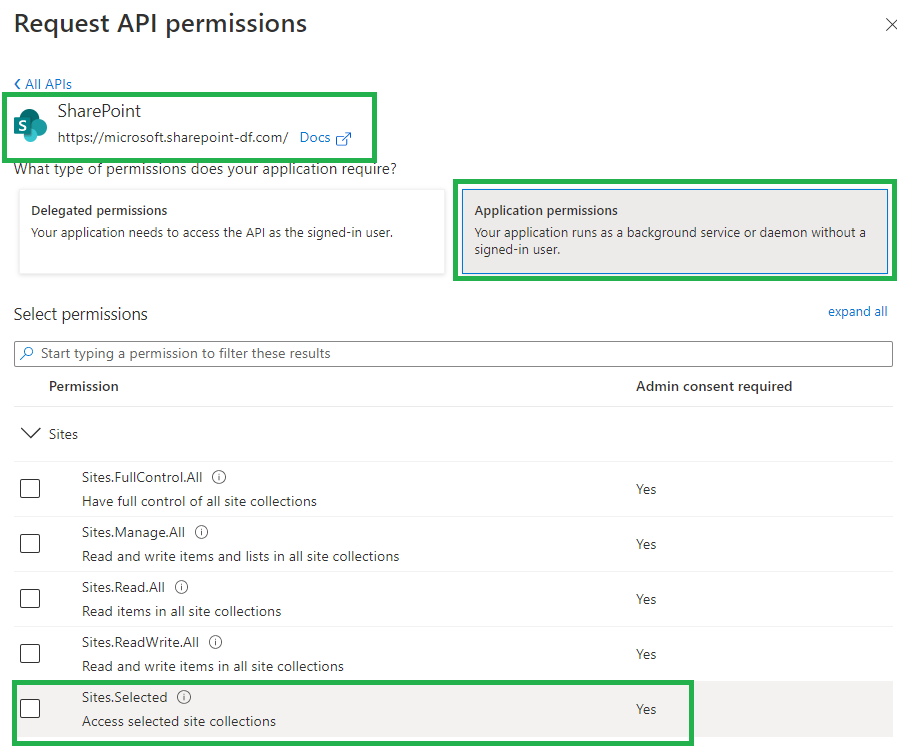
Why is this so important? Because this should allow us to be able to switch from ACS based permissions provided in SharePoint via AppInv.aspx to Azure-provided permissions and as a consequence – disable SharePoint-Apps only principal (‘set-spotenant -DisableCustomAppAuthentication $true’).
Why we are eager to disable Custom App Authentication in SharePoint? Simply say, SharePoint App-only service principals are not trackable (they all appeared as a “app@sharepoint.com” id in all logs) and hard to manage (there is no way to get list of existing/registered SP app-only service principals, sites and their owners) – see more in this article. (Update: there are tools – check Azure ACS retirement: Track down ACS apps).
So, SharePoint Sites.Selected application API permissions provided in Azure is a significant step to make Microsoft 365 SharePoint environment more secure and manageable.
Since Feb 2024 Microsoft supports also delegated Sites.Selected permissions. Delegated Sites.Selected permissions are assigned the same way as application Sites.selected permissions – through the /permissions endpoint. You still assign only the application id and role. When the call is made the permissions are calculated either as application or delegated, and assuming the request is authorized it will go through.
Microsoft implemented granular permissions ( e.g. to a list, item or file) alongside with Sites.Selected permissions. Original implementations of Sites.Selected allowed access to entire site collection only. With new ‘Lists.SelectedOperations.Selected’, ‘ListItems.SelectedOperations.Selected’ and ‘Files.SelectedOperations.Selected’ permissions it is possible to provide application permissions to list, library or list item or particular document (reference).
Details To Be Provided…
Since the beginning of 2024 Microsoft supports Delegated Sites.Selected API permissions. This is to support security best practices – the minimally possible access should be provided. I.e. the idea is: even Sites.FullControl.All delegated permissions allows access not to all sites, but to sites current user was provided access to, it would be a good idea to restrict access with only sites this specific app is required access to. That’s good.
Update: Sites.Selected API MS Graph permissions was introduced by Microsoft in 2021. It was a good move towards site-level development, but still developers were limited with only what MS Graph API provides for SharePoint dev.
So devs had to use AppInv.aspx at site level to provide ACS permissions to their apps to be able to use SharePoint CSOM and REST APIs.
Recently Microsoft introduced Sites.Selected SharePoint API permissions for registered Azure Apps! So now devs should be fully happy without ACS-based permissions.
You have an application that needs access to Microsoft 365 SharePoint Online site/list/documents. Application is running without interaction with users – e.g. unattended, as daemon job.
There are two options you can authenticate to Microsoft 365 – with the secret or with the certificate. Authenticating with certificate is considered more secure.
Note: we will use PowerShell 7.2 and PnP.PowerShell 1.9 to illustrate it.
If SharePoint-Apps only principal is disabled in your tenant
(i.e. ‘Get-PnPTenant | select DisableCustomAppAuthentication’ returns $true ), then the only way you work with SPO from code is:
In all other cases (even your Connect-PnPOnline command complete successfully) – you will be getting error 401 (unauthorized) when trying Get-PnPTenant or Get-PnPTenantSite or Get-PnPSite
If SharePoint-Apps only principals are enabled in your tenant
(i.e. ‘Get-PnPTenant | select DisableCustomAppAuthentication’ returns $false ), then you have three options to work with SPO from code:
There are scenarios when you need to pull only newly created SharePoint sites, e.g. get sites created since yesterday or get last 100 created sites. Usually other articles and existing PowerShell scripts solve this by pulling all sites from tenant and then iterating through sites to get only new sites. That approach is not nice and simply does not work in large environments. How can we get only sites created recently, not all sites? Here is how I use Microsoft Graph API to get only new sites.
Update (6/28/2024): Microsoft announced updates to it’s delta API for SharePoint, so I added option 3 – see below.
Let say you administer Teams, OneDrive and SharePoint Online in a Microsoft 365 tenant. You have a pretty big environment – ~10k or more sites and you want to quickly find just new SharePoint sites or teams (e.g. sites created recently – during last hour/day/week/month). This might be required for ad-hoc reports and for automation scenarios – like applying required configurations or assign some property value to all newly created sites.
With GUI it’s done easily: SharePoint Admin Center -> Active Sites -> sort based on “Date Created” – done.
With PowerShell – not so simple.
“Get-PnPTenantSite” cmdlet returns a site object but the object does not have “Created” field. It’s a web property (not site property). But to get a web object – you have to connect separately to each site and get root web object to check when the web was created. For small environments it is possible, for large environments it can take days… And still not nice.
“Get-PnPTenantSite” with “-Filter” option would help, but “…Currently, you can filter by these properties: Owner, Template, LockState, Url.”
Get-SPOSite – similar experience.
Teams + Exchange modules can help a little:
Get-Team | select GroupId | % { Get-UnifiedGroup $_.GroupId | select DisplayName, WhenCreated } | sort WhenCreatedbut… 1) it’ll give you group-based sites only 2) it is not easy to automate 3) this might take long for large environments. I know much better solution:
Microsoft Graph API helps. It returns result in seconds and you can sort or filter results based on created date . Below are two methods: Option 1 is based on Search and filtering and Option 2 is based on Sites Search and sorting. So there are some pros and cons for each method.

Entry point: https://graph.microsoft.com/v1.0/search/query
Microsoft Graph Search API allows KQL in queries. So we can form a query with something like “created>=1/1/2021” and use entity type = ‘[“site”]’. Search should return only sites created after Jan 01, 2021.
Check PowerShell script sample here: Get-NewSites.ps1
https://github.com/VladilenK/PowerShell/blob/main/reports/SharePoint/Get-NewSites.ps1
If you are getting more than 500 results – think of paging.
Entry point: https://graph.microsoft.com/v1.0/sites
This option is also based on Microsoft Graph API, but sites entry point, which allows search too and sort results by property “createdDateTime”. So we will just search for everything and select how many results we need based on createdDateTime property.
Check PowerShell script sample here: Get-NewSites.ps1
https://github.com/VladilenK/PowerShell/blob/main/reports/SharePoint/Get-NewSites.ps1
You can use “Get delta” under SharePoint Graph API – check for details here. It says “Get newly created, updated, or deleted sites without having to perform a full read of the entire sites collection”. I’ll do my own testing, but for now check this:
Video: Microsoft Graph Delta Capabilities in SharePoint API
Your organization use Microsoft 365. You are implementing or configuring an Intranet Portal (Home Site). Search plays an important role here – you want search be relevant to the context – i.e.
Microsoft Bookmarks are working only at tenant level search – i.e. if you want bookmarks work on site level search – you need to set up site search scope as tenant.
So if you configure the Intranet Portal site (Home site) search scope to “site” or “hub” to limit results with site/hub content – you will loose “answers” functionality.
The solution is very simple:
Update Query field with KQL – e.g., with something like
(path:http//contoso.sharepoint.com/sites/IntranetPortal/ OR path:http//contoso.sharepoint.com/sites/CompanyNews/ OR path:http//contoso.sharepoint.com/sites/Onboarding)/)
to get results only from “Intranet Portal” and “Company News” sites.
Keep in mind that this will affect all other SharePoint search entry points – SharePoint landing page, Office.com etc. – so although you can configure All (and Files) verticals, but it’s not recommended. It will confuse users – they expect to search for everything under “All” vertical. Instead, consider custom vertical – e.g. “Official” scope.
After configuring – It might take 1-24 hours for the change to take effect, depending on tenant size.
If you configure that at the tenant level – i.e., Microsoft 365 Administration -> Settings -> Search and intelligence -> Customizations -> Verticals
then search results will be trimmed everywhere – SharePoint Landing Page, Office landing page (Office.com), Office App, Bing search.
Teams search will not be affected as from Teams you only search for teams content. Same for Onedrive and Yammer.
If you want the “official” search results only under Intranet Portal and leave other search entry points unaffected – then
you need to configure the same at Home (Intranet Portal) site level: Site Settings -> Microsoft Search -> Configure search settings -> Verticals
and configure site search scope to site or hub scope. But in this case you will loose answers functionality.
Global search settings – like acronyms, bookmarks and verticals – works only if site search scope is tenant.
If site search scope is site or hub – then site-level search verticals will apply (and no answers functionality will be possible).
There might be two problems with that:
The solution is DepartmentId property:
Use DepartmentId={<Hub Site ID>} in the KQL qury and your search results will be limited to your hub content while answers will still be working too. You can even combine DepartmentId with other conditions to add more sites (that are not in hub) to search scope:
(DepartmentId={4965d9be-929b-411a-9281-5662f5e09d49} OR path:http//contoso.sharepoint.com/sites/Onboarding OR path:http//contoso.sharepoint.com/sites/CompanyNews)
It worth to mention, that DepartmentId is the property that propagated from the root of the hub site to all associated sites and their content – list items, documents and pages.
Another possible option would be – site property bag…
The ultimate goal is to provide users with “Official” results only. But official sites might not be all part of one Home site hub. We can include in All search vertical query 10, 50, 100 sites, but what if we have 10k official sites in enterprise – e.g. operated by different departments – and all of them might want to be present in search results.
So, how about – if the site is considered official – we create an indexed site property, e.g. “SiteIsOfficial” with a value “Yes”. Then we map the crawled property to a managed property – e.g. RefinableString89 – and use this managed search property in query – e.g. (SiteIsOfficial=Yes).
This is actually clever idea, but this does not work… This query would only return sites, not sites content. E.g. what was indexed as site object – will be included (including home page). But site items – i.a. documents, lists, other pages – all site content – will not be included…
So let’s get back to DepartmentId…
Again – the ultimate goal is to give users option to have “Official” results. But they still might want to be able to search through all content.
What if we rename the default “All” vertical to “Home Site” and configure query for official results only.
Then we can create a custom vertical called “Everything” or “All” with no query limitations to give users all reasults
Update: not a good idea either… If the home site search scope is tenant – so verticals are configured and be visible at tenant level – i.e. everywhere…
My personal preference is to keep All vertical as real All, and create a custom Vertical “Official” for official results only where we would use query trick.
In addition, it would be nice to highlight results from official sources by using custom result type – check “Manage result layouts for SharePoint results in Microsoft Search”
There is a new feature in Microsoft 365 SharePoint Online – “Restricted SharePoint Search“. With Restricted SharePoint Search you can restrict organization-wide search to a curated set of “allowed” SharePoint sites – sites that you have checked the permissions and applied data governance for.
UPDATE: this approach only works if the mobile number is stored in SPO UPA.
If the mobile number is stored in AAD only, the admin will need to remove the mobile number from AAD for the affected users.
UPDATE 2: In December 2024, Delve will be retired.
Scenario:
you administer SharePoint Online Microsoft 365 tenant
business asks you to remove mobile phone numbers from SharePoint User Profiles:
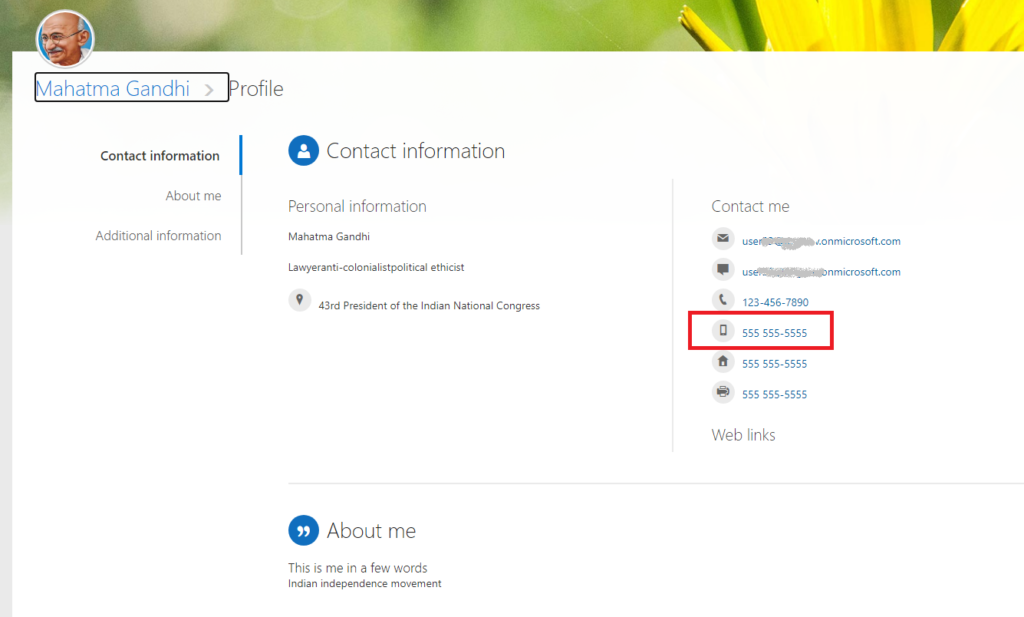
As a SharePoint administrator, you can do it:
1. Start Microsoft 365 SharePoint Admin Center
2. Navigate to More Features -> User Profiles -> Manage User Properties
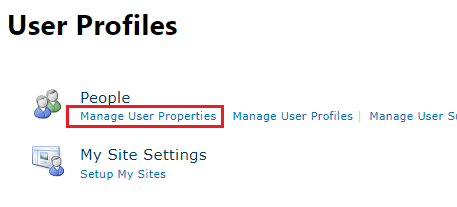
3. Under “Contact Information” -> Mobile phone -> Edit
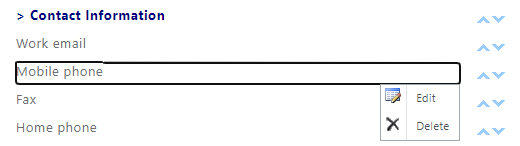
4. Uncheck “Replicable”, Save, wait a minute or two
5.
– Select “Default Privacy Settings”: “Only Me”
– Uncheck “User can override”
– Uncheck “Allow users to edit values for this property”
– Uncheck “Show in the profile properties section of the user’s profile page”
– Uncheck “Indexed”
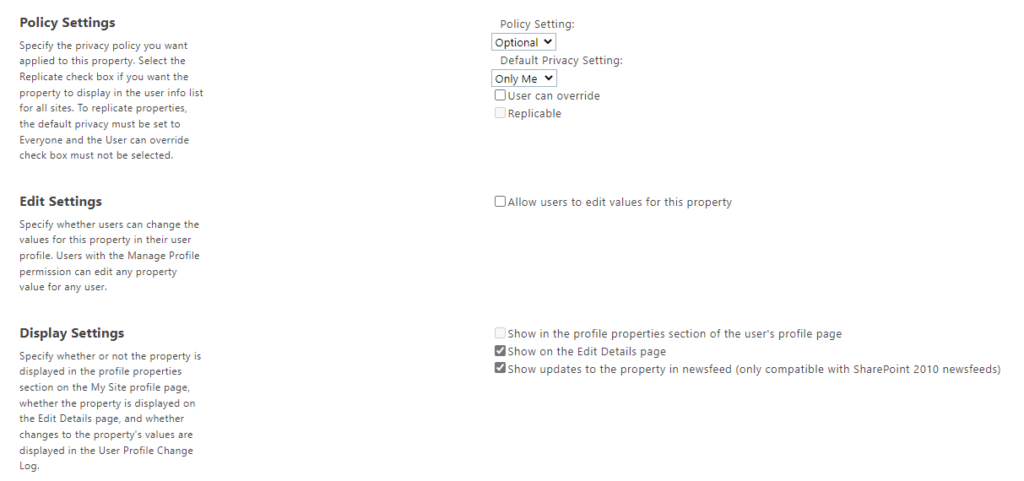
6. Save
Note: Microsoft implemented new MS-Graph API that adds or deletes profile card custom properties using the profile card API in Microsoft Graph
Resources:
How can I get HTML content of a SharePoint online page from code, e.g. PowerShell?
Invoke-WebRequest returns “Sign in to your account” page, not a real page, even with -Token option.
Thanks to Denis Molodtsov, the solution is found. It turns out the “Invoke-PnPSPRestMethod” PnP cmdlet works not only against /api endpoints, but also against site pages and system pages.
But (as per my experience) it works only with PnP.PowerShell and with -UseWebLogin authentication option and with -raw parameter.
Connect-PnPOnline -url $siteUrl -UseWebLogin
Invoke-PnPSPRestMethod -url /_layouts/15/viewlsts.aspx -Raw
Other combination of authentication options ( -interactive, -clientId, -Token, -SPOManagementShell, -PnPManagementShell ) – worked well, but only for /_api endpoints, and gave me “401 UNAUTHORIZED” against system/site pages.
Unattended authentication (with clientId, clientSecret and certificate) – same.
Legacy PnP module SharePointPnPPowerShellOnline did not work at all: “EXCEPTION,PnP.PowerShell.Commands.Admin.InvokeSPRestMethod”.
I tested it with
– SharePointPnPPowerShellOnline v 3.29.2101.0 (under Windows PowerShell 5.1) and
– PnP.PowerShell 1.8.0. (both Windows PowerShell 5.1 and .net core PowerShell 7.1.5)
Microsoft announced SharePoint Alerts retirement. Starting from October 2025 – the SharePoint Alert expiration feature will be gradually activated. In January 2026 Microsoft will turn off creation of new SharePoint Alerts (gradually). In July 2026 the ability to use SharePoint Alerts will be removed.
How do we know how many alerts are configured in our tenant? Can we get a report on all alerts of all users from all tenant SharePoint sites?
Approaches are:
You’d just use “Get-PnPAlert” cmdlet. That is it.
It requires connection to a specific site, and it allows to get all alerts for the specific user, all alerts for the specific library and all alerts for all users and all lists/libraries:
Get-PnPAlert -AllUsersThe cmdlet returns an alert object with the following properties: AlertFrequency, AlertTemplateName, AlertTime,AlertType,AllProperties,AlwaysNotify,DeliveryChannels,EventType,Filter,ID,Item,ItemID,List,ListID,ListUrl,Properties,Status,Title,User,UserId,Context,Tag,Path
If you need to get all alerts from all tenant sites – just do the same in a loop. Here is the example:
https://github.com/VladilenK/m365-PowerShell/blob/main/reports/Site/Get-Site-Alerts.PnP.ps1
This is an old-style CSOM-based script we used before PnP designed their beautiful cmdlet. Notice that what took 20 lines of code PnP implemented in one cmdlet.
PowerShell Script to get All Alerts of all Users from a specific SharePoint Online Site Collection, including subsites:
https://github.com/VladilenK/PowerShell/blob/main/reports/Site/Fetch-All-Alerts-from-SPO-Site.ps1
it is based on Salaudeen Rajack’s script:
“SharePoint Online: Get All Alerts from a Site Collection using PowerShell“
I updated authentication part, so now the script support both MFA and password-only based authentications
You have a Microsoft 365 subscription with SharePoint Online. You use PowerShell, PnP.PowerShell module and MS Graph API to work with SharePoint under current user’s credential. You need to authenticate to SharePoint Online via Connect-PnPOnline and to Microsoft Graph API interactively on behalf of a current user.
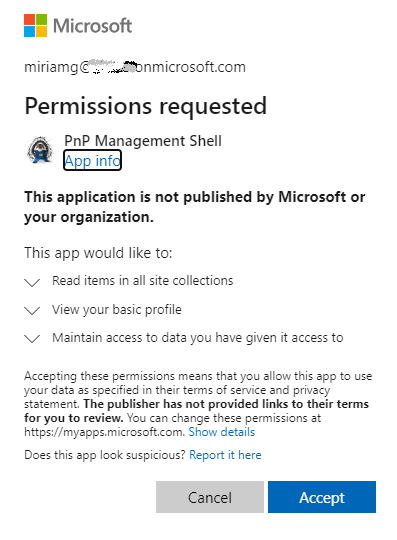
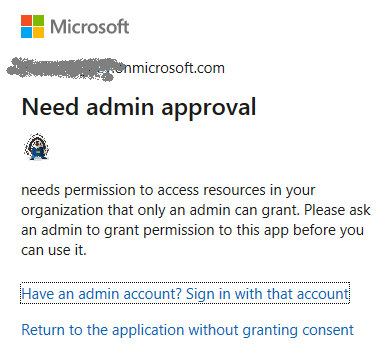
Unfortunately, both “Connect-PnPOnline -Interactive -Url <siteUrl>” or “Connect-PnPOnline -UseWebLogin -Url <siteUrl>” might fail with something like “Need admin approval”, “App needs permission to access resources in your organization that only an admin can grant. Please ask an admin to grant permission to this app before you can use it.” or “Permissions requested” or similar
$siteUrl = "https://contoso.sharepoint.com/teams/myTeamsSite"
$appId = "" # Client Id
Connect-PnPOnline -ClientId $appId -Url $siteUrl -Interactive
Get-PnPSite
A pop-up window will appear to authenticate interactively. If you are already authenticated with another credentials (or single-sigh-on) – an interactive window might pop up and disappear – that prevents you enter your other id.
To ensure Connect-PnPOnline prompts you for your credentials – use ” -ForceAuthentication” option.
If you are a SharePoint tenant admin – you can connect to a tenant with:
$orgName = "yourTenantPrefix"
$adminUrl = "https://$orgName-admin.sharepoint.com"
$appId = "" # Client Id
$connection = Connect-PnPOnline -ClientId $appId -Url $adminUrl -Interactive -ReturnConnection # -ForceAuthentication
$connection Use MSAL.PS module to get an msal token then use token in Microsoft graph-based requests:
$tenantId = ""
$clientid = ""
$url = ""
$token = Get-MsalToken -ClientId $clientid -TenantId $tenantId -Interactive
By default token expires in ~ 1 hour. But you can refresh it silently.
This helps you in long-running PowerShell scripts that takes hours to complete.
So you can include something like this in the loop:
if ($token.ExpiresOn.LocalDateTime -lt $(get-date).AddMinutes(10)) {
  $token = Get-MsalToken -ClientId $clientid -TenantId $tenantId -ForceRefresh -Silent
  Write-Host "Token will expire on:" $token.ExpiresOn.LocalDateTime
}Somehow using Connect-PnPOnline with AccessToken option did not work if the token was acquired with MSAL.PS interactively. But it did work when you get msal.ps token unattended (using App credentials). So…
If you can get an Application (non Delegated) permissions to your azure-registerd-app,
you can use msal token to connect to site with PnP
=========================
NB: For delegated permissions, the effective permissions of your app are the intersection of the delegated permissions the app has been granted (via consent) and the privileges of the currently signed-in user. Your app can never have more privileges than the signed-in user.
Update (Feb 2025):
A new KBA: Azure ACS retirement: Track down ACS apps
Update (May 2023):
You can use Get-PnPAzureACSPrincipal to returns the lists of all Azure ACS principals installed in your Tenant including subsites.
Update: Sites.Selected API MS Graph permissions was introduced by Microsoft in 2021. It was a good move towards site-level development, but still developers were limited with only what MS Graph API provides for SharePoint dev.
So devs had to use AppInv.aspx at site level to provide ACS permissions to their apps to be able to use SharePoint CSOM and REST APIs.
Recently Microsoft introduced Sites.Selected SharePoint API permissions for registered Azure Apps! So now devs should be fully happy without ACS-based permissions.
Update: I’m not sure when Microsoft implemented that, but I recently found another Record Type – “SharePointAppPermissionOperation”. There is an Activity type – AppPermissionGrant…
To be explored…
After all the updates the original article below is probably obsolete…
Developers in the organization can use both – Azure Apps and SharePoint Apps to work with SharePoint sites in their “daemon” applications.
It is recommended to use Azure apps so, you want to know – what are SharePoint Apps registered and their owners, who registered SharePoint Apps. Eventually you would disable SharePoint Apps-only principal but before that you’d move Devs from SP-App-only to Azure App (see Disable Custom App Authentication).
(SharePoint App-only service principals aka SP-App-Only are SPN or App registered from within SharePoint using AppRegNew.aspx system page).
One of the approaches is to track Apps/Owners (or who register an app) with Unified Audit Log
The following PowerShell code:
$operations = 'Add service principal.'
$recordType = 'AzureActiveDirectory'
Search-UnifiedAuditLog -StartDate $start -EndDate $end -ResultSize $resultSize -Formatted -Operations $operations -RecordType $recordType
returns events with operation = ‘Add service principal.’ Nice, but…
if an app was registered in Azure – event contains an UPN under UserIds property:
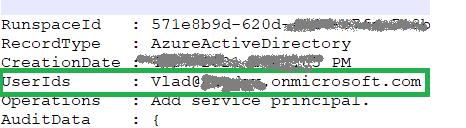
Unfortunately, in case with registering app in SharePoint, an audit log event will be like:
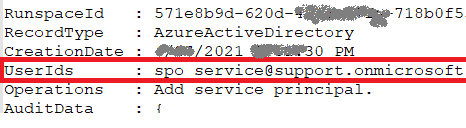
i.e. UserId registered is “spo_service@support.onmicrosoft.com”, so we do not know who registered a SharePoint-only app
In theory – we could use events recorded immediately before and after “Add service principal” event to track a user and site who has registered a SharePoint-only app… But for me it seems like too complicated for automation.

Instead we can do simple search through audit log for events “AppRegNew.aspx page visited”. This gives us a good approximation of who registered SP-App-only principal. Worst scenario – we reach more people than we really need (including those who started registering sp-app-only but did not complete) but all of them would be definitely our target auditory.
Consider the following code:
$freeText = "appregnew"
$operations = 'PageViewed'
$recordType = 'SharePoint'

$results = Search-UnifiedAuditLog -StartDate $start -EndDate $end -ResultSize $resultSize -FreeText $freeText -Operations $operations -RecordType $recordType
this would give you all users who loaded “/_layouts/15/appregnew.aspx” page