SharePoint Advanced Management Deep Dive

SharePoint Advanced Management is an add-on to Microsoft 365 for admins. Microsoft says that it is a powerful suite of tools for IT admins to bolster content governance throughout the Microsoft Copilot deployment journey. Let us have a closer look at what SharePoint Advanced Management (SAM) is how exactly it helps with governance enforcement in the Copilot era.

Microsoft recently updated SAM features (this KBA is based on Oct 2025 features set). Now Advanced management page has a dashboard – “Overview” tab and “All features” tab.

Advanced management – Overview

On the “Overview” page Microsoft wants us to run assessment. “Start assessment” button starts assessment immediately. So let us click “Start assessment” button and see what it does exactly. Btw, it might take from days to weeks for your tenant – depending on the tenant size. While assessment is in progress – it’ll display “Assessment in progress. This might take some time. We’ll display the results as soon as they’re ready.”

It took 3-4 hours for my small dev tenant to assess Site lifecycle and find 62 sites require attention:

Advanced management – All features

Microsoft classifies SAM’s features as “Manage content sprawl”, “Manage content lifecycle”, “Manage permissions and access”. I’d put SAM’s tools into these buckets: Reports, Policies, Search, Features.

SAM Reports

SharePoint SAM reports provide structured, actionable data that you can analyze to optimize governance strategies and implement immediate improvements. Reports available are:

  • Agent Insights – how agents are accessing the content on the sites
  • App insights – review apps registered in Entra allowed access to SharePoint sites
  • Change history reports – site actions or organization setting changes
    you can choose org-wide or site-level settings, specify date range, sites and all or specific admins
  • Content services reports – Term store, term sets and terms
  • Data Access Governance (4 different ones)
    • Site permissions across your organization
    • Sharing Links with 3 pre-configured reports:
      Anyone links, People in your org links and Specific People links shared externally
    • Sensitivity labels applied to files: select label -> generate report
    • Content Shared with Everyone Except External Users:
      to discover specific sites whose content was made accessible for EEEU
      you can choose from two types of report: where specific files/folders/lists are shared with EEEU or “Site membership” where EEEU was added as a member and initialize access review
      (see Deep Dive into SAM DAG Content shared with EEEU access review)
  • OneDrive Accounts report – about unlicensed OneDrive accounts
  • Site policy comparison – control oversharing by identifying sites with similar files and different policies

SAM Policies

Policies in SharePoint SAM define governance rules that are enforced automatically, minimizing manual intervention and ensuring consistent compliance. SharePoint Advanced Management policies are:

  • Site Lifecycle management: Inactive Site Policy. Allows:
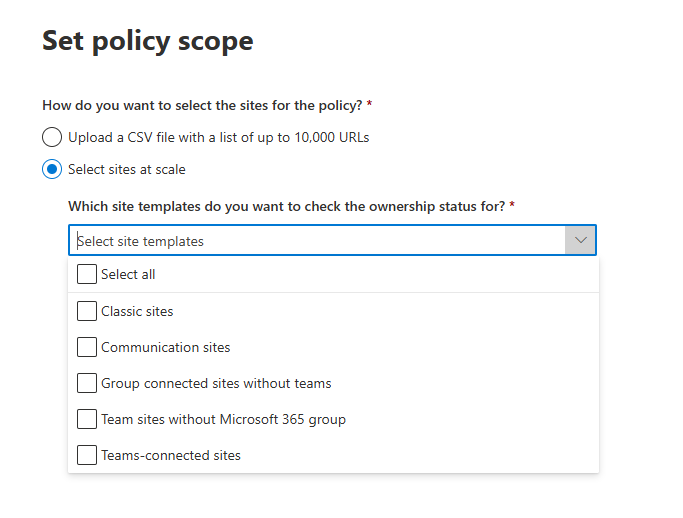
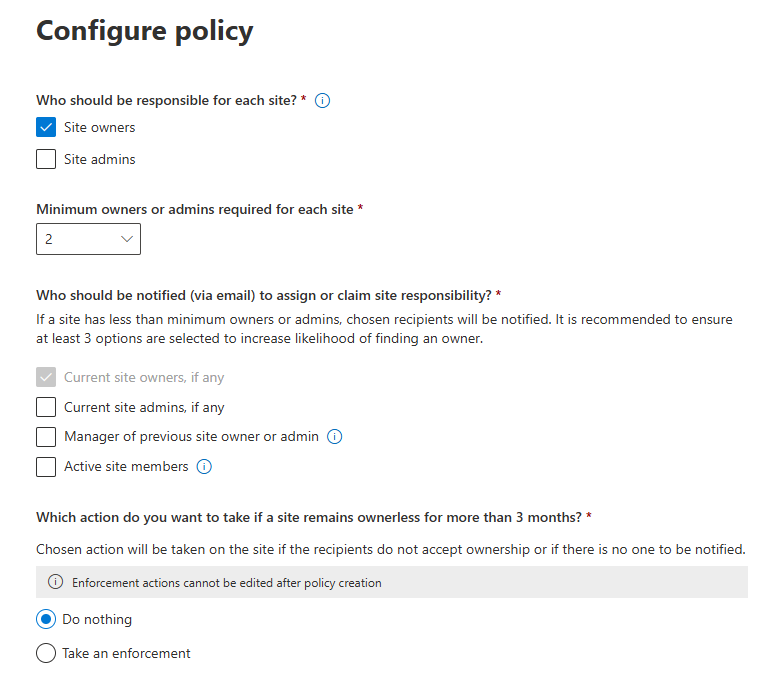
  • Site Lifecycle management: Site Ownership Policy (went live June 2025)
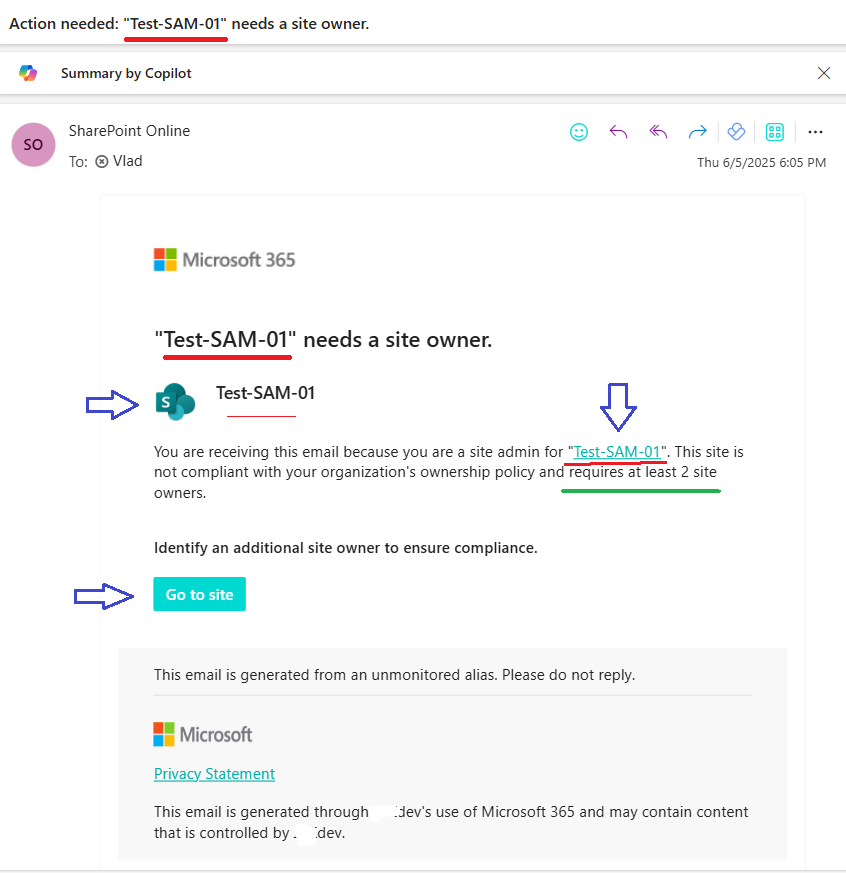
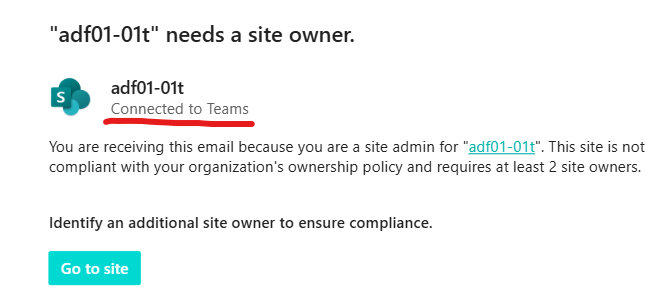
    (see my SharePoint Site Ownership Policies Deep Dive)
  • Access control – Site-level access restriction
  • Access control – OneDrive access restriction

AI Insights – report feature that uses a language model to identify patterns and potential issues and provide actionable recommendations to solve issues

Features

Features are smaller that policies, more like an update to existing functionality.

  • Conditional access to SharePoint site policy
    This enhances existing conditional access Entra Id feature with the ability to apply the policy to SharePoint sites directly or via Site sensitivity label.
  • OneDrive access restriction
  • SharePoint site-level access restrictions
  • Block download policy
  • Your recent actions
  • Default sensitivity labels for document libraries
  • Site access review

SAM for Search

I put it separately:

  • restrict discovery of SharePoint sites and content
  • Restricted SharePoint search

TBP

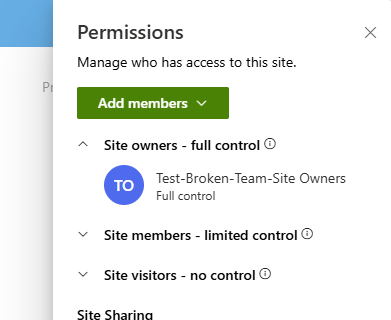
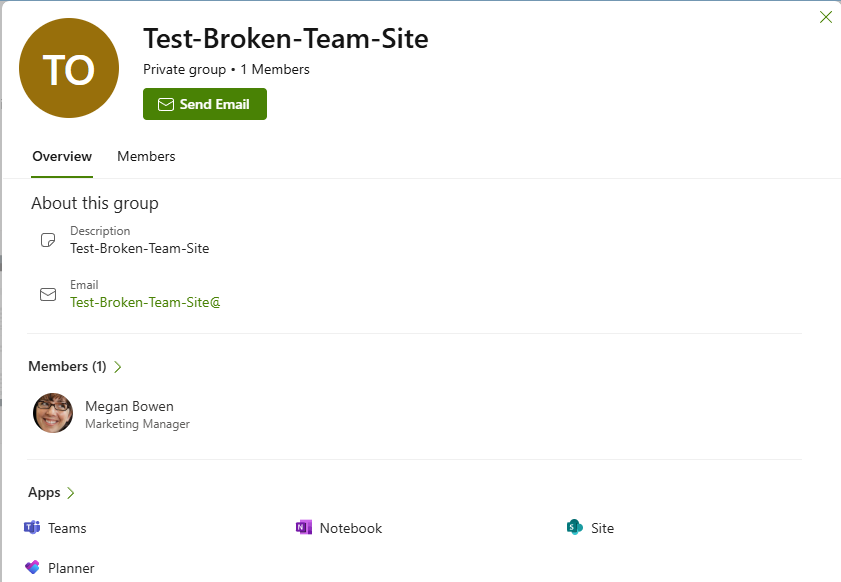
Microsoft 365 admin center displays incorrect sensitivity label

Found an issue in Microsoft 365 – it seems like if a sensitivity label is not published for a user – this user will see inconsistency when different sources display sensitivity label differently.

Scenario: A site/group sensitivity label was created under the Purview center. Label enforces some settings to the group/site, like privacy and external sharing. User cannot assign label to site/group until label is published to that user. In this scenario sensitivity label was published to the admin1 but not published to the admin2.

Admin1 assigned sensitivity label to a group-based site.

What admin2 can see in this case is:

ProductSensitivity Label
Teams correct sensitivity label
SharePoint Site correct sensitivity label
My Groups – Groups I Own – View experiencecorrect sensitivity label
My Groups – Groups I Own – Edit experienceno label
SharePoint Admin Centercorrect sensitivity label
Teams Admin Centercorrect sensitivity label
Microsoft 365 Admin Center – Teams&Groupsno label
Entra Id – Groupsno label

Moreover, in some cases you could even see incorrect sensitivity label under Entra Id…

Microsoft says it’s by design. For me this kind of design simply does not make sense.

There is a Design Change Request:
https://feedback.azure.com/d365community/idea/4246b7a8-2119-f011-9d47-7c1e52d4bdd3

If you think this behavior must be changed – please vote for the DCR.

Below are some screenshots:

In particular,

Tableau Cloud Connection to SharePoint

Recently I helped one client to connect his Tableau Cloud to SharePoint, so let me share how it’s done, as Tableau documentation was not very helpful, so I had to do my own research.

What you’d need is:

  1. Your Tableau Cloud site location
  2. Azure App Registration (Entra Id), configured properly
  3. OAuth Client configured at the Tableau site settings

Having these steps done – you should be able to connect to data (SharePoint or Onedrive site or SharePoint list).

Here are the details…

Your Tableau Cloud location

You need it to build a Redirect URI. Tableau documentation says:

...Note the pod your Tableau Cloud site is located to ensure you enter the correct redirect URL during the registration process in Step 2 below. The redirect URL uses the following format:
https://<your_pod>.online.tableau.com/auth/add_oauth_token
For example, https://us-west-2b.online.tableau.com/auth/add_oauth_token

So, you would check this part in bold of your Tableau cloud instance:
https://us-west-2b.online.tableau.com/
and construct a Redirection URI:
https://us-west-2b.online.tableau.com/auth/add_oauth_token

Examples are:

https://10ay.online.tableau.com/auth/add_oauth_token
https://dub01.online.tableau.com/auth/add_oauth_token
https://us-east-1.online.tableau.com/auth/add_oauth_token

Azure (Entra Id) App Registration

You need an App Registration under Entra Id, with API permissions consented and Authentication configured

API permissions must be the following: Under Graph API, delegated Files.Read.All, Sites.Read.All, User.Read, offline_access:

Authentication blade. You’d add platform: Web and use Redirect URI as above. Example:

Secret

Secret you’d generate under App Registration Certificates and secrets:

Once secret is generated, copy the secret value in a safe place and do not share it.

Also, get your app id and tenant id (those are not secrets but I still prefer not to share):

At this moment you should have from your App registration:

  • Tenant Id
  • Client (App) Id
  • Client Secret
  • Redirect Url

Now we are ready to configure

OAuth Client at the Tableau Site Settings

Having Site Admin permissions (Tableau Site Admin, not SharePoint), you should be able from the left menu navigate to the bottom “Settings” and under General tab scroll down to the “OAuth client registry” and click “Add OAuth Client”.

You’d need two OAuth client configured – one for “OneDrive and SharePoint Online” and the other one for “SharePoint List (JDBC)”.

OneDrive and SharePoint Online” Experience is:

Here your OAuth instance Url would be:
https://login.microsoftonline.com/<Teanan tId>/

e.g.:
https://login.microsoftonline.com/332d223e-c55f-4c38-af69-214fe2a73f0a/

Client Id, Client secret and Reirect Url you can get from Step 2.

SharePoint List (JDBC)” experience:

Same here.
OAuth instance Url is: https://login.microsoftonline.com/<your tenant id>/
Client Id, client secret and redirect Url you get from Step2.

Now you are ready to connect…

Tableau Connect to Data: OneDrive and SharePoint Online

Connecting to Data from Tableau, you’d select “OneDrive and SharePoint Online” or “SharePoint List (JDBC)”

Connecting to “OneDrive and SharePoint Online” – you’ll be asked to provide “OAuth Instance Url” again:

So, again, you’d put your tenant Id instead of “common”. After connected, you’d see something like this:

Under OneDrive (personal files) – you’d see your own content located at your personal OneDrive site.
Under OneDrive (shared with you) – you’d see content shared with you and located at other’s personal OneDrive sites.
Under SharePoint sites – you’d see content of SharePoint sites you have access to – all content – documents, lists etc.

Connecting to “SharePoint List (JDBC)” – experience would be

So, you’d provide a specific site collection Url (not list), e.g.
https://contoso.sharepoint.com/teams/Test-Site-01
and you’d provide “OAuth Instance Url” again, just remember – replace “common” with your Tenant Id.

In both cases you should get a pop-up authentication window – provide your credentials after that you should be able to see data in SharePoint.

Possible error messages

Client secret

Client secret is an essential part. It is not market as required in the form, but without secret connection is not working. You can get something like this:

Tableau received an OAuth error from your request. Please see the error message for more information: 401 Unauthorized POST https://login.microsoftonline.com/—/oauth2/v2.0/token. (errorCode=170006)

Reply address

If you did not configure Authentication at your App Reg or configured incorrectly – you might get error message “Sorry, but we’re having trouble signing you in” “AADSTS900971: No reply address provided.”


Solving Issues with m365 Copilot Agents

Issue # 1 – Unable to create

It says “Unable to create” and “We were unable to create this agent due to an error. Try again.”
or
“Unable to update” and “We were unable to update this agent due to an error. Try again.”

Unable to create
We were unable to create this agent due to an error. Try again.
Unable to update

We were unable to update this agent due to an error. Try again.

More info:
The problem appears to be when copilot tries to save agent (POST to https://powervamg.us-il105.gateway.prod.island.powerapps.com/chatbotmanagement/tenants/…/environments/Default-…/minimalBots/api/…/publish – it returns 500 Internal Server Error).

Cause:
In my case the cause was my license was assigned a few hours before, so it seems like it takes some time for Microsoft to populate updates.
In the other case I troubleshooted it turned out user did not have a license assigned (license was removed), but “Create an agent” button was available.

Solution:
Ensure you have a license for Microsoft 365 copilot assigned and (ideally) wait 24 hours.
Microsoft: “If you recently purchased a license or started a free trial, it may take up to 24 hours for the license to take effect.”

Python connect to SharePoint via Graph API with Delegated Permissions

Below is the sample Python code to authenticate against Microsoft 365 as current user with MSA library and to call Microsoft Graph API – specifically get SharePoint Site, get Site lists with requests library.

But first, you have to have an App Registration in Azure (Entra ID) with delegated permissions consented and authentication configured.

Delegated Permissions

If your solution needs access to all SharePoint sites – consider Sites.FullControl.All or Sites.Manage.All or Sites.ReadWrite.All or Sites.Read.All depending on access level you need. Effective permissions would be an intersection (minimum) from both – permissions configured for app registration and permissions current user have. Once consented at the app registration – these permissions will work right away.

If your solution needs access to a one (or a few) SharePoint sites – consider Sites.Selected API permissions as it will scope down access to the only sites that are required for your solution to work. Remember, Sites.Selected API permissions, even consented at the app registration, require second step – SharePoint admin should provide (read or write or manage or fullcontrol) permissions for the app registration to a specific site or sites.

Authentication

You’d also need to configure authentication blade. How? It depends on the kind of application you are building etc. For example for native apps I do:
– add platform – “Mobile and Desktop app”
– select “https://login.microsoftonline.com/common/oauth2/nativeclient”
– select “msal096fd951-7285-4e4f-9c1f-23a393556b19://auth (MSAL only)”
– add custom Redirect URI: “http://localhost”

This config works for Python code below

Python Code

You’d need to install/import the libraries: json, configparser, msal, requests

Here is the code:

import json
import configparser
import msal
import requests

config = configparser.ConfigParser()
config.read('config.cfg')
client_id = config.get('delegated','clientId')
authority = config.get('delegated','authority')
scopes = config.get('delegated','scope').split()
siteId = config.get('delegated','siteId')
print( client_id)
print( authority)
print( scopes)
print( siteId)

global_token_cache = msal.TokenCache()
global_app = msal.PublicClientApplication(
    client_id,
    authority=authority,  # For Entra ID or External ID
    token_cache=global_token_cache,  
    )

def acquire_and_use_token():
    # The pattern to acquire a token looks like this.
    result = None
    result = global_app.acquire_token_interactive(scopes)

    if "access_token" in result:
        print("Token was obtained from:", result["token_source"])  # Since MSAL 1.25
        # print("Token acquisition result", json.dumps(result, indent=2))
        return result["access_token"]
    else:
        print("Token acquisition failed", result)  # Examine result["error_description"] etc. to diagnose error
        return None


token = acquire_and_use_token()


http_headers = {'Authorization': 'Bearer ' + token,
                'Accept': 'application/json',
                'Content-Type': 'application/json'}

graph_url = 'https://graph.microsoft.com/v1.0/sites/' + siteId + '?$select=id,webUrl,displayName'

siteResponse = requests.get(graph_url, headers=http_headers)
print(siteResponse.status_code)
site = json.loads(siteResponse.content)
# print("Site (raw) : ")
# print(site)
print("Site webUrl : ", site["webUrl"])
print("Site displayName : ", site["displayName"])

# Lists
graph_url = 'https://graph.microsoft.com/v1.0/sites/' + siteId + '/lists'
listsResponse = requests.get(graph_url, headers=http_headers)
print(listsResponse.status_code)
lists = json.loads(listsResponse.content)
# print("Site lists (raw):")
# print(lists)
print("Site lists:")
for list in lists["value"]:
    print("  Display Name:", list["displayName"])
    print("   Id:", list["id"])
    print("   Web Url:", list["webUrl"])
    print("   Created Date:", list["createdDateTime"])
    print("   Last Modified Date:", list["lastModifiedDateTime"])

Application permissions

If your scenario is to call Graph API from Python with application permissions (aka unattended or daemon app) – the main difference is authentication. It is described here. It also requires App registration configured like this.

Azure ACS retirement: Track down App-Only (ACS) apps

With Microsoft officially announcing the retirement of legacy Azure Access Control Services (ACS), SharePoint administrators are now racing against time. For over a decade, ACS-based permissions—commonly known as SharePoint app-only service principals—have been widely used, with countless tutorials and blog posts guiding users on how to implement them in their applications.

However, many of these ACS-based apps are still actively accessing SharePoint sites. When Microsoft eventually disables ACS, we want to avoid a scenario where critical business processes suddenly break and teams are left scrambling.

To stay ahead of this change, our goal is to identify all app-only principals still relying on ACS to access SharePoint. This includes gathering details about the apps, their owners, the sites they access, and the site owners. The ultimate objective is to proactively reach out to the responsible stakeholders, inform them about the upcoming retirement, and encourage them to migrate their solutions to modern authentication methods.

Below is my deep dive into tracking/inventoring ACS apps, but for those who just want a quick solution – there is a Summary in the end.

Technical details

What kind of apps we are talking about, specifically? I can see the following options:

  1. Apps that were registered in SharePoint via AppRegNew.aspx (aka SharePoint app-only service principals) and provided with permissions in SharePoint via AppInv.aspx
  2. Apps that were registered in Azure (Entra Id) and provided with permissions in SharePoint via AppInv.aspx

Let us start with pulling data, then I’ll provide step by step instructions how to discover App-Only apps, get these apps activity and actions need to be taken.

Techniques we can use to get data

  • analyze audit log to get events where apps are accessing sites
  • analyze audit log to get events where ACS permissions were provided to sites
  • get data from system that tracks request for new ACS permissions
  • use reports from admin center
  • use the PnP Microsoft 365 Assessment Tool 
  • get report on apps owners and permissions from from Entra Id

Let us deep dive into each data source to see if it is actually helps us to get ACS apps in use…

Audit log: apps accessing sites

Microsoft 365 audit log is supposed to save all events happening in Microsoft 365. It is available for admins via GUI, PowerShell Exchange Module and Graph API. GUI Search m365 audit log now lives under Microsoft Purview – Solutions – Audit.
Unfortunately, when an App registered in Azure is accessing SharePoint sites – not all events are logged. Here are some of the events that are stored in the Microsoft 365 unified audit log:

Accessing list items:

  • List Item Viewed
  • List Item Created
  • List Item Updated
  • List Item Deleted

Accessing Documents in libraries:

  • File Accessed
  • File Uploaded
  • File Modified
  • File Downloaded
  • File Deleted

Events would have a UserId “app@sharepoint”. Other event details include activity/operation (PageViewed, FileModified etc.), Item (full Url of a document or page etc.), AppAccessContext (includes ClientAppid, ClientAppName), ApplicationId (yes, this is how we know what app access what url on the site), and many other details. When an app fails to access SharePoint – due to expired secret or missing permissions or because ACS is disabled – no events are logged.

Unfortunately, from analyzing audit log events – you cannot say if the App that is accessing SharePoint were provided with ACS permissions (via appinv) or Graph API (e.g. Sites.Selected via Entra Id).

Get Service Principals activity via Microsoft Graph API

The following reports are available via MS Graph API (some as v1.0, others in preview only under beta):

Service principal sign-in activity

This report is available through the servicePrincipalSignInActivity resource type and details the sign-in activity for a service principal in your tenant. The sign-in activity can be delegated or application-only scenarios. For application-only scenarios, the application credential activity provides additional information on the credential usage.

Service principal sign-in activity report provides the following details for every service principal:

  • id,
  • appId,
  • lastSignInActivity,
  • delegatedClientSignInActivity,
  • delegatedResourceSignInActivity,
  • applicationAuthenticationClientSignInActivity,
  • applicationAuthenticationResourceSignInActivity

More on Service principal sign-in activity

Application credential sign-in activity

This report is available through the appCredentialSignInActivity resource type and details the usage of an app credential (secret, certificate, or federated identity credential) in your tenant.

Application credential sign-in activity report provides the following details for every service principal credential:

  • id, keyId, keyType, keyUsage,
  • appId, appObjectId, servicePrincipalObjectId,
  • resourceId,
  • credentialOrigin,
  • createdDateTime,
  • expirationDateTime,
  • signInActivity

More on Application credential sign-in activity

Microsoft Entra audit logs via Graph API

Graph API allows you to get Entra Id audit log events, including logins of service principals: Microsoft Entra audit logs API. Microsoft: “Microsoft Entra provides an audit trail of all user and app activity in your tenant to help you track all activities in your tenant and also be compliant. These logs include both app and user sign in activity“. Available under “/auditLogs/signIns”. The only thing is it does not work for us.

First (minor issue) – I could not get app sign in activity under production API (v1.0), only under beta (Feb 2026). The biggest issue is id does not catch events we want it to catch. See the table:

ActionAudit Log Event
status, ErrorCode, FailureReason
(ACS enabled)
Connect-PnPOnline: OK
Get-PnPSite: Failed (secret expired)
Status: Failure
errorCode=7000222;
failureReason=The provided client secret keys for app ‘{identifier}’ are expired.
(ACS enabled)
Connect-PnPOnline: OK
Get-PnPSite: OK (secret renewed)
Status: Success
errorCode=0;
failureReason=Other.;
(ACS disabled)
Connect-PnPOnline: OK
Get-PnPSite: OK (secret renewed)
Status: Success
errorCode=0;
failureReason=Other.;

I.e. when ACS is disabled – the app is not able to get site, and no errors in Entra Id audit log…

Microsoft 365 Audit log ACS permissions provided events

This is relatively easy. There are just two kinds of events that might help us to understand ACS usage in tenant:

SharePointAppPermissionOperation

Pull audit logs with record type is SharePointAppPermissionOperation so you’d get events where permissions were provided to apps. Operation type (activity) would be like AppPermissionGrant.

Microsoft started logging this record type not long ago and there is no documentation found (as of Feb 2025). So the only I noticed that might help is:

  • if user id is “app@sharepoint” – that indicates Sites.Selected permissions were provided to the app
    (e.g. via Grant-PnPAzureADAppSitePermission )
    under “AppId” you’d have an app (client) id of the client app (permissions provided to) in the form of
    “i:0i.t|ms.sp.ext|<appId>@<tenantId>”
    under “ApplicationId” and “AppAccessContext – ClientAppId” – you’d have an app (client) id of the admin app (permissions provided via)
    ApplicationDisplayName would contain the display name of the admin app
    Other fields: RecordType 205, UserType 5, AuthenticationType OAuth
  • if user id is one of your actual user’s account in tenant – that indicates ACS permissions were provided to the app (e.g. via appinv.aspx page at SharePoint site)
    under “AppId” you’d have an app (client) id of the client app (permissions provided to) in the form of
    “i:0i.t|ms.sp.ext|<appId>@<tenantId>”
    there would be no “ApplicationId” field and under “AppAccessContext” no ClientAppId
    ApplicationDisplayName Unknown
    Other fields: RecordType 205, UserType 0, AuthenticationType FormsCookieAuth

Appregnew.aspx and appinv.aspx pages viewed

You can pull audit logs with record type is SharePoint and activity type (operation) is PageViewed and keyword for free search is appregnew. You’d get events when there was an attempt to register a new SharePoint app-only service principal.

The same but with appinv as a search keyword – to get events when there was an attempt to provide ACS permissions for a SharePoint app-only service principal or for an Azure App registration.

In both cases we know that there was an intention to have a principal with an ACS access. We can reach these people to inform that ACS is deprecated and so and so. Worst scenario – we notify somebody who already know that.

Some time ago (around mid – 2023) Microsoft by default disabled ability for site owners registering apps and providing permissions in SharePoint via Appregnew.aspx and appinv.aspx. So since then only SharePoint service admins could provide ACS permissions to apps. In this case you’d check with your request tracking system – to whom ACS were provided.

System that tracks request for new ACS permissions

In case you have a process of providing ACS permissions… Process might include tickets to service desk or similar kind of system… Anyway – check if you can get data from that system – like who requested for what app to what site etc…

Reports available from Microsoft 365 Admin Center

So far the only report that might help is in development (see Microsoft 365 Roadmap – feature Id 417481) and scheduled to be available in May 2025. So far (July 2025) what I can see is the report is not working.

“Enterprise Application Insights is a powerful report which helps SharePoint Administrators to discover all the SharePoint sites that are allowed access by third-party applications registered in your tenant. The report also provides details on the application’s permission and requests count to help admins take further action to strengthen the security of the site. It is part of SharePoint Advanced Management capabilities.”

The feature is already documented here: Generate App insights reports and is seems like the report will not be available for all tenants – but just for tenants with Microsoft SharePoint Premium (SharePoint Advanced Management) or Copilot license assigned.

PnP Microsoft 365 Assessment Tool 

Microsoft 365 Assessment Tool is an utility designed by PnP team a while ago and since then serves SharePoint admins very well. In particular, it helps us identify and evaluate the Azure ACS usage for tenant by providing the usage data of ACS principals, and even generating a Power BI reports.

If you run this tool specifying AddInsACS mode, it provides you with:

  • classicacsprincipals.csv report that includes all apps with access to SharePoint. Details are: App Ids, if the app has Tenant or Site Collection Scoped Permissions, if the app Allows AppOnly, RedirectUri, AppDomains and ValidUntil
    If the ValidUntil field contains specific date – that means the app was registered via appregnew
    If the ValidUntil field contains “01/01/0001 00:00:00” date – that means the app was registered in EntraId
    if the AllowAppOnly field equals TRUE – that means ACS permissions were provided to the app
  • classicacsprincipalsites.csv – report contains apps and sites they have access to
    Details are: AppIdentifier, ServerRelativeUrl
  • classicacsprincipalsitescopedpermissions.csv – list of apps permissions to sites
    Details: AppIdentifier, ServerRelativeUrl, SiteId, WebId, ListId, Right (Read/Write/FullControl/Guest etc.)
    If the WebId field equals zeros, that means permissions were provided to entire site collection
  • classicacsprincipaltenantcopedpermissions.csv – list of apps with tenant-wide permissions
  • some other reports, like list of sites, list of webs

Unfortunately, this tool does not provide when the app was last time authenticated or when the app accessed the site. Also, we do not know what kind of access was provided for the app to the site – Sites.Selected or ACS. If at least one access provided for the app was ACS-based – the app will have AllowAppOnly field equals TRUE.

The tool is highly recommended to use: SharePoint Add-In and Azure ACS Assessment

Report on apps owners and permissions from from Entra Id

Using all the methods above – you’d get a list of active service principals that use legacy ACS authentication. But to whom we need communicate to regarding this service principals? Obviously, we are looking for these service principals owners and sites owners.

There are multiple options how to get an app owner from Azure (Entra Id):

Getting sites (teams, groups) owners is a separate challenge – you’d need or a 3-rd party app or a set of custom PowerShell scripts (see How to Get SharePoint and Teams sites owners report with PowerShell).
How to inventory ACS apps (App-Only principals) and get their activity

The most effective way would be

  • Use Microsoft 365 assessment tool to gel list of apps that allows AppOnly access
  • Use servicePrincipalSignInActivity or appCredentialSignInActivity to get last Sign-In Activity

I use the following PowerShell to start the tool, get status and export reports:
$tenantDomain = "" # "contoso.sharepoint.com"
$clientid = "" #
$certThumbprint = ""
$certPath = "My|CurrentUser|" + $certThumbprint

./microsoft365-assessment.exe start --mode AddInsACS --authmode application --tenant $tenantDomain --applicationid $clientid --certpath $certPath

./microsoft365-assessment.exe status

./microsoft365-assessment.exe report --id <report id> --mode CsvOnly --path ".\ACS-reports"

So you’ll get a list of legacy apps sorted by recent activity. These apps need to be decommissioned. There should be no one App-only service principal or app registration (client id) with legacy ACS permissions provided in tenant.

Communicate to apps owners and site owners

Once you get a list of legacy (ACS/App-Only) apps – pull report on these apps owners.
Having “classicacsprincipalsites.csv” report from m365 assessment tool – you can pull site owners for every app you need to decommission. This is a big topic itself. See details in my article How to prepare your tenant for Azure ACS retirement – Guide for SharePoint Admins


More Observations

Test scenario 1
DisableCustomAppAuthentication is true, i.e. ACS are not allowed in tenant.
SiteOwnerManageLegacyServicePrincipalEnabled -s false, i.e. site owners cannot register apps at sites or provide permissions to app on sites.
It is not possible for admin to go to appregnew.aspx and create an app (app-only spn).
I registered apps in Azure.
It is possible for admin to go to appinv.aspx and “provide” permissions to the azure app registrations.

Connect-PnPOnline works with certificates or with secrets.
Get-PnPSite works only if connection was made with a Certificate (if connection was made with secret – it gives 401 unauthorized).

Test scenario 2
DisableCustomAppAuthentication is false, i.e. ACS are allowed in tenant.
SiteOwnerManageLegacyServicePrincipalEnabled -s false, i.e. site owners cannot register apps at sites or provide permissions to app on sites.
Connect-PnPOnline and Get-PnPSite works with certificates or secrets if ACS access was provided for an app to at least one site.
If there was no ACS permissions provided for the app – Get-PnPSite gives “Access is denied. (Exception from HRESULT: 0x80070005 (E_ACCESSDENIED))”

Error messages and possible fixes

Access is denied. (Exception from HRESULT: 0x80070005 (E_ACCESSDENIED))” – happens if you try to access SharePoint API with an Entra Id app registration that have an API permissions but do not have legacy ACS permissions being authenticated with a secret.
Solution option 1: try authentication with a certificate.
Solution option 2: use Microsoft Graph API.

The remote server returned an error: (401) Unauthorized.” – happens if you try to access SharePoint API being authenticated with a certificate with an app registration that do not have modern API permissions correctly provided.
Solution: ensure app registration is configured with SharePoint API permissions.

(403) Forbidden” – happens if you try to access SharePoint API being authenticated with a secret with an app registration that do not have modern API permissions correctly provided.
Solution: ensure app registration is configured with Graph API permissions.

AccessDenied”,”Either scp or roles claim need to be present in the token.” – happens if you try to access Graph API being authenticated with a secret with an app registration that do not have modern API permissions correctly provided.
Solution: ensure app registration is configured with Graph API permissions.

Get-MgServicePrincipal

Get-MgServicePrincipal returns servicePrincipal objects with properties and relationships.
ServicePrincipalType = ‘Legacy’ indicates service principal was registered in SharePoint (via appregnew.aspx).

An issue with ACS apps discovery when Graph permissions also provided

There was an issue (before late June 2025)

How do we know the ACS permissions are provided for the app to the site? Two great options: appprincipals.aspx and Microsoft 365 assessment tool by PnP.

An app is shown under appprincipals.aspx only in case if ACS access was provided to app but Sites.Selected access was not provided. The moment you provide Sites.Selected access for the app to the site – the app disappears from list of apps under appprincipals.aspx page. The app is not visible for Get-PnPAzureACSPrincipal. PnP M365 Assessment Tool also fails to get list of ACS apps if the site also has Sites.Selected permissions. It does not help if you remove Sites.Selected permissions. This issue is reported to Microsoft and confirmed. Microsoft is working on it. Upd (June 2025) – Microsoft implemented fix, so all should be good now (but if you are seeing “Sorry, something went wrong” trying to access appprincipals.aspx – just wait, they said db needs to be updated as well, it takes time).

A fix, current state and changes

Microsoft deployed a fix and updated databases. So starting July 2025 we can see all apps (legacy, modern, with ACS and with Graph permissions assigned) under appprincipals.aspx page. The good is we finally can see apps, the bad is we cannot differentiate – is this an ACS app or app with permissions provided via Microsoft Graph, also we cannot see permissions.

Microsoft 365 Assessment Tool does a good job, detecting if the app allows App-Only permissions (AllowAppOnly equals true in the report classicacsprincipals.csv). Under reports classicacsprincipalsites.csv and classicacsprincipalsitescopedpermissions.csv, the tool provides what sites every app has access to and what permissions the app has, but again, it does not provide details if permissions were provided with ACS or Microsoft Graph.

Summary

  1. use Microsoft 365 assessment tool to get list of apps with ACS permissions provided. It also gives you report on ACS apps and sites, and apps-sites-permissions.
  2. use Graph API to get Entra Id Sign-Ins for these apps (as of Feb 2026 works in beta), so you know which apps are still active
  3. use Graph API or PnP to get owners of active apps – so you can communicate to owners

AFAIK, generally, for apps with both kinds of permissions provided Entra Id and ACS permissions – we cannot establish for sure if the app is actually using ACS access or not. We only can say that ACS permissions were provided to the app and the App is still active.

If there are no Entra Id permissions provided to the app and app is still actively using SharePoint – that means that this app is leveraging ACS and very soon will stop working.

References

Microsoft Graph SelectedOperations Permissions to SharePoint

Microsoft says “Initially, Sites.Selected existed to restrict an application’s access to a single site collection. Now, lists, list items, folders, and files are also supported, and all Selected scopes now support delegated and application modes.”. In other words, Microsoft started supporting even more granular access to SharePoint content from custom applications using Microsoft Graph API.

In the article below I will deep-dive into SelectedOperations.Selected permissions, including PowerShell scripts to provide granular permissions (if you want to know more about Sites.Selected Graph API permissions – it’s here).
Why do we need SelectedOperations.Selected Graph API permissions

Granular permissions available are:

Lists.SelectedOperations.SelectedProvides application access to a specific list
ListItems.SelectedOperations.SelectedProvides application access to one or more list items, files, or folders
Files.SelectedOperations.SelectedProvides application access to to one or more files or library folders

Set of SelectedOperations permissions is exactly what Microsoft promised a few years ago. And this is great, as we really need granular access to the content in SharePoint sites. I’ve been supporting enterprise SharePoint for more than 15 years now, and I know that it was always a concern if application in fact requires access to a specific list/library or a folder or even one file, but admins provide access to entire site collection.

Especially, I believe, this feature will become more in demand due to Copilot for Microsoft 365. Currently – it’s mostly developers and data analytics who needs unattended application access to SharePoint, but sooner or later regular users powered with m365 Copilot license will start creating autonomous agents…

Here is the screenshot of a Copilot agent authentication/access to SharePoint data using client id and secret:

So below is my research and lab setup, guide with screenshots and PowerShell scripts on how to provide granular (to library/list or folder, or even just one document or list item) Graph API permissions to SharePoint. This KBA is for Microsoft 365 SharePoint administrators. I’m planning to have a separate KBA for developers on how to use granular permissions.
Prerequisites

Admin App

First, we need an Admin App – an app we will be using to provide permissions.

The only requirement to the app is: the app should have Microsoft.Graph Sites.FullControl.All Graph API permissions consented:

Target Site, List. Item

Your client will probably provide you with the link to the SharePoint resource they need access to. But to do both – to provide granular permissions – or to access one specific list, folder or item – we need to know this site id, list id, item id. So it’ll be our admins job to decompose the link and get Ids to provide access, then share these Ids with the client with some instructions on how to call Graph API to get access.

For this lab/demo setup, I have created three sites under Microsoft Teams (group-based Teams-connected SharePoint sites), then test list and test library in each, like this:

Client Application

There must be an App Registration for client application – application that will have access to Test-List-01 and Test-Lib-01 only. This app registration should have Microsoft Graph “Lists.SelectedOperations.Selected” or “ListItems.SelectedOperations.Selected” or “Files.SelectedOperations.Selected” API permissions consented. Example below has Lists:

Providing selectedoperations permissions

PowerShell script to provide selectedoperations.selected access for an app to a specific list would be as below. Here we use plain calls to MS Graph API. Full script for your refence is available at GitHub, but here is the essential part:
$apiUrl = "https://graph.microsoft.com/beta/sites/$targetSiteId/lists/$targetSiteListId/permissions"
$apiUrl 
$params = @{
	roles = @(
	    "read"
    )
    grantedTo = @{
        application = @{
            id = $clientAppClientId
        }
    }
}
$body = $params | ConvertTo-Json
$response = Invoke-RestMethod -Headers $Headers -Uri $apiUrl -Method Post -Body $body -ContentType "application/json"

Notes

  1. (Update from 2025-10-28) SelectedOperations permissions are still in beta. E.g. I have to call “https://graph.microsoft.com/beta/sites/$targetSiteId/lists/$targetSiteListId/permissions”
    When trying to call “/v1.0/sites/$targetSiteId/lists/$targetSiteListId/permissions” it says
    "code": "BadRequest", "message": "Resource not found for the segment \u0027permissions\u0027."
  2. The “/beta/sites/$targetSiteId/lists/$targetSiteListId/permissions” API returns not only applications permissions, but also user’s permissions!
  3. TBD: I’m not sure if it’s a bug or my incorrect setup, but I noticed that if I provide access for the app to the list – app can read site.

TBC…

References

Securing Storage Account in Azure Function

A storage account that is created as part of an Azure Function App out of the box has some configuration tradeoffs that can be considered vulnerabilities. Let’s look at what can be changed to improve the security of the storage account without affecting the functionality of the Azure Function App.

Public (anonymous) Access

Storage account blob anonymous (public ) access should be disallowed. Though having this Enabled does not allow anonymous access to blobs automatically, it is recommended to disable public access unless the scenario requires it. Storage account that support Azure Function App is not supposed to be shared anonymously.

Navigate to your Storage Account at Azure portal, Settings/Configuration, then
for “Allow Blob anonymous access” select “Disabled”:

MS: “When allow blob anonymous access is enabled, one is permitted to configure container ACLs to allow anonymous access to blobs within the storage account. When disabled, no anonymous access to blobs within the storage account is permitted, regardless of underlying ACL configurations. Learn more about allowing blob anonymous access“.

Storage account key access

This is also considered as vulnerability and it is recommended to disable Storage account key access.

NB: (Jan 2025) It is not possible to Set “Allow storage account key access” to Disabled if you are using Consumption or Elastic Premium plans on both Windows and Linux without breaking the function app. For other plans – it’s possible but requires some work.

Set “Allow storage account key access” to Disabled:

MS: “When Allow storage account key access is disabled, any requests to the account that are authorized with Shared Key, including shared access signatures (SAS), will be denied. Client applications that currently access the storage account using Shared Key will no longer work. Learn more about Allow storage account key access

The problem is it seems like the function app ootb is configured to use key access, so just disabling storage account key access breaks the function app.

For the function app to adopt this new setting, you’d need:

  • provide access for the function app to the storage account
  • reconfigure the function app for authorization via Microsoft Entra credentials

Here is the separate article “Function app to access Storage via Microsoft Entra credentials” with the detailed research and step-by-step guide, so here I just summirise it:

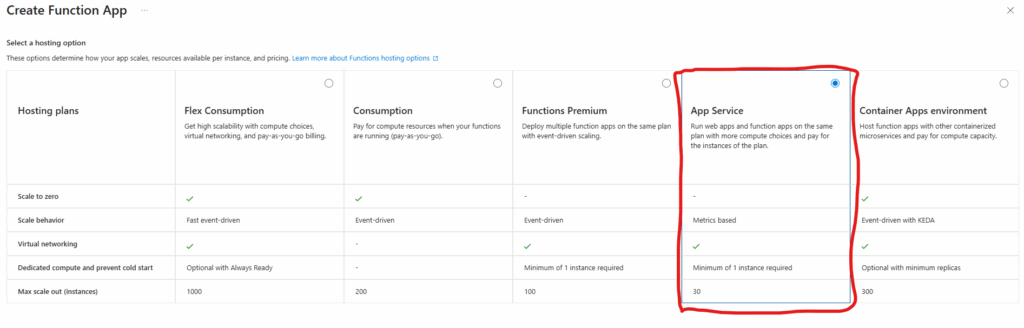
Function App Hosting PlanAllow Storage Account Key Access
Flex ConsumptionPossible to disable Storage Account Key Access
Consumption, Premium (Elastic Premium)Not Possible to disable Storage Account Key Access
Dedicated (aka App Service, Premium)Possible to disable Storage Account Key Access
Container Apps environmenttbc

References

Azure Key Vault Purge Protection

Azure key vault is something where you can store keys, secrets, certificates that you’d need to access services (e.g. call Graph API).

What if somebody malicious get access to key vault (that is not what we want but we should consider this as possible risk)? Surely leaked secrets is a serious issue (separate topic), but imagine if that somebody also deletes key vault content – if so, we will simply lose this data, which will break the functionality of the solution and our existing systems will stop working.

So enabling purge protection on key vaults is a critical security measure to prevent permanent data loss. This feature enforces a mandatory retention period for soft-deleted key vault contents (e.g. secrets), making them immune to purging during the retention period.

In a nutshell, you’d just select “Enable purge protection” under the key vault Settings/Properties (notice, that once enabled, this option cannot be disabled):

For details, please refer to the following articles:

References

Automating SharePoint operations with Azure Functions

There are many scenarios for SharePoint or Teams automations, and in most cases you need to run some code on scheduled basis (e.g. every 5 minutes or every 24 hours etc.). This is where timer-triggered Azure Functions might help. In this article I will provide use cases, overview of the whole scenario and technical setup, and provide links to the detailed step-by-step guides for configuring different parts of the entire solution.

Possible scenarios

Possible scenarios (end-user-oriented):

  • Create site upon user request
  • Convert site to a HUB site upon user request
  • Set site search scope upon user request
  • Setup site metadata (site custom properties)
  • Request usage reports/analytics

Possible scenarios (admin-oriented):

  • Provide temporary access to the site (e.g. during troubleshooting)
  • Provide Sites.Selected permissions for the App to the Site
  • Disable custom scripts or ensure custom scripts are disabled
  • Enable custom scripts (e.g. during site migration)
  • Monitor licenses – available, running out etc.

Typical setup

Front-end

SharePoint site works as a front-end. You do not need to develop a separate web application, as It’s already there, with reach functionality, secured and free.

The site can have:
– one or more lists to accept intake requests
– Power Apps to customize forms
– Power Automate to implement (e.g. approval) workflows, send notifications etc.
– site pages as a solution documentation
– libraries to store documents provided as response to requests

You can provide org-wide access to the site if your intention is to allow all users to submit requests or secure the site if you want to accept requests only from a specific limited group of people.

Back-end

Timer-triggered Azure Function works as a back-end. The function can be scheduled to run based on job specific requirements (e.g. every 5 or 10 minutes, or daily or weekly etc.). The function can be written in PowerShell, C#, Python etc.

The function’s logic is to

  • read SharePoint list, iterate through items to get intake requests
  • validate request eligibility
  • perform action
  • share results (e.g. update intake form, send e-mail, save document to library etc.)

Configuration

There should not be an issue to setup a front-end. You’d just need a solid SharePoint and Power Platform skills.

For the back-end the solution stack would include the following tools/skills:
– Azure subscription to host solution
– Registered Apps to configure credentials and API access permissions
– Azure Function App to actually run the code
– Azure Key Vault to securely save credentials
– programming skills in language/platform of choice
– SharePoint API, Microsoft Graph API

Please refer to the separate article Configuring Azure Function App and Key Vault to work with Microsoft 365 SharePoint via Graph API for the basic setup.

Secure

Having basic setup in place, we’d improve solution security. Specifically, we’d address the following:

References